Canvas Kanban Sync
approvedby naotobando
Kanban board on Canvas. Moving a card syncs its Status to the note's frontmatter, with automatic start/completion timestamps and an elapsed-days badge to catch tasks that stall. - This plugin has not been manually reviewed by Obsidian staff.
Canvas Kanban Sync
A Kanban board on Obsidian Canvas that quietly tracks when each task started and finished — so tasks stuck mid-flight don't stay invisible.
English | 日本語
What is this?
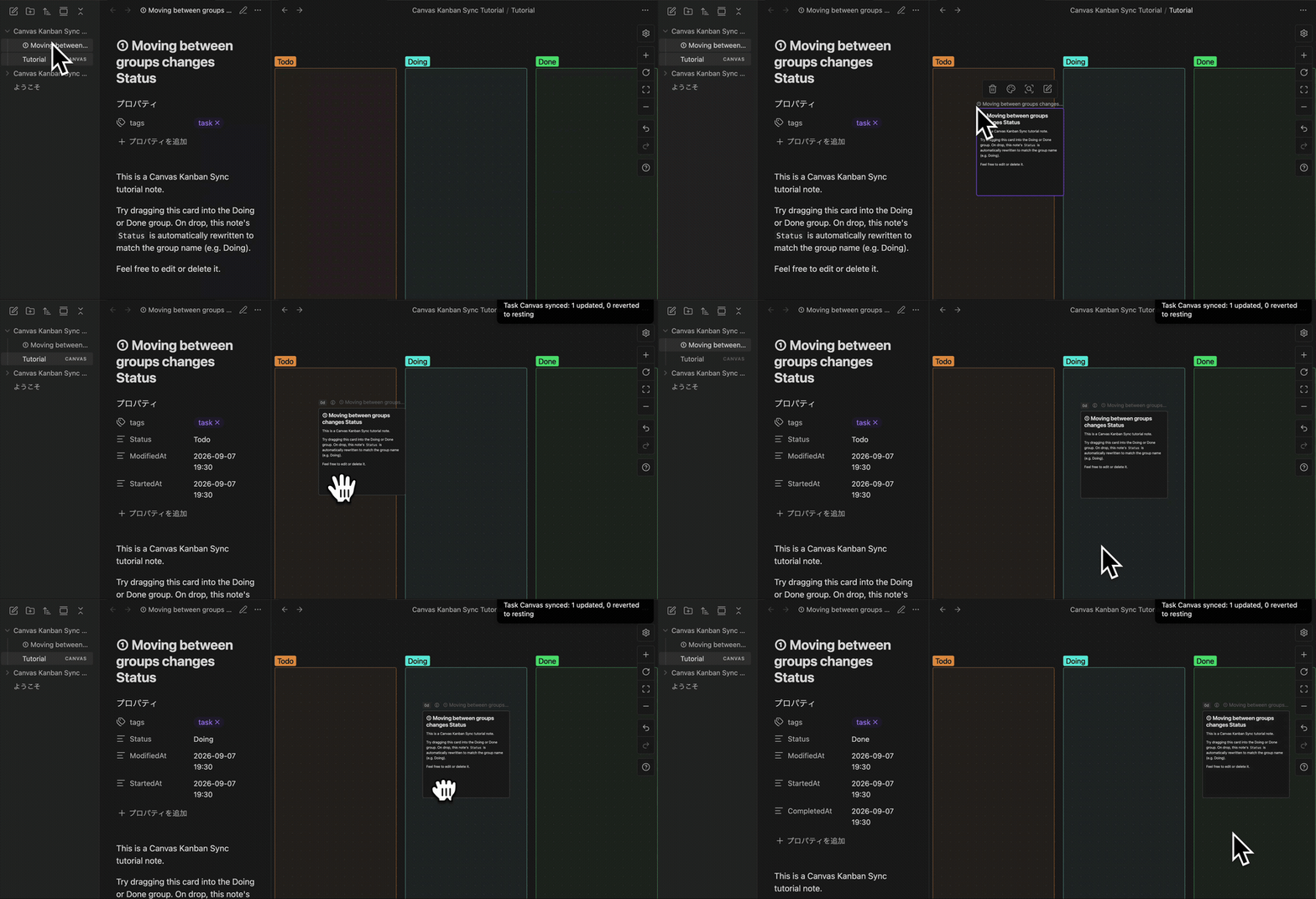
The wait between dropping the card and the Status property updating is shortened in this GIF for brevity — in practice it can take a bit longer.
The name of the group a card sits in (Todo / Doing / Done, or whatever you choose to call them) becomes that note's Status property. Just drag a card between groups, and the note's frontmatter is updated automatically.
Why I built this
I've relied on both Notion and FigJam for task management over the years.
- Notion: I managed tasks with an Agile mindset, logging start/completion dates to review progress. But it's database/list-shaped, so I couldn't freely spread my thinking out in two dimensions
- FigJam: I loved being able to place kanban cards freely across a 2D board. But with no tracking, tasks that got stuck mid-progress — started but never finished — would quietly disappear into the board
This plugin combines both. You get a free-form 2D Kanban board on Obsidian Canvas, and moving a card automatically records when each task started and finished. The elapsed-days badge exists specifically to surface tasks that have stalled since they started.
Prioritizing or managing tasks isn't this plugin's job. It's only responsible for one thing: capturing the data you need to notice what's stuck, with zero extra effort.
Letting AI run task management
The frontmatter this plugin writes (Status, and StartedAt as the elapsed-days badge's anchor) isn't just for humans to read — it's data meant for AI to read too.
I use Claude's scheduled-task feature to have it watch my task notes across the vault every day and generate a daily summary automatically — nudging me on tasks that have stalled, and even proposing priorities. That leaves me with exactly two jobs: adding tasks, and moving them once they're done.
That's why this plugin doesn't try to prioritize or manage tasks itself. That judgment is left to AI; the plugin's only job is to keep feeding it the material it needs — start dates, elapsed days, completion dates — captured automatically just by moving cards on the Canvas.
Features
- Moving a card between Canvas groups automatically updates the note's Status property
- Group names are entirely up to you (not limited to Todo/Doing/Done)
- Archive feature to clear completed cards off the Canvas (manual, or automatic on a chosen weekday — automatic is OFF by default)
- Elapsed-days badge on each card, counted from when work started
- Customizable tag for which notes get synced
- Customizable property names for each auto-updated field (Status/StartedAt/ ModifiedAt/CompletedAt). All but Status can be turned off
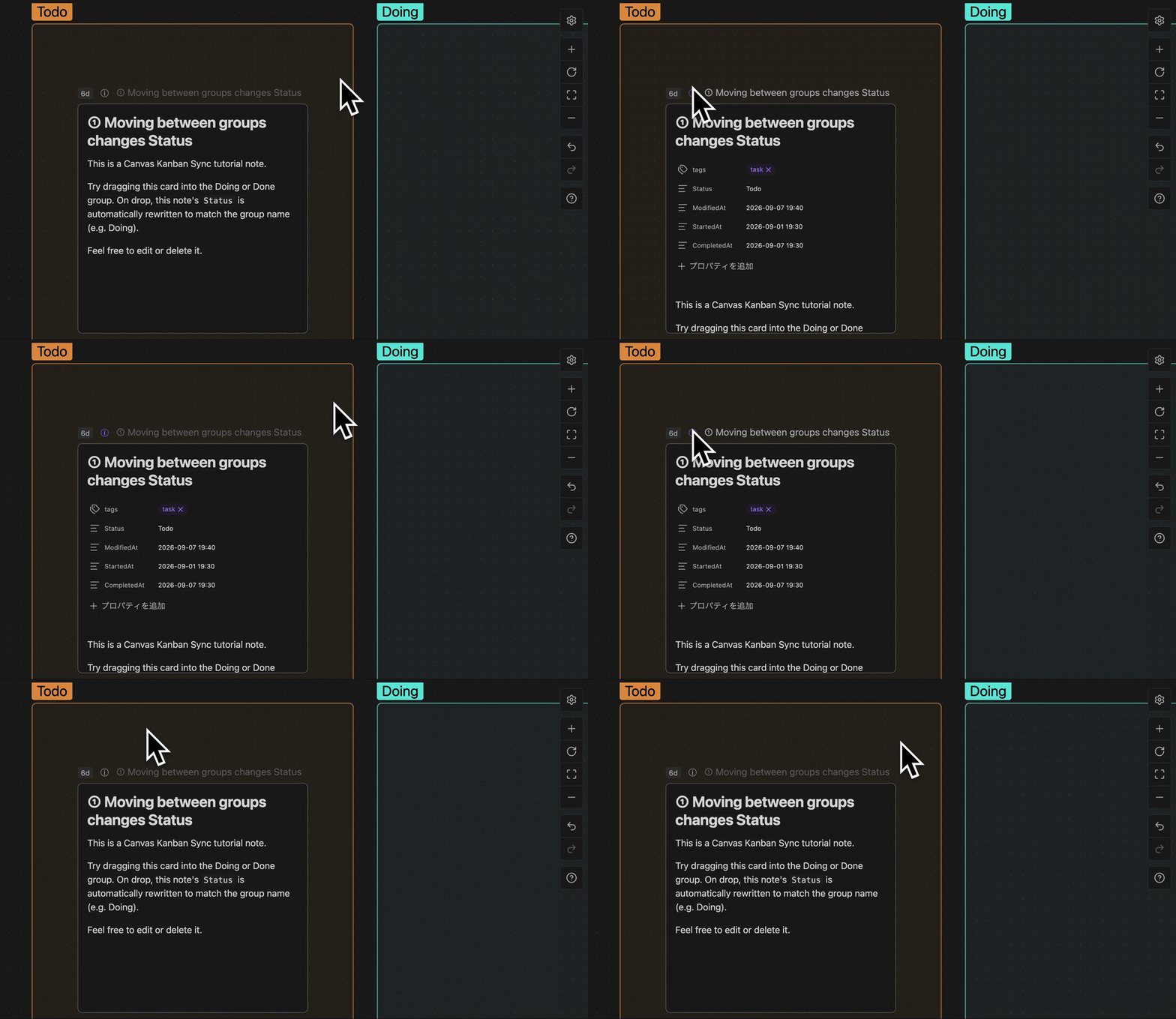
- Canvas card properties stay hidden by default — hover the ⓘ mark to reveal them temporarily (click to pin them open)
Installation
Install from Community Plugins.
- Settings → Community plugins → Browse
- Search for "Canvas Kanban Sync" and install
- Enable it
Start using it
Run Create task canvas from the command palette to generate a Canvas with empty Todo / Doing / Done groups at your chosen path (defaults to the vault root). From there, just tag your task notes and place their cards.
Try the tutorial
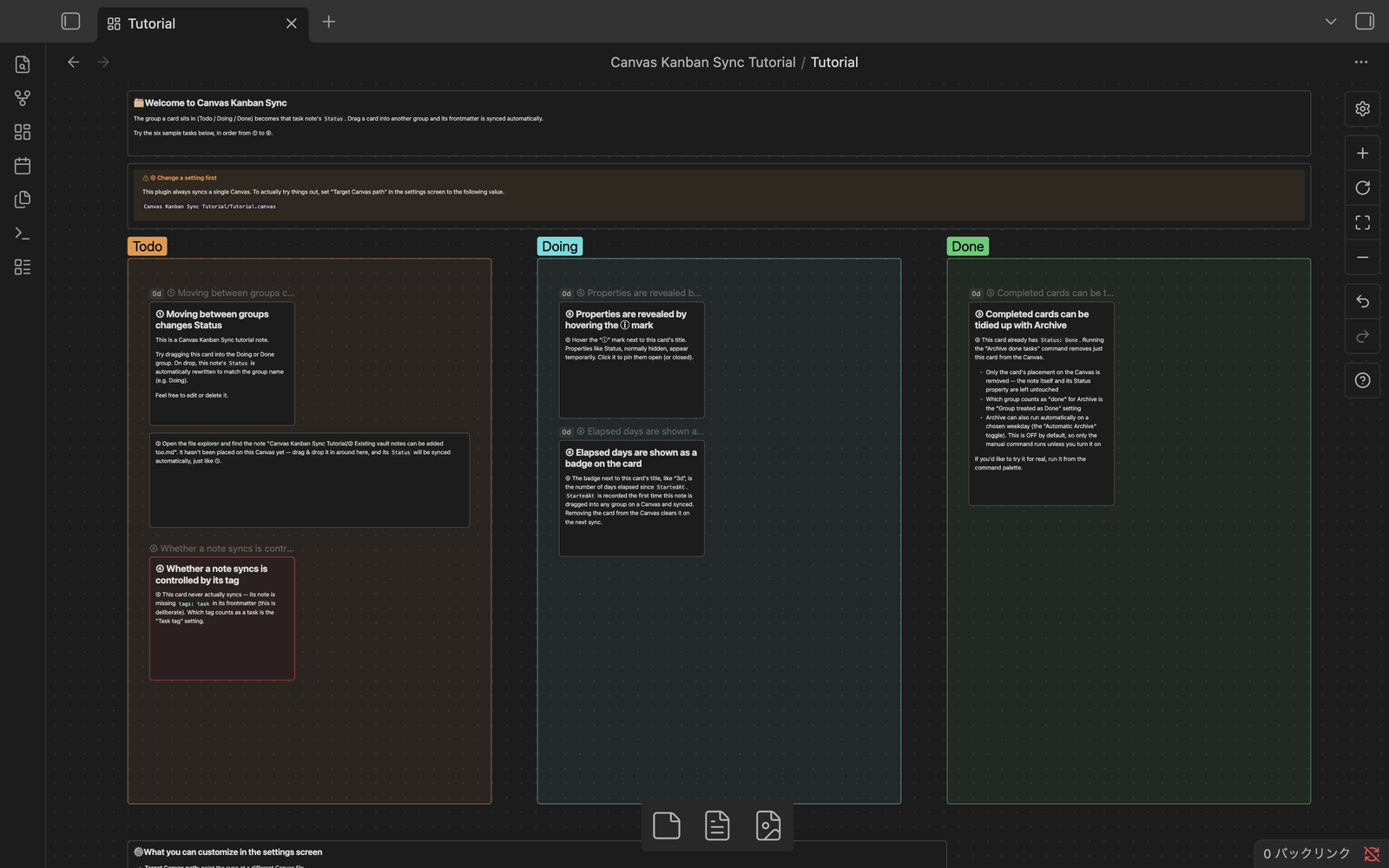
Before committing to your own vault, run Create tutorial canvas (English) from the command palette to walk through the main features hands-on.
- A
Canvas Kanban Sync Tutorialfolder is created at the vault root, containing the Canvas and 6 sample notes — nothing else is added to the root - Everything is self-contained inside the folder, so you can freely drag cards around and try the Archive command (it has no effect on your own production Canvas setup)
- When you're done, just delete the folder — no trace is left behind
How it works
Moving a task note's card between groups on the target Canvas updates its frontmatter like this (property names are configurable in settings):
---
tags:
  - task
Status: Doing
StartedAt: 2026-09-06 10:00
ModifiedAt: 2026-09-06 10:00
---
Status: which group the card is currently in — the group name, verbatimStartedAt: the time this task first left the resting state (Status unset) and was placed in a group. Starting point for the elapsed-days badgeModifiedAt: updated every time Status changesCompletedAt: the time the card entered the group treated as "done"
About Archive
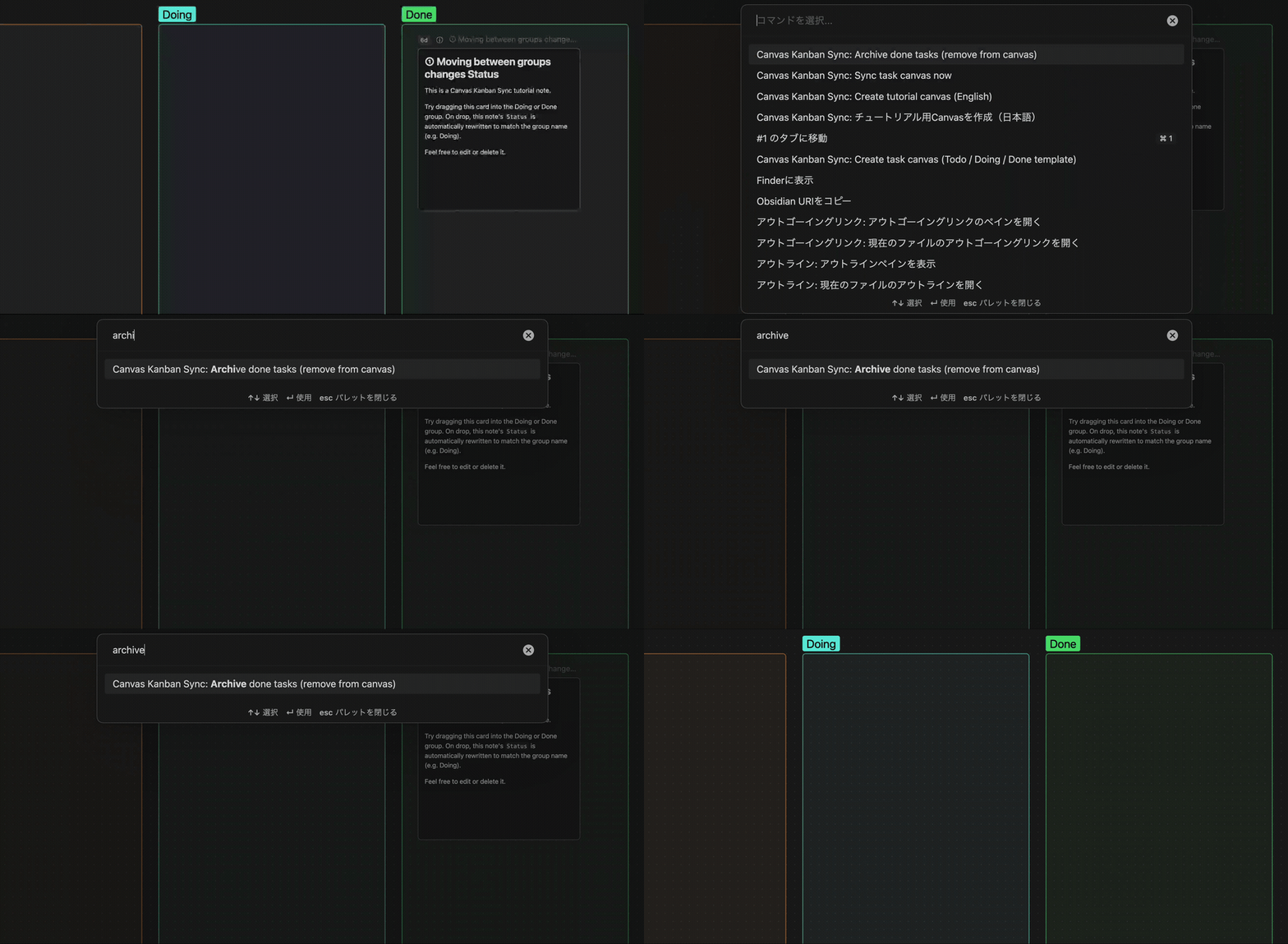
Clear completed task cards off the Canvas. Only their placement on the Canvas is removed — the note itself and its Status property are left untouched.
- Manual: run "Archive done tasks" from the command palette
- Automatic: choose a weekday in settings to run it automatically each week (OFF by default)
Settings
The settings screen lets you customize:
| Setting | What it does |
|---|---|
| Target Canvas path | Which Canvas file to sync |
| Task tag | Which tag marks a note as synced |
| Group treated as Done | Which group counts as "done" |
| Automatic Archive / Archive weekday | Enable/disable and schedule weekly Archive |
| Property used as Status / StartedAt / ModifiedAt / CompletedAt | Each property's name (all but Status can be left blank to turn it off) |
Notes
Toggling the properties display on Canvas cards relies on Obsidian's internal DOM structure. It may break after an Obsidian update.
License
MIT
Feedback
Please report bugs and feature requests via GitHub Issues.
For plugin developers
Search results and similarity scores are powered by semantic analysis of your plugin's README. If your plugin isn't appearing for searches you'd expect, try updating your README to clearly describe your plugin's purpose, features, and use cases.