Canvas Link to Group
approvedby tgrrrr
Create links to specific groups in Canvas and jump directly to them.
Canvas Link to Group
This plugin enables you to create links to specific groups within Canvases and jump to them in 1 click!
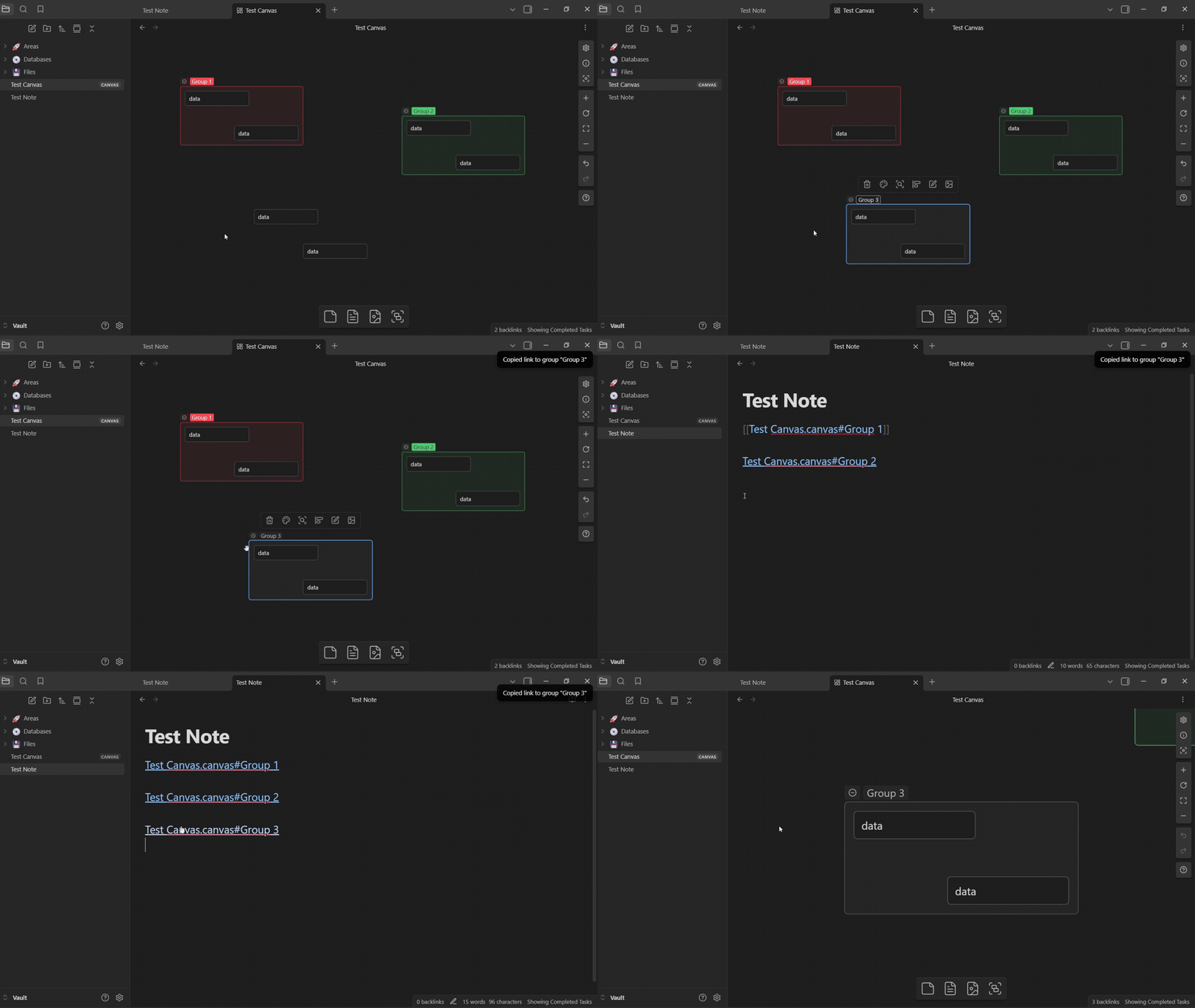
Features
Direct Linking to Groups
Jump directly to any group in a canvas from a link in your notes.
Intelligent Link Handling
The plugin provides flexible navigation options:
- Left-click a link to open the canvas in the current tab
Ctrl/Cmd + Click(or Middle-click) to open it in a new tab.
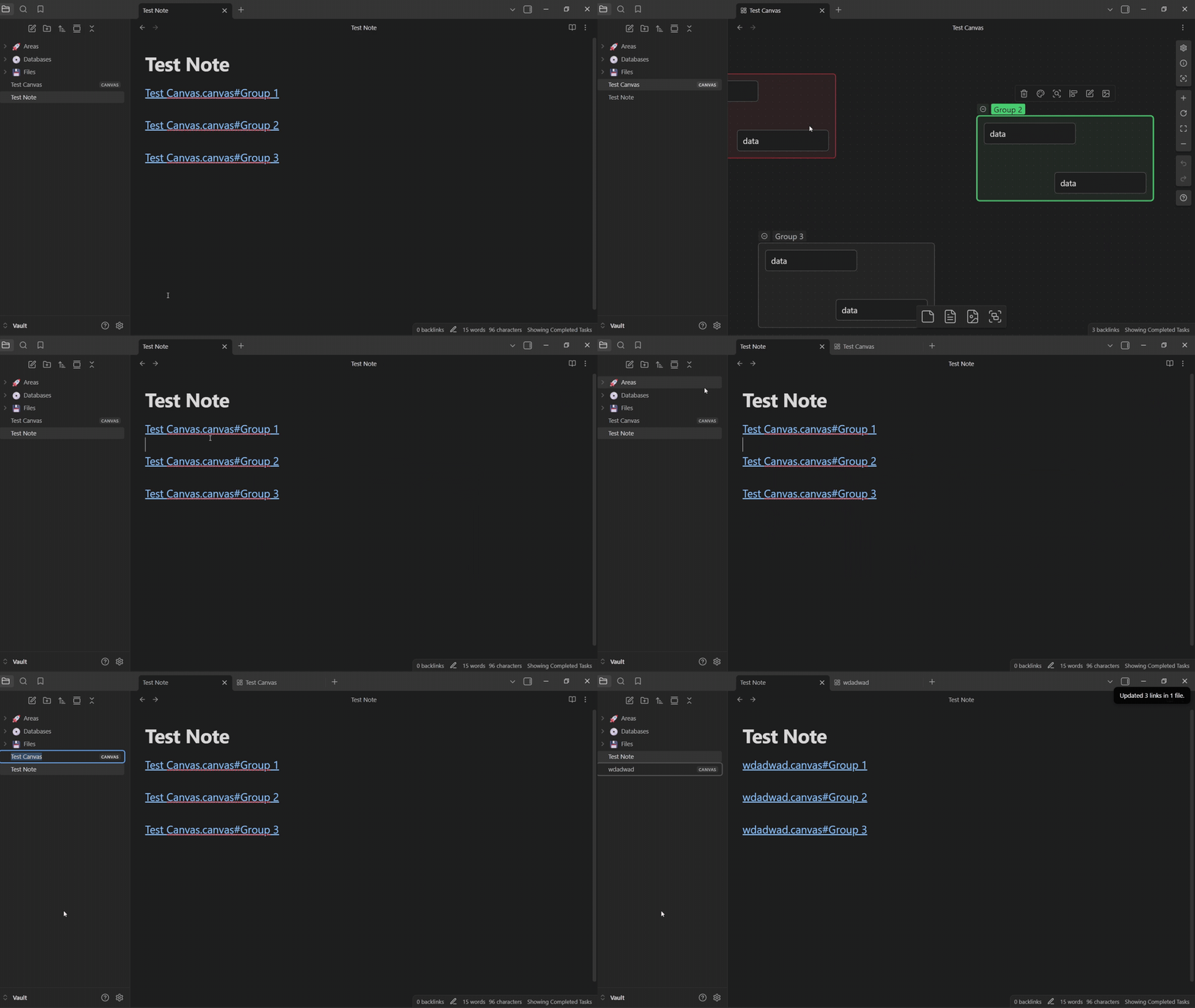
Easy Link Creation
Create links effortlessly with multiple methods:
- Context Menu: Right-click any group and select "Copy link to group."
- Command Palette: Select a single group and use the "Copy link to selected group" command.
- custom hotkey for keyboard-driven workflows (Empty by default, assign to your liking (
CTRL + SHIFT + Csuggested))
Notifications
The plugin provides helpful feedback to guide you:
- Notify if you try to copy a link without a group selected.
- Notify if you jump to a group name that is used multiple times in the same canvas.
How to Use
Creating a Link to a Group
There are two primary ways to create a link to a group:
1. Context Menu (Right-Click)
This is the most direct method.
- Open a canvas.
- Right-click on the group you want to link to.
- Select Copy link to group.
- Paste the link (e.g.,
[[MyCanvas.canvas#GroupName]]) into any note.
2. Command Palette
This method is ideal for keyboard-driven workflows.
- Open a canvas and select a single group.
- Open the command palette (
Ctrl/Cmd + P). - Search for "Copy link to selected group" and run the command.
- Paste the link into any note.
Pro Tip: For even faster access, assign a custom hotkey to this command (e.g.,
Ctrl/Cmd + Shift + C) in Obsidian'sSettings>Hotkeys.
Using the Link
Once you have a link in a note (e.g., [[MyProject.canvas#Design Phase]]), you can click on it:
- Left-click: Opens
MyProject.canvasin your current tab and jumps to the "Design Phase" group. Ctrl/Cmd + Clickor Middle-click: Opens the canvas in a new tab and jumps to the group.
Installation
Obsidian Community - Canvas Link to Group
Or just type in search Canvas Link to Group
Attribution
Based on the Obsidian Sample Plugin template
For plugin developers
Search results and similarity scores are powered by semantic analysis of your plugin's README. If your plugin isn't appearing for searches you'd expect, try updating your README to clearly describe your plugin's purpose, features, and use cases.