Canvas Loom
approvedby woxin667
Add functionality to the Canvas for merging, splitting, copying content, and adding markers. - This plugin has not been manually reviewed by Obsidian staff.
Canvas Loom
Canvas Loom supports English and Simplified Chinese, and automatically switches with the user's Obsidian language setting.
Simplified Chinese documentation is available in README-ZH.md.
Canvas Loom is an Obsidian Canvas plugin for splitting, sorting, merging, previewing, and cleaning up Canvas text cards.
It turns scattered Canvas text cards into a repeatable workflow: split long notes into cards, sort selected cards by position or number, preview the merged result, export it, and clean up the layout without leaving Canvas.
Language Support
The default language is Auto: Simplified Chinese is used when Obsidian is running in Chinese, and English is used for other Obsidian languages. You can also choose English or Simplified Chinese manually in the plugin settings.
Visual Tour
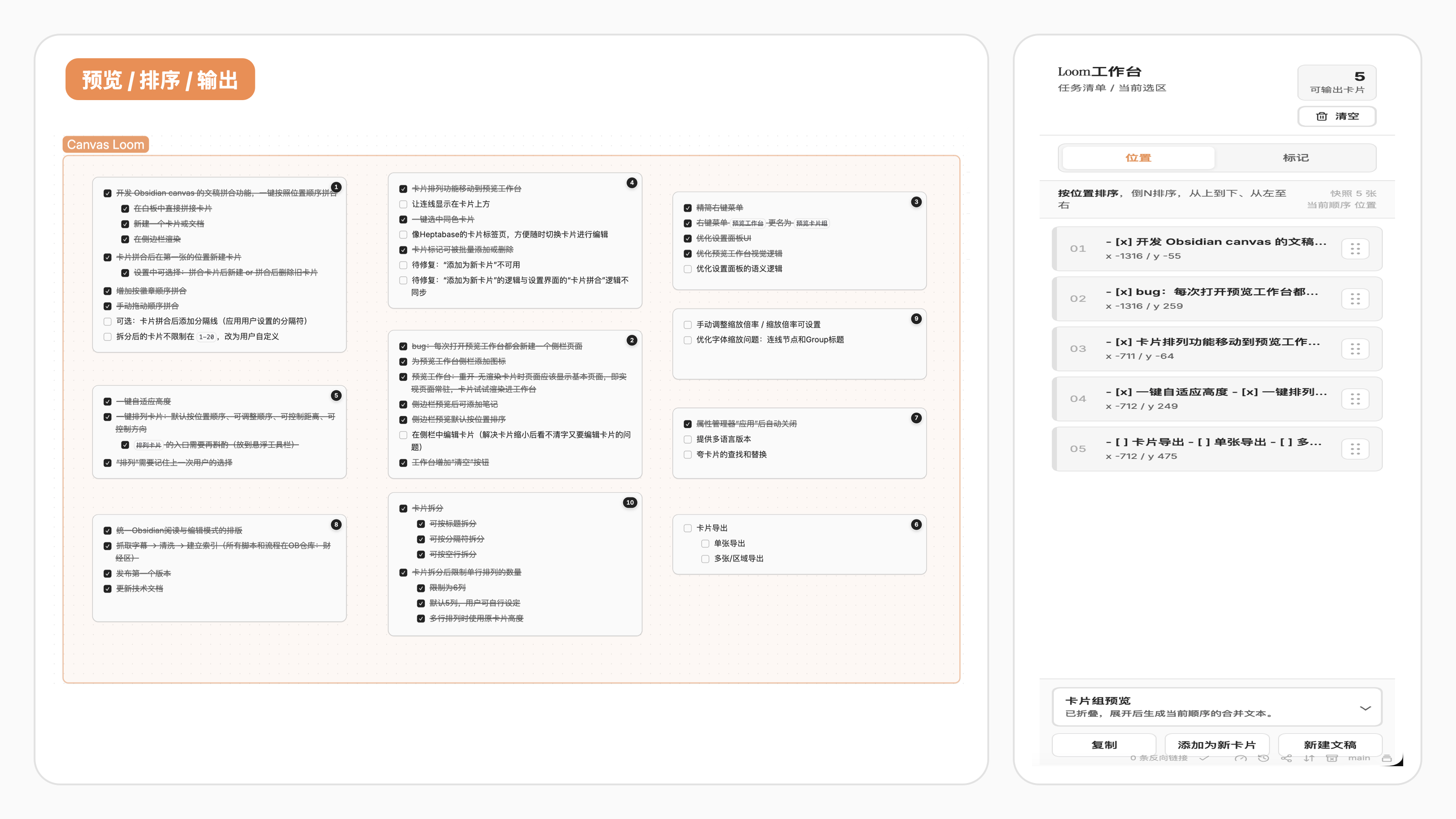
Canvas Loom is designed around a single loop: select Canvas cards, load them into the Loom workspace, adjust the order, preview the merged text, and export it back to Canvas, a Markdown note, or the clipboard.
Demo video: Preview workspace, copy, create note, create card
Core Workflows
Split Cards
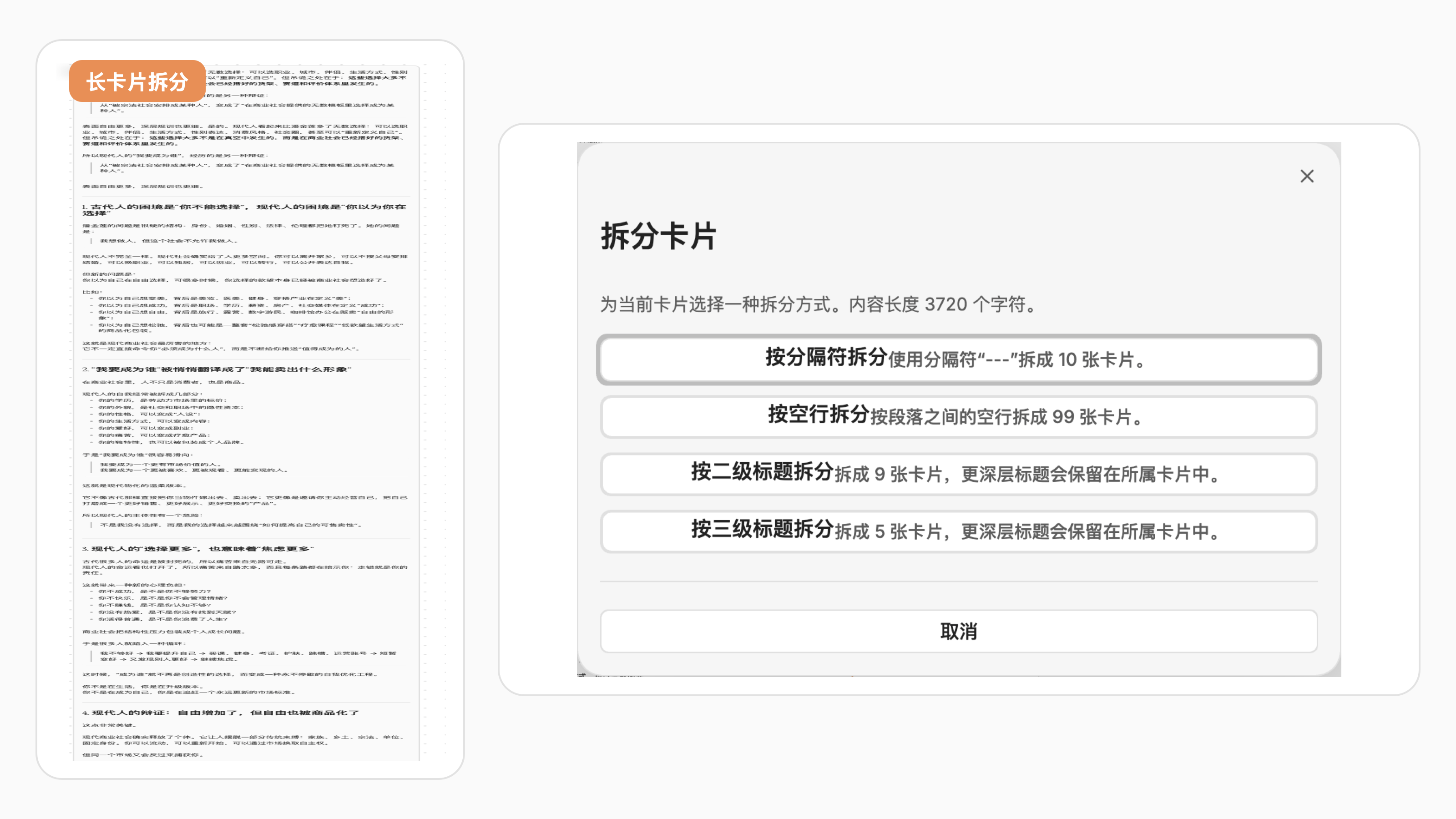
Split one long text card by a custom delimiter, blank lines, or Markdown heading level. Canvas Loom keeps the original card in place and creates the remaining content as new Canvas cards.
Demo video: Split cards by delimiter, blank lines, or headings
Merge Cards
Merge selected cards directly, or send them to the Loom workspace first — a three-panel sidebar (Preview, Sort, Find & Replace) where you can sort, preview, search, and export the final text.
Demo video: Merge selected Canvas cards
Sort by Position or Number
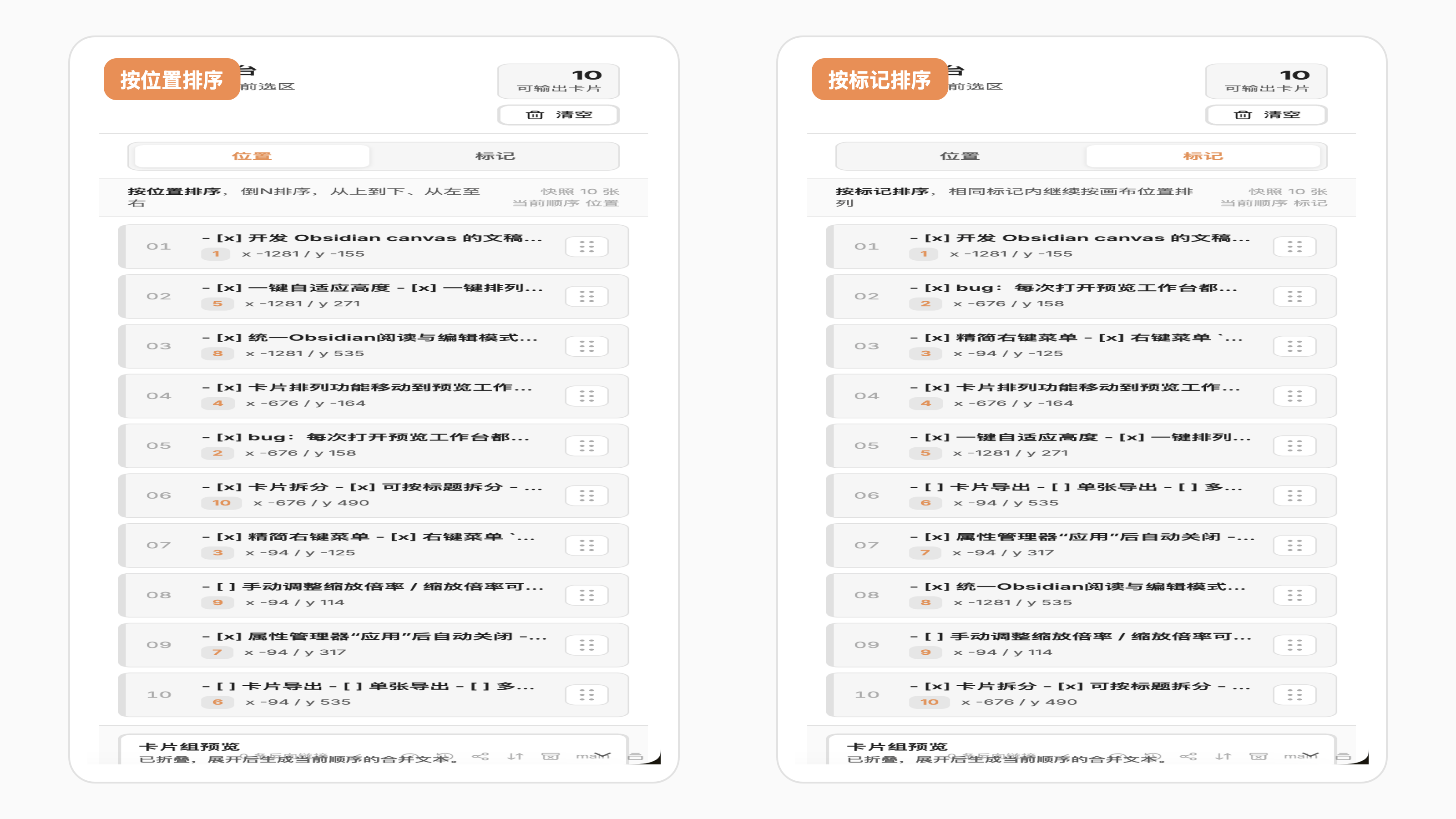
Position sorting follows the visual layout of the Canvas. Number sorting first reads a number from the card's first line, falls back to an independent numeric badge, and places cards without either at the end in Canvas position order.
Demo video: Compare position sorting and number sorting
Badge Cards
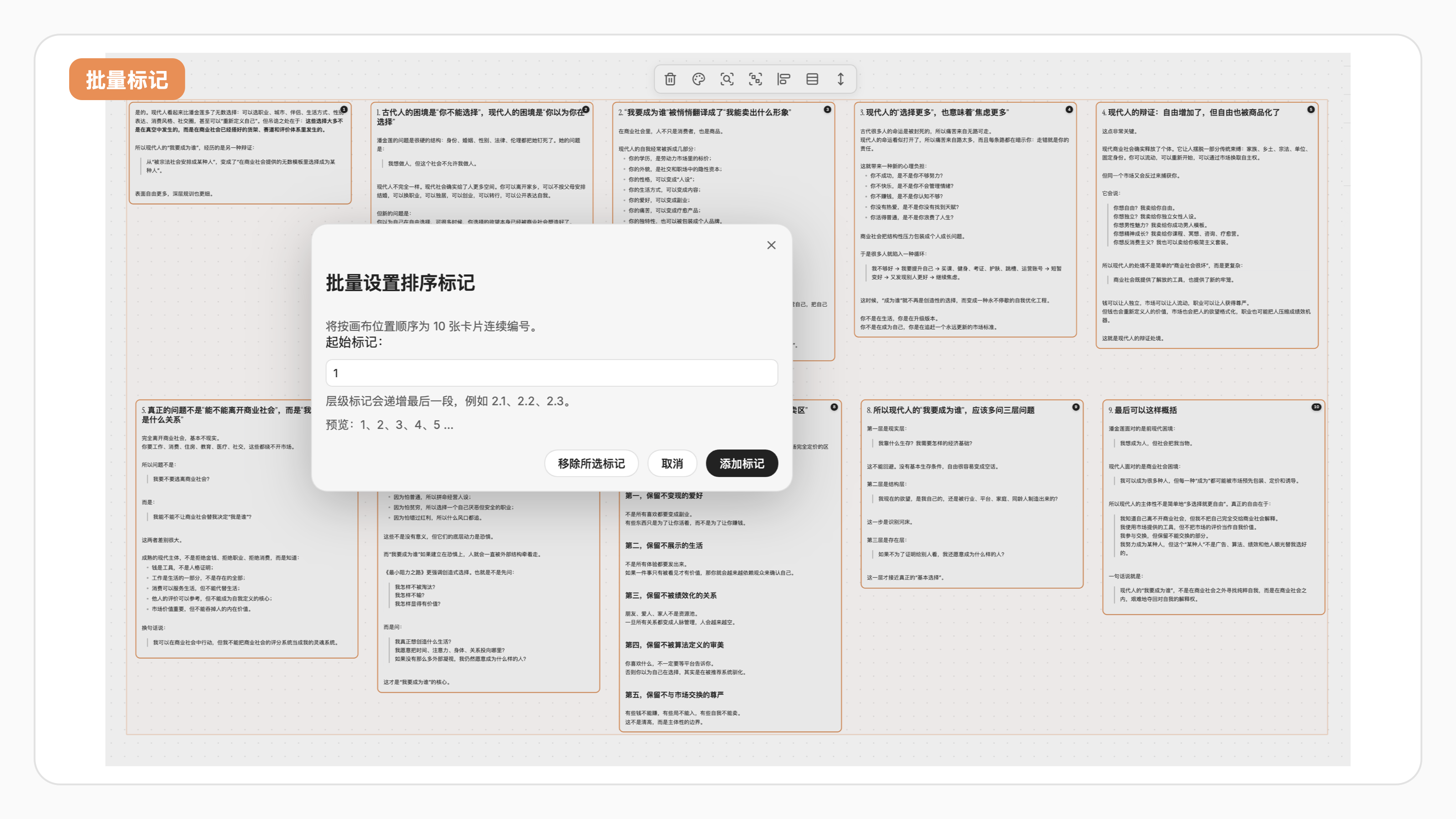
Add or edit numeric badges on one card. After selecting multiple text cards, use the badge button in the floating selection toolbar to batch-number them or remove existing badges. Mixed selections default to numbering only cards without badges. Badges remain independent from card content and act as a fallback source for number sorting.
Demo video: Add badges by position order
Clean Layout
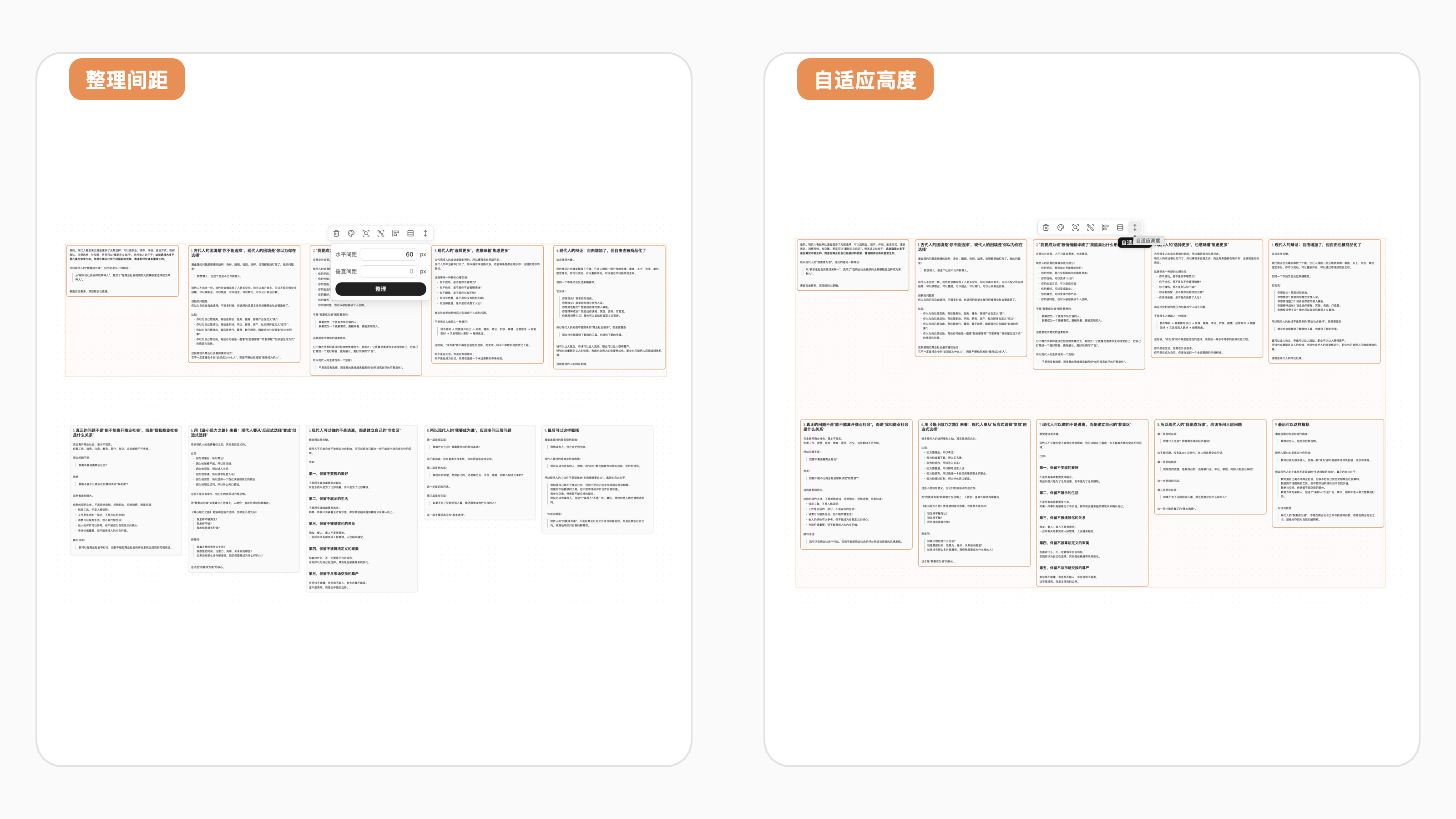
Resize cards to fit their text and arrange selected cards with cleaner horizontal or vertical spacing.
Demo video: Auto-fit card height and arrange spacing
Export Card Images
Right-click a single text card and choose Export card as image to export it as a PNG. In the Loom workspace Preview panel, Export image exports the current preview after you choose a folder in the current vault. Preview exports use the workspace's current card order, separator, and preview text rather than a screenshot of Canvas positions.
Find & Replace in Canvas
Search and replace text across all text cards on the current canvas or within a selection. Open the floating find-and-replace panel via the search button in the canvas top-right toolbar or assign a hotkey in Obsidian settings. For a side-by-side experience, open the Loom workspace and switch to the Find tab — results appear in a scrollable list with match previews, and you can jump to matched cards by selecting and locating them on the canvas. You can replace the current match, all matches in a card, or every match across the canvas. Supports case-sensitive and regex matching.
Feature Overview
Split card...Split one text card by a custom delimiter, blank lines, or Markdown heading level.Preview card groupLoad selected text cards into the Loom workspace. Switch between Preview, Sort, and Find & Replace tabs; change sorting; drag-adjust the current order; preview merged output; and export it.Find & Replace in CanvasSearch across all canvas text cards or within the current selection, with case-sensitive and regex matching. Navigate matches one by one, jump to matched cards by selecting and locating them, replace the current match, all matches in a card, or all matches across the canvas.Quick copy/Quick mergeProcess selected cards with the default sorting mode from settings.Export imageExport the current Loom workspace preview as a PNG from the Preview panel and choose the destination folder.Export card as imageExport a single text card as a PNG from its Canvas context menu and choose the destination folder.Add/Edit badgeAdd numeric outline-style badges such as1,2.1, or10.3.2.Number toolsBatch-number selected cards or remove existing badges from the floating selection toolbar.Manage card propertiesInspect one card or batch-adjust selected card dimensions, width, height, aspect ratio, and layout.Arrange spacing/Auto-fit heightClean up selected Canvas cards with toolbar actions.Select same color cardsSelect text cards with the same Canvas color and open them in the preview workflow.
Settings
Language: controls whether the plugin follows Obsidian automatically or uses English / Simplified Chinese explicitly.Canvas card delimiter: controls the delimiter used when splitting cards and can also be used as the merge separator.Insert separator when merging: inserts the current Canvas card delimiter between adjacent cards in multi-card output.Card sorting priority: controls whether position-based sorting prioritizes vertical or horizontal order.Quick action sorting mode: controls the default sorting mode for quick copy and quick merge.Enable badges: controls whether card badges are shown.Show edges above cards: places Canvas connections above regular cards while keeping selected or edited cards above connections.Canvas label readability compensation: controls how strongly edge labels and group titles resist Canvas zoom changes, with 100% keeping them near the default readable size.Show zoom control on canvas: shows a 10%-200% zoom control inside Canvas, with a slider, percentage input, and fine adjustment buttons.Merge cleanup mode: controls whether source cards are kept or deleted after creating a merged card.Canvas performance mode: reduces Canvas Loom's additional rendering cost on large canvases and switches badges to compact dots at low zoom.Performance diagnostics: logs Canvas Loom operation timing and Canvas statistics to the developer console.Large Canvas threshold/Badge refresh delay: controls batched badge rendering and when performance mode switches badges to compact dots.
Privacy
- No account required
- No paid service required for any feature
- No ads, telemetry, or uploaded user content
- No proactive network access
- Reads Canvas or Markdown content only when the user runs a command
- Creates or modifies files in the current vault only when the user explicitly exports, merges, or creates a note
- Writes generated text to the system clipboard only after the user explicitly runs a copy action
- Never reads the system clipboard or accesses content copied from outside Obsidian
Contact
For questions or feedback, contact: anitaoskar770@gmail.com
Installation
Install from GitHub Releases
- Open the repository Releases page.
- Download
main.js,manifest.json, andstyles.css. - Put the three files in
.obsidian/plugins/canvas-loom/. - Enable the plugin in Obsidian.
Build Locally
npm install
npm run build
Development
npm run dev: development buildnpm run build: production buildnpm run version: sync version metadata
Documentation
The documentation index is available at docs/README.md.
Suggested reading:
docs/功能-拆分Canvas卡片.mddocs/功能-卡片内容复制与排序.mddocs/功能-卡片标记.mddocs/功能-Canvas缩放控件.mddocs/功能-查看和编辑卡片属性.mddocs/功能-Canvas卡片查找替换.mddocs/功能-卡片图片导出.mddocs/技术实现细节.mddocs/技术实现-Obsidian官方上架与发布流程.md
Credits
Early development referenced joshuakto's open-source project obsidian-cardify.
For plugin developers
Search results and similarity scores are powered by semantic analysis of your plugin's README. If your plugin isn't appearing for searches you'd expect, try updating your README to clearly describe your plugin's purpose, features, and use cases.