CloudBeaver
approvedby DBeaver
Run SQL against a CloudBeaver server from a console tab or from code blocks in your notes. - This plugin has not been manually reviewed by Obsidian staff.
CloudBeaver for Obsidian
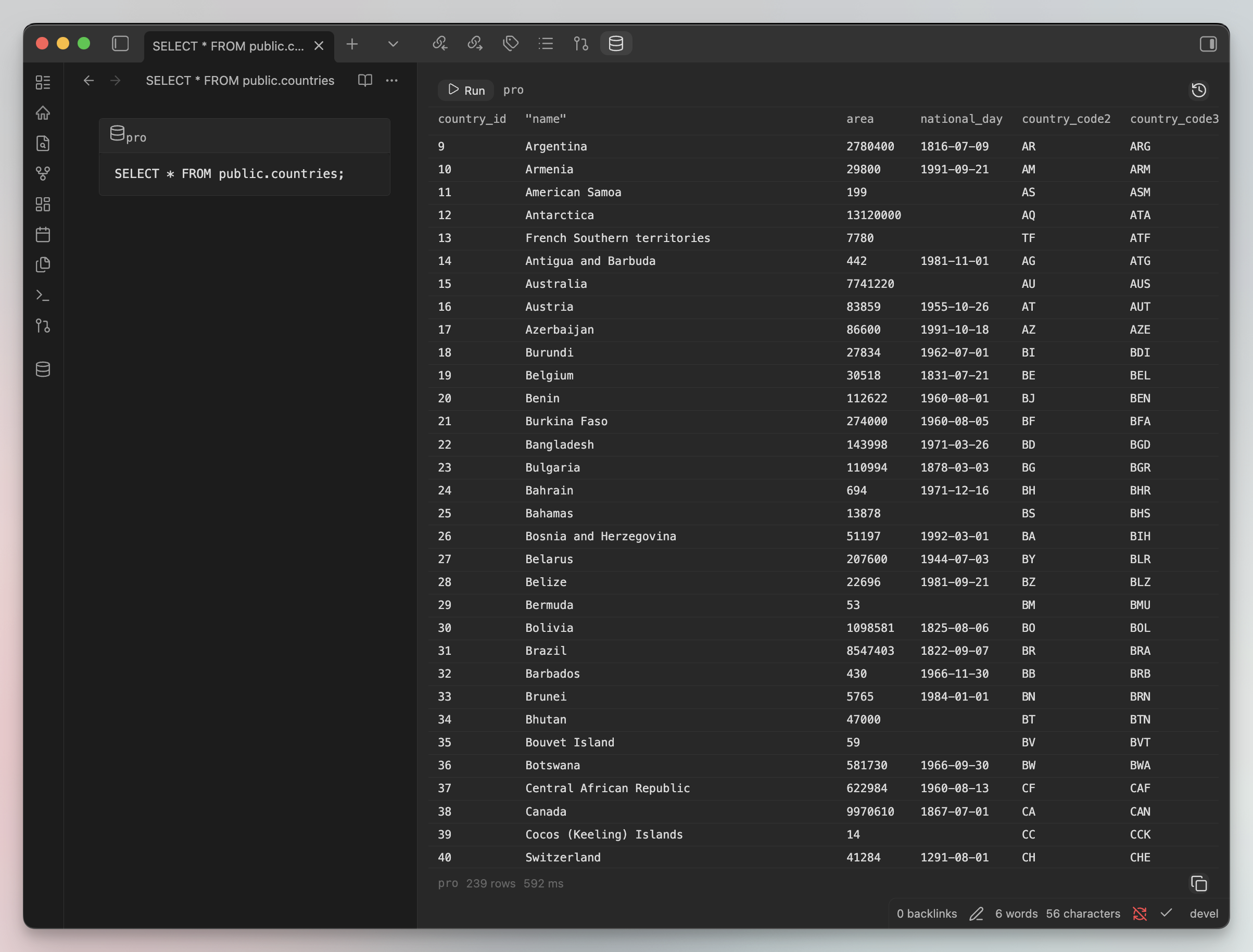
This is an Obsidian community plugin for CloudBeaver - a web-based database management tool. It lets you run SQL against any database connected to your CloudBeaver server directly from your vault.
Usage
After enabling the plugin, open the results panel from the ribbon icon (database symbol) or the Open CloudBeaver
command. Configure your server and connections once under Settings -> CloudBeaver, then write SQL in a
cloudbeaver code block anywhere in your notes:
```cloudbeaver prod
SELECT id, name, created_at
FROM users
WHERE active
```
prod is a connection alias you name in settings - leave it out to use your default connection. Place your cursor
inside the block and press Run in the panel, or Cmd/Ctrl+Enter.
Features
- Run SQL against any connection your CloudBeaver server has, from a results panel docked in the sidebar or a tab.
- Keep queries next to your notes as runnable
cloudbeavercode blocks, instead of copy-pasting them from elsewhere. - Read-only by default. A connection refuses anything that isn't
SELECT,WITH,SHOW,EXPLAIN, orDESCRIBEuntil you explicitly enable writes for it. - Point a connection at a specific database or schema, separate from its own default.
- Browse your last 50 queries and copy one back to the clipboard.
This plugin does not include a schema browser, autocomplete, result editing, or writing results back into your notes. It runs the SQL you give it and shows you the table - nothing more.
Settings
Configure the plugin under Settings -> CloudBeaver:
| Field | Description |
|---|---|
| Server URL | Base URL of your CloudBeaver server, e.g. https://cloudbeaver.example.com |
| Authentication | Username and password (all editions) or API token (CloudBeaver PRO only) |
| Username / Password | Local access credentials - the password is hashed before it's saved, never stored in plain text |
| API token | Token generated by an administrator in CloudBeaver PRO |
| Connections | Fetched from the server; each gets a short alias, a default-database override, and a writes toggle |
| Row limit [default: 200] | Hard cap on rows per query. Leave empty to request CloudBeaver's own maximum, 100,000 rows |
| Query timeout [default: 60s] | Seconds before a running query is treated as timed out |
Compatibility
Requires Obsidian 1.7.2 or later, desktop only. Designed for self-hosted CloudBeaver instances (Community or PRO).
Installation
- Open Settings -> Community plugins and select Browse.
- Search for CloudBeaver and select Install.
- Enable the plugin.
FAQ
Why doesn't Run do anything when my cursor is in Reading view?
Reading view has no text cursor at all, so there's nothing to detect a block from. Switch to Edit mode (or Live
Preview), click inside a cloudbeaver block, then press Run.
Where are my credentials stored?
In this plugin's data.json, inside your vault, unencrypted. See Where your data lives.
Can I run more than one statement per block?
No. One statement per block, no transactions, no ;-separated batches.
Protips
- Bind a hotkey to the Run SQL block at cursor command under Settings -> Hotkeys so you never need the mouse.
- The copy icon in a result's status line copies the whole table as a Markdown table - paste it straight into a note.
- Enable Allow writes on a connection only when you mean to run
INSERT/UPDATE/DELETEthere - it asks for a one-time confirmation and stays off by default for a reason.
Getting started (local testing)
-
Start CloudBeaver:
docker run -d -p 8978:8978 dbeaver/cloudbeaver:latestOr follow the full installation guide.
-
Configure authentication - follow the Local Access Authentication guide. Create a user (login/password) or use the admin credentials.
-
Create a database connection - follow the Create Connection guide.
-
In Obsidian:
- Open Settings -> CloudBeaver, enter the server URL and credentials
- Click Test connection, then Fetch from server and give the connection an alias
- Add a
cloudbeavercode block to a note and run it from the results panel
Resources
Author
Developed by Vladimir Ivanov at DBeaver.
License
For plugin developers
Search results and similarity scores are powered by semantic analysis of your plugin's README. If your plugin isn't appearing for searches you'd expect, try updating your README to clearly describe your plugin's purpose, features, and use cases.