Colorful Highlights
approvedby Moy
Colorize highlights with emoji prefixes to create a colorful highlighted-text effect. - This plugin has not been manually reviewed by Obsidian staff.
Colorful Highlights





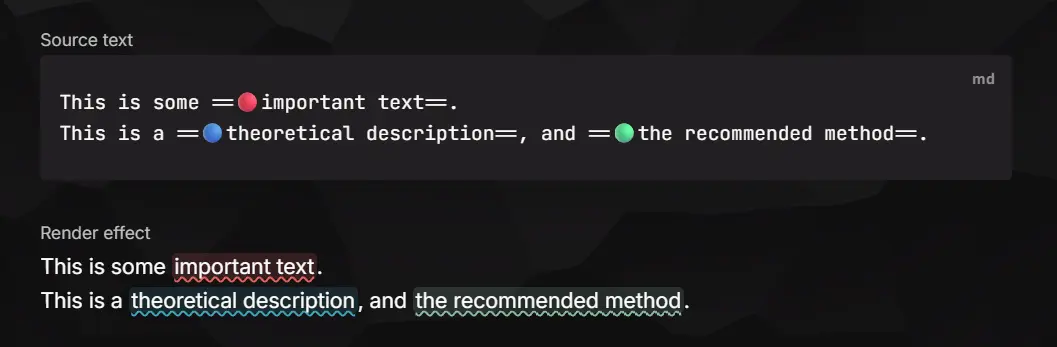
Want colored highlights in Obsidian? Colorize ==highlights== with emoji prefixes. Text like ==🔴important content== is rendered as a red highlight — the emoji is hidden by default and shown while editing.
Features
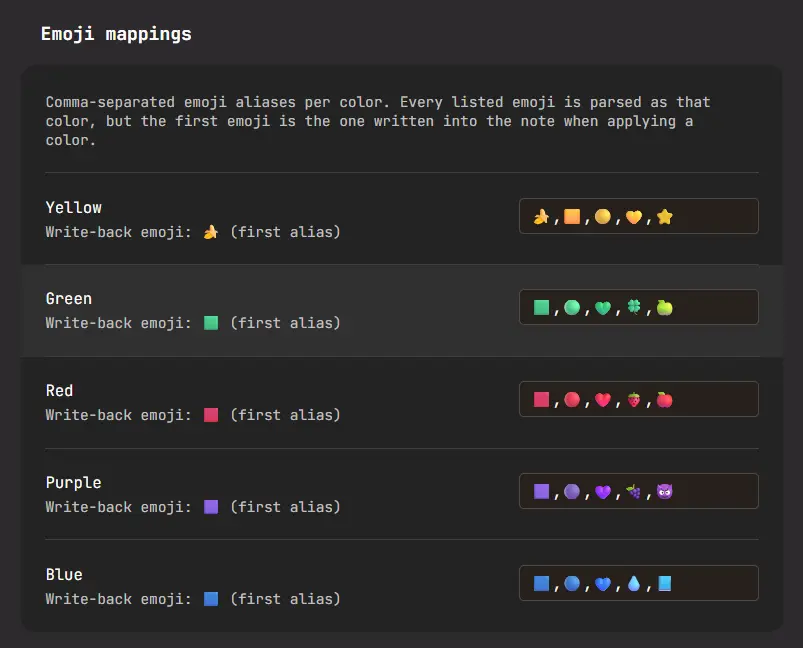
- Custom emoji prefixes — map any emoji to 5 color slots (yellow / green / red / purple / blue), expandable to 10 (orange / cyan / magenta / gray / Black (Spoiler)) via the extended-colors toggle in settings. Each color can be shown or hidden independently. For example,
🍎can represent red and🍌can represent yellow. The first emoji in each slot is used when writing highlights. - Live Preview & Source mode — Live Preview shows only the colored highlight style; the emoji appears when the cursor enters the highlight. Source mode can optionally keep the emoji visible.
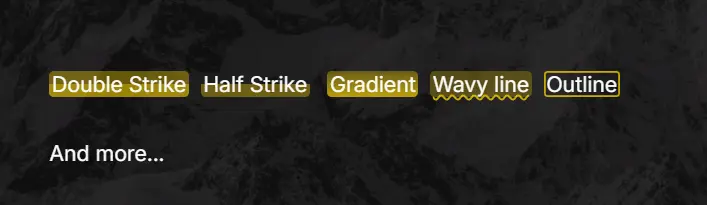
- Highlight styles — default, half-strike, double-strike, underline, wavy line, underline only, wavy line only, rounded, outline, and gradient.
- Default highlight color — plain
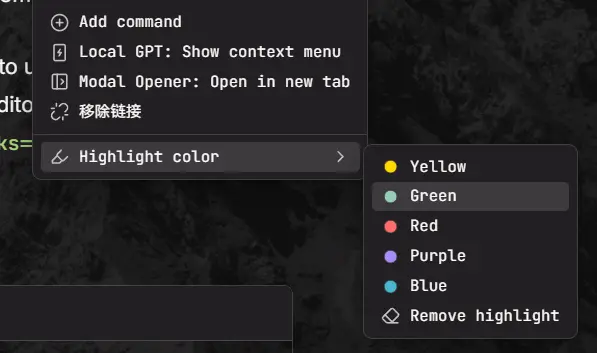
==text==without an emoji can map to a color slot; switching to that color does not add an emoji prefix. - Commands & context menu — toggle highlights, highlight with a specific color, or remove highlights. Select text (or an existing highlight) and right-click to access the color actions.
Usage
- Select text and run Highlight with red (or any color) from the command palette — the selection becomes
==🔴text==. - Run another color command to switch colors; run Toggle highlight to remove the highlight.
- Right-click selected text to find the same color actions in the editor menu.
- Or type the syntax manually:
==🔵any emoji prefix works==.
Example:
This is some ==🔴important text==.
This is a ==🔵theoretical description==, and ==🟢the correct way to handle it==.
Styles
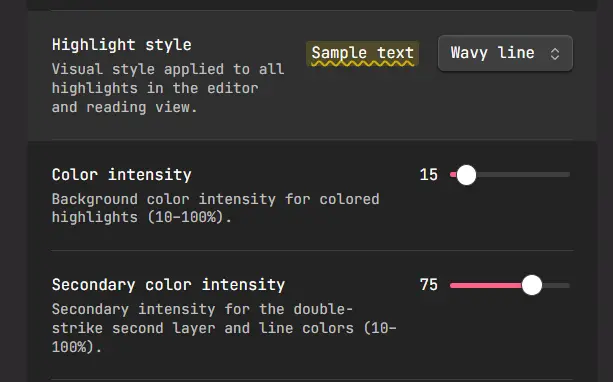
Choose a highlight style in Settings:
Example results:
Settings
| Setting | Description |
|---|---|
| Enable colorful highlights | Master switch for parsing and decoration. |
| Highlight style | Default / half-strike / double-strike / underline / wavy line / underline only / wavy line only / rounded / outline / gradient. |
| Default highlight color | Color for plain ==text==; switching to it removes the emoji prefix. |
| Color intensity | Background color mix percentage (10–100%). |
| Secondary color intensity | Second layer of double-strike and line colors (10–100%). |
| Color rendering | Plugin styles paint the background directly; theme native only overrides --text-highlight-bg and lets your theme paint highlights. |
| Decorate in editor / Reading view | Toggle each surface independently. |
| Extended colors | Reveal five extra color slots (orange / cyan / magenta / gray / Black (Spoiler)) in commands, menus, and settings. Use the toggle beside each color to keep only the colors you prefer. Off by default. |
| Colors | Choose a hex color for each regular slot; Black (Spoiler) uses a fixed text-colored cover. The toggle beside each color controls whether it appears in mappings, commands, menus, and rendering. |
| Emoji mappings | Map multiple different emojis to a specific color. You do not need to use every emoji; all of them can represent the corresponding color, but usually only the first one is needed for write-back. |
| Custom color names | Custom display names for the colors. Give them meaning for a color-coding system that fits your workflow. This affects the editor menu and commands; leave blank to use the color name. Off by default. |
Compatibility
- Works on desktop and mobile (
isDesktopOnly: false). - Requires Obsidian 1.13.0+.
- Uses only local parsing and rendering — no network requests, no data leaves your vault.
Credits
The emoji-highlight mechanism was originally built as PR #114 for Sidebar Highlights. This plugin extracts that feature into a standalone package. If you also use Sidebar Highlights, the two plugins coexist: this one renders colors in the editor and Reading view, while the sidebar plugin manages highlights and comments.
The ==🔴red== syntax was inspired by the Octarine project.
Star History
License
MIT
For plugin developers
Search results and similarity scores are powered by semantic analysis of your plugin's README. If your plugin isn't appearing for searches you'd expect, try updating your README to clearly describe your plugin's purpose, features, and use cases.