Hilo
approvedby san
Multi-color highlights using Obsidian's native ==text== syntax. - This plugin has not been manually reviewed by Obsidian staff.
English · 한국어
Hilo — Native Multi-color Highlights for Obsidian
A multi-color highlight plugin that doesn't break inline markdown. Powered by Obsidian's native
==text==syntax.
Hilo blends Highlight + Lowlight, and means "thread" in Spanish — reflecting the plugin's philosophy of weaving color into your notes without breaking markdown's natural flow.
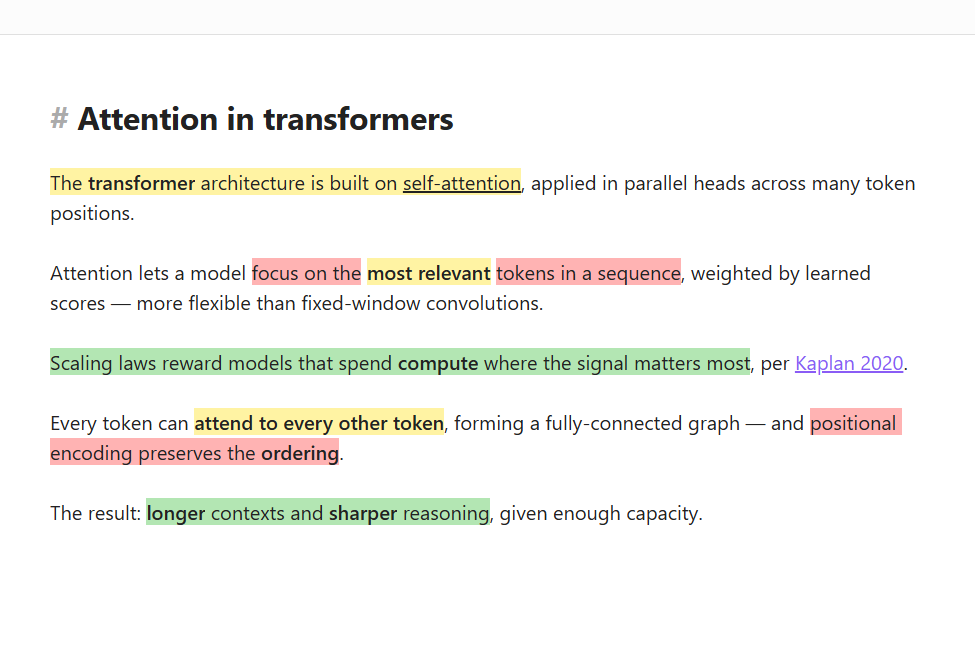
▶ Watch the 39-second demo on YouTube
Why Hilo
<mark> HTML-based highlight plugins lose inline markdown inside the mark because Obsidian doesn't parse the contents — so **bold**, [[wikilinks]], and *italics* render as raw text. Hilo sidesteps this by adding only a color token ({slug}) to Obsidian's already-recognized ==text== syntax.
| Hilo | <mark>-based plugins | |
|---|---|---|
=={red}**bold text**== | ✅ renders correctly | ❌ ** shows as literal |
=={blue}[[wikilink]]== | ✅ link works | ❌ link not recognized |
| Note portability | ✅ slug (yellow) only — hex lives in settings | ❌ hex baked into the note |
| Export compatibility | ✅ ==text== is a CommonMark extension | △ <mark> is also standard, but tokens leak |
| Bundle size | ✅ ~8 KB | ❌ tens to hundreds of KB |
Features
Multi-color highlights (=={color}text==)
- Slug-based color reference. The markdown source stores only the semantic name; hex values live in plugin settings.
- Inline markdown (
**bold**,[[wikilinks]],*italics*) works correctly inside a highlight.
Consistent rendering across views
- Source mode / Live Preview / Reading view all render highlights identically.
- In Live Preview the
{color}token is hidden automatically; placing the cursor on the token reveals it for editing. - Prefer seeing the raw token while editing? Settings → Hilo → Show color token in Source mode keeps
{color}always visible in Source mode (off by default; Live Preview is unaffected).
Right-click context menu
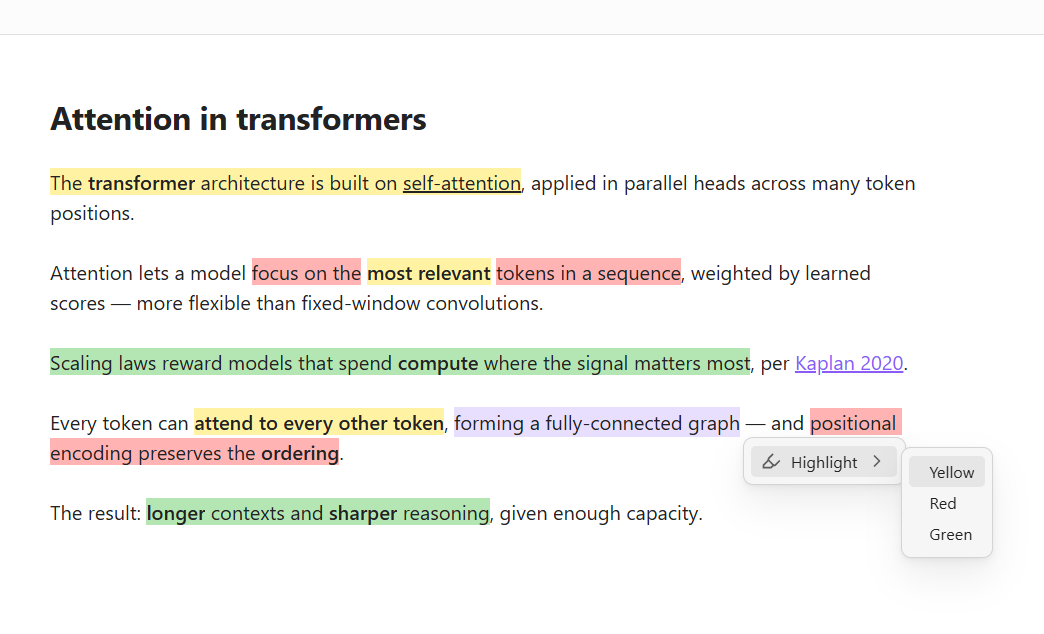
- Highlight → pick a color: wraps the selection
- Change color → swap to another color
- Unhighlight: removes the marker and token
Keyboard commands
- Per-color wrap commands (e.g.
Hilo: Yellow,Hilo: Red) Hilo: Open color palette— opens the context-aware menu at the caretHilo: Unhighlight
Assign hotkeys in Settings → Hotkeys. Each color row in Settings → Hilo also shows the currently assigned hotkey, and the keyboard button (⌨) jumps straight to the Hotkeys page.
Color customization
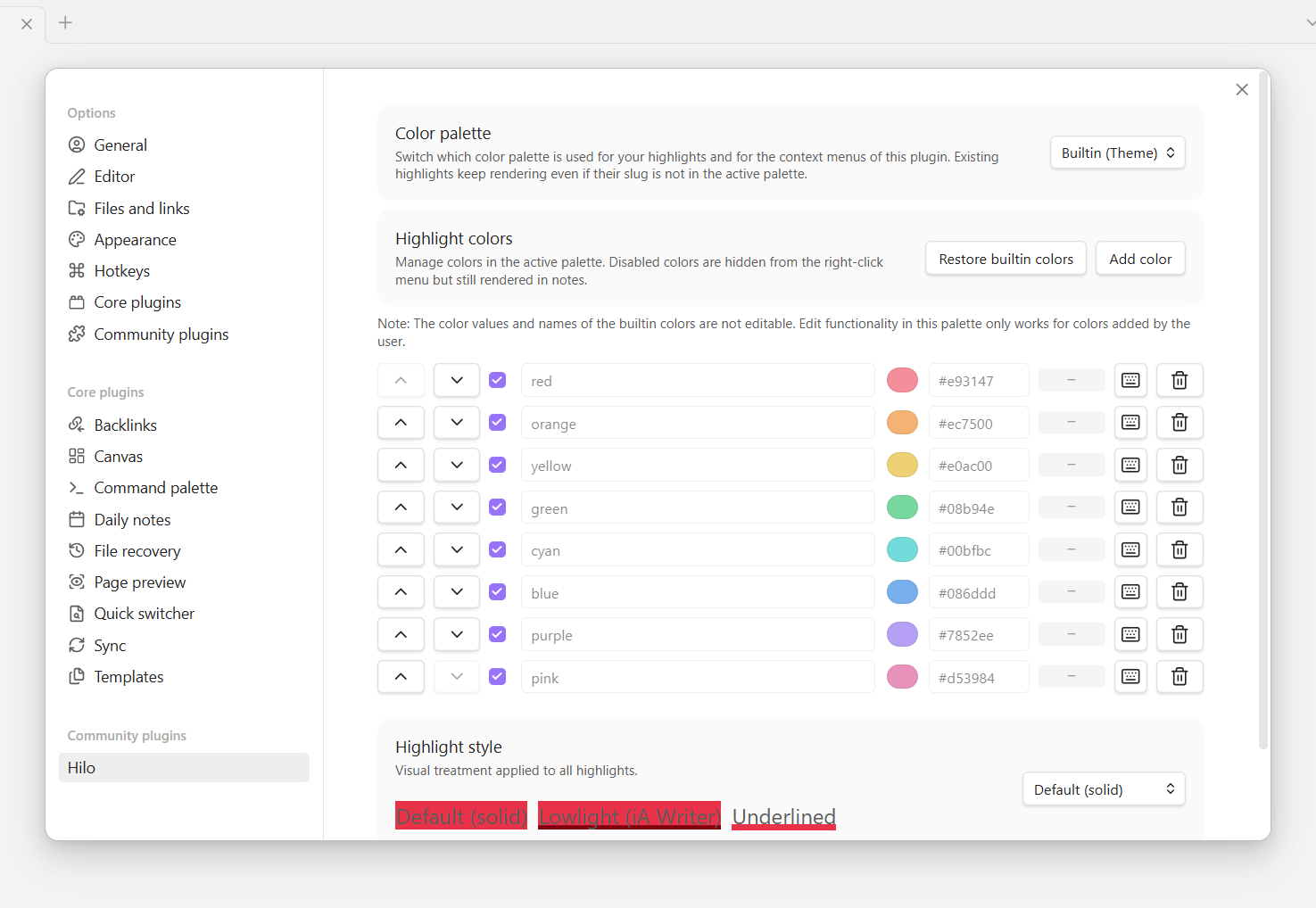
- Color palette dropdown — switch between two catalogs of colors:
- Builtin (Theme) — 8 colors tied to Obsidian's theme (
--color-redthrough--color-pink). Change themes and highlights follow. Rows are locked (theme owns the values); you can still add your own custom colors on top. - Custom — starts with 3 pastels (yellow / red / green); fully editable.
- Builtin (Theme) — 8 colors tied to Obsidian's theme (
- Both palettes coexist. Highlights written under one palette still render if you switch to another — the plugin merges color maps and lets the active palette win on slug conflicts.
- Per-color row — enable/disable, reorder with arrows, edit slug + hex, assign a hotkey (⌨ jumps to Obsidian's Hotkeys page), or delete.
- Disabled colors are hidden from menus but existing highlights keep rendering.
Auto improve readability (toggle, on by default). Compensates highlight background brightness at render time so colors stay readable on both light and dark themes: overly bright colors are darkened on dark themes, overly dark colors are brightened on light themes. Hue and saturation are preserved and the stored palette hex values are never modified. Underlined style bypasses compensation so the thin band stays visible. Toggle off to render every color exactly as stored.
Visual styles
Three ways to render highlights, switchable under Settings → Hilo → Highlight style:
-
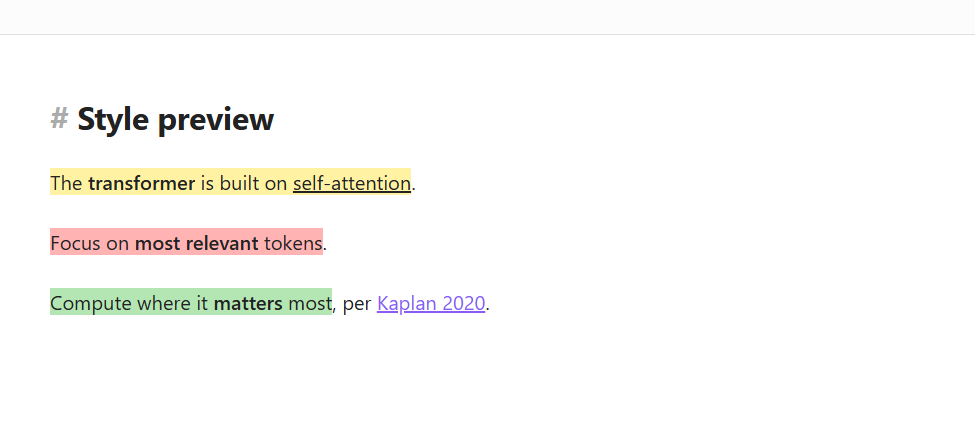
Default (solid) — the color fills the whole text region, like a classic highlighter marker.
-
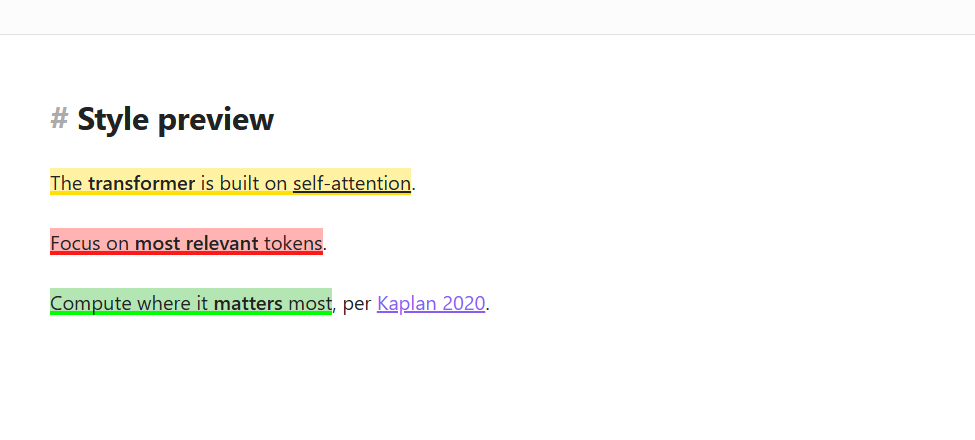
Lowlight (iA Writer) — subtle background with a darker underline; the underline color is auto-computed from each background via HSL (hue preserved, saturation 100%, lightness −30pp).
-
Underlined — a thin band of color at the bottom of the text, no fill. Works cleanly on both light and dark themes.
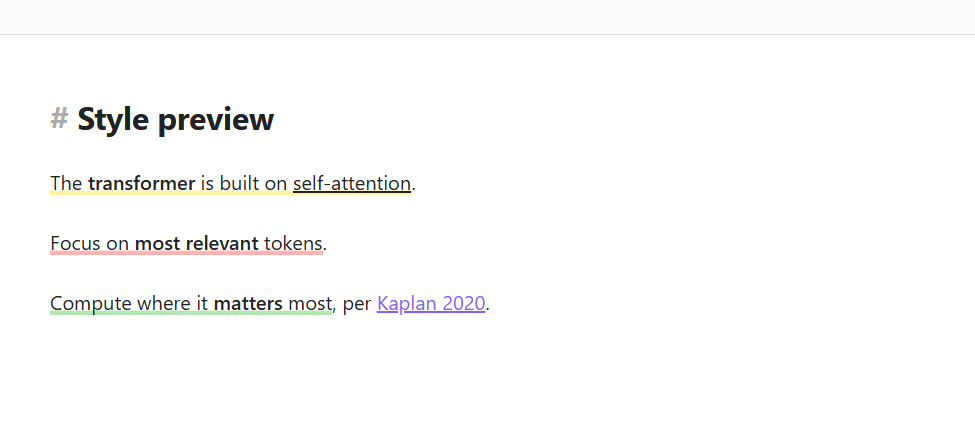
Both Lowlight and Underlined use box-shadow for the color band instead of text-decoration, so they aren't overridden by Chromium's spellcheck.
Highlightr migration
- The context menu also works on existing
<mark style="...">text</mark>highlights. - Change color rewrites them to
=={slug}text==. - Unhighlight strips the mark tag.
- No bulk conversion required — migrate progressively as you touch each note.
Installation
Obsidian Community Plugins
- Settings → Community plugins → Browse
- Search for "Hilo" → Install → Enable
Manual install
- Download the latest release from the Releases page
- Copy
main.js,manifest.json, andstyles.cssinto your vault's.obsidian/plugins/hilo/folder - Enable Hilo under Settings → Community plugins
Usage
Basic highlight
- Select text
- Right-click → Highlight → pick a color
- Or use a per-color hotkey
The selection becomes =={color}text== and the color renders immediately.
Change color
- Place the cursor inside an existing highlight
- Right-click → Change color → pick a new color
Remove highlight
- Place the cursor inside the highlight
- Right-click → Unhighlight (or use the hotkey)
Add a color
- Settings → Hilo
- Pick a palette (Builtin accepts additions on top of the 8 theme colors; Custom is fully editable)
- Click Add color
- Enter a slug (e.g.
pink) and a hex value (e.g.#ffc0cb) - The new color is available in every view immediately.
Migrating from Highlightr
Place the cursor on an existing <mark> highlight and right-click — the same menu appears. Use Change color to convert it to the Hilo token format, or Unhighlight to remove it.
Token format
Hilo's output format is the single inline form =={color}content==.
- The color slug is lowercase alphanumeric plus hyphens (e.g.
yellow,red,1st,2nd,soft-blue). - The slug may start with a letter or a digit.
- If the slug isn't in your settings catalog, the highlight falls back to Obsidian's native
==text==yellow — no broken rendering, just an untinted visible highlight.
Exporting outside Obsidian: external markdown renderers may show the
{color}token as literal text. If you publish to such renderers, strip tokens before export (automatic stripping is a future option).
Visual styles
Default (solid background)
The configured background color fills the entire highlight area.
Lowlight (iA Writer style)
- Subtle background tint plus a per-color darker underline
- Readable while still clearly differentiated by color
- Underline color is recomputed automatically whenever you add or edit a color
Set under Settings → Hilo → Highlight style.
Localization
Hilo automatically picks up Obsidian's interface language.
- Supported languages: English (default), Korean (한국어)
- Detection: Obsidian's
localStoragelanguagekey - Unsupported languages fall back to English
Reloading after a language change
After changing the language under Settings → About → Language, toggle the plugin off and on (Settings → Community plugins → Hilo) so the command palette names (e.g. Hilo: Open color palette) pick up the new language. Obsidian freezes command names at registration time. The settings UI, right-click menu, and modals update without a reload.
Contributing a translation
To add a language, copy src/i18n/locales/en.ts as a new locale file under src/i18n/locales/, translate the values, and register the new entry in src/i18n/index.ts's dictionary map.
Compatibility
- Obsidian 1.5.0 or newer
- Desktop + mobile (mobile is in beta — feedback welcome)
- All Obsidian view modes (Source / Live Preview / Reading)
- Light and dark themes
Intentionally out of scope
The following features are deliberately omitted to keep Hilo focused. They may be revisited based on user feedback:
- Annotations / notes attached to highlights
- Sidebar list of highlights (NotesTab)
- Drag-to-reorder colors
Credits
Hilo's right-click menu structure, settings UI flow, and visual style catalog are inspired by Chetachi's Highlightr and Highlightr+. They pioneered multi-color highlighting in Obsidian; Hilo borrows their patterns while swapping the output format for native ==text==.
Built with
Hilo was scaffolded with Scaff — a lightweight, markdown-based AI development harness. Every iteration (phase-by-phase build, marketplace review, demo assets) was tracked as plain-file CONTEXT.md / GOAL.md / ROADMAP.md, without any CLI, hooks, or MCP.
License
For plugin developers
Search results and similarity scores are powered by semantic analysis of your plugin's README. If your plugin isn't appearing for searches you'd expect, try updating your README to clearly describe your plugin's purpose, features, and use cases.