by Soulbits
Mark the active Copilot Agent chat and quietly attach the marker meaning to the next message.
Chat Marker for Copilot
A small desktop companion plugin for Obsidian Copilot Agent.
Maintained by SoulBits Vibe.
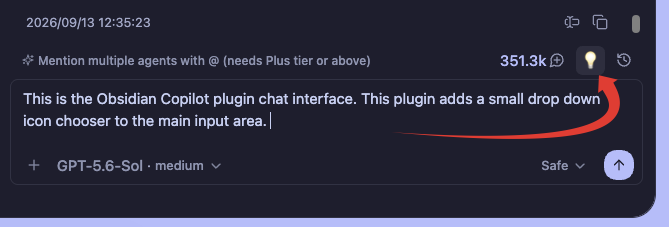
It adds a marker chooser beside Copilot's Chat History button. Choosing a marker:
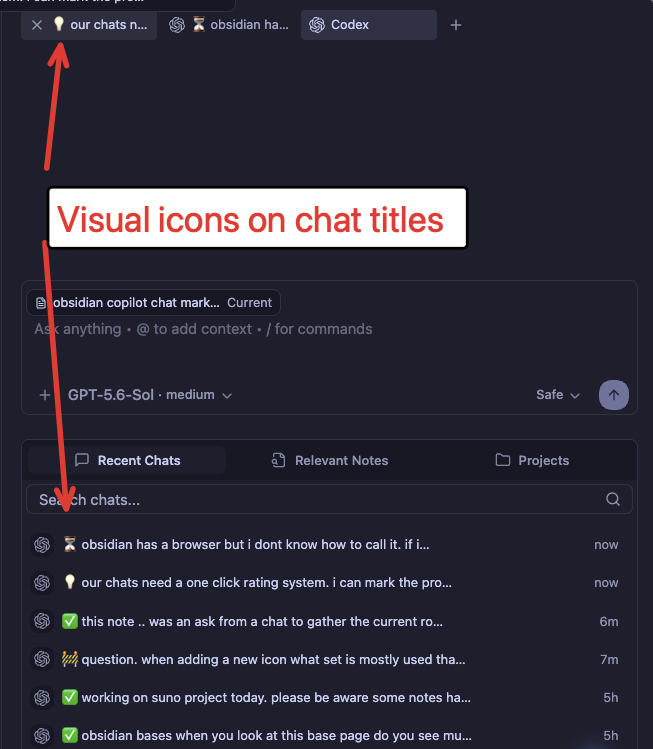
- prefixes the active chat title with its icon;
- keeps the marked title visible in Copilot Chat History; and
- quietly adds the marker meaning to the next message sent to the agent.
The visible user message and saved Markdown transcript are not modified by the hidden instruction.
It also upgrades Copilot's existing Search chats... field on the Recent Chats screen. The same field searches the conversations that belong in that list by title and full message text, then reopens the selected conversation in Copilot. It does not use Obsidian's search index or Miyo.
Screenshots
Marker chooser
The marker chooser sits beside Copilot's Chat History button.
Marked chat titles
Markers remain visible in open tabs and Copilot's Recent Chats list.
Default markers
- ⭐ Important
- ❓ Question
- 💡 Idea
- 🚧 In progress
- ⏳ Waiting
- 👀 Review
- ✅ Done
Customize markers
Markers can be added, renamed, re-iconed, reordered, or removed under Settings → Chat Marker for Copilot. Their agent instructions are editable.
Marker icons are standard Unicode emoji because they also appear in chat
titles. The ✨ shown on a new marker is only a placeholder.
- macOS: press
Control–Command–Spaceto open the emoji picker. - Windows: press
Windows key + .(period) to open the emoji panel. - Linux: use the emoji picker provided by the desktop environment or paste an emoji into the field.
Obsidian uses Lucide icons for interface controls, but Lucide icon names do not work in the marker field.
Compatibility and safety
This plugin does not modify Copilot's installed files. It uses Copilot v4's live Agent session manager. If that internal interface changes, the plugin stops title/context integration, leaves chats untouched, and reports the compatibility problem in its settings. A ribbon button remains available when Copilot's toolbar markup changes.
Marker state is stored in this plugin's own data.json, keyed to the Copilot
backend session. Removing or disabling this plugin does not delete chats.
Installation
Download the release files from Releases, then copy main.js, manifest.json, and styles.css into:
<vault>/.obsidian/plugins/copilot-chat-marker/
Then enable Chat Marker for Copilot under Community plugins.
Release files
main.jsmanifest.jsonstyles.css
Current limitation
Copilot does not expose this integration as a public API. The companion checks the functions it needs and fails safely, but a future Copilot update may need a small compatibility adjustment.
For plugin developers
Search results and similarity scores are powered by semantic analysis of your plugin's README. If your plugin isn't appearing for searches you'd expect, try updating your README to clearly describe your plugin's purpose, features, and use cases.