Create Task
approvedby simonknittel
Create tasks faster from anywhere.
Create Task
Create tasks faster from anywhere.
Features & Why • Install • Usage


Features & Why
Create Task was made to improve the creation of tasks in Obsidian. It won't handle the task management after the creation since there are already many other plugins like CardBoard and Tasks.
The main feature of this plugin is a modal which guides you through the individual steps of creating a task. You can open this modal in many different ways (see Usage for more details).
- You can configure multiple target notes. Other plugins usually save all tasks in a single note. For my use case I want to store the tasks in different notes depending on the project I'm working on.
- You can configure a tag which will get appended to the created tasks. This is helpful when using the CardBoard plugin since their columns are tag-based.
- You can create tasks with a due date and use natural language for defining these. You can also configure the output format since other plugins use different formats for handling dates.
Install
Official plugin browser
https://obsidian.md/plugins?id=create-task
Manual
- Download the latest release
- Extract the
.zipfile - Move the extracted directory into your vault's plugin directory (
.obsidian/plugins/) - Restart Obsidian
- Enable the plugin
Usage
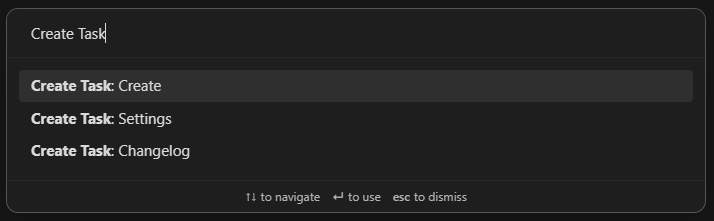
Command palette
You can use Obsidian's command palette to open the modal or this plugin's settings.
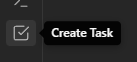
Ribbon menu
You can open the modal by clicking this plugin's icon in Obsidian's ribbon menu.
URL scheme / Obsidian URI
This plugin supports the URL scheme/Obsidian URI standard.
Using this url (obsidian://create-task) will automatically start Obsidian and open the modal.
You can use parameters to prefill parts of the modal:
- This prefills the Target note input:
note-path=Unsorted%20TODOs.md - This prefills the Task description input:
task-description=Do%20stuff - This prefills the Task details input:
task-details=More%20info - This prefills the Due date input:
due-date=tomorrow - This will skip the modal and immediately create the task in the specified note:
create=true
Examples
Here are some examples of where you could use the url:
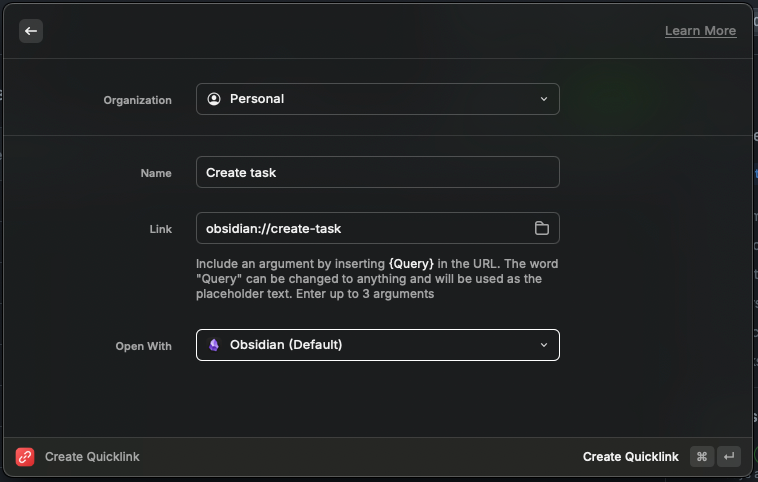
Raycast
- Open Raycast
- Search for
Create Quicklink - Fill out the form
- Name: Create task
- Link:
obsidian://create-task - Open With:
Obsidian
- Save the Quicklink
- Now you can open Raycast and search for
Create taskin order to start Obsidian and open the modal.
Windows Start Menu/Search
- Create a Windows Shortcut in
C:\Users\<your-username>\AppData\Roaming\Microsoft\Windows\Start Menu\Programs - For
Type the location of the itemuse the url:obsidian://create-task - For
Type the name of the itemuse:Create task - Save the shortcut
- Now you can use the Windows Search and search for
Create task. You can also pin this shortcut to the Start Menu.
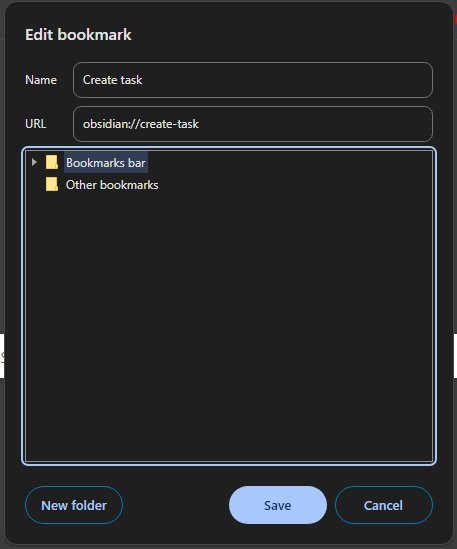
Google Chrome Bookmark
- Create a bookmark by right-clicking the bookmarks bar and choosing
Add page... - For
Nameuse:Create task - For
URLuse the url:obsidian://create-task
Android
You can use Automate to create a homescreen shortcut which opens the create modal.
- Install Automate
- Create a new Flow in Automate
- Attach an App start block to the Flow beginning block
- Configure the App start block
- Package:
md.obsidian - Activity class:
md.obsidian.MainActivity - Action:
View - Data URI:
obsidian://create-task
- Package:
- Save the Flow
- Add a new widget to your homescreen
- Choose the Flow shortcut widget from Automate
- Select the newly created flow for the widget
- Now you can open Obsidian and the create modal by clicking the new homescreen widget
For plugin developers
Search results and similarity scores are powered by semantic analysis of your plugin's README. If your plugin isn't appearing for searches you'd expect, try updating your README to clearly describe your plugin's purpose, features, and use cases.