by theluckystrike
Check CSV columns against local rules and show errors by row and column.
CSV Rule Check
CSV Rule Check checks CSV columns against local rules and shows errors by logical row and column. Use it before you copy a small table into a note, send an export to a colleague, or use a CSV as the source of another tool. You write the rules. The checker does not infer a schema from your data.
The core check and Markdown report are free. They need no account. The CSV and its rule file stay in your vault. The bundled parser copy disables unused network and Node stream inputs. Papa Parse 5.7.0 is bundled under the MIT license to read comma separated records, quoted fields, line breaks, CRLF and a UTF-8 byte order mark.
Features
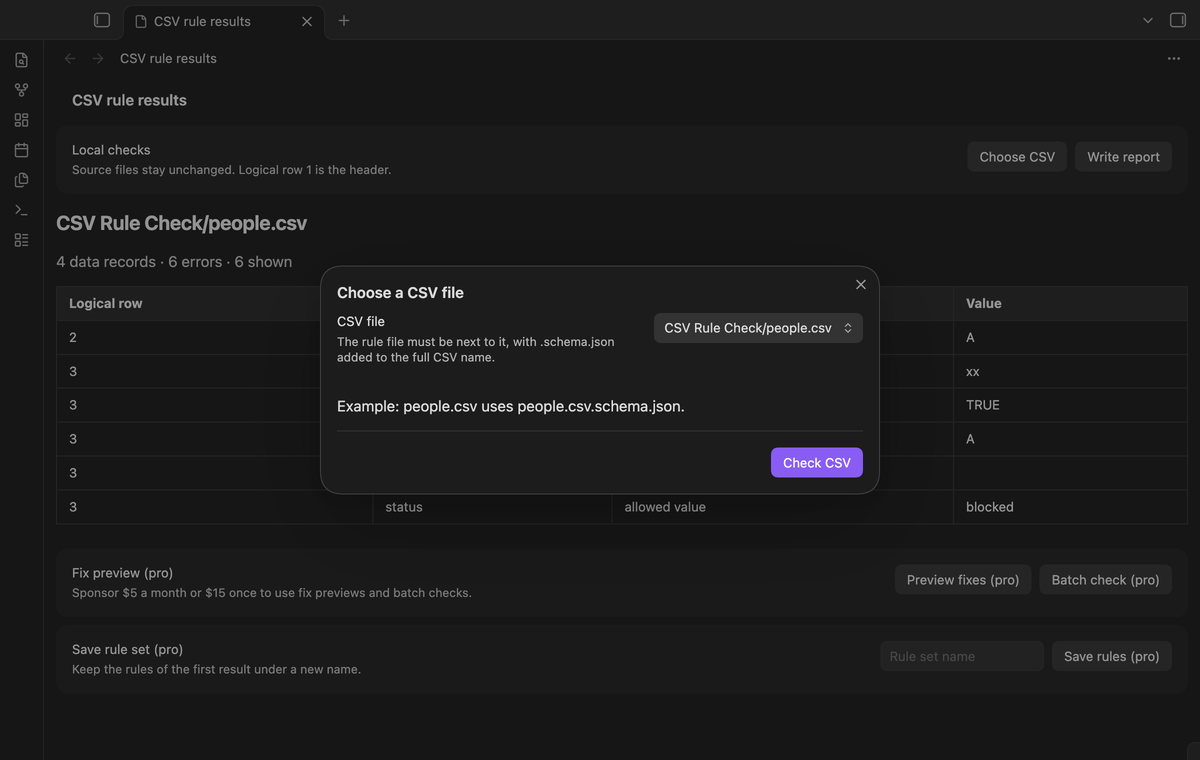
Choose a CSV and adjacent rules
Open the command palette and select “CSV Rule Check: Choose CSV and check adjacent rules”. The chooser lists CSV files already in the vault. For people.csv, put the rules in people.csv.schema.json in the same folder. The checker reads the rule file before it parses the CSV. A missing rule file, invalid JSON or an unknown rule gives a clear error.
Check explicit column rules
Rules support required values, string, number and boolean types, allowed values and uniqueness. The number rule accepts finite decimal and scientific notation. It checks the field text without changing it. A value such as 001 retains its spelling. Boolean values must be lowercase true or false. String fields remain text. Empty optional fields skip type, allowed-value and uniqueness checks.
Read errors by logical row
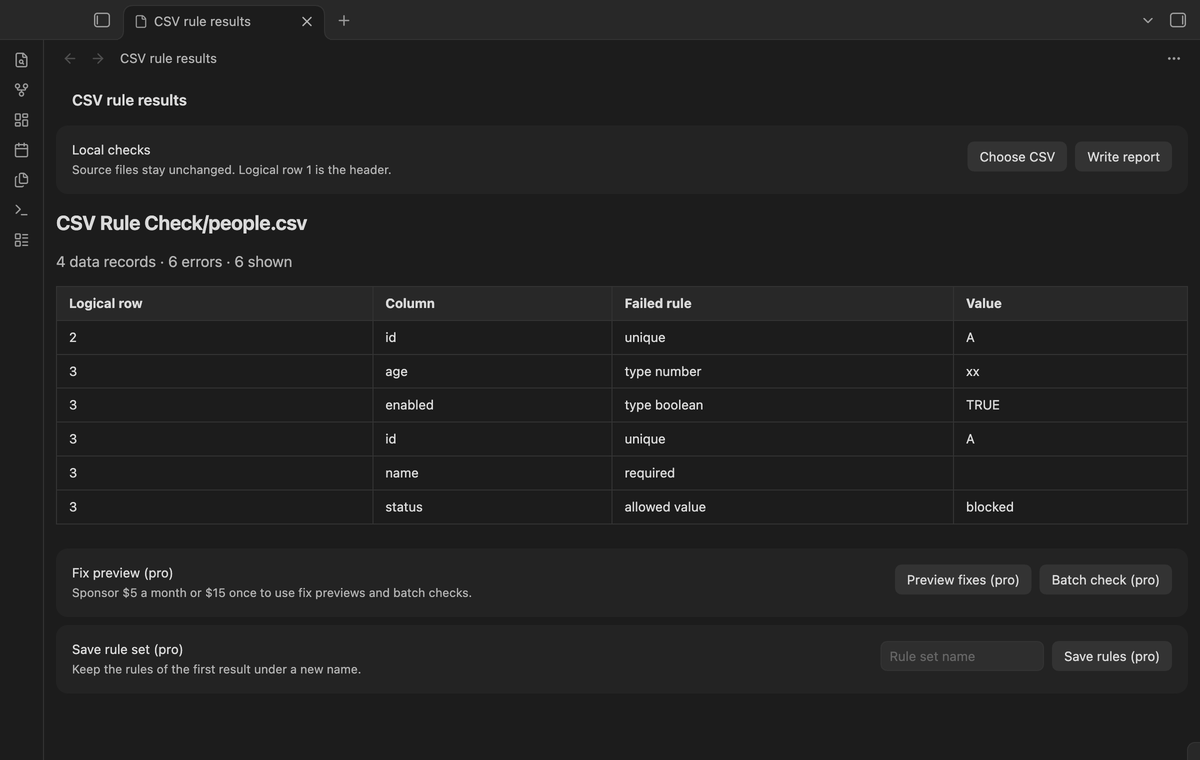
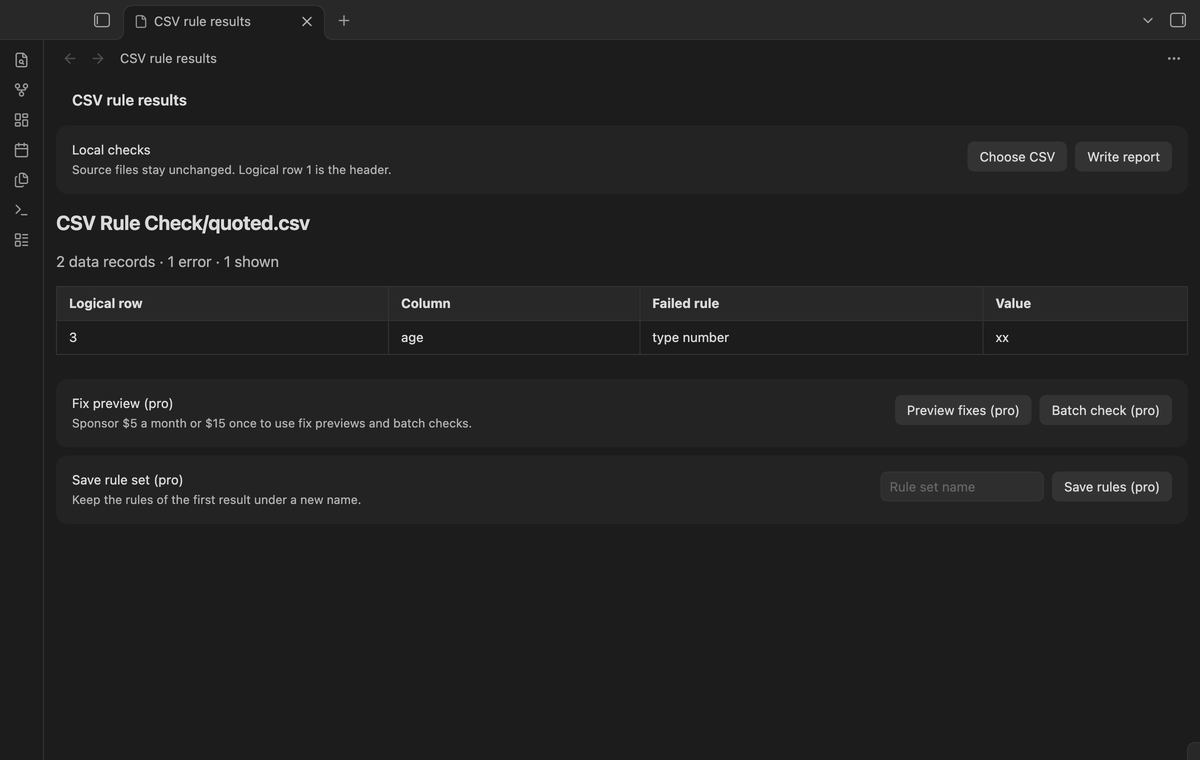
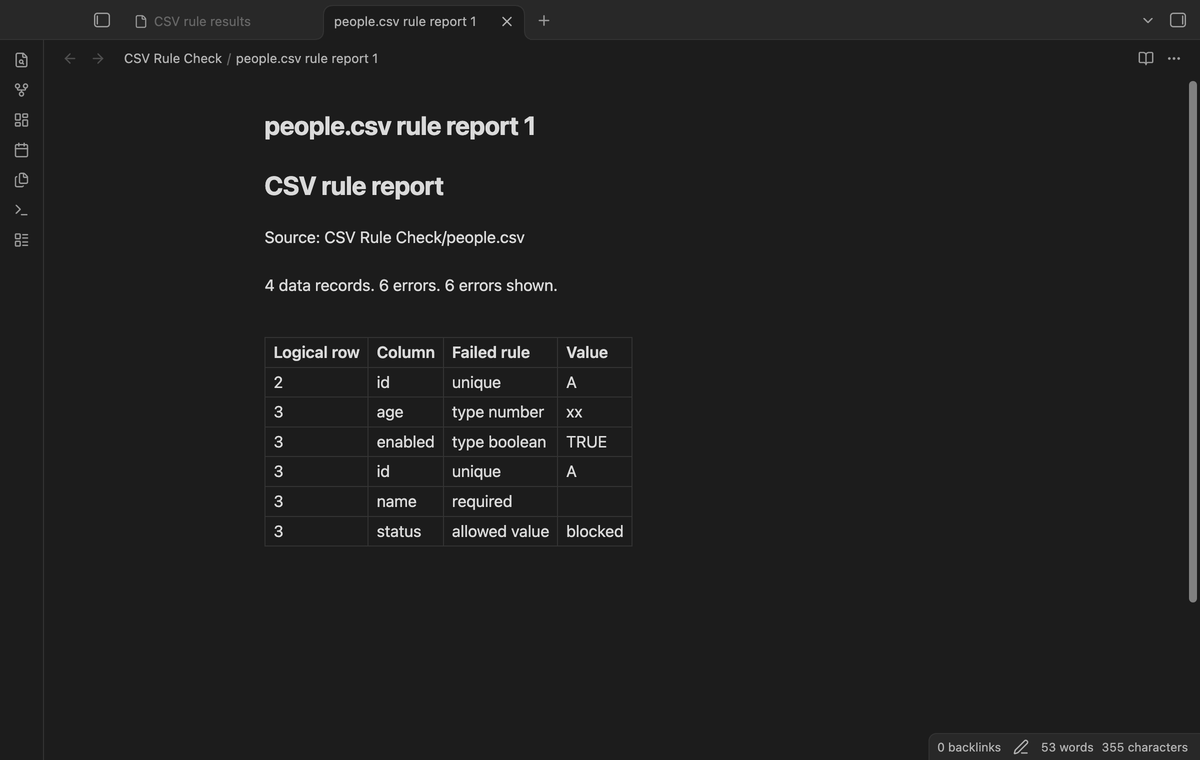
The results table shows the logical row, column name, failed rule and field value. Row 1 is the header. A quoted field with a line break stays in one logical record. Physical text lines can therefore have different numbers. The view shows up to 500 errors per file and the total error count. Duplicate headers stop the check. A missing column is reported at row 1.
Write a Markdown report
Select “Write report” in the results view, or run “Write a new Markdown report”. The report contains the source path, record count, error count and displayed error table. It is a snapshot of the last successful check. The output goes next to the source CSV with a numbered name such as people.csv rule report 1.md. A second report uses a free number. Source files stay unchanged.
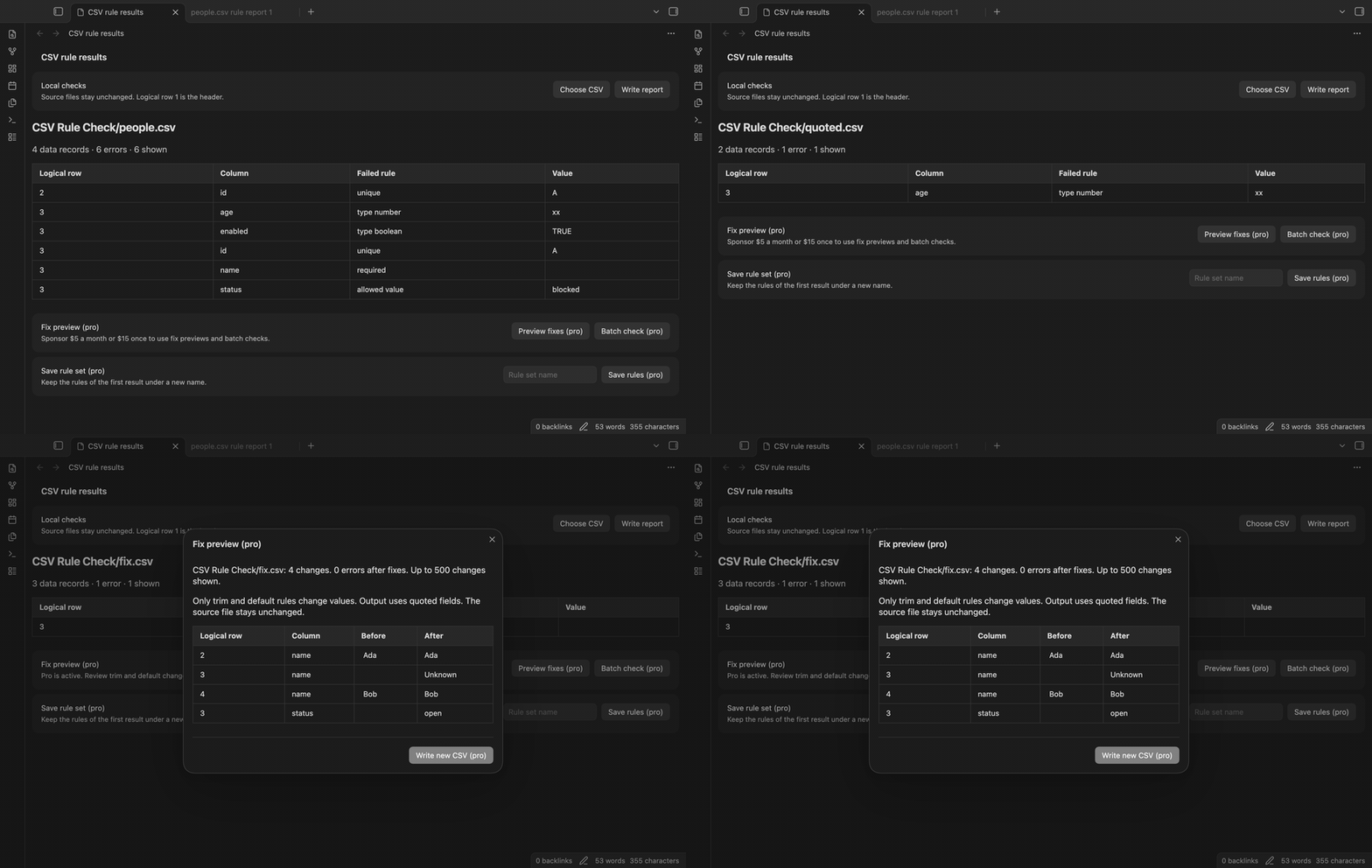
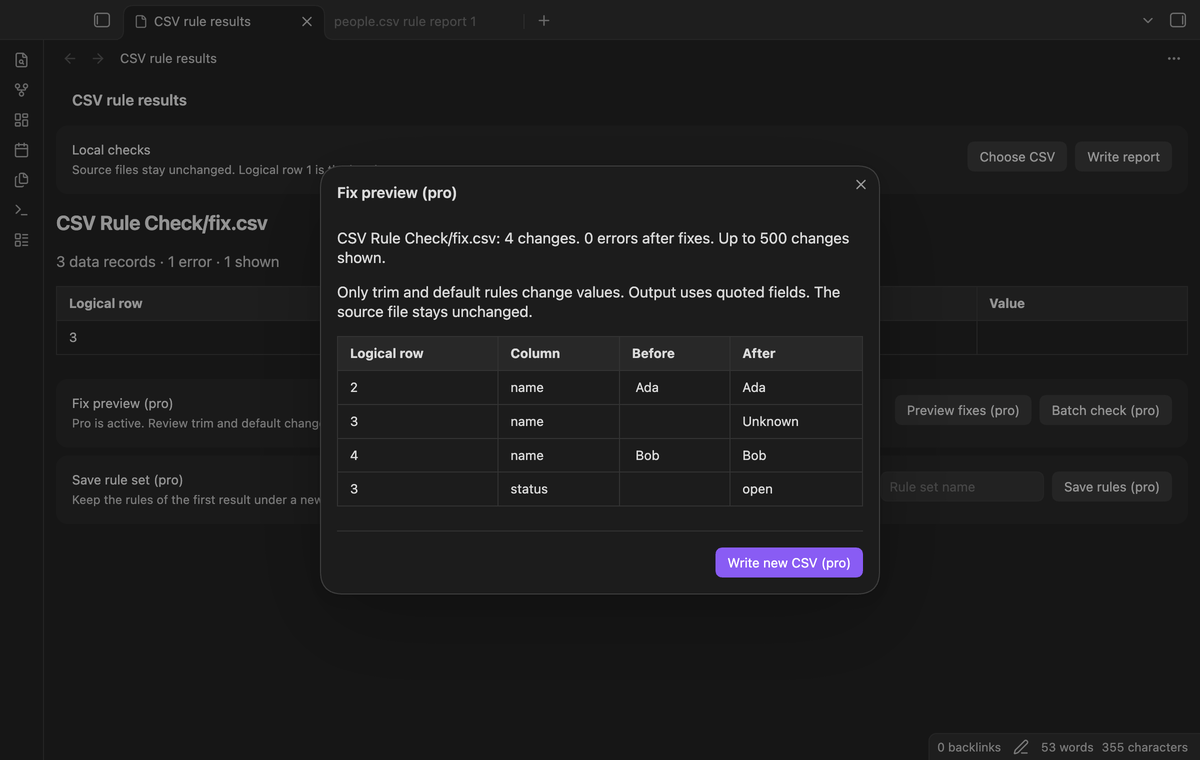
Preview trim and default fixes (Pro)
Add trim: true or a string default to a column rule. After a single file check, select “Preview fixes (pro)”. The preview shows the exact before and after values, the number of changes and the remaining error count. Trim runs before a default fills an empty value. “Write new CSV (pro)” creates a separate file with quoted fields. A changed source stops the write and asks for a new check.
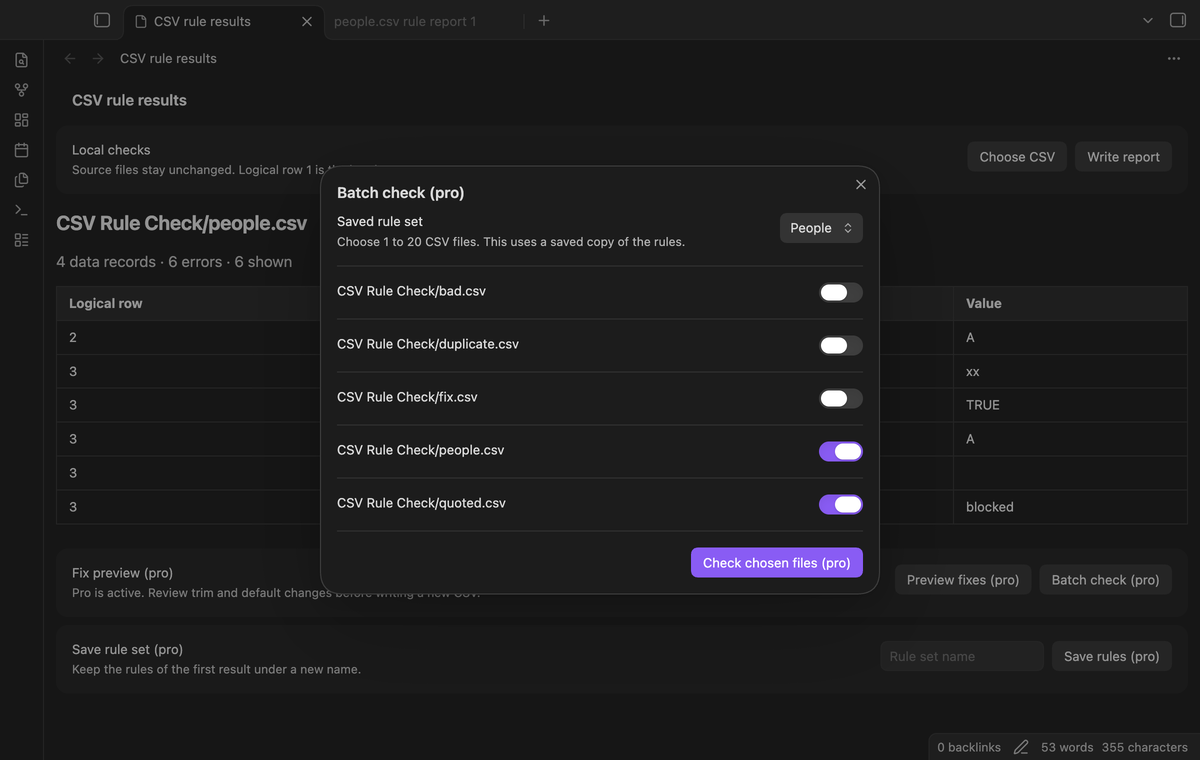
Check chosen files with saved rules (Pro)
After a check, enter a new rule set name in the results view and select “Save rules (pro)”. This saves a copy of that schema in the plugin data. Open “Batch check (pro)”, choose the saved rules, and select 1 to 20 CSV files. These checks use the saved copy instead of adjacent schema files. Each file has its own result table. If a file cannot be checked, the new batch stops.
Install
For manual installation, copy main.js, manifest.json and styles.css from a release into <vault>/.obsidian/plugins/csv-schema-linter/. Open Community plugins and enable CSV Rule Check. Use the minimum Obsidian version stated in manifest.json or a later public release. This source tree is prepared for review; publication is a separate step.
Usage
Put your CSV and rule file in the vault before you open the chooser. Obsidian must index those files. A minimal rule file looks like this:
{
  "columns": {
    "id": { "type": "string", "unique": true },
    "name": { "required": true },
    "age": { "type": "number" },
    "status": { "enum": ["open", "done"] }
  }
}
Run a check, inspect its table, correct the source in your CSV editor, and run the check again. The plugin does not edit the source. A required value means an empty field. Spaces alone count as a value during validation. Allowed values and duplicates compare exact text, including case and spaces. Columns without rules still appear in parsed records but have no value checks.
Settings
The settings tab shows the input limit, the displayed error limit, GitHub Sponsors controls and the saved rule set count. The delimiter is fixed. This version uses commas. Rules belong in JSON files rather than global toggles. Supported rule keys are required, type, enum, unique, trim and default. Unknown keys are rejected to help find typing errors. The enum list and default must contain strings. Use "20", rather than a JSON number, when you need that default text.
FAQ
What are the size limits?
The CSV and rule file each have a 5 MiB limit. The checker checks indexed file size before a read and UTF-8 text size after a read. Vault.read loads the file in memory. This version reads complete files. A batch holds the chosen parsed files in memory until another successful check replaces it.
Does a clean result prove that my data is correct?
A zero-error result means that these explicit rules passed. It does not prove that a person, date or business record is correct. Type checks do not convert data. Short or long records give a field-count error. A trailing record separator is accepted; internal blank records remain records.
Why does a preview still show errors?
Trim and defaults cannot correct an invalid number, a wrong allowed value or a duplicate identifier. The preview reports remaining errors. You can write the copy and inspect it, or close the preview and correct the source first. The preview stops if its displayed errors include a missing column or a wrong field count.
What was not tested?
No phone or tablet test was performed. Linux app tests, screen readers, third-party themes, paid GitHub sign-in and payment, vault sync conflicts, and large-vault performance were not tested in this build. Unit tests cover parser cases, validation limits, source preservation, report names, fix previews and Pro gates. Desktop app tests use the earliest supported and latest public releases.
Payment, account and network
The core features are free. Pro features need a GitHub Sponsors sponsorship of theluckystrike: $5 a month or more, or $15 once. A total payment of $15 meets the payment requirement for Pro without further payment. Sign-in and the checks below still apply. Your notes stay readable and editable with or without Pro.
GitHub handles the payment. Sponsor at https://github.com/sponsors/theluckystrike. You need no account for the free features. Pro needs the GitHub account that sponsors.
Until you select "Sign in with GitHub" in the settings, CSV Rule Check makes no network requests. Sign in uses the GitHub device flow. CSV Rule Check sends its public client ID and the scope read:user to https://github.com/login/device/code and shows you a code. While you enter the code at https://github.com/login/device, it asks https://github.com/login/oauth/access_token every few seconds to check the sign-in status. The scope permits profile reads only. GitHub needs this access to show the sponsorship tier. It grants no repository scope and no write access.
After sign in, CSV Rule Check sends one query to https://api.github.com/graphql. It checks if the signed-in account sponsors theluckystrike. It asks for the tier and the total payment to theluckystrike. The plugin reuses a successful check for 7 days. Failed checks can retry after 6 hours. Select Refresh to request an earlier check. It sends no note content, file names or other vault data, and it has no telemetry.
After a successful check, Pro can work offline for up to 14 days. Sign out or a negative sponsorship answer turns Pro off. The plugin stores the GitHub token through the secret storage API of Obsidian. It does not put the token in its saved settings or its local sponsorship data. The local storage of this device keeps your GitHub login, the tier and the time of the last check. Sign out clears the token. You can also revoke the access in your GitHub settings, under Applications.
Support
Report a bug in the published repository issues when it is available. Include the Obsidian version, the command used, and a small CSV and schema with private values removed. Describe the expected logical row and failed rule. The checker has no telemetry, so support does not receive your vault data automatically. Keep your original files when you compare a new CSV copy with an external tool.
For plugin developers
Search results and similarity scores are powered by semantic analysis of your plugin's README. If your plugin isn't appearing for searches you'd expect, try updating your README to clearly describe your plugin's purpose, features, and use cases.