TableCSV
approvedby k-tech-studio
Open CSV as tables. Create a CSV from a folder. Filter and sort without changing the file. Set a column type. Tab, Enter, arrows between cells. Pin last row or first column. Copy, cut, paste. Offline. - This plugin has not been manually reviewed by Obsidian staff.
TableCSV








English
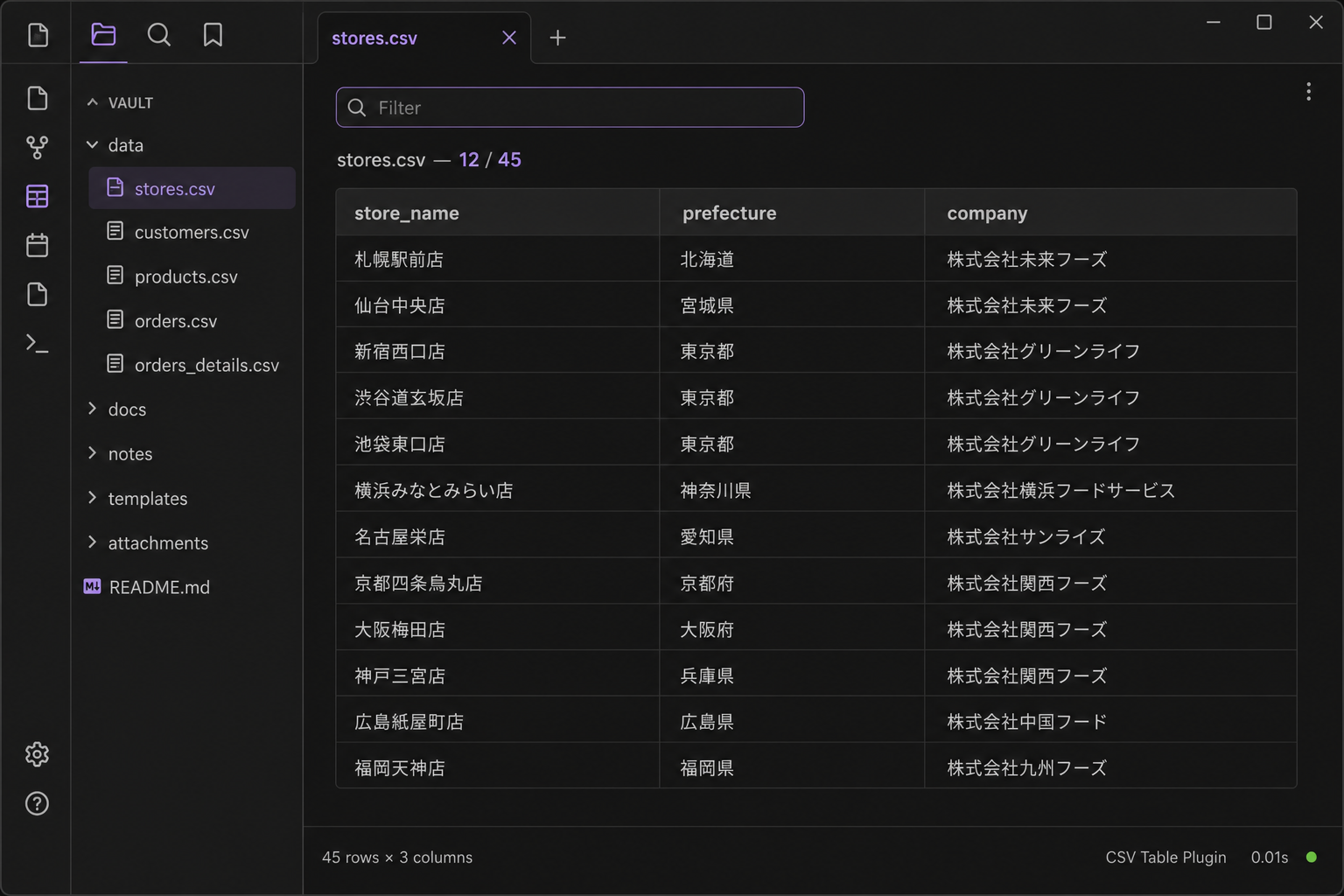
Open .csv files as tables inside your vault. View and filter, or edit cells, rows, and columns. Create a new CSV from a folder.
Features
- Open any CSV file as a clean table view
- Create a new CSV from a folder (right-click) or the command palette; it opens in Edit
- Sticky header row for easier scrolling
- View mode: text filter to narrow rows (does not change the file)
- View mode: click a column header to sort (asc → desc → clear; does not change the file)
- View and Edit: right-click a column header to set the type (text, number, date, checkbox). The type is remembered for that file and is not written into the CSV
- View mode: optional Pin last row for CSVs with a totals row at the bottom (keeps that row out of sort)
- View mode: optional Pin first column so the leftmost column stays visible when scrolling sideways
- View and Edit: drag a column header edge to set the width; that file keeps the widths
- View mode: Export filtered writes the header plus currently visible rows to a new CSV in the same folder (the original file is unchanged)
- Edit mode: change cells, insert/delete rows and columns, then save to the vault. Tab / Enter move between cells without breaking IME composition. Undo the last edit with
Ctrl+Z/Cmd+Z. Redo withCtrl+Y/Cmd+Shift+Z. Drag or Shift-click to select a range; Copy, Cut, or Clear then apply to that range - Copy uses the OS clipboard (tab-separated). Paste into Excel, Notepad, or TextEdit. In Edit, a selected range is copied instead of the whole table. Cut copies then clears the range. Clear empties the cells and leaves the rows and columns
- Paste (Edit mode): copy a range in Excel (or Word / a text table) and paste with
Ctrl+V/Cmd+V, right-click Paste, or the toolbar. A 10×10 stays 10×10, starting at the selected cell - Empty rows and columns stay as you left them
- Saving keeps the file's delimiter, quoting style, line endings, and UTF-8 BOM
- UI follows the Obsidian language (Japanese, English, or German)
- Large files draw the rows on screen; the rest wait until you scroll
- Works fully offline (no network requests)
How to use
- Install TableCSV from Community plugins and enable it
- Right-click a folder and choose New CSV, or run the same from the command palette. You can also open an existing
.csv - A new file opens in Edit. Existing files start in View. Type in the filter box to narrow matching rows. Click a column header to sort. Right-click a header to set the column type. Check Pin last row when the bottom row is a total you do not want moved. Check Pin first column when the table is wide and you want the leftmost column to stay put
- Export filtered creates a new CSV next to the current file with the header plus the rows you can see (filter, sort, and pin last row). The original file is not written
- Switch to Edit to change an existing file. The filter and sort are cleared so you edit the whole table
- Insert or delete the selected row/column with the toolbar. Undo reverses the last edit. Redo brings it back. Click a cell to select it. Drag or Shift-click to select a range. Cut copies then clears that range. Clear or
Deleteempties it. Tab moves right, Enter moves down (Shift reverses). Composition with an IME is left alone. Drag the edge of a column header to change its width - Copy puts the table on the system clipboard. In View mode this is the header plus filtered rows. In Edit mode a selected range is copied; otherwise it is the whole table. Cut (
Ctrl+X/Cmd+X) copies the range then clears those cells - In Edit, select a cell and paste (
Ctrl+V/Cmd+V, right-click Paste, or the toolbar Paste button). Excel, Word, and tab-separated text fill right and down from that cell. Extra rows and columns are added if the range is larger. A single copied cell still pastes into the selected cell only
Tips
- Large CSVs draw the rows on screen; the rest wait until you scroll
- View mode does not change the open file. Export filtered creates a new CSV beside it. Edit mode saves to the same
.csvfile in the vault - Copy and paste use the system clipboard. They do not require a companion spreadsheet plugin
- Paste does not open
.xlsxor.docxfiles. Copy the cells in Excel or Word first, then paste into TableCSV - German / EU Excel CSV uses
;. TableCSV keeps that delimiter. Values like1,5stay in one cell. Column sort reads them as numbers when the UI or OS is German - Column types (text, number, date, checkbox) are stored with the plugin for that file. The CSV itself stays plain text
Changelog
See CHANGELOG.md. Latest: 1.13.1 — header and body columns stay aligned.
Author
K-Tech Studio
Support
Disclaimer (no warranty)
This software is provided as is, without warranty of any kind. The developer does not guarantee that it will work in every environment. Use at your own risk. See the MIT License.
License
MIT
日本語(クリックで開閉)
Vault内の .csv を表として開きます。閲覧と絞り込み、セル・行・列の編集ができます。フォルダから CSV を新規作成できます。
機能
- CSVファイルを表形式で表示
- 新規作成: フォルダの右クリック、またはコマンドパレット。編集モードで開く
- 見出し行を固定してスクロールしやすい
- View(閲覧): 文字で行を絞り込む(ファイルは変更しない)
- View(閲覧): 列見出しをクリックして並べ替え(昇順 → 降順 → 解除。ファイルは変更しない)
- 閲覧・編集: 列見出しを右クリックして型(テキスト、数値、日付、チェック)を指定する。ファイルごとに覚え、CSV には書かない
- View(閲覧): 最下行を固定 — 合計行など最後の1行を並べ替え対象外にできる
- View(閲覧): 先頭列を固定 — 横スクロールしても左端の列を残す
- 閲覧・編集: 列見出しの端をドラッグして幅を決める。ファイルごとに覚える
- View(閲覧): 絞り込みを書き出す — 見出しと表示中の行を同じフォルダの新しいCSVにする(元のファイルは変わらない)
- Edit(編集): セルの変更、行・列の追加・削除。Vault内の同じCSVに保存する。
Tab/Enterでセル移動(変換中は動かない)。直前の編集はCtrl+Z/Cmd+Zで取り消す。やり直すはCtrl+Y/Cmd+Shift+Z。ドラッグまたはShift+クリックで範囲を選び、コピー・切り取り・クリアはその範囲 - Copy(コピー): OSのクリップボードへ(タブ区切り)。Excel、メモ帳、TextEditに貼り付けできる。編集で範囲を選んでいるときは、その範囲だけ。切り取りはコピーしたあとセルを空にする。クリアはセルだけ空にして、行と列は残す
- Paste(貼り付け)(編集モード): Excel(または Word / テキストの表)で範囲をコピーし、
Ctrl+V/Cmd+V、右クリックの貼り付け、またはツールバーで貼る。10×10 は 10×10 のまま、選んだセルから入る - 空の行・列はそのまま残る
- 保存時に区切り文字・引用符の付け方・改行・UTF-8 BOM を維持
- UI は Obsidian の言語設定に従う(日本語・英語・ドイツ語)
- 大きいファイルは、画面に見えている行から描く。残りはスクロールしたときに出る
- 完全オフライン(通信しない)
使い方
- コミュニティプラグインから TableCSV を入れて有効にする
- ファイル一覧のフォルダを右クリックして CSVを新規作成、またはコマンドパレットで同じ操作。既存の
.csvを開いてもよい - 新規ファイルは Edit。既存ファイルは最初 View。フィルター欄に文字を入れると行が絞り込まれる。列見出しをクリックすると並べ替え。列見出しを右クリックすると型を指定できる。最下行を固定 にチェックすると、合計行など最後の1行は並べ替えされず下に残る。表が横に長いときは 先頭列を固定
- 絞り込みを書き出す で、見出しと今見えている行(絞り込み・並べ替え・最下行固定)を同じフォルダの新しいCSVにする。元のファイルは書き込まない
- 既存ファイルを直すときは Edit に切り替える。フィルターとソートは解除され、表全体を編集する
- ツールバーで選択中の行・列を追加・削除する。元に戻す で直前の編集を取り消す。やり直す で戻す。セルをクリックして選ぶ。ドラッグまたは
Shift+クリックで範囲を選ぶ。切り取りはその範囲をコピーして空にする。クリアまたはDeleteは空にするだけ。Tabで右、Enterで下へ進む(Shiftで逆)。変換中は動かない。列見出しの端をドラッグすると幅が変わる - Copy で表をクリップボードへ送る。Viewでは見出し+絞り込み後の行。Editでは範囲があればその範囲、なければ表全体。切り取り(
Ctrl+X/Cmd+X)は範囲をコピーしてからセルを空にする - Edit でセルを選んで貼る(
Ctrl+V/Cmd+V、右クリックの貼り付け、またはツールバーの 貼り付け)。Excel・Word・タブ区切りは、そのセルから右下へ入る。範囲が大きければ行・列を足す。1セルだけのコピーは、そのセルだけに入る
ヒント
- 大きいCSVは、画面に見えている行から描く。残りはスクロールしたときに出る
- Viewは開いているファイルを変えない。絞り込みを書き出す は隣に新しいCSVを作る。EditはVault内の同じ
.csvに保存する - コピーと貼り付けはOSのクリップボードを使う。別の表計算プラグインは不要
.xlsxや.docxはそのまま開けない。Excel や Word でセルをコピーしてから TableCSV に貼る- ドイツ / EU の Excel は
;区切り。保存時もそのまま。1,5は1セル。UI または OS がドイツ語なら並べ替えで数値として扱う - 列の型(テキスト、数値、日付、チェック)はプラグイン側でファイルごとに覚える。CSV 自体は今までどおり文字のまま
更新履歴
CHANGELOG.md を参照。最新は 1.13.1 — 見出しとデータの列幅を揃える。
作者
K-Tech Studio
サポート
免責(無保証)
本ソフトウェアは 現状有姿(無保証) で提供します。あらゆる環境での動作を保証しません。利用は自己責任です。詳細は MIT ライセンス を参照してください。
ライセンス
MIT
Deutsch (aufklappen)
Öffnet .csv-Dateien als Tabellen im Vault. Anzeigen und filtern, oder Zellen, Zeilen und Spalten bearbeiten. Neue CSV aus einem Ordner erstellen.
Die Oberfläche folgt der Obsidian-Sprache (Japanisch, Englisch, Deutsch).
Funktionen
- CSV-Dateien als Tabelle anzeigen
- Neu: CSV aus einem Ordner oder über die Befehlspalette erstellen (öffnet im Bearbeiten-Modus)
- Kopfzeile bleibt beim Scrollen sichtbar
- Ansicht: Zeilen filtern und Spalten sortieren (Datei bleibt unverändert)
- Ansicht und Bearbeiten: Rechtsklick auf den Spaltenkopf setzt den Typ (Text, Zahl, Datum, Kontrollkästchen). Der Typ bleibt pro Datei und steht nicht in der CSV
- Ansicht: optional Letzte Zeile anheften für Summenzeilen
- Ansicht: optional Erste Spalte anheften, damit sie beim seitlichen Scrollen sichtbar bleibt
- Ansicht und Bearbeiten: Spaltenbreite am Kopfzeilenrand ziehen; bleibt pro Datei erhalten
- Ansicht: Filter exportieren schreibt Kopfzeile und sichtbare Zeilen in eine neue CSV im gleichen Ordner (Original bleibt unverändert)
- Bearbeiten: Zellen, Zeilen und Spalten ändern und in die gleiche Datei speichern. Tab / Enter wechseln die Zelle, ohne die IME-Eingabe zu stören. Letzte Änderung mit
Strg+Z/Cmd+Zrückgängig. Wiederholen mitStrg+Y/Cmd+Umschalt+Z. Ziehen oder Umschalt+Klick wählt einen Bereich; Kopieren, Ausschneiden oder Leeren gilt dann für diesen Bereich - Speichern behält Trennzeichen, Anführungszeichen-Stil, Zeilenenden und UTF-8-BOM
- Kopieren / Einfügen über die Systemzwischenablage
- Einfügen (Bearbeiten): Bereich in Excel kopieren, Zelle wählen, Strg+V / Cmd+V, Rechtsklick oder Symbolleiste. 10×10 bleibt 10×10, ab der gewählten Zelle
- Große Dateien zeichnen die sichtbaren Zeilen; der Rest folgt beim Scrollen
- Vollständig offline
- Excel in DE/EU nutzt
;. TableCSV behält das Trennzeichen.1,5bleibt eine Zelle
Versionshinweise
Siehe CHANGELOG.md. Aktuell: 1.13.1 — Kopf- und Datenspalten bleiben ausgerichtet.
Lizenz
MIT
For plugin developers
Search results and similarity scores are powered by semantic analysis of your plugin's README. If your plugin isn't appearing for searches you'd expect, try updating your README to clearly describe your plugin's purpose, features, and use cases.