Cursor Layout Indicator
approvedby bashdays
Show and correct the active Windows, macOS, or Linux keyboard layout next to the editor cursor. - This plugin has not been manually reviewed by Obsidian staff.
Cursor Layout Indicator
Русский
Автор: Roman Shubin · Контакты: hello@bashdays.com · bashdays.ru
Плагин Obsidian для Windows, macOS и Linux: показывает компактный индикатор текущей раскладки прямо рядом с текстовым курсором в Markdown-редакторе.
ru— зелёный индикатор;en— красный индикатор.
Он помогает сразу заметить неверную раскладку, прежде чем будет набран текст.
Возможности
- Индикатор
ru/enследует за кареткой только в сфокусированном Markdown-редакторе и не перекрывает настройки, панели и модальные окна. - Цвета
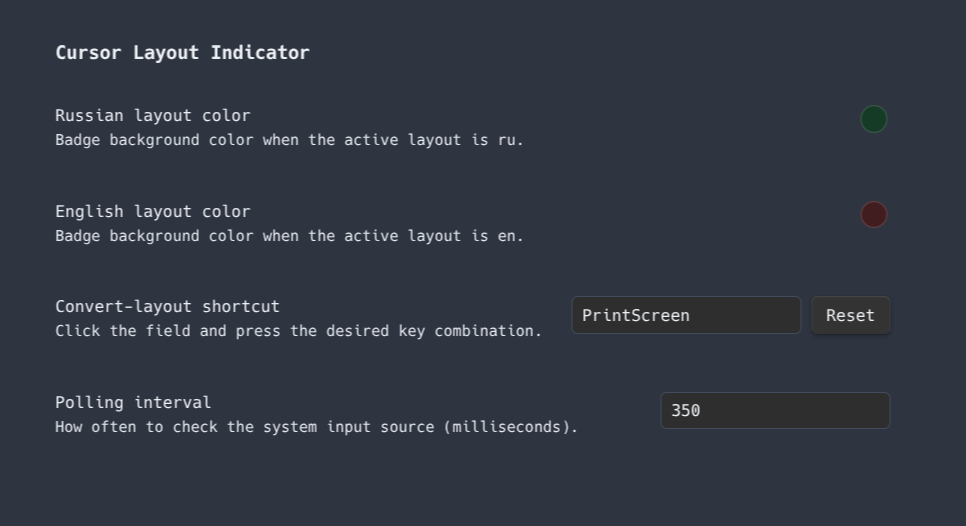
ruиenнастраиваются отдельно через палитру в настройках плагина; контрастный цвет текста выбирается автоматически. - Сочетание исправления раскладки записывается нажатием в настройках плагина; по умолчанию это Print Screen в Linux, Ctrl+Shift+Space в Windows и ⌃⇧Space в macOS.
- Кнопка Reset возвращает сочетание по умолчанию для текущей системы.
- Быстрые повторные нажатия сочетания исправляют последовательность предыдущих слов.
Скриншоты
| Английская раскладка | Русская раскладка |
|---|---|
 |  |
Исправление неверной раскладки
В активном редакторе нажмите заданное сочетание (по умолчанию Print Screen в Linux, Ctrl+Shift+Space в Windows или ⌃⇧Space в macOS):
- если есть выделение, плагин преобразует выделенный текст;
- если выделения нет, преобразуется слово, в котором находится курсор.
Повторяйте нажатие в течение 1,2 секунды, чтобы последовательно преобразовать два, три и больше предыдущих слов. Направление определяется по текущей раскладке: при en ввод преобразуется в русский, при ru — в английский. Сочетание работает только когда Obsidian находится в фокусе. Если Print Screen назначена в Linux на создание скриншота, удалите или измените это системное сочетание.
Поддерживаемые системы
- Windows — плагин определяет раскладку через встроенный в Obsidian Chromium Keyboard Map API; дополнительная установка не нужна.
- macOS — встроенный
osascriptзапрашивает текущий источник ввода через системный Text Input Source API; дополнительная установка не нужна. - Linux — плагин использует первую доступную команду: niri (
niri msg keyboard-layouts), Fcitx 5 (fcitx5-remote -n), IBus / GNOME (ibus engine), Sway (swaymsg -t get_inputs -r), Hyprland (hyprctl devices -j) или X11 (xkblayout-state print %s).
Раскладка обновляется раз в 350 мс. Если подходящий источник не найден, индикатор не выводится: плагин не будет показывать заведомо неверное значение.
Для обычного X11 без менеджера раскладки установите пакет
xkblayout-stateиз репозитория вашего дистрибутива.
Конфиденциальность и системный доступ
Плагин работает локально, не использует сеть, телеметрию и не читает файлы хранилища. Для определения раскладки на macOS и Linux он запускает только перечисленные выше системные команды без shell-интерпретации и без пользовательских аргументов. На Windows используется Keyboard Map API встроенного Chromium.
Установка вручную
- Скачайте из последнего релиза файлы
main.js,manifest.jsonиstyles.css. - Создайте каталог:
<ваш-vault>/.obsidian/plugins/cursor-layout-indicator/ - Поместите в него эти три файла.
- В Obsidian откройте Настройки → Community plugins и включите Cursor Layout Indicator.
После обновления файлов выключите и снова включите плагин либо перезапустите Obsidian.
Разработка
npm ci
npm run lint
npm run build
Собранные файлы плагина: main.js, manifest.json, styles.css. GitHub Actions проверяет каждое изменение и создаёт релиз при отправке тега, который точно совпадает с версией в manifest.json (например, 1.2.0, без префикса v).
Лицензия
Исходный код и плагин распространяются по лицензии MIT.
English
Author: Roman Shubin · Contact: hello@bashdays.com · bashdays.ru
An Obsidian plugin for Windows, macOS, and Linux that displays a compact indicator of the active keyboard layout next to the text caret in the Markdown editor.
ru— green indicator;en— red indicator.
It helps you catch an incorrect layout before you type a word.
Features
- The
ru/enindicator follows the caret only in a focused Markdown editor and never overlaps Settings, sidebars, or modals. - Separate color pickers configure the
ruandenbadge colors; a readable text color is selected automatically. - Record the layout-correction shortcut by pressing it in the plugin settings; its default is Print Screen on Linux, Ctrl+Shift+Space on Windows, and ⌃⇧Space on macOS.
- The Reset button restores the default shortcut for the current platform.
- Rapid repeated presses of the shortcut correct a sequence of preceding words.
Screenshots
| English layout | Russian layout |
|---|---|
| |
Correcting a mistyped layout
With the editor focused, press the configured shortcut (by default Print Screen on Linux, Ctrl+Shift+Space on Windows, or ⌃⇧Space on macOS):
- when text is selected, the selected text is converted;
- without a selection, the word containing the caret is converted.
Press it again within 1.2 seconds to consecutively convert two, three, or more preceding words. The conversion direction follows the active layout: en becomes Russian and ru becomes English. The shortcut works only while Obsidian has focus. If your Linux window manager binds Print Screen to screenshots, remove or change that system shortcut.
Supported systems
- Windows — the plugin detects the active layout through Obsidian's built-in Chromium Keyboard Map API; no extra installation is needed.
- macOS — built-in
osascriptqueries the current input source through the system Text Input Source API; no extra installation is needed. - Linux — the plugin uses the first available command: niri (
niri msg keyboard-layouts), Fcitx 5 (fcitx5-remote -n), IBus / GNOME (ibus engine), Sway (swaymsg -t get_inputs -r), Hyprland (hyprctl devices -j), or X11 (xkblayout-state print %s).
The layout is checked every 350 ms. If no supported source is found, the indicator stays hidden rather than displaying an incorrect value.
On a plain X11 session without an input-method manager, install the
xkblayout-statepackage from your distribution's repository.
Privacy and system access
The plugin works locally and does not use the network, telemetry, or read vault files. To detect the active layout on macOS and Linux, it only runs the system commands listed above, without shell interpretation or user-provided arguments. On Windows, it uses Chromium's built-in Keyboard Map API.
Manual installation
- Download
main.js,manifest.json, andstyles.cssfrom the latest release. - Create this directory:
<your-vault>/.obsidian/plugins/cursor-layout-indicator/ - Copy the three files into it.
- In Obsidian, open Settings → Community plugins and enable Cursor Layout Indicator.
After replacing the files, disable and re-enable the plugin or restart Obsidian.
Development
npm ci
npm run lint
npm run build
The distributable plugin files are main.js, manifest.json, and styles.css. GitHub Actions validates every change and creates a release when a tag exactly matching the version in manifest.json is pushed (for example, 1.2.0, without a v prefix).
License
The source code and plugin are distributed under the MIT License.
For plugin developers
Search results and similarity scores are powered by semantic analysis of your plugin's README. If your plugin isn't appearing for searches you'd expect, try updating your README to clearly describe your plugin's purpose, features, and use cases.