by Vadym M.
Customize colors, fonts, reading layout, and tables from a live sidebar with built-in dark/light presets and saved custom themes.
Custom Visuals for Obsidian
Obsidian plugin to customize colors, fonts, reading layout, and tables from a live sidebar with built-in dark/light presets and saved custom themes.
Screenshots
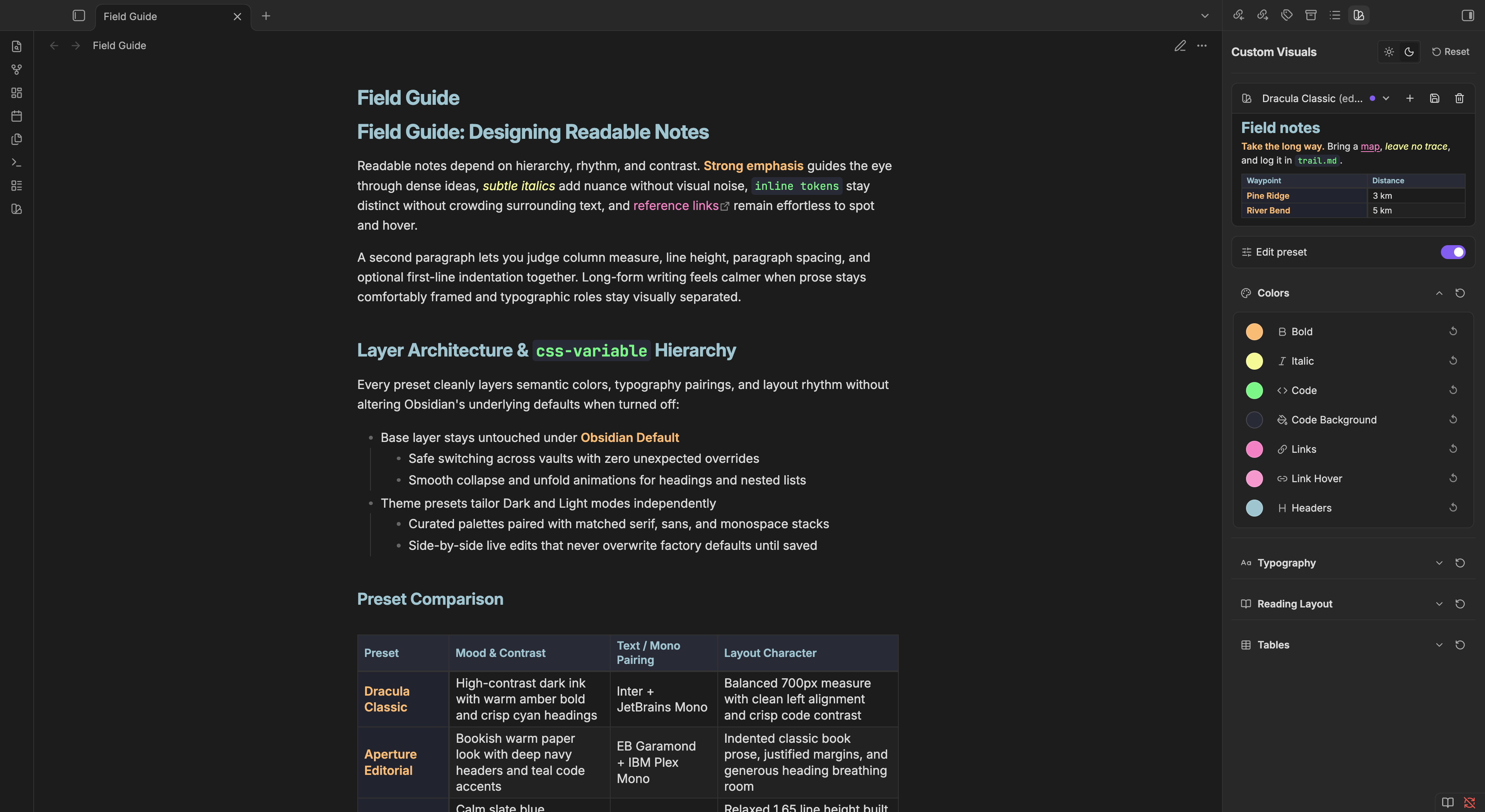
Dark Mode Preset (Dracula Classic) & Colors
Light Mode (Aperture Editorial), Typography & Reading Layout
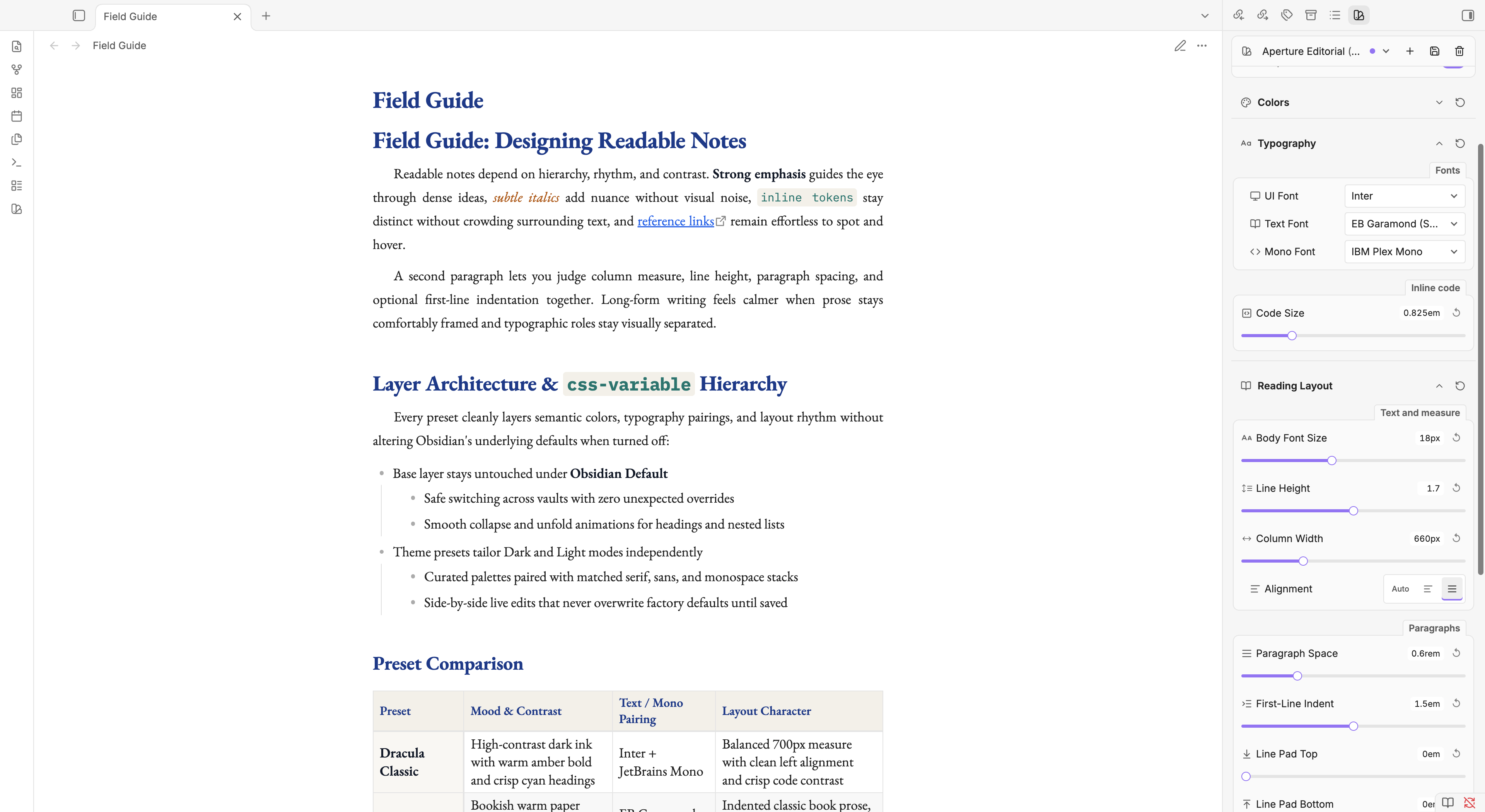
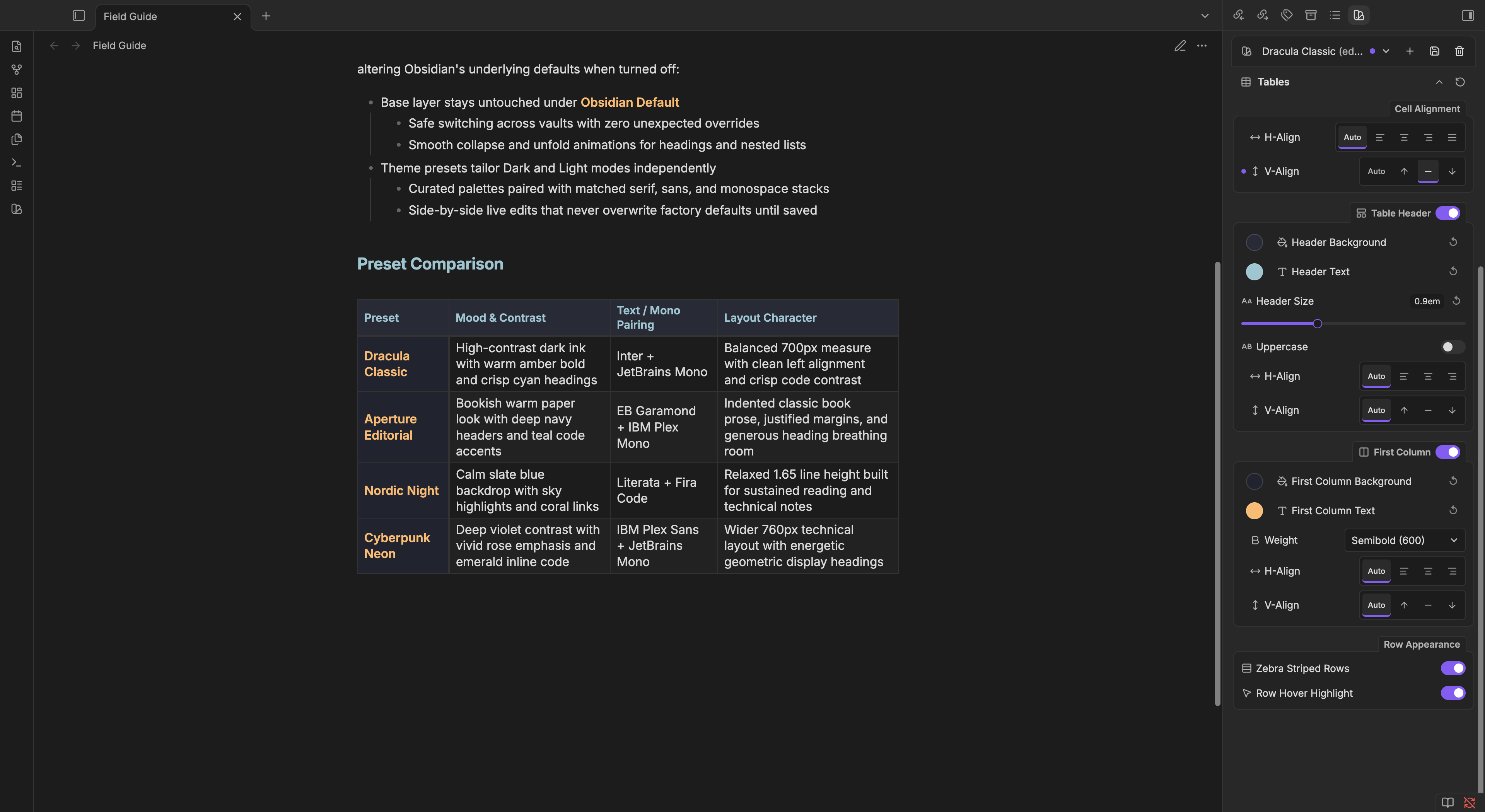
Table Styling & Alignment Controls
Features
- Non-destructive presets: Keep vanilla Obsidian completely untouched with Obsidian Default, pick a built-in dark/light preset, or enable Edit preset to customize and save your own themes.
- Independent Dark & Light presets: Configure separate palettes and custom presets for Dark and Light mode, with a quick header switch in the sidebar.
- Colors: Customize Bold, Italic, Code, Code Background, Links, Link Hover, and Headers, with live swatch preview.
- Typography: Choose separate UI, Text, and Monospace fonts plus inline Code Size.
- Reading Layout: Fine-tune body font size, line height, readable column width, paragraph alignment, paragraph spacing, first-line indent, line padding, list/sublist spacing, heading spacing/scale, and link underline behavior.
- Tables: Customize Reading view and Live Preview tables with cell horizontal/vertical alignment, toggleable header and first-column styling, zebra stripes, and row hover highlights.
- Fold Animation & Local Fonts: Configure smooth reveal duration (
0–400ms,0= off), add extra device-installed font names, export/import custom presets as JSON, or restore deleted built-in presets in plugin settings.
Built-in Presets
- Dark mode:
Obsidian Default,Dracula Classic,Aperture Noir,Nordic Night,Cyberpunk Neon - Light mode:
Obsidian Default,Dracula Day-Mode,Aperture Editorial,Nordic Forest,Warm Espresso & Rosegold
Optional Local Fonts
Some built-in presets and font dropdown choices reference Google Fonts (Inter, Play, Roboto, Open Sans, Manrope, IBM Plex Sans, Source Sans 3, Rubik, Nunito, Montserrat, Literata, Lora, Merriweather, EB Garamond, Playfair Display, Roboto Slab, JetBrains Mono, Fira Code, IBM Plex Mono, Roboto Mono).
If any font is not installed on your system, it cleanly falls back to your system sans-serif, serif, or monospace font (SF Pro Text, SF Mono, Menlo, etc.). You can also add any additional device-installed font names under Settings → Custom Visuals → Additional local fonts.
Installation
From Community Plugins (once published)
- Open Settings → Community plugins → Browse.
- Search for Custom Visuals.
- Click Install, then Enable.
Using BRAT
- Install the BRAT plugin.
- Run BRAT: Add a beta plugin for testing and enter
Alvadio/obsidian-custom-visuals.
Manual Installation
- Download
main.js,manifest.json, andstyles.cssfrom the latest GitHub Release. - Copy them into
<your-vault>/.obsidian/plugins/custom-visuals/. - Reload Obsidian and enable Custom Visuals in Settings → Community plugins.
Development
npm install
npm run dev      # watch build -> main.js
npm run build    # type-check + production bundle -> main.js
Support
If you find Custom Visuals useful, consider supporting its development:

License
For plugin developers
Search results and similarity scores are powered by semantic analysis of your plugin's README. If your plugin isn't appearing for searches you'd expect, try updating your README to clearly describe your plugin's purpose, features, and use cases.