by dimagious
Dashboard blocks for your notes: tiles, number cards, progress bars, a day row, countdowns and a year heatmap. Configured in YAML, no JavaScript.
Dashy




Describe the dashboard you want. Your AI agent builds it in your note.
Charts, streaks, heatmaps and goals from your daily notes' properties. Plain YAML you can read and edit. No JavaScript, no Dataview, works on your phone.
Website · Build one with your agent · Every block and key · Guides · Changelog
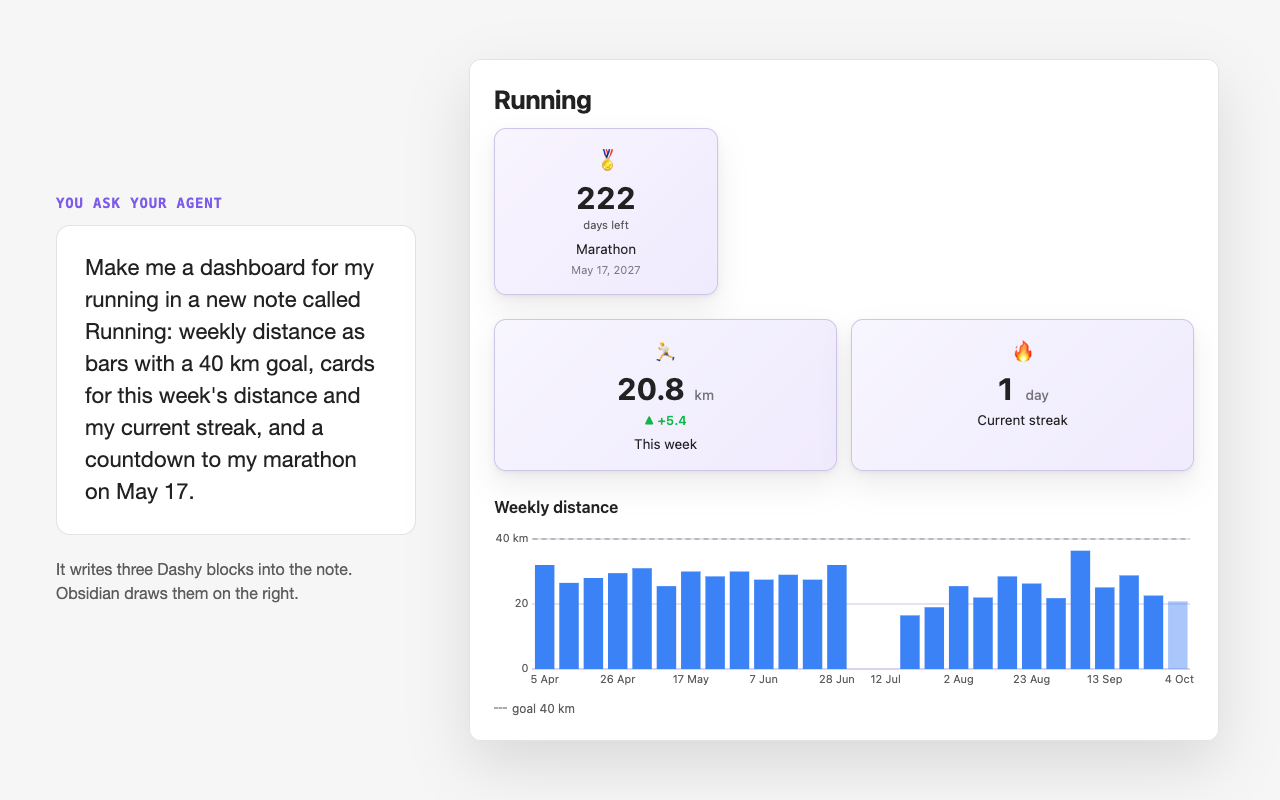
One request on the left, the note it wrote on the right: three blocks, countdown, stats and chart, in a demo vault. You open the note and check; a block that can't draw says why.
Install
Settings → Community plugins → Browse → search for Dashy → Install → Enable.
Then install the agent skill from Dashy's settings or the command palette, or run Dashy: Insert block to write a block yourself.
Ask your agent
In Dashy's settings, under AI agent skill, the Install button on Skill file in this vault writes a skill for Claude Code, and the one on AGENTS.md in the vault root writes the same for Codex, Cursor and other agents. Once a file is written, its button reads Update: press it after updating Dashy. Open the vault in your agent and say what you want to see. It reads your property names and folders, writes the blocks, and you open the note to check.
Count the books I finished this year against a goal of 24.
The agent first finds how a book note says when you finished it, here a finished date
property in the notes under Books, and writes:
```progress
source: Books
date_field: finished
period: year
items:
  - { label: Books this year, agg: count, goal: 24 }
```
Setup, six prompts to copy, and what to do when a block shows an error: build an Obsidian dashboard with an AI agent.
Or write it yourself: a habit tracker in two blocks
Tick gym: true in a daily note's Properties. Paste this into any other note:
```stats
columns: 4
source: Diary
items:
  - { label: Gym days, field: gym, agg: sum, icon: 🏋️ }
  - { label: Longest gym streak, field: gym, agg: streak, unit: days, icon: 🔥 }
  - { label: Gym this week, field: gym, agg: sum, period: week, icon: 📅, compare: true, better: up }
  - { label: Gym this month, field: gym, agg: sum, period: month, icon: 🗓 }
```

```heatmap
source: Diary
field: gym
color: orange
title: Gym
```
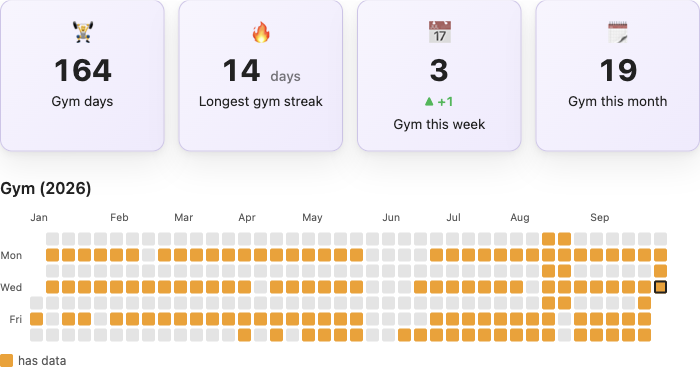
Diary is the folder your daily notes live in, and each note's name starts with its date.
Written once at the top, it applies to every card; a card with its own source reads that folder instead.
A ticked box counts as 1. period: week is always the current week, and compare: true sets it
against the same days of last week. The step-by-step version, with the same tracker in Tracker
and dataviewjs next to it: a habit tracker without Dataview.
Seven blocks
Every block reads frontmatter through Obsidian's own metadata cache. Each name below opens its page: a picture, an example, every key.
stats: number cards, or one line of numbers for a page header. Count, sum, average, best and current streak, this week against last or against your usual level.progress: bars towards a goal, like 24 books this year.countdown: days until a race, a holiday, the next birthday, a date kept in a note, or the soonest one in a folder of notes.today: today's date, an optional live clock, and links to the daily, weekly and monthly notes.tiles: link tiles into the vault, with live note counts.heatmap: a year of days coloured by a number or a checkbox, several habits on one grid, or a month as a calendar with a dot under every day you kept a habit.chart: a line or bars of a number by day, week, month or year, with a goal line.
A weekly or monthly review counts its own period: period: note on stats and progress,
range: note on chart and heatmap, in a note named 2026-W40 or 2026-10, however late
you open it. The same keys take a period written out, 2026-Q4, or two dates,
{ from: 2026-09-01, to: 2026-09-30 }. Step by step: a weekly review without Dataview.
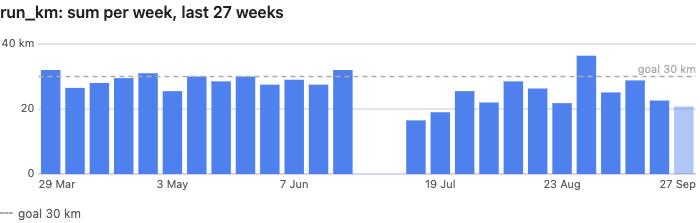
Dates read the way your daily notes are named: 2026-10-05, or 05.10.2026 in the day format
set in Daily notes or Periodic Notes, or in one a block names with date_format: DD.MM.YYYY.
Durations read the way your watch writes them: sleep: 7h 38min counts as a number and comes
back as 7h 38m. Race times written to the second, time: 2:16:32, come back to the second
as a clock; H:MM always means hours and minutes, so write a 5 km time as 0:18:51. Every
block redraws when a note changes and takes its colours from your theme. With Obsidian Charts
turned on, write the chart block as dashy-chart.
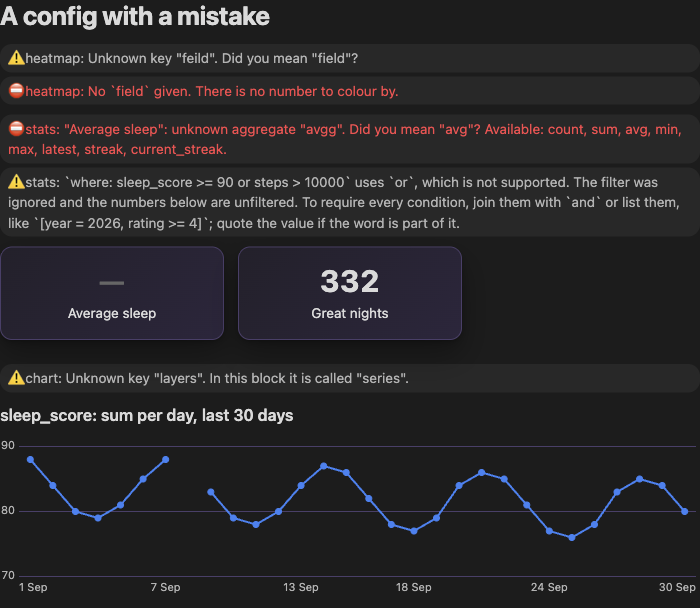
When the config is wrong, the block says so in the note: a typo gets a "did you mean", a broken YAML line gets its line number.
Guides
One problem per page, with the notes, the block, and the Bases, Tracker or dataviewjs version beside it:
- Build an Obsidian dashboard with an AI agent
- A habit tracker without Dataview
- A habit streak that skips weekends
- Two activities on one heatmap
- A monthly habit calendar without Dataview
- A weekly review without Dataview
- A weekly chart without Tracker
- Countdown to a birthday
- Books per year: a reading log chart
- A homepage dashboard without code
What it leaves out
Pie, radar and scatter charts and stacked bars (Obsidian Charts),
tables and queries (Bases, Dataview), kanban, tasks. It reads frontmatter only, not inline
key:: value fields or tags with values. If that stops you, say what you tried.
Questions
What does my agent see, and where does it go?
Your agent reads the notes it opens and sends them to its model provider, as it does with any
file it works on. Check what your agent is allowed to open before you point it at a vault with
private notes. Dashy itself sends nothing anywhere: it makes no network requests of its own, and
it writes the skill files only when you press their buttons. The one thing a block loads from
the internet is a tile image you set to an https:// address, the way Obsidian loads an
image in a note. If you'd rather not open the vault at all, Copy markdown puts the skill on
the clipboard, and you paste it into a chat with the frontmatter of a few notes.
Do I need an AI agent?
You don't need one. Run Dashy: Insert block, pick a block, and a working example lands at the cursor, already pointed at a folder and a property from your vault. Every block is a few lines of YAML, and every key is on the reference page. The agent is the fast way in, not the only one.
Do I need Dataview?
No. Dashy reads frontmatter from Obsidian's own metadata cache. Nothing else to install.
Does it work on a phone?
Yes. A tap on a heatmap cell or a chart bar shows its value, and a second tap opens the note.
How does a block know a note's date?
From its name, when it starts with YYYY-MM-DD: 2026-01-05 Monday counts. Names written
another way, like 05.01.2026, are read in the day format set in the Daily notes or Periodic
Notes settings, or in one the block names with date_format: DD.MM.YYYY. Otherwise add
date_field to the block and keep the date in a property.
Which languages does it speak?
English, Russian, German, French and Spanish, following Obsidian or picked in the settings.
Corrections to a translation are welcome: copy src/i18n/en.ts and translate the values.
Bugs and ideas
The settings tab has a row for each. It opens a GitHub issue with your plugin and Obsidian versions filled in. Or go straight to the issue tracker.
Development
npm install
npm test             # vitest, with coverage gates
npm run lint         # eslint + eslint-plugin-obsidianmd
npm run typecheck
npm run build        # main.js + styles.css
npm run dev:vault    # build into a test vault and watch
npm run build:skill  # regenerate the agent skill from the schema
npm run build:reference  # regenerate the site's block reference
npm run preview shows every block in every state in a browser. npm run e2e runs the suite
against a real Obsidian, and npm run capture retakes the pictures. Logic lives in src/core/,
which imports neither Obsidian nor the DOM. Block keys live in
src/blocks/schema.json; the agent skill and the site's
reference pages are generated from it. Design notes: docs/SPEC.md.
License
MIT © Dmitriy Yurkin
For plugin developers
Search results and similarity scores are powered by semantic analysis of your plugin's README. If your plugin isn't appearing for searches you'd expect, try updating your README to clearly describe your plugin's purpose, features, and use cases.