Daylio Mood Graph
approvedby toldry
Visualizes Daylio mood data as a color-coded graph annotated by vault entries. - This plugin has not been manually reviewed by Obsidian staff.
Daylio Mood Graph — Obsidian Plugin


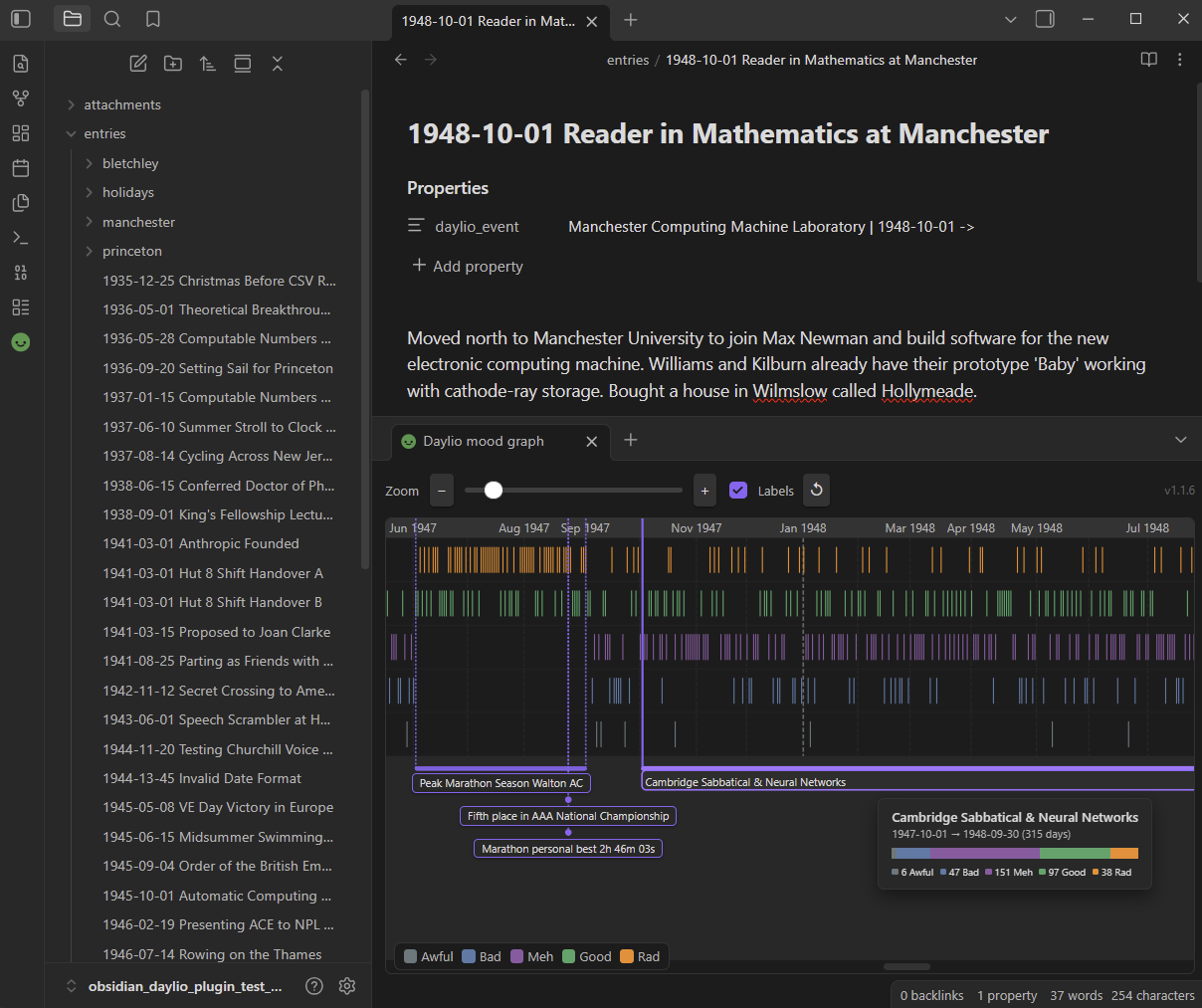
An Obsidian plugin that renders Daylio mood data as a color-coded graph, annotated with Obsidian vault entries.
Table of Contents
- Quick Start / Demo Vault
- Installation
- Setup
- Annotating the Graph with Vault Events
- Development
- Technical Details
Quick Start / Demo Vault
Try out the plugin with pre-populated sample data:
Download the Example Vault Zip, extract it, and open it in Obsidian (the plugin is already installed and configured) to see a working graph with sample entries and event annotations out of the box.
Installation
From the Obsidian Community Plugin Hub
Follow the link:
Manual installation
- Create a new directory named
daylio-mood-graphat<OBSIDIAN_VAULT_ROOT>/.obsidian/plugins/ - Download the files from the latest release and copy them into
<OBSIDIAN_VAULT_ROOT>/.obsidian/plugins/daylio-mood-graph - Open the Obsidian vault and go to Settings → Community plugins → enable Daylio Mood Graph.
Setup
1. Export data from Daylio
In the Daylio app: More → Export Entries → CSV (table). Move the CSV file into the Obsidian vault.
e.g. <OBSIDIAN_VAULT_ROOT>/attachments/daylio_export_2026_08_19.csv
2. Format Obsidian archive's entries' filenames
To associate entries with specific dates, the .md file names must begin with an ISO date, e.g:
2020-04-13 First Corona Lockdown.md
3. Tell the plugin where the CSV is
Settings → Community plugins → Daylio Mood Graph → CSV file path
4. Open the graph
Select the smiley-face icon  in the left ribbon, or run the command
Daylio Mood Graph: Open mood graph from the command palette
(Ctrl+P / Cmd+P).
in the left ribbon, or run the command
Daylio Mood Graph: Open mood graph from the command palette
(Ctrl+P / Cmd+P).
The graph opens as a horizontal split pane below the active note.
Annotating the graph with vault events
Vault notes can annotate the graph in two ways: Point Events (single-date milestones) and Range Events (multi-day timeline spans).
- Inside an Obsidian entry, press Ctrl+; (Windows/Linux) or Cmd+; (macOS) to add a note property, or run the command Add file property from the command palette (Ctrl+P / Cmd+P).
- Set the property name to
daylio_event. - Write the name of the event, and specify date range if needed:
1. Point Events
---
daylio_event: "Began university"
---
By default, the date of the event will be taken from the entry's filename. To override it, use the pipe | sytnax:
---
daylio_event: "Began university | 2003-04-05"
---
Multiple point events can be specified in a single note using Obsidian's native List property:
---
daylio_event:
  - "Got a cat"
  - "Got a dog"
  - "Got a ferret | 2026-08-20"
---
2. Range Events
For multi-day events that span across a date range, use the inline pipe (|) and arrow (->) syntax:
---
daylio_event: Summer Vacation | 2026-07-12 -> 2024-07-28
---
Point events and multiple range events can also be combined in list properties:
---
daylio_event:
  - Got a cat
  - Summer Vacation | 2026-07-12 -> 2026-07-28
  - Ongoing Project | 2026-03-01 ->
---
An unspecified end-date is treated as an ongoing event.
Development
Building
npm install # first time only
npm run build
After building, copy build/main.js, manifest.json,
and styles.css into the Obsidian vault's plugin folder and reload Obsidian.
The shorthand npm run update:test-vault builds and copies in one step.
[!TIP] Developer Workflow Tip: It is recommended to keybind Obsidian's built-in command "Reload app without saving" to a keyboard shortcut such as Ctrl+R (Windows/Linux) or Cmd+R (macOS) under Settings → Hotkeys. This enables a rapid development loop: run
npm run update:test-vault, switch to Obsidian, and press Ctrl+R (or Cmd+R) to see changes instantly.
Running the tests
The test suite uses Vitest and requires no Obsidian
runtime — the Obsidian API is replaced by a minimal stub for unit tests, and
the integration tests read real files directly from obsidian_daylio_plugin_test_vault/.
Technical Details
For in-depth details on the plugin's internal design, data flow, and module responsibilities, see the Architecture section in AGENTS.md.
For plugin developers
Search results and similarity scores are powered by semantic analysis of your plugin's README. If your plugin isn't appearing for searches you'd expect, try updating your README to clearly describe your plugin's purpose, features, and use cases.