DayTime Tracker
approvedby Hong SeongChan
Log daily activities into intuitive 10-minute grid timelines and archive them directly in Obsidian notes. - This plugin has not been manually reviewed by Obsidian staff.
↓ 223 downloadsUpdated 1mo agoMIT
DayTime Tracker (Obsidian Timeline Logging Plugin)
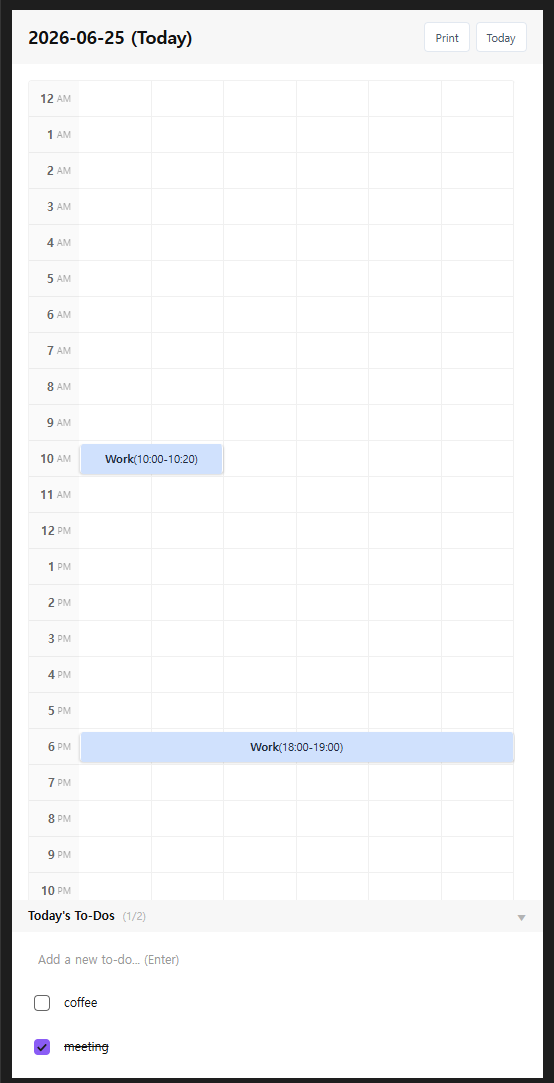
An Obsidian plugin that lets you intuitively log daily activities in a 10-minute grid timetable and stores them in your note.
✨ Key Features
- 10-Minute Timetable Grid: Displays 24 hours of the day with 6 cells per hour (10 minutes per cell). You can easily record your activities by dragging and selecting a time range.
- Category-Based Grid & Visualization: Each activity log is overlayed on the timeline with color chips based on the designated category. Hovering over a log shows a tooltip with details and the linked To-Do item.
- Collapsible To-Do List & Timeline Integration:
- A collapsible To-Do list is situated at the bottom of the timeline view.
- When marking a To-Do as complete: A confirmation window asks,
"Would you like to record this To-Do on the timeline?". Clicking [Confirm] opens the activity log modal with the To-Do text pre-filled and the time set to the current hour. - When unchecking a To-Do: If a linked timeline log exists, a confirmation window pops up asking,
"Would you like to delete the linked timeline log too?", supporting one-touch synchronized deletion.
- Intuitive Form Layout: The fields in the activity creation and edit modal are arranged cleanly in the order of:
Time settings -> Category chip selection -> Notes (detailed description) -> Linked To-Do, facilitating quick entries. - Personalization (Settings):
- General: Configure the start and end hour range for the day, toggle whether to automatically hide the note's properties section (Frontmatter Metadata Container), select the UI language (Korean/English), and choose a background theme mode (Default / Paper White).
- Category Management: Edit the names and customize the colors of the 5 default categories (Work, Study, Rest, Reading, Exercise). You can also add up to 10 custom categories, and easily delete custom ones by clicking the
Xbutton.
- Go to / Create Today's Daily Note: Features a one-touch button to search for or create today's daily note (
YYYY-MM-DD.md) and open it immediately. - Print Timeline to PDF & Export HTML:
- Click the [Print PDF] button at the top-right header to export today's timeline grid and To-Do list into a print-optimized HTML file.
- The exported file opens automatically in your system's default browser, providing a dedicated print button to save it as a clean PDF or print it without font or styling issues.
💡 Usage
- Open the Timeline View:
Click the calendar-clock icon in the ribbon menu or search for
Open DayTime Tracker Viewin the command palette (Ctrl + PorCmd + P) to open the timeline panel in the right sidebar. - Open Daily Note: If there is no active note, click the [Create Today's Daily Note] in the timeline view to immediately generate and start logging on today's note.
- Use To-Do List & Interactivity:
- Click the arrow button in the "Today's To-Dos" header to collapse or expand the section.
- Add new tasks and check the checkbox when they are completed.
- Follow the prompts in the confirmation modal to immediately map the completed To-Do to the timetable, or dynamically sync and delete the linked timeline log when unchecking a task.
- Drag to Record & Select To-Do:
- Drag and drop on the timetable to select a time range.
- In the activity modal, you can click on any incomplete To-Do chips at the bottom to automatically pre-fill the activity details.
- Once saved, a colored block will overlay the grid and the log entry will be saved in the note's Frontmatter.
- Print PDF / Export:
- Click the [Print PDF] button at the top-right header of the timeline.
- Once exported, a notice will appear and a browser tab will automatically open with a print preview.
- Click the [Save as PDF / Print] button at the top of the browser page to open the print dialog.
📝 Update History
For the full release history, see GitHub Releases.
1.0.7 (2026-08-03)
- Added a setting to choose the folder where today's daily note is created via the [Today] button.
- The sidebar view now shows "Create today's daily note" instead of the timeline grid when the active note isn't a daily note (not named
YYYY-MM-DD), preventing logs from being written to an unrelated note. - Fixed an issue where the "Hide Document Properties Block" setting could fail to apply right after load; it now re-applies once the workspace finishes loading and whenever you switch notes.
For plugin developers
Search results and similarity scores are powered by semantic analysis of your plugin's README. If your plugin isn't appearing for searches you'd expect, try updating your README to clearly describe your plugin's purpose, features, and use cases.