Drawer Explorer
approvedby Dylan Zhang
A pop-up drawer file tree with modal vim-style navigation: hjkl to move, a/r/d file ops, i to filter, Esc back to normal mode. - This plugin has not been manually reviewed by Obsidian staff.
Drawer Explorer
A pop-up file and tag explorer for Obsidian with modal, vim-style navigation and a live preview pane — inspired by the snacks.nvim / neo-tree explorer experience. Focus defaults to the tree, not a search bar.
- Modal navigation:
hjklthrough the tree,a/r/dfile operations,x/y/pmove & copy,Spacefor individual selection, andv/Vfor visual ranges — no mouse required. - Filter like a picker:
ifocuses the fuzzy filter. In Files,Esckeeps the results forj/knavigation; in Tags, it returns to the hierarchy. - Tags as a lens: press
tto browse nested tags, focus one as a virtual collection, then progressively refine it with co-occurring tags. - Preview pane: rendered markdown, images,
.canvasminimaps,.basesummaries — and a small provider API so plugins can add more types. - Theme-aware, keyboard-first, works alongside vim plugins such as Vim Motions.
Status: young but daily-driven. Expect sharp edges; issues and PRs welcome.
Showcase
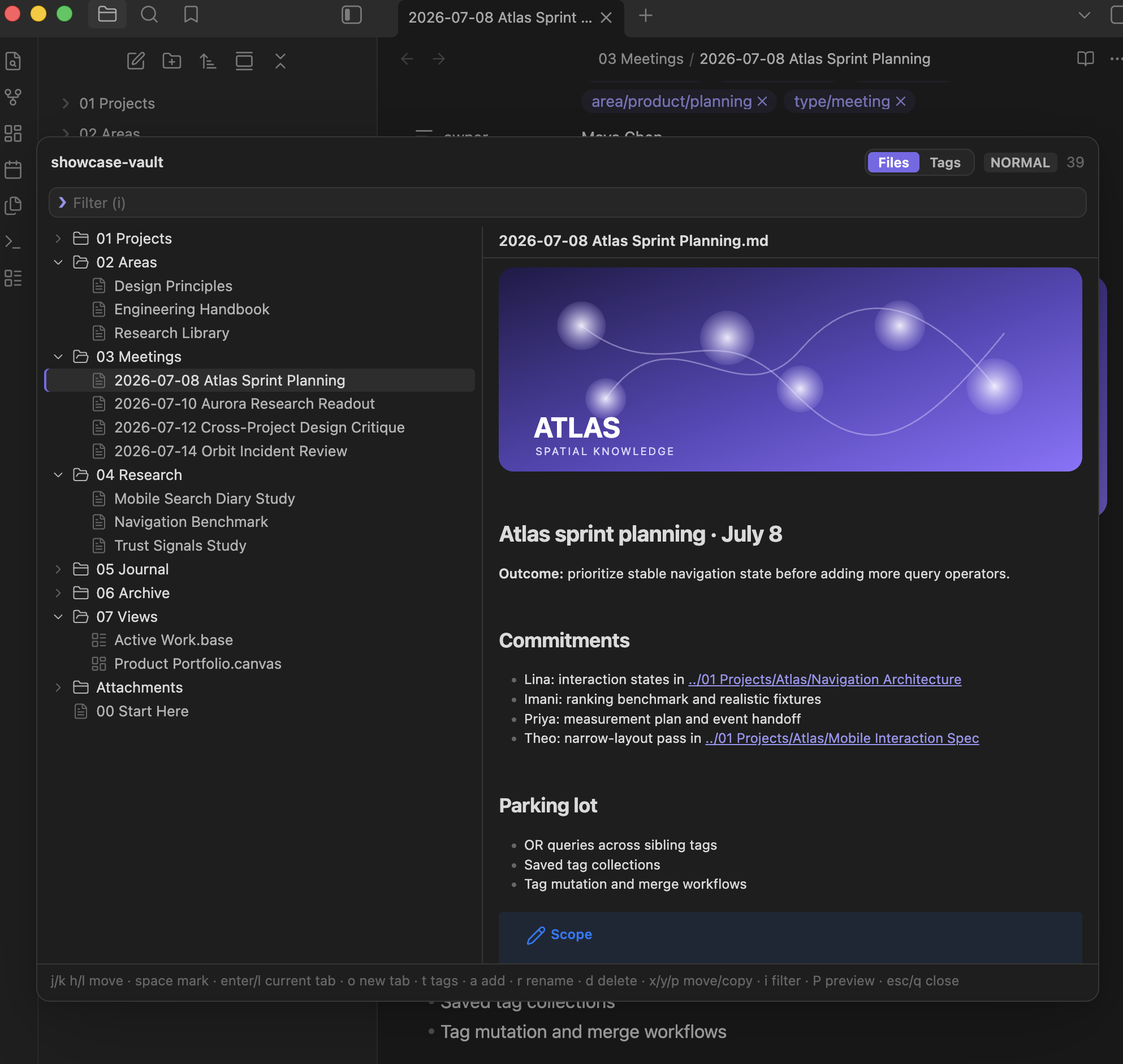
File lens
Browse the physical folder tree with modal navigation, file operations, fuzzy filtering, and rich previews for Markdown, images, Canvas, Bases, and text.
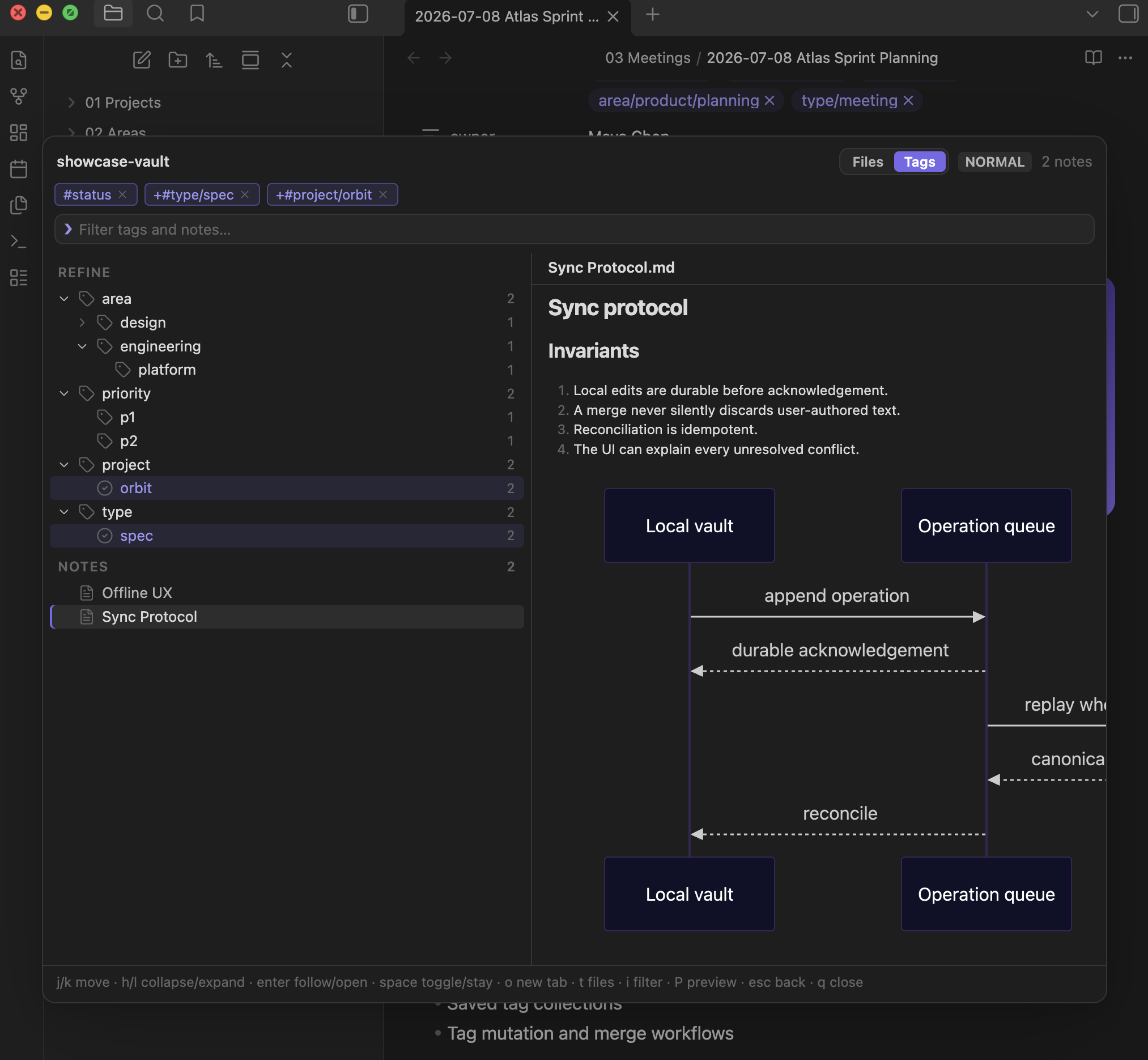
Tag lens
Focus a hierarchical tag, combine co-occurring refinements with AND, navigate the deduplicated notes, and inspect rendered previews without leaving the drawer.
Installation
Install Drawer Explorer from the Obsidian Community Plugin directory, or open Settings → Community plugins → Browse and search for Drawer Explorer.
Other installation options:
- BRAT for pre-release builds: add
Fjx-dylanZ/obsidian-drawer-exploreras a beta plugin. - Manual: grab
manifest.json,main.js, andstyles.cssfrom the latest release into<vault>/.obsidian/plugins/drawer-explorer/, then enable it in Settings → Community plugins. - From source:
npm install && npm run build, then copy the same three files (or useOBSIDIAN_PLUGIN_DIR=... npm run install:vault).
Open it with the Drawer Explorer: Open drawer command.
Use Drawer Explorer: Open tag lens when you want a dedicated hotkey that
opens directly into tags.
Keys
Normal mode (default)
| Key | Action |
|---|---|
j / k | Move selection down / up |
h | Collapse folder, or jump to parent |
l / Enter | Toggle folder / open file in the active tab (replacing its current file) |
o | Open file in a new tab in the current pane |
t | Switch to the tag lens |
gg / G | First / last row |
Space | Select/deselect item (bulk select; Ctrl/Cmd-click too) |
v / V | Enter Visual mode at the cursor |
a | New file (name), folder (name/), or nested path (a/b/c.md) |
r | Rename (link-aware, updates wikilinks) |
d | Delete (confirm with y) |
x / y | Cut / copy |
X / Y | Remove item from the cut / copy clipboard |
p | Paste into selected folder |
i / / | Focus the filter bar |
P | Toggle the preview pane |
Ctrl+d / Ctrl+u | Scroll the preview half a page |
R | Refresh |
Esc / q | Clear selection → clear filter → close |
Tag lens
Press t in normal mode (or click Tags) to switch from physical folders to
a metadata-backed tag tree. Parent tags include notes from nested descendants,
matching Obsidian's own tag-search semantics. A note matching several active
tags appears only once in the Notes results.
| Key | Action |
|---|---|
j / k | Move selection down / up |
h / l | Collapse/parent or expand/first child (l opens a selected note) |
Enter | Follow a tag into its notes, commit a refinement, or open a note in the active tab |
Space | Establish a scope or toggle an AND refinement without opening a note |
o | Open a selected note in a new tab |
i / / | Fuzzy-filter visible tags and matching note paths |
t | Return to the file lens |
Esc | Clear query → remove newest refinement → leave tag scope → close from the root |
q | In normal mode, close immediately while preserving the current tag browsing context |
Focused tags are shown as chips above the filter. Counts update against the current result set, and tag edits made elsewhere in Obsidian refresh the lens from the metadata cache. Files whose metadata is still indexing are not incorrectly shown as untagged.
Tag navigation is resumable for the current Obsidian session. Reopening the drawer restores its scope, refinements, and expansion state. When the active note is visible in that scope, the cursor follows it; otherwise the previous logical row is restored. Text entered in the fuzzy filter is transient and is cleared on close.
Within the Tags section, Enter establishes a scope and follows its first
note, while Space establishes the scope without opening one and keeps the
cursor among refinements when any are available. Within Refine, Enter
adds the highlighted constraint and follows the resulting notes; Space
toggles it and stays. l only moves deeper—it expands a collapsed branch or
moves to its first child—while h owns collapse and parent navigation.
The first tag-lens version is intentionally read-only: file creation, rename/delete, and cut/copy/paste remain in the file lens. Tag mutation needs a separate workflow because renaming or merging a tag can rewrite many notes.
Selection and bulk actions
Select items individually with Space (highlighted rows), or press v/V and
use j/k/gg/G to extend an inclusive Visual range. Both controls edit the
same selection: Visual mode retains existing selected items, updates its range
as the cursor moves, and returns to Normal with v, V, or Esc while
keeping the result.
d/x/y act on all selected items instead of the cursor row (p pastes
the whole set). Selection survives filtering, so you can i-filter, select a
few results, filter again, and select more — then cut and paste them into one
folder. In Normal mode, Esc clears the selection.
Clipped items show a dot on the right edge — accent for copy, red (plus
strikethrough) for cut — until pasted. X/Y takes items back out of the
cut/copy clipboard.
Filter mode
Type to fuzzy-match file paths, or tag and note paths in the tag lens.
Ctrl+j/Ctrl+k or arrows move the selection and Enter activates it. In the
file lens, Esc pops back to normal mode keeping the filtered results so
you can navigate them with j/k; in the tag lens it clears the transient
search and returns to the restored hierarchy.
Previews
The right pane previews the selected item. Built-in providers:
| Provider | Handles | Renders |
|---|---|---|
markdown | .md | Rendered markdown (theme-styled, frontmatter stripped) |
image | png/jpg/svg/webp/… | Inline image |
canvas | .canvas | SVG minimap of nodes/edges with colors and labels |
base | .base | Views, filters, formulas, and properties summary |
text | json/yaml/ts/lua/… | Raw text (capped) |
fallback | everything else | Type + size placeholder |
Adding a preview provider (for plugin devs)
Providers are resolved first-match-wins. From another plugin:
const drawerExplorer = this.app.plugins.plugins["drawer-explorer"];
drawerExplorer?.registerPreviewProvider(
	{
		id: "csv-table",
		canPreview: (file) => file.extension === "csv",
		render: async ({ app, el, file, component }) => {
			const raw = await app.vault.cachedRead(file);
			// render into `el`; use `component` for MarkdownRenderer lifecycles
		},
	},
	{ before: "text" }, // outrank the generic text provider
);
See CONTRIBUTING.md for the code map and provider guide.
Vim Motions integration
vim.keymap.set("n", "<leader>e", function()
	vim.cmd("obcommand drawer-explorer:open")
end, { desc = "Explorer drawer" })

-- global (works when focus is outside the editor):
vim.obsidian.keymap.set("<leader>e", ":obcommand drawer-explorer:open", { desc = "Explorer drawer" })
License
For plugin developers
Search results and similarity scores are powered by semantic analysis of your plugin's README. If your plugin isn't appearing for searches you'd expect, try updating your README to clearly describe your plugin's purpose, features, and use cases.