Yazi Explorer
approvedby yich
A keyboard-driven file explorer with miller columns and live preview, inspired by yazi and ranger. Fuzzy and full-text search, bookmarks, multi-select, and custom openers. - This plugin has not been manually reviewed by Obsidian staff.
Yazi Explorer for Obsidian
A keyboard-driven file explorer for Obsidian — miller columns, live preview, fuzzy and full-text
search. Inspired by yazi, ranger,
lf and nnn.
If you navigate your vault from the sidebar file tree with a mouse, this is the replacement: a floating three-column browser that opens on the file you are already editing, and that you never have to take your hands off the keyboard to use.
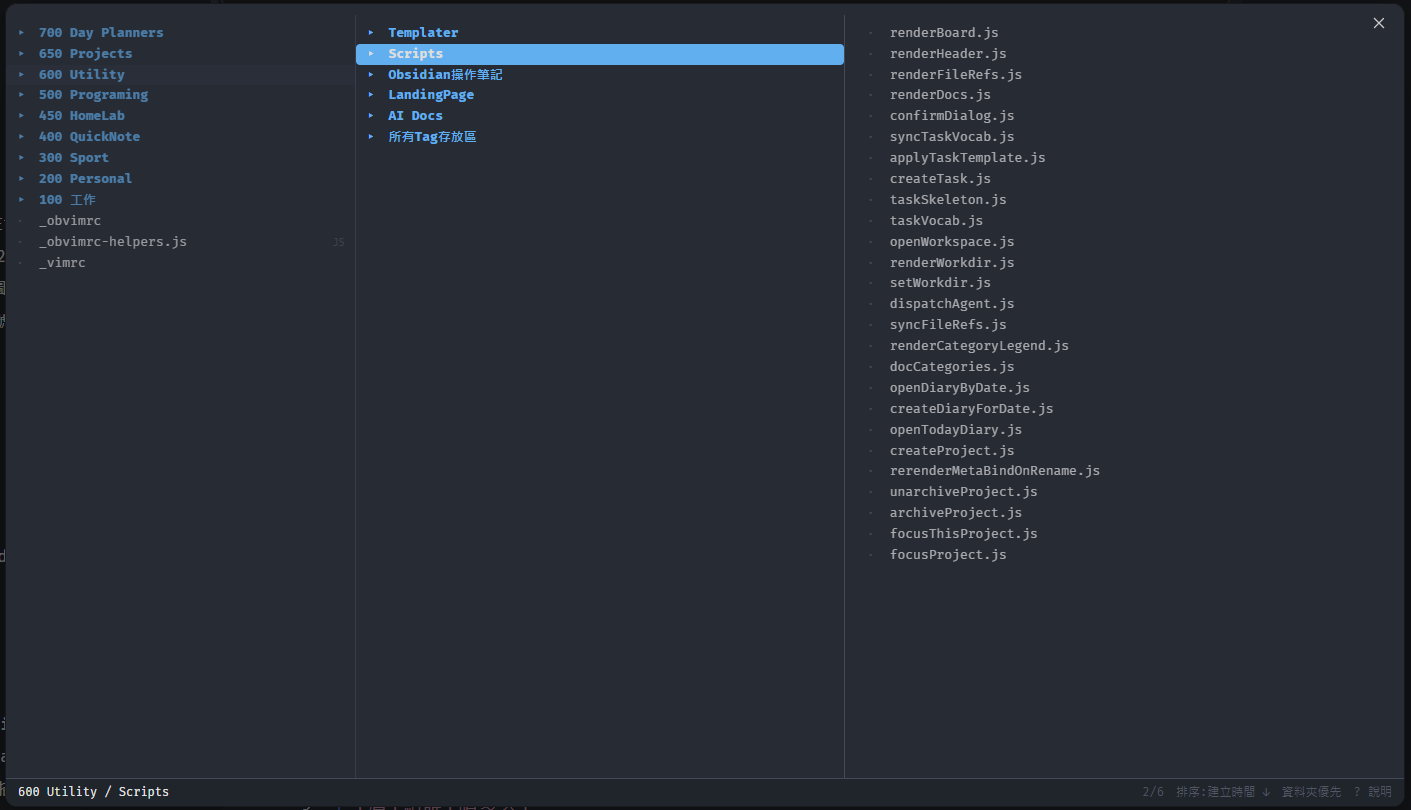
Status: early. In daily use in a 5000-note vault, but the settings schema may still change before 1.0.
Why another file explorer
Obsidian's built-in File Explorer is a tree in a narrow sidebar. That is fine for clicking, but it makes three things awkward, and this plugin exists for those three:
| Built-in File Explorer | Yazi Explorer | |
|---|---|---|
| Seeing where you are | one narrow column; deep folders scroll sideways | miller columns — parent / current / preview, three levels of context at all times |
| Deciding “is this the file?” | file names only | live preview beside the list: rendered markdown, tables, images, frontmatter |
| Getting there | click, scroll, expand | j k h l, fuzzy file/folder search, full-text search, bookmarks, most-visited |
It is not a replacement for Quick Switcher, which is excellent at “I know the name.” This is for “I want to look around” — browsing, comparing, moving files, and acting on a batch of them.
Install
Not in the community plugin list yet.
With BRAT (recommended — you get updates):
add the beta plugin vi000246/obsidian-yazi.
By hand: download main.js, manifest.json and styles.css from the
latest release, drop them in
<vault>/.obsidian/plugins/yazi-explorer/, reload Obsidian, and enable the plugin.
The first 60 seconds
- Open Settings → Hotkeys, search for Yazi, and give “Open file explorer” a key.
Alt+Eis a good one. (Everything else is reachable from inside, so one hotkey is enough.) - Press it. The explorer opens on the file you are editing, with that folder around it.
- Press
?to see every key — and/inside that page to search it.
j / k      down / up               l / Enter / o   folder → enter, file → open
h          up one folder           t               open in a new tab
gg / G     first / last            s / i           open in a split
d / u      half page               q / Esc         close
Using it
Moving and opening
h and l walk up and down the tree; the left column always shows where you came from and the right
one shows what you are about to open. gg / G jump to the ends, d / u move half a page (that is
the Surfingkeys convention — D is delete, not d).
o, l and Enter all open. t opens in a new tab and closes the explorer; gb opens in a
background tab and keeps the explorer open, so you can queue up several files and then carry on.
s and i open in a vertical or horizontal split.
The preview pane
The right column renders markdown the way Reading view does — headings, tables, mermaid diagrams — so you can tell whether it is the file you wanted without opening it.
Plugin blocks (dataviewjs, tasks, meta-bind, query, …) are stripped before rendering, and
note embeds are replaced with a placeholder. Browsing never executes anything from your vault. Toggle
between rendered and raw text with ,p.
Scroll the preview without moving the cursor: J / K (five lines), ^e / ^y (one line),
^d / ^u (half a page), ^f / ^b or PageDown / PageUp (a page). The mouse wheel scrolls
the preview wherever the pointer happens to be, so you never have to move the mouse into it.
go opens the outline of the note under the cursor: its headings, indented by level. Move with
j / k and the preview scrolls to that heading as you go — you see the section before you commit.
Enter opens the note at that heading; t does the same in a new tab. It works from the file view
and from any list (search results, bookmarks), and h takes you back to where you came from.
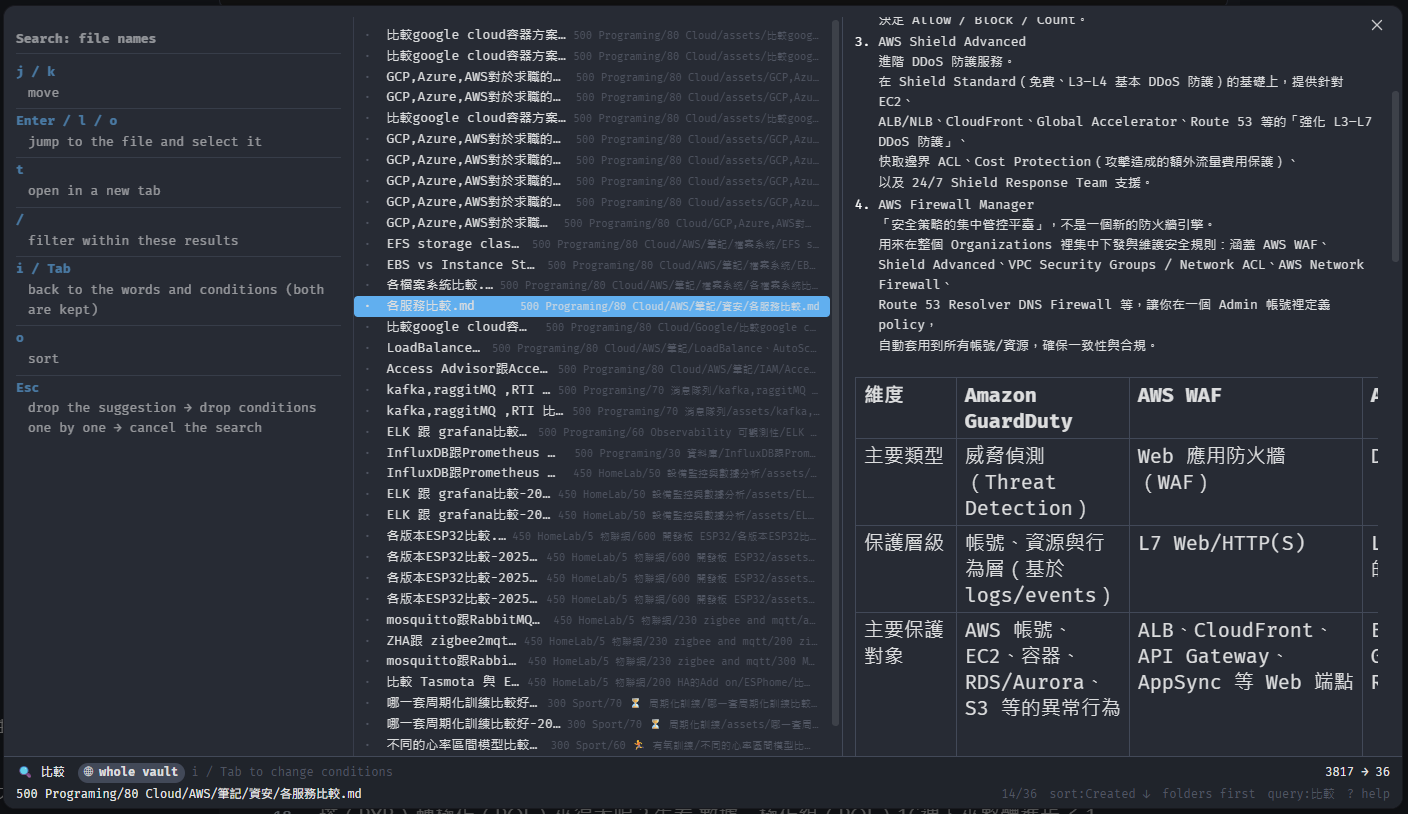
Finding things
/ | filter the folder you are in |
gf | fuzzy search file names and frontmatter aliases, whole vault |
gd | fuzzy search folder names |
gt | full-text search, with the matching lines shown in the preview |
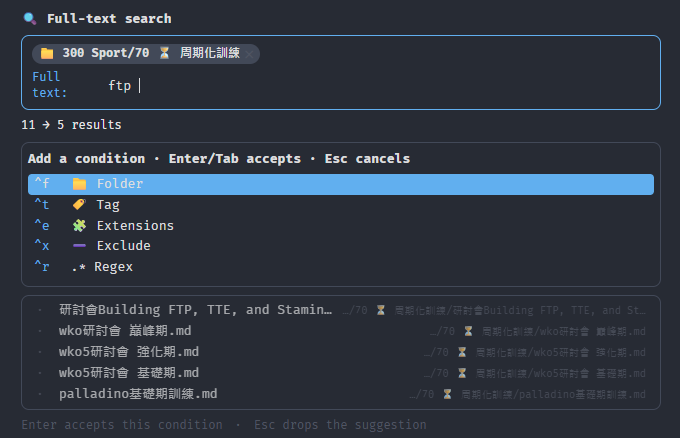
Search has no syntax to memorise. You type words; conditions come from a menu. Press Tab in the
search card to add one — folder, tag, extension, or any frontmatter field you configured. Each
condition becomes a visible chip you can remove, rather than something hidden inside a query string.
The candidate values are read from your vault and come with counts, so you only ever see values that
actually exist, and a typo shows up as “only 1 note has this”.
Searches always have a scope, shown as a chip. ^f changes it, offering candidates from widest to
narrowest: whole vault → each folder above → where you started → each folder below.
Following links
gr shows the relations of the note under the cursor, grouped:
PARENT      Roadmap 2026
CHILDREN    Ship the importer
            Write the migration guide
RELATED     Prior art — other explorers
▸ 12 Backlinks
▸ 3 Links
Parent and Related are read from frontmatter; the reverse direction is derived, never stored
— Children is "every note whose parent points here", so the two sides can never disagree. Plain
[[links]] that carry no relation type come last, folded into one line each so they cannot bury
the typed groups; anything already shown under a typed group is not repeated there.
Relations are walked exactly like folders. l or Enter on a note enters it: its relations
become the list, the left column becomes the list you just left (the way the parent folder does),
and h steps back. l on a folded ▸ 12 Backlinks line expands it — same key, same idea. The
preview on the right shows the note under the cursor with a strip on top saying which groups it has
and how many, so you know before pressing l whether it leads anywhere. o and t open the note
for real.
Which fields count as relations is configurable; out of the box:
| field | group | reverse group |
|---|---|---|
parent | Parent | Children |
up | Up | Down |
related | Related | (symmetric — shown on both notes) |
blocks | Blocks | Blocked by |
up is the LYT convention: it points at the map-of-content
note this one belongs under. A field you don't use simply never produces a group, and you can add,
rename or disable fields under Settings → Relations & views.
Values should be [[wikilinks]], or a list of them:
---
parent: "[[Roadmap 2026]]"
related:
  - "[[Prior art — other explorers]]"
  - "[[Keyboard-first tools]]"
---
Plain text that names a file is understood as a fallback, but wikilinks are what make Obsidian's rename tracking, backlinks and graph work.
Seeing only Links and Backlinks? Then none of your notes carry these frontmatter fields yet —
grstill works, it is just showing the untyped links it found. Relations are read from frontmatter, not from a## Relatedsection in the body.
Saved views
A search you want back tomorrow can be kept. Run it, then press s and give it a name. gv lists
what you saved:
w  In progress, mine     file names · status: 3 In Progress · priority: P1 High
r  Read later            full text · "reading" · in 400 QuickNote
·  Blocked               file names · blocked
A view stores the words, conditions and scope — not the results, so it is re-run every time and
always reflects the vault as it is now. In the list, Enter runs one; e opens it in the search
card for editing — the card says which view you are editing, Enter saves the changed conditions
back to that view and returns to the list, Esc discards; R renames it; x deletes it (after a
y); and m plus a letter assigns a shortcut — after which that letter runs it straight from the
list.
Saving the same conditions again does not create a twin: it asks whether to rename the existing
view instead, and y opens the name box with the old name filled in. Saving under an existing
name replaces that view's conditions.
Views are editable under Settings → Relations & views too — name, letter, words, folder, and removing conditions. Adding a condition is deliberately only possible in the explorer: there the candidate values are read from your vault and come with counts, so you can see that a value actually exists rather than typing one and hoping.
Getting in from outside
One hotkey for Open file explorer is enough to use everything, but each list is also its own
command, so you can bind the ones you reach for — with Obsidian's own hotkeys, or a leader-key
plugin, where these work well as ,-sequences:
| command | opens |
|---|---|
| Open file explorer | where you are |
| Open saved views | the view list |
| Open outline / Open relations | the current note's headings / links |
| Open tab list · bookmarks · recent files · most visited | those lists |
| Search: full text · file names · folders | straight into that search |
Three keys leave things, and they mean three different things:
h | back to where you came from — the list or folder you were in before. At the first layer it stays put. After jumping into a folder from a list, h in that folder returns to the list; deeper folders step up one level as usual. |
Esc | dismiss the innermost thing first (a suggestion, an input, the help page, a search card…); with nothing left, back one layer; at the first layer, close |
q | close the explorer, from anywhere |
So if a command opened you straight into a list, that list is the first layer: Esc closes,
h has nowhere to go. If you walked into it from the file view, both take you back there.
Finding a key
Press ? for the full list, then / to search it — matches are highlighted, and typing a section
name (preview, bookmarks) keeps that whole section. Esc clears the search, Esc again closes
the page.
Working with files
Selection survives folder changes: Space selects and moves down, v / V select a range, ^a /
^r select all or invert. Walk somewhere else, select more, then act on the lot.
y copies, x cuts, p pastes, P pastes over a same-named file. Cut-then-paste is a move, and it
goes through Obsidian, so your [[links]] follow the file. a / A create a note or a folder, R
renames, D deletes to the system trash (it asks first, and deletes the whole selection).
Copy paths with cc (absolute), cd (its folder), cf (file name), cn (name without extension),
cr (vault-relative — what [[links]] use).
Bookmarks, tabs and most visited
m bookmarks the item under the cursor, M the current folder. Both ask what to call it, with the
file name filled in — bookmarks are for recognising, and a file called 2026-09-18.md is not how you
think of it. In the bookmark list, R renames one, m plus a letter assigns a shortcut, and then
' plus that letter jumps there from anywhere.
The same selection keys work inside these lists: Space picks a row and moves down, v / V pick a
range, ^a / ^r select all or invert, and x then removes every selected row — closing tabs,
deleting bookmarks or views, forgetting most-visited entries. Removing more than one always asks
first, including tabs, because X only brings back the last one you closed.
T lists open tabs, b bookmarks, rf recent files (newest first), and z shows most visited —
folders you enter and files you open, ranked together by how often × how recently. The two are easy
to confuse, so: rf is time only and files only; z counts visits, includes folders, and lets what
you stopped using sink.
Opening things outside Obsidian
O opens a menu of openers, and the menu changes depending on whether a file or a folder is under
the cursor. Out of the box you get “default app”, “open the folder” and “show in the file manager”.
Everything else you configure — see below.
Configuration
Settings → Yazi Explorer. Every section exports and imports as JSON, so a setup can be shared.
Openers — the O menu
Each opener is a label, a key, what it applies to, and an action:
| Action | What it does | Mobile |
|---|---|---|
system | hand the path to the OS (default app for files, file manager for folders) | ✓ |
reveal | show it in the file manager, selected | ✓ |
obsidian-command | open the file, then run an Obsidian command by id | ✓ |
command | run a command line | desktop only |
command openers take an executable and a list of arguments, one per line. Each line is passed
as a single argument, so paths containing spaces need no quoting or escaping. Placeholders:
{{path}}, {{dir}}, {{relPath}}, {{name}}, {{basename}}, {{ext}}, {{vaultPath}},
{{vaultName}}.
Example: open the file in VS Code (key e)
Label       Visual Studio Code
Key         e
Applies to  Files only
Action      command
Executable  code
Arguments   --reuse-window
            {{path}}
Example: a terminal in that folder (key t, Windows)
Label       Terminal
Key         t
Applies to  Files and folders
Platform    Windows
Action      command
Executable  wt.exe
Arguments   -d
            {{dir}}
Use Platform when the command differs per OS: add one entry per platform with the same key, and
each one only appears on its own platform.
Row decorations — frontmatter in the file list
A rule says “when this frontmatter field has this value, draw the row like this.” It can replace the bullet with an icon, replace the file name with a field, put a field on the right, add status badges, and dim or pin rows.
Example: a diary where the file name is a date
Applies when   type = diary
Icon           field → mood        (the emoji you recorded that day)
Title          field → title       fallback: filename
Secondary      basename            (the date, small, on the right)
2026-09-13.md then reads as 🤩 A weekend in Jiufen 2026-09-13.
Example: tasks with status and priority
Icon from a kind field via a lookup table, a status badge with a sort order, and low priorities
hidden because drawing them on every row is noise. The status table, priority order, dim/pin
conditions and the preview-panel field order live in the Advanced (JSON) box of the rule —
they are nested data, and a form for them would be thirty input boxes.
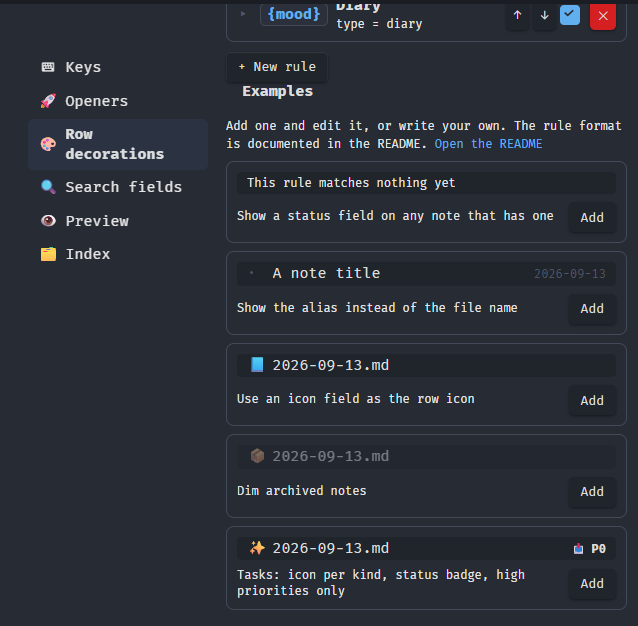
The settings tab ships a gallery of examples — each one shows the row it produces before you add
it. The first few match on “this field has a value” rather than on a particular word, so they work
whatever your status or icon values happen to be.
Rule format, field by field
Every part is optional except when. Rules are matched top to bottom and the first match wins, so
put the specific ones above the general ones.
| Key | What it does |
|---|---|
when | {field} — the field has any value · {field, equals} · {field, in: [...]} |
icon | {from:"fixed", value} · {from:"field", field} · {from:"map", field, map:{value:icon}, fallback} |
title | {from:"field", field, fallback:"filename"} — replaces the file name |
subtitle | {from:"basename"} or {from:"field", field} — small text on the right, drawn only when the title came from a field |
status | {field} shows the raw value · {field, map:{value:{text, order, dim}}} gives it a glyph, a sort weight, and can dim the row |
priority | {field, order:{value:0,…}, showMaxOrder} — only values at or below showMaxOrder are drawn |
group | {field, order:[…]} — the sort weight used by “sort by category” |
dimWhen / pinWhen | [{field, equals}] — dim the row, or float it to the top |
statusWhen | [{field, equals, text, dim}] — override the badge (e.g. a file whose source has gone) |
overdue | {field} — a date field; marks ⏰ when it is in the past and the row is not dimmed |
panel | ["field", {field, label}] — field order in the preview pane's metadata table |
The four fields with tables (icon.map, status.map, priority.order, group.order) are edited as
JSON in the Advanced box of a rule — they are nested data, and a form for them would be thirty
input boxes.
Values outside your table show as ❓ plus the raw value. That is deliberate: it makes drift
visible instead of quietly falling back to a normal-looking icon. A status with no table has
nothing to drift from, so it just shows the value.
Search fields
Which frontmatter fields become search conditions, each with a direct key (pressed with Ctrl while
searching) and an icon.
Keys
The keys inside the explorer are fixed, because they are an interlocking set: d/u are half-page,
which is why delete is D; y yanks files, which is why copying a path lives under c. Change one
in isolation and the reason for the others disappears. Press ? inside the explorer for the full
list, and / in that page to search it.
What you can do is alias one key to another, the same idea as Surfingkeys' map:
map J gt        # J now does what g then t did (full-text search)
map w O         # w now does what O did
unmap S         # S does nothing
# lines starting with # are comments
Keys you cannot type go in angle brackets: <Space> <Enter> <Esc> <Tab> <Backspace> <Up> <Down> <Left> <Right> <PageUp> <PageDown>. The left side is always a single key; the right side may be a
sequence. A line that does not parse is listed under the box with the reason, rather than silently
doing nothing.
What you can map — every key the explorer uses
| Move | j k h l g(gg gt gf gd go gr gb) G d u |
| Open | o t s i O(then an opener key) |
| Lists | T b z r(rf) |
| Bookmarks | m M ' |
| Select | <Space> v V Esc |
| Clipboard | y x p P Y X |
| Files | a A R D c(cc cd cf cn cr) |
| Sort | S(then a sort key) |
| Views | gv s(in search results) |
| Preview | J K PageDown PageUp ,(,x ,X ,p) |
| Other | / ? q |
Mapping the first key of a sequence remaps the whole sequence: map z g makes zt behave as gt.
Three things overrides never touch: typing (the filter, search and rename boxes), bookmark
letters (' and m take the letter literally, so every letter stays usable as a shortcut), and
Ctrl combinations.
Preview and index
Render on/off, render delay, scroll step, wheel behaviour, cursor wrap-around, half-page size, and the interface language. The full-text index has its own section: on/off, a file-size cap, excluded folders, how large the cache currently is, and a button to clear it.
Compatibility and what it touches
- Desktop and mobile. Everything works on mobile except
commandopeners, which spawn an external process; those are filtered out of the menu there. - Node / Electron APIs. Two, both loaded lazily and only on desktop:
child_process.spawnfor command openers, and Electron'sshellfor “default app” and “show in the file manager”. Obsidian exposes no public API for either. - Nothing from your vault is executed. Preview strips plugin blocks before rendering and never evaluates anything.
- The full-text index lives in this plugin's folder under
.obsidian. It is built the first time you usegt, and the settings tab shows its size with a button to clear it.
Development
npm install
cp .env.local.example .env.local   # point it at your vault's plugin folder
npm run dev                        # watch, and copy the build into that vault
npm test                           # node test suite — no Obsidian required
npm run build                      # production build
The source is plain JavaScript on purpose: the code carries a lot of why in its comments, and a type-driven rewrite would churn all of it.
src/ is bundled by esbuild into main.js. The tests stub the Obsidian API so they run in plain Node,
and cover the things worth covering: key dispatch, preview sanitising, opener resolution and command
building, path handling across platforms, decoration rules, and the i18n invariants (no orphan keys,
matching placeholders, every key used in code exists in English).
Translations live in src/i18n/. English is the reference; a language file may be incomplete and
anything missing falls back to English.
Credits
The interaction model is lifted wholesale from yazi by sxyazi. This plugin is not affiliated with that project.
License
For plugin developers
Search results and similarity scores are powered by semantic analysis of your plugin's README. If your plugin isn't appearing for searches you'd expect, try updating your README to clearly describe your plugin's purpose, features, and use cases.