Traverse
approvedby zjie-wang
Browse, preview, and manage vault files from a fast, keyboard-driven view. - This plugin has not been manually reviewed by Obsidian staff.
Traverse
A keyboard-first file browser for people who want to navigate between files and manage their Obsidian vault without leaving the keyboard.
Getting started
You can open Traverse from the ribbon or command palette; however, it is strongly recommended to assign a preferred shortcut in Settings → Hotkeys.
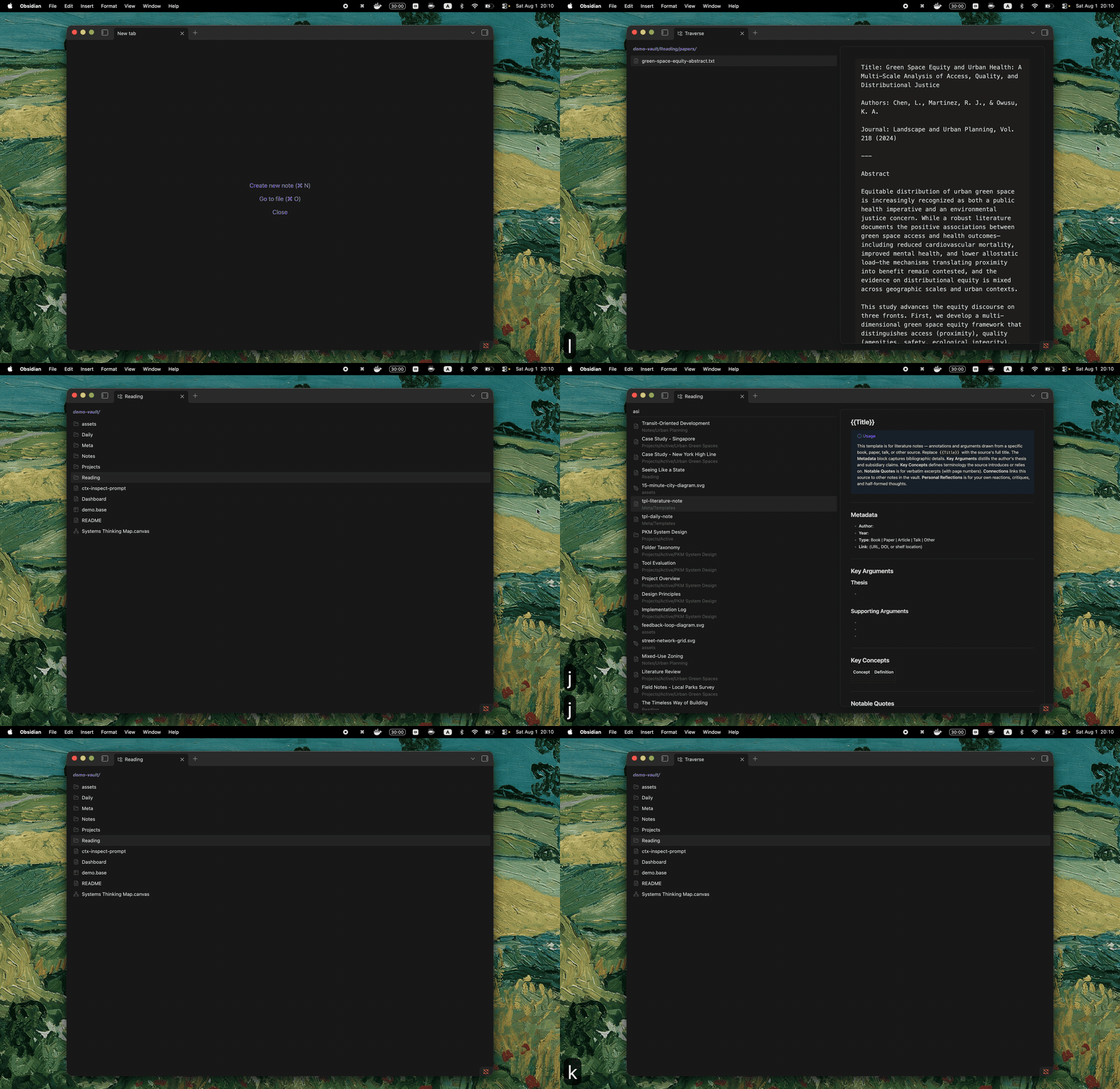
The keybindings should be intuitive enough for vim users to pick up immediately, especially those that are familiar with terminal explorers like yazi.
Navigation
| Key | Action |
|---|---|
j / k, ↓ / ↑ | Move down / up |
h / ← | Go to the parent folder |
l / → | Enter the selected folder |
Enter | Open the selected file, or enter a folder |
Mod+Enter | Enter a folder without opening its folder note |
gg / G | Jump to the first / last item |
H / L | Go backward / forward through folder history |
q | Return to the note that was open before Traverse |
~ | Jump directly to the vault root |
/ | Fuzzy-filter the current folder by name |
s | Search files and folders across the vault |
P | Show or hide the preview |
J / K | Scroll the preview |
F | Open the current folder in the system file manager |
T | Open the current folder in the preferred terminal |
? | Show a quick key reference |
File/folder operations
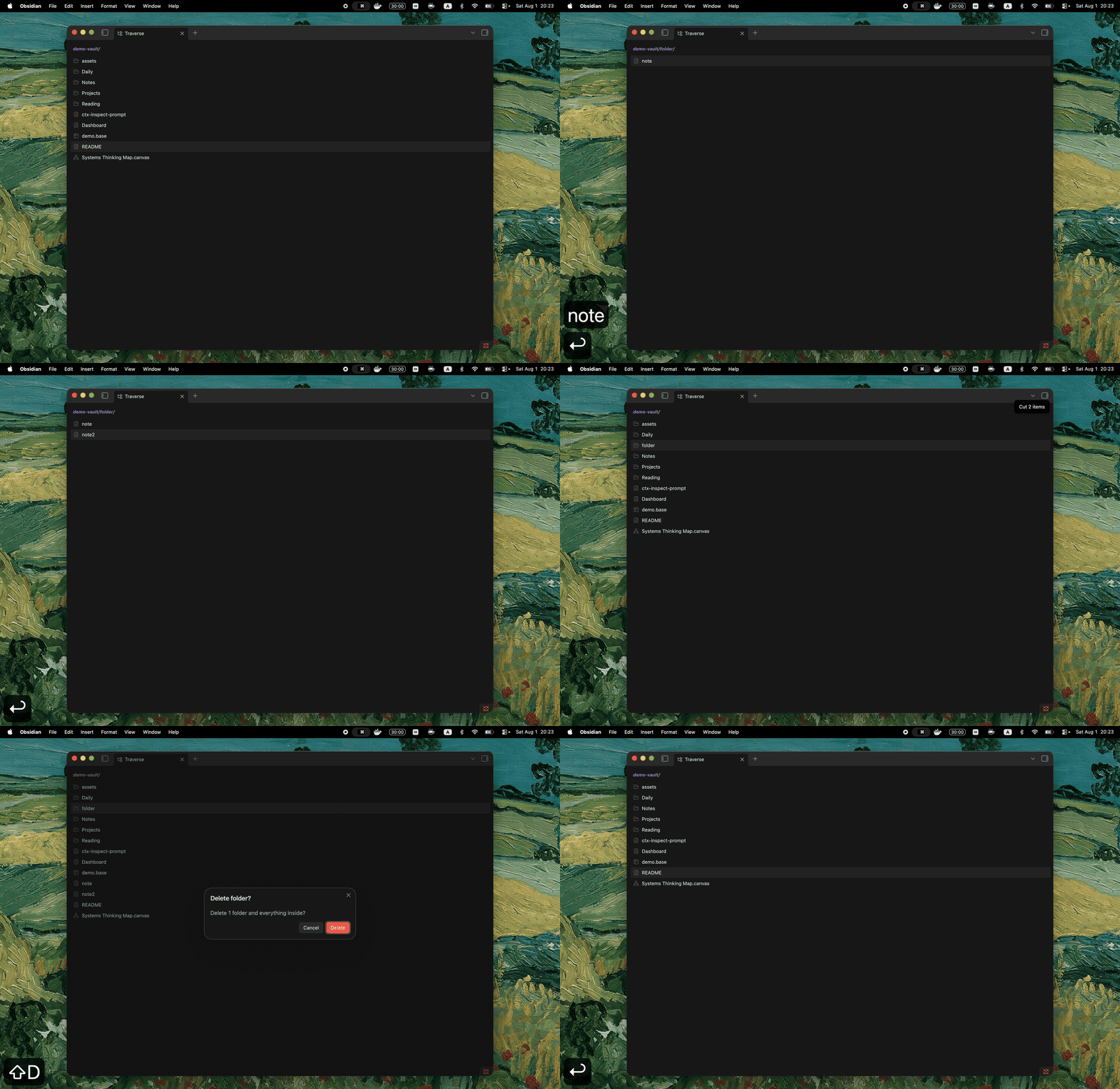
Commands act on the selected items, or on the item under the cursor when nothing is selected.
| Key | Action |
|---|---|
Space | Toggle the current item and move down |
v | Start or end visual range selection |
Mod+A | Select all listed items |
Escape | Leave the current mode or clear the selection |
a / A | Create a file / folder |
C | Create a folder note, choosing from the configured extensions |
r | Rename |
y / x | Copy / cut |
p | Paste into the current folder; pasting cut items moves them |
d | Delete a file |
D | Delete a folder and its contents |
Every operation that changes the vault asks for confirmation.
Previews
You can previews Markdown, images, audio, video, PDFs, text files, folders, and Obsidian Bases.
Press P to show or hide the preview for the current Traverse pane. Under Settings → Traverse, you can resize the preview card within the right half of the view and decide whether it should automatically hide when the workspace becomes crowded.
Folder notes
Traverse can handle folder notes. The feature is enabled by default; adjust its location, name-template, and extension options under Settings → Traverse → Folder notes.
Enteropens the folder note.l,→, orMod+Enterenters the folder.ddeletes only the folder note;Ddeletes the folder using Obsidian’s configured deletion behavior.
Installation
From the Obsidian Community plugins directory:
- Open Settings → Community plugins → Browse.
- Search for Traverse.
- Select Install, then Enable.
For manual installation, download main.js, manifest.json, and styles.css from a release and place them in .obsidian/plugins/traverse/ inside your vault.
License
For plugin developers
Search results and similarity scores are powered by semantic analysis of your plugin's README. If your plugin isn't appearing for searches you'd expect, try updating your README to clearly describe your plugin's purpose, features, and use cases.