by desdrianton
Complex tables with merged cells, background and text colors, and alignment.
Dream Table
Spreadsheet-style tables inside your Obsidian notes: merged cells, colors, frozen headers — and you edit them right where they sit.
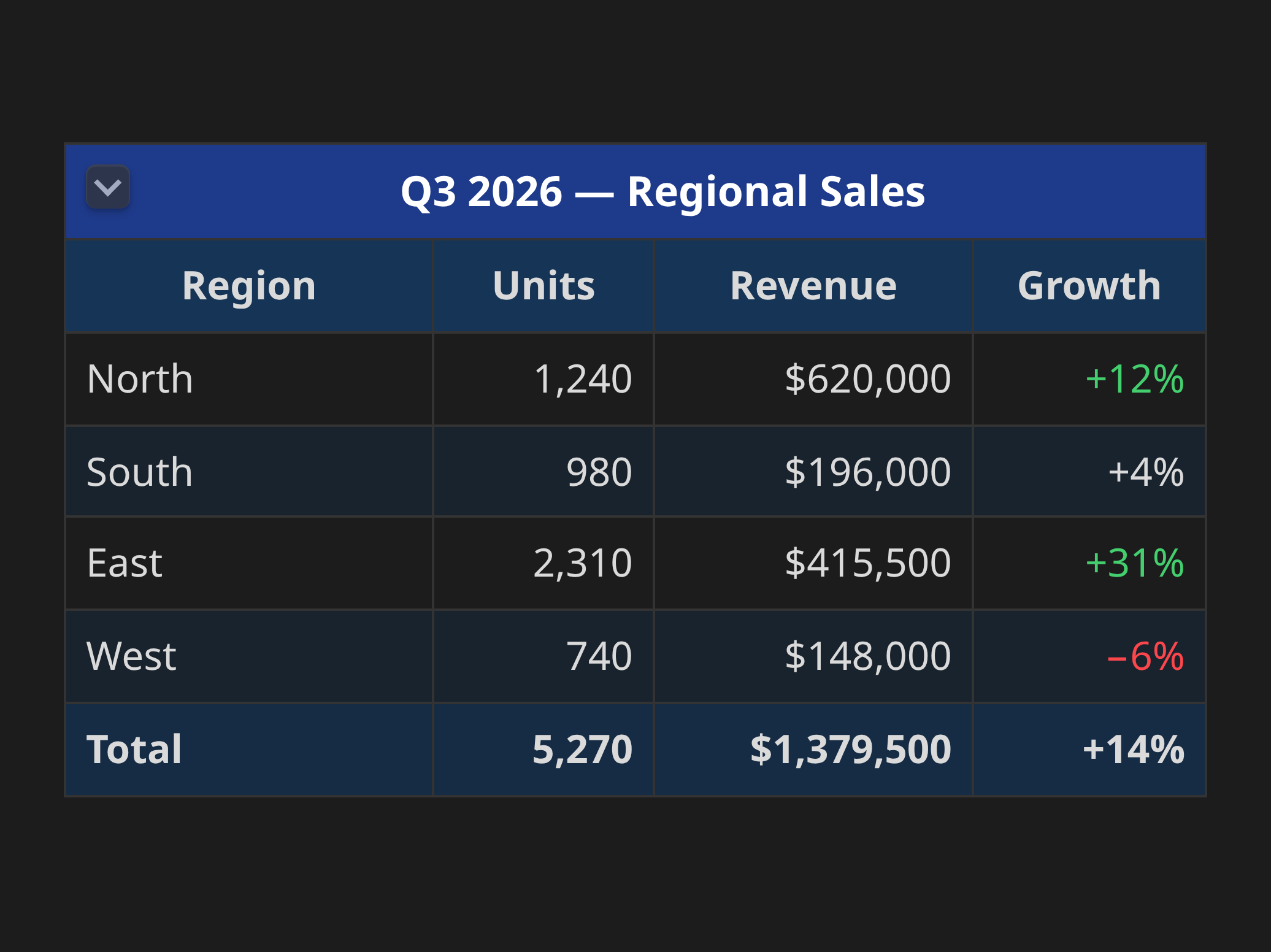
Markdown tables are fine until you need a cell that spans two columns, a colored header, or a row that stays put while you scroll. Dream Table gives you those. You click a cell, type, and move on — there is no separate editor to open and no HTML to write.
What you can do
- Merge cells across rows and columns.
- Color any cell's background and text, and pick from ready-made table looks.
- Freeze the top rows and the left columns so they stay in place while the rest scrolls.
- Resize columns by dragging the border between them.
- Put anything in a cell that you can write in a note: links,
[[wikilinks]], images, task checkboxes, bold and italic. - Copy and paste whole blocks of cells, including to and from a spreadsheet.
- Undo with Ctrl+Z, like everywhere else.
Getting started
- In Obsidian, go to Settings → Community plugins → Browse, search for Dream Table, then install and enable it.
- Open a note, press Ctrl/Cmd+P, and run Dream Table: Insert table. It asks how many rows and columns you want.
- Click any cell and start typing.
Already have an ordinary Markdown table? Put your cursor in it and run Dream Table: Convert Markdown table, or right-click it and choose Convert to Dream Table. Your header row, column alignment and line breaks all come across.
Editing
The cell you are in is always ready for typing — there is no separate "select" mode to switch into.
| Key | What it does |
|---|---|
| Click | Edit that cell |
| Tab / Shift+Tab | Next / previous cell |
| Arrow keys | Move through the text, then on to the next cell |
| Enter | New line inside the cell |
| Ctrl/Cmd+Enter | Save and start a new row |
| Escape | Undo your typing in this cell |
| Ctrl/Cmd+B / +I | Bold / italic |
| Ctrl/Cmd+K | Insert a link |
| Ctrl/Cmd+Z | Undo the last change to the table |
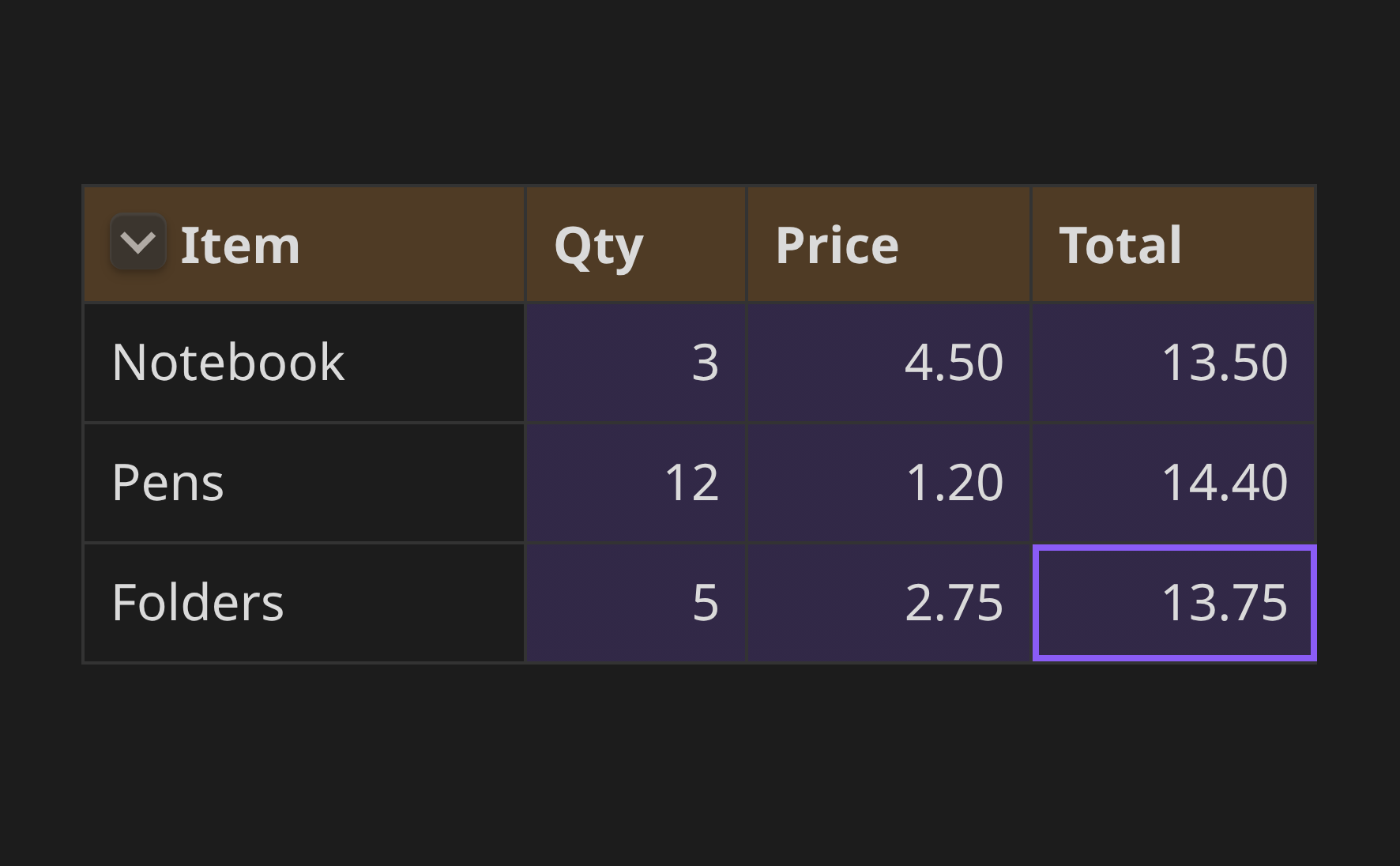
To work on several cells at once, drag across them or hold Shift and click. Hold Ctrl/Cmd to add more cells to the selection. Anything you then choose — a color, bold, a border — applies to all of them.
Formatting
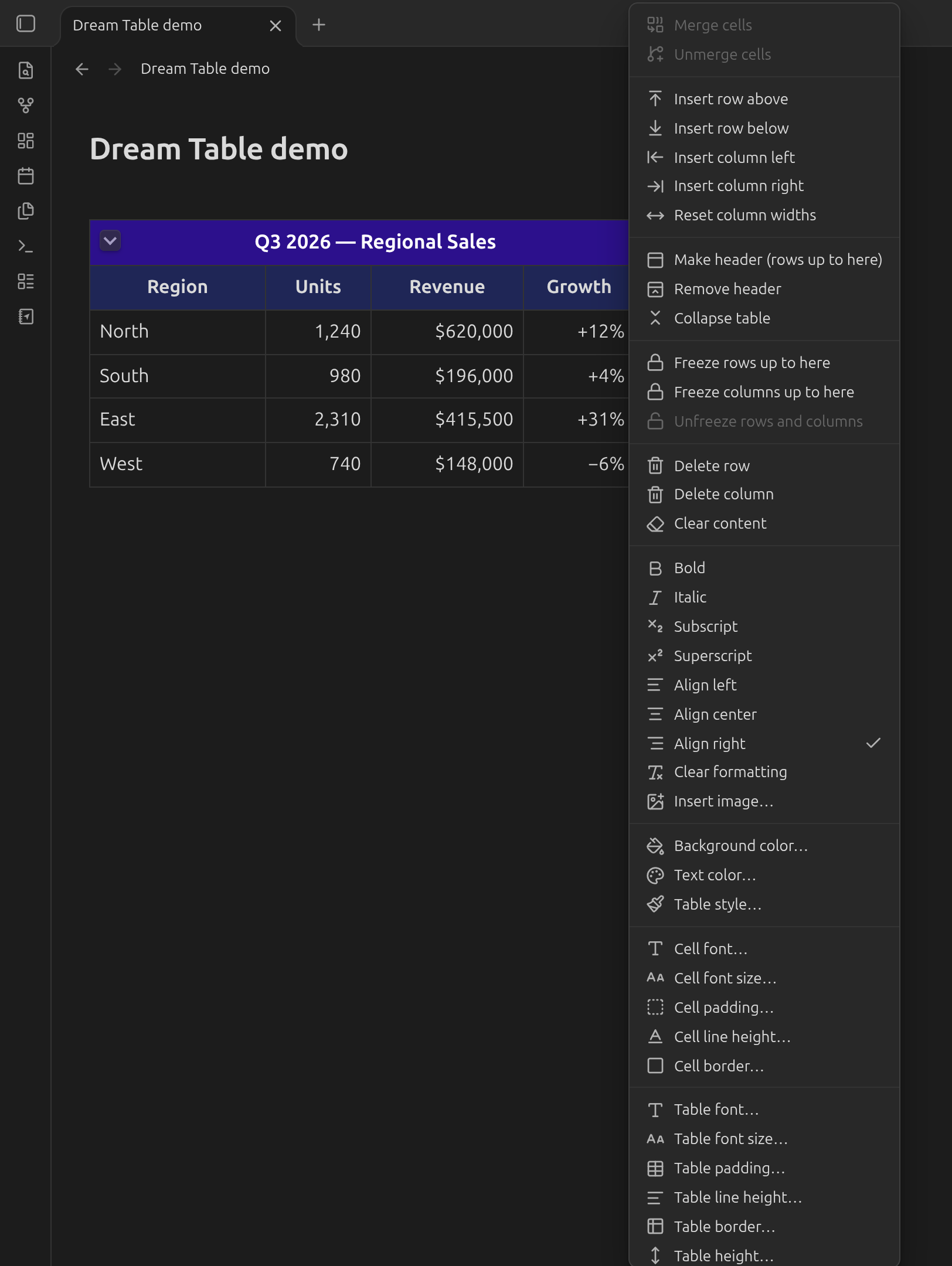
Right-click anywhere in the table for the full menu. In short:
- Structure — merge and unmerge cells, insert or delete rows and columns, clear what is in them.
- Look — background and text color, bold, italic, alignment, borders, padding, font and font size. You can set these for the selected cells, or for the whole table at once.
- Ready-made styles — Table style… colors a header row, a header column, or every second row in one click.
- Header and freezing — mark the top rows as a header, collapse the table down to it, or freeze rows and columns in place.
- Images — Insert image… picks one from your vault. You can also paste or drop an image straight onto a cell; it is saved as an attachment like any other.
Frozen rows and columns
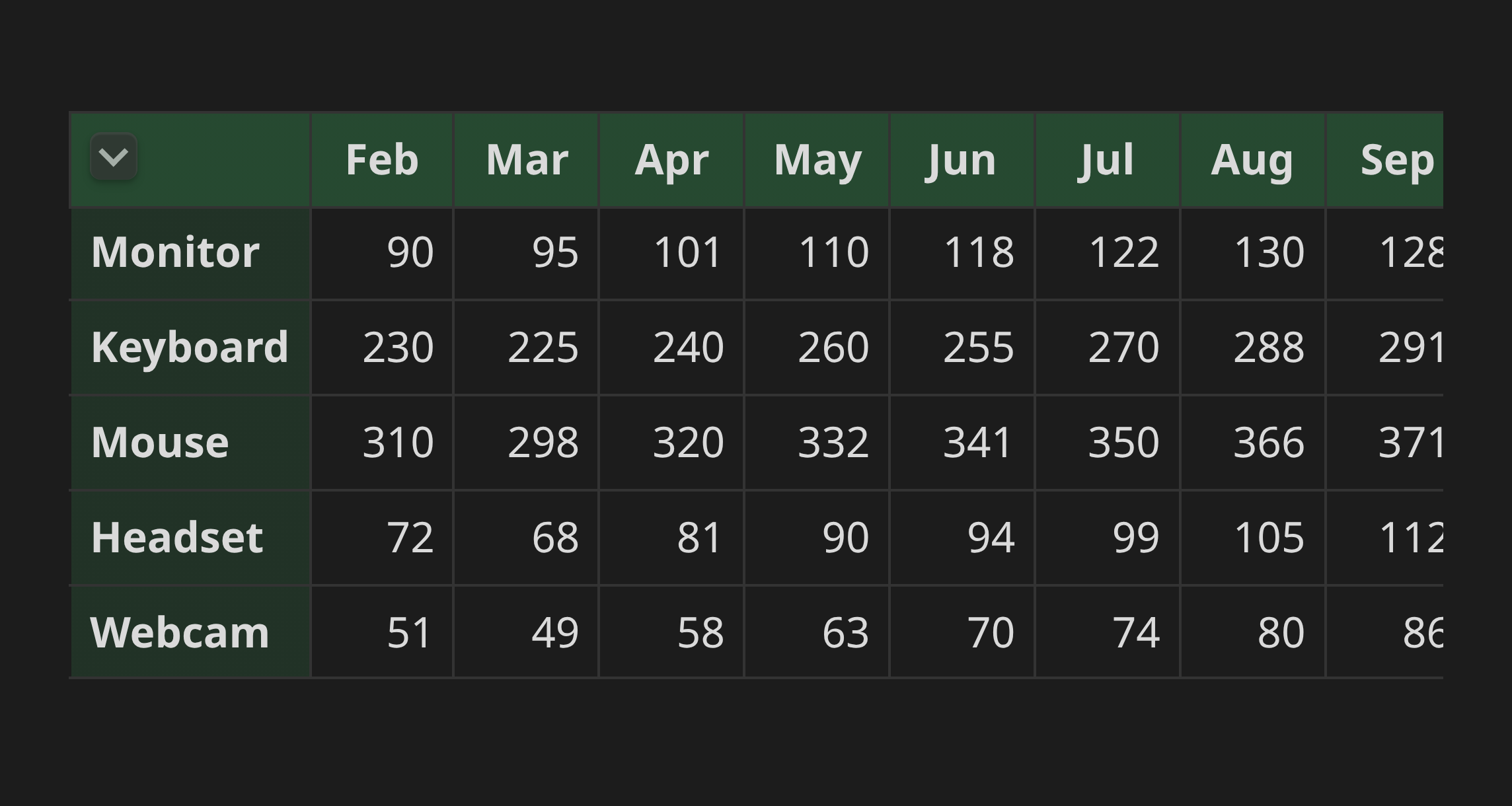
Set a few rows and columns to stay put, and a long or wide table scrolls inside its own box while the headers remain visible — like freeze panes in a spreadsheet.
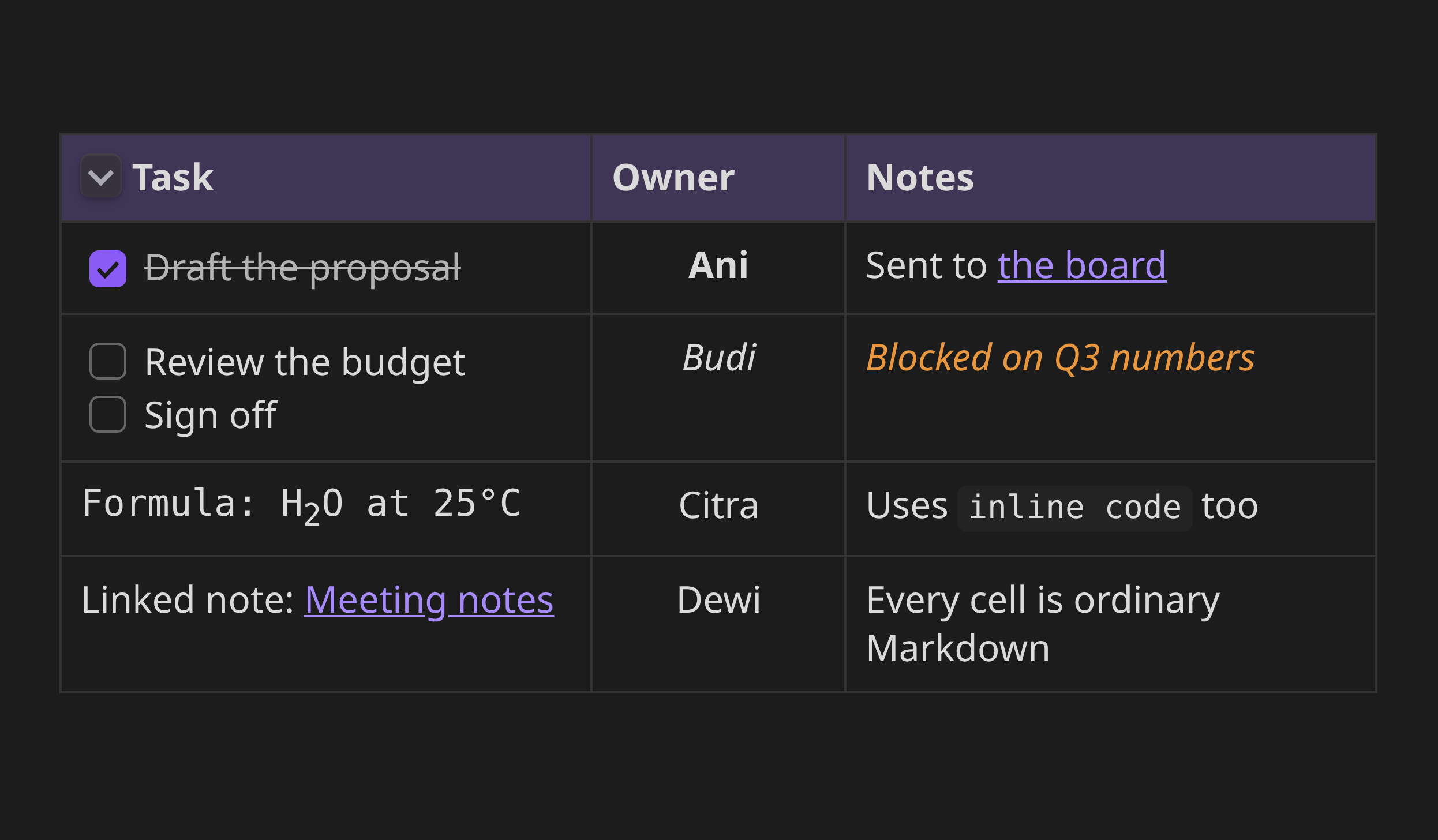
Every cell is ordinary Markdown
Tick a checkbox, follow a link, read a formula. Whatever you can write in a note, you can write in a cell.
Your notes stay plain text
A Dream Table is stored in your note as a small block of readable text, so nothing is locked away in a database and your note still works without the plugin installed:
```dreamtable
rows:
  - [Region, Units, Revenue]
  - [North, 1240, "$620,000"]
  - [South, 980, "$196,000"]
header: 1
styles:
  - { range: A1:C1, bold: true }
```
You never have to write this by hand — everything above is done through clicks and keystrokes. But if you ever want to edit a table as text, or you are curious what the options are, the full reference lists every setting.
Good to know
- Tables work in both Live Preview and Reading view, and on mobile.
- A table shown inside an embedded note is read-only.
- If a table has a mistake in it, the plugin shows you a plain list of what is wrong instead of breaking your note.
Help and contributing
Found a bug or have an idea? Please open an issue. If you want to work on the plugin itself, see CONTRIBUTING.md.
About
This plugin was written 100% by Claude Code: all code, tests, and documentation.
For plugin developers
Search results and similarity scores are powered by semantic analysis of your plugin's README. If your plugin isn't appearing for searches you'd expect, try updating your README to clearly describe your plugin's purpose, features, and use cases.