Markdown Spreadsheets
approvedby ondreu
Edit any Markdown tables in a spreadsheet-style grid in a dedicated tab. - This plugin has not been manually reviewed by Obsidian staff.
Markdown Spreadsheets
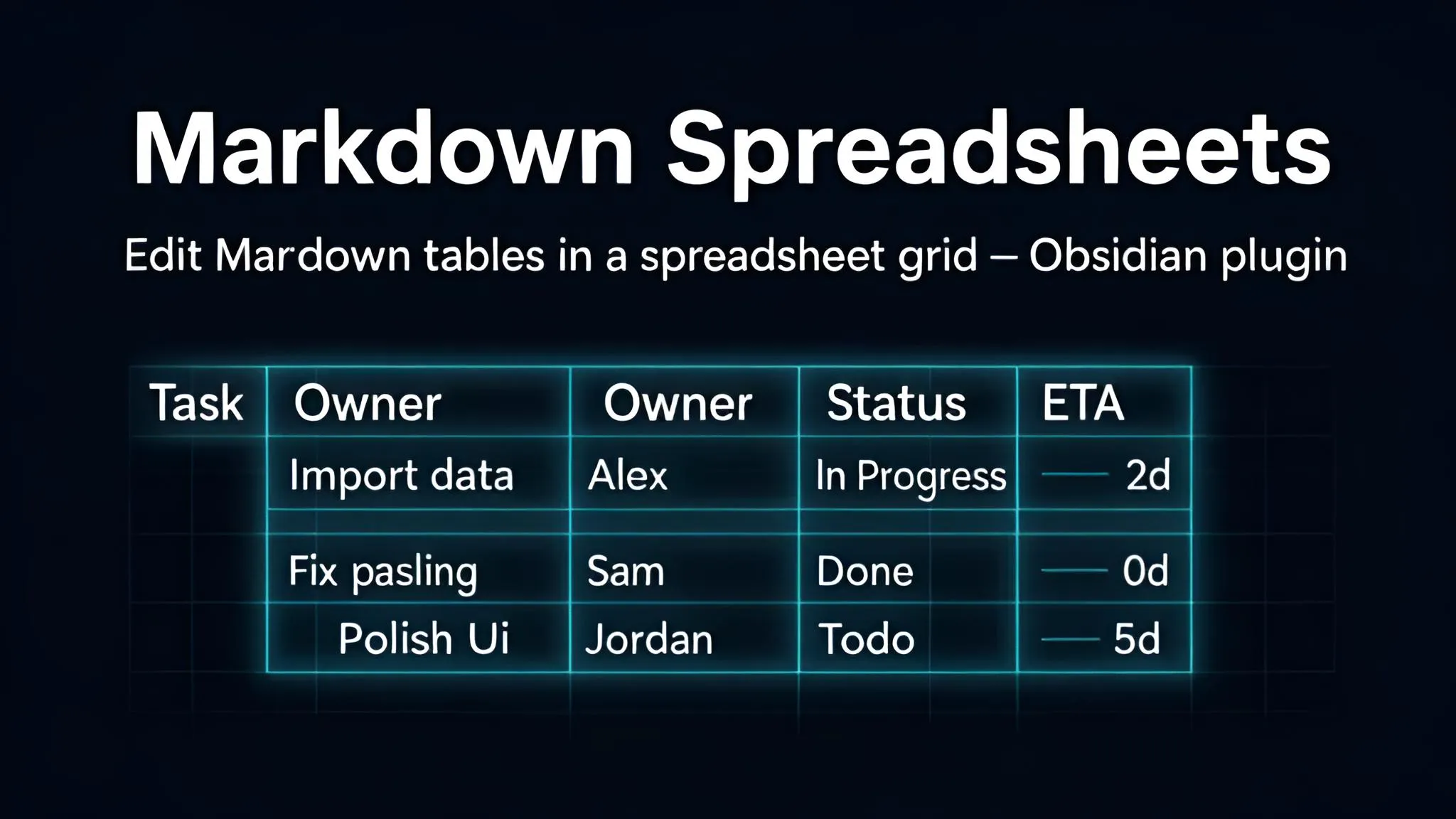
Edit Markdown tables in a spreadsheet-style grid in a dedicated tab.
The note is the source of truth. Nothing is written into it that GFM cannot express natively — no HTML, no merged cells, no cell colours, no live formulas. What comes back out is a strictly valid GitHub-Flavored Markdown table.
What it does
- Opens a table in its own tab — from the ribbon icon in the left sidebar, the button that appears on a table while the pointer is over it, the command palette, the editor context menu, or the file menu. A toolbar of tabs, an infinite grid, keyboard navigation, resizable cells.
- Shows the cells the way the note does. Markdown in a cell is rendered by default; links and
emphasis read as they do in the note, and editing a cell always shows the raw Markdown.
Rawis one button away when the source matters more. - Writes back as valid GFM. The pipes are realigned to the widest cell, alignment markers come from the column alignment, and there is never any trailing whitespace.
- Finds the same table again after you have edited the note above it, without marking up your note. If two tables are genuinely indistinguishable, it asks instead of guessing.
- Never resolves a conflict on its own. If the table changed in the note while the grid was open, you get the choice, not a silent overwrite.
- One-off calculations. The status bar shows Sum · Avg · Count of the selection;
Calculateinserts a literal result into a cell you pick. - Exports to CSV (RFC 4180, delimiter and BOM you choose) and Excel.
What it deliberately does not do
Markdown tables cannot express these, so the plugin does not pretend otherwise:
| Spreadsheet feature | Why not |
|---|---|
| Row 1 as data | GFM requires a header row. Row 1 is the header, always. |
| Merged cells | No GFM equivalent. There is no button for it. |
| Multi-line cell content | A GFM cell is one line. Text wrap in the grid is visual only. |
| Per-cell alignment | GFM aligns per column. The alignment buttons apply to the whole column. |
| Cell colours and fonts | No GFM equivalent. |
| Number formats | A cell is text. Formatting a number rewrites the cell's content. |
| Live formulas | No GFM equivalent. Calculate inserts a value, once, and it does not update. |
Column widths, row heights, wrap flags and freeze settings are cosmetic and live in the plugin's own data, not in your note. Move the note to another vault and it stays perfectly readable — just without the remembered sizes.
Getting started
- Put the cursor in a Markdown table.
- Click the table's Edit button, the spreadsheet icon in the left sidebar, or run Open table as a spreadsheet from the command palette or the right-click menu.
- Edit. In automatic save mode the note is updated shortly after you stop typing.
Keys inside the grid
| Key | Action |
|---|---|
| Arrows | Move |
| Shift+arrows | Extend the selection |
| Ctrl/Cmd+arrows | Jump to the edge of the data |
| Tab / Shift+Tab | Next / previous cell |
| Enter / Shift+Enter | Down / up |
| F2, or just type | Edit the cell |
| Esc | Cancel the edit |
| Delete | Clear the selected cells |
| Ctrl/Cmd+C / X / V | Copy, cut, paste as tab-separated text |
| Ctrl/Cmd+A | Select the used range |
| Ctrl/Cmd+Z / Y | Undo, redo (the grid keeps its own history) |
| Ctrl/Cmd+S | Write back to the note |
| Ctrl/Cmd+B / I | Bold, italic |
Copy and paste use tab-separated text, so a range moves between the grid and Excel, LibreOffice or Google Sheets in both directions.
Resizing
Drag the border in the column or row header. Double-click a border to fit the content. Select
several columns or rows first to size them all alike. Table ▸ Column width takes an exact number.
Things worth knowing
- Undo in the note is coarse. The grid has its own undo stack. Obsidian's undo in the note knows nothing about it, so after a write, Ctrl+Z in the note undoes the whole write as one step.
- A sparse table gets a warning. A value in
Z400forces every cell above and to the left of it to be written, because GFM tables are always rectangular. You will be told how many empty cells that adds, and offeredShrink to actual data. - The last ten versions are kept.
Table ▸ Restore a versionlists them; picking one shows a line diff against what the grid holds now, and restoring only replaces the grid — nothing reaches the note until the next save. - A dotted date stays a date.
07.07.2026is not a number, so it exports to Excel as text rather than losing its separators. in a cell comes from the note, not from here. Tables pasted from a web page or from Word often carry that HTML entity, and the plugin never adds or removes one. Rendered mode shows it as the space it is;Data ▸ Find and replaceclears it out if you would rather it were gone.- Filtering is display-only. Hidden rows are still written back.
- Desktop only in this version.
- Aimed at tables up to roughly 500 rows. There is no virtualization; the grid stops growing at 2000 rows and 128 columns.
Settings worth changing
- Save mode — automatic by default. Switch to manual if your vault is under Git or Obsidian Sync and you would rather not have a revision per keystroke.
- Anchor strategy — how hard to try before offering to add a permanent
^grid-xxxxmarker to your note. Nothing is added without asking. - CSV delimiter and byte order mark — a semicolon and a BOM by default, which is what Excel needs in locales that use the comma as a decimal mark.
- Number locale and decimal separator — how
1 234,56is read and how results are written. - Cell display — rendered by default. Raw is faster on a very wide table.
- Show a button on tables in the note — on by default; turn it off if you would rather reach the editor from the sidebar or the context menu only.
No network, no telemetry
The plugin makes no network requests, loads no remote code, collects nothing and has no runtime dependencies.
Development
npm install
npm run dev     # watch build
npm run check   # styles + typecheck + lint + tests + production build
npm test
npm run check is what CI runs. The Obsidian ESLint plugin is blocking at zero errors and zero
warnings.
Releasing is node scripts/bump-version.mjs <semver>, then pushing a tag named exactly like the
version — 0.2.0, never v0.2.0. A workflow does the rest. See RELEASING.md for what Obsidian
expects and how to recover from a bad release.
styles.css is generated from src/styles.src.css by scripts/gen-styles.mjs and committed; CI
fails if it is stale.
docs/design— the specification this implements.docs/DECISIONS.md— where the implementation departs from it, and why.docs/HANDOFF.md— current state, what has never run inside Obsidian, known gaps.RELEASING.md— release and store-submission procedure.CLAUDE.md— the invariants and Obsidian conventions this code is built on.
Third-party attribution
None. There are no runtime dependencies. The build-time tools (esbuild, TypeScript, ESLint,
eslint-plugin-obsidianmd, Vitest) are all MIT-licensed and are not bundled into main.js.
The design credits @tgrosinger/md-advanced-tables and ganesshkumar/obsidian-table-editor (both
MIT) as prior art; see docs/DECISIONS.md for why neither ended up as a dependency.
Licence
MIT — see LICENSE.
For plugin developers
Search results and similarity scores are powered by semantic analysis of your plugin's README. If your plugin isn't appearing for searches you'd expect, try updating your README to clearly describe your plugin's purpose, features, and use cases.