Encrypt Selection
approvedby Shockwave3301
Encrypt and decrypt selected text in place with AES-256-GCM. No external tools, binaries or key files. - This plugin has not been manually reviewed by Obsidian staff.
Encrypt Selection
Select any text in a note, give it a password, and it becomes unreadable on disk. Everything else in the note stays exactly as it was.
What it does
Most encryption tools for Obsidian work on whole notes or whole vaults. This one works on a selection: a password, a recovery code, a paragraph of a journal entry, one line of an otherwise ordinary note. You highlight it, run a command, type a password, and the highlighted text is replaced by an opaque token. The rest of the note is untouched and still searchable, linkable and editable.
Reading it back does not require putting the plaintext into the note again. The primary read command, peek, decrypts into a modal and leaves the file alone, so the plaintext never reaches disk just because you wanted to look at it.
Encryption is AES-256-GCM through the browser's own Web Crypto API. There are no external binaries, no key files, no GPG setup and no runtime dependencies, and it works on mobile as well as desktop.
Install
From inside Obsidian: Settings → Community plugins → Browse, search for Encrypt Selection, install and enable it.
Manually: download main.js, manifest.json and styles.css from the latest release into <your vault>/.obsidian/plugins/encrypt-selection/, then enable the plugin in Settings → Community plugins.
Quick start
Three things, in about a minute:
- Encrypt something. Select a line of text. Open the command palette (
Ctrl/Cmd+P) and run Encrypt. Type a password, then type it again to confirm. The selected text is replaced by a token. - Read it back. Put the cursor anywhere inside that token — no need to select it precisely — and run Decrypt (peek, read-only). The plaintext appears in a modal. The note on disk is not changed.
- Lock up. Your password is held in memory so you are not asked for it again and again. A status bar item shows when that is the case. Click it, or run Forget the cached password, to clear it. It is cleared automatically when Obsidian closes.
Use Decrypt in place only when you actually need to edit the text, and re-encrypt when you are done. That command writes the plaintext back into the file.
What it looks like in your note
Before:
Router admin: 192.168.1.1 — password hunter2-correct-horse
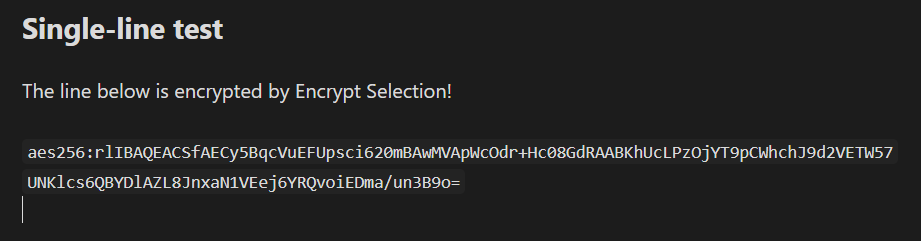
After encrypting the password with a single-line selection, you get an inline code span:
Router admin: 192.168.1.1 — password `aes256:rlIBAQEAAAGGoAECAwQFBgcICQoLDA0ODxAREhMUFRYXGBkaGxwdHh8gISIjJCUmJygpKissLS4vMDE=`
A multi-line selection becomes a fenced block instead:
```aes256
rlIBAQEAAAGGoAECAwQFBgcICQoLDA0ODxAREhMUFRYXGBkaGxwd
Hh8gISIjJCUmJygpKissLS4vMDEyMzQ1Njc4OTo7PD0+P0BBQkNE
```
In reading view neither form shows up as a wall of base64. Both render as a lock pill you can click to decrypt; the text is revealed in that view only and the file is never rewritten. Click again to hide it.
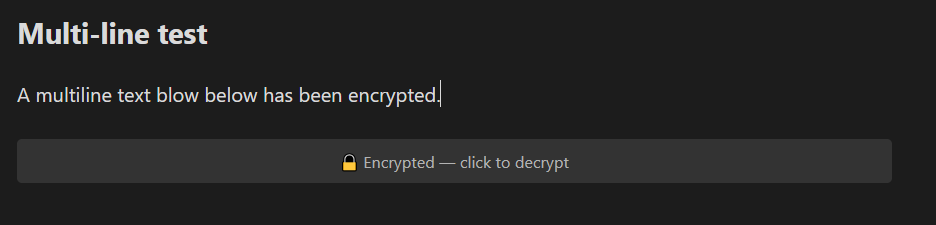
Locked: a fenced block renders as one pill, with no base64 in sight.
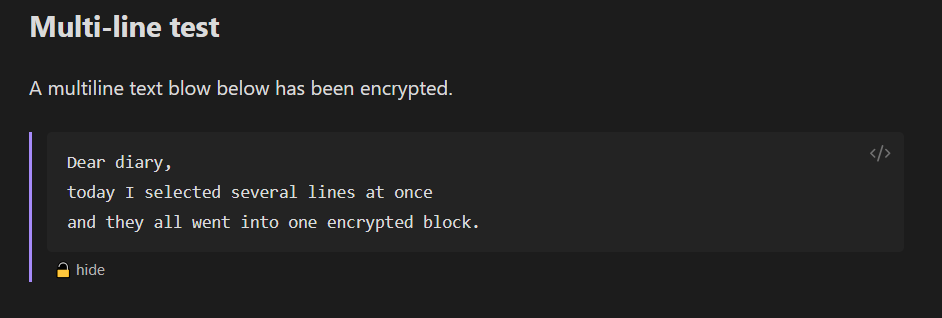
Unlocked: the text is revealed in this view only. The file on disk is unchanged, and "hide" locks it again.
Commands
All four live in the command palette.
| Command | What it does | Touches the file? |
|---|---|---|
| Encrypt | Replaces the highlighted text with an encrypted token | Yes |
| Decrypt (peek, read-only) | Shows the plaintext in a modal | No |
| Decrypt in place | Writes the plaintext back into the note so you can edit it | Yes |
| Forget the cached password | Clears the password held in memory | No |
Both decrypt commands find the token from your cursor position, so you can simply click into it. If decryption fails — wrong password, altered text — you get a notice and the note is left exactly as it was.
Settings
| Setting | Default | Notes |
|---|---|---|
| Token style | Auto | Auto uses an inline span for single-line selections and a fenced block for multi-line ones. Can be forced either way. |
| Key derivation iterations | 600,000 | PBKDF2 rounds, between 100,000 and 5,000,000. Stored in each payload, so changing it never breaks existing text. |
| Confirm password when encrypting | On | Asks twice. A typo here is unrecoverable. Leave it on. |
| Offer a password hint | Off | Adds an optional hint field. The hint is stored unencrypted next to the ciphertext — it has to be readable before you type the password. |
| Remember password for this session | On | Keeps the password in memory until Obsidian closes. Never written to disk. |
| Show lock widget in reading view | On | Renders tokens as a clickable lock pill instead of base64. |
Security
This plugin exists for one threat: someone gets your vault files — a stolen laptop, a synced folder on a compromised machine, a backup someone else can read. It is not designed to hide anything from software already running as you on an unlocked machine.
Read this before you rely on it
Encrypting the text is not the whole job. Several Obsidian features keep copies of your notes from before you encrypted them, and encrypting today does nothing about yesterday's copy.
- File recovery (a core plugin, on by default) stores periodic plaintext snapshots of every note in a local database inside your vault. Anyone with your vault can read them. Disable it, or clear its history, if this plugin is protecting anything that matters.
- Obsidian Sync retains pre-encryption versions in cloud version history. Encrypting a paragraph does not remove the earlier version from that history.
- Undo history holds the plaintext for the rest of the session. Pressing undo after encrypting brings it straight back — which also means the plaintext is in memory until you close the note.
- The search index may still contain pre-encryption content until it is rebuilt.
- Backups — File History, Time Machine, OneDrive, Dropbox, git — contain the pre-encryption file. If the note is in a git repository, the plaintext is in its history permanently.
The plugin repeats the first two warnings in its settings tab, since they are the ones most likely to catch you out.
Also true, and unavoidable:
- Note titles, file names, links and any text you did not select stay readable. Encrypting the body of a note called
Bank logins.mddoes not hide much. - JavaScript cannot reliably wipe memory. Your password stays in RAM until Obsidian closes or you run the lock command, and even then the runtime may keep copies you cannot reach.
- Your password is the whole security of this. Someone holding the file can guess offline, as fast as their hardware allows. A short or reused password falls quickly, no matter how good the cipher is.
What the plugin does not do
Verifiable in the source, and in the shipped main.js:
- No network access of any kind. No
fetch, noXMLHttpRequest, no WebSocket, no remote assets. The built bundle contains no URLs. Your passwords and note contents never leave the machine, because there is nothing in the code that could send them. - No telemetry, analytics or crash reporting. Nothing is counted, logged or phoned home.
- No file access. The plugin only reads and writes the text of the note you are editing, through Obsidian's editor API. It never touches files itself, inside or outside the vault.
- No dynamic code loading. No
eval, nonew Function, no downloaded scripts. It cannot change its own behaviour after installation. - No dependencies.
main.jsis built from this repository's source andrequires nothing butobsidianitself, so there is no third-party code in the trust surface and no supply chain to compromise.
For a tool whose entire job is keeping secrets, "you can check this yourself" matters more than any promise. Everything above is a one-line grep against the source or the released bundle.
There is no password recovery
If you forget the password, the text is gone. Permanently. There is no backdoor, no reset, no support address that can help, and no amount of remembering nearly the right password will do. That is exactly what makes it work.
The confirm-password prompt is on by default for this reason. Leave it on, and keep the password somewhere that is not the note you just encrypted.
How the encryption works
- AES-256-GCM, via the Web Crypto API. GCM is authenticated: a wrong password or a single altered byte fails loudly instead of producing plausible garbage.
- PBKDF2-HMAC-SHA256 for key derivation, 600,000 iterations by default — the current OWASP recommendation. That is roughly 100 ms per unlock on a modern desktop, so you can raise it substantially before it becomes noticeable. The iteration count is recorded in every payload, so changing the setting never orphans existing text.
- A fresh random 16-byte salt and 12-byte IV for every encryption, never reused.
- The payload header is passed to GCM as additional authenticated data, so the version, iteration count and hint cannot be altered without failing the tag check.
- Zero runtime dependencies. Nothing but the crypto that ships with the platform. The password is cached in memory only and is never handed to
saveData().
Development
npm install
npm test          # crypto round-trip, tamper detection, token parsing
npm run typecheck
npm run build     # production bundle
npm run dev       # watch mode
npm run dev builds and installs the plugin into the throwaway test-vault/ inside this repository (test-vault/.obsidian/plugins/encrypt-selection/). Open that folder as a vault in Obsidian — File → Open vault → Open folder as vault — and enable the plugin there.
You can point the install elsewhere with the OBSIDIAN_PLUGIN_DIR environment variable, and the build will warn you loudly when you do. Never point it at a vault you care about: dev builds reload on every keystroke, and this plugin writes ciphertext into notes.
Layout
src/crypto/     AES-GCM + PBKDF2 and the binary payload format    (pure, unit-tested)
src/format/     how tokens are written into and found in markdown (pure, unit-tested)
src/ui/         password modal, peek modal, reading-view pill
src/commands.ts command handlers
src/session.ts  in-memory password and derived-key cache
src/settings.ts settings tab, including the security notice
src/main.ts     plugin entry point
crypto/ and format/ never import from obsidian, which is what lets them be tested in plain Node without an Obsidian runtime.
Payload format
The bytes behind the base64
Each token is the base64 encoding of a self-describing binary struct, big-endian and length-prefixed:
magic 0xAE 0x52 | version u8 | kdfId u8 | cipherId u8 | iterations u32be
| saltLen u8 | salt | ivLen u8 | iv | hintLen u16be | hint (UTF-8)
| ciphertext || GCM tag (16 bytes)
Everything before the ciphertext is the header, and the whole header is passed to AES-GCM as additional authenticated data — so it is authenticated but not encrypted. Overhead is about 57 bytes, or roughly 76 base64 characters.
The hint, if you enable it, is stored in the clear by necessity: it has to be readable before the password is known. Do not put anything in a hint that you would not write in the note itself.
In markdown, the base64 appears in one of two forms, both recognised by the same parser (base64 never contains a backtick, so neither form can break its own delimiters):
- inline:
`aes256:<base64>` - block: a fenced code block tagged
aes256, with the base64 wrapped at 64 columns
Licence
MIT. See LICENSE.
For plugin developers
Search results and similarity scores are powered by semantic analysis of your plugin's README. If your plugin isn't appearing for searches you'd expect, try updating your README to clearly describe your plugin's purpose, features, and use cases.