Secret Notes
approvedby Kasukabe Tsumugi
Encrypt and preview editable secret code blocks. - This plugin has not been manually reviewed by Obsidian staff.
Obsidian Secret Notes
Save private content in Obsidian with a secret code block. The plugin renders the block as a clickable secret card; after encryption, only ciphertext JSON is stored in your note, and plaintext is shown temporarily only after the correct password is entered.
- 🔒 Local encryption: your password never leaves your device and is never stored.
- 🧩 Minimal card UI: plaintext blocks show an unlock icon, encrypted blocks show a lock icon, and clicking the card starts the next action.
- ✍️ After decrypting, you can edit the title, password hint, and body, then re-encrypt the block in place.
- 🔎 Built-in editor search: click the search icon in the plaintext editor, or select text and press
Ctrl+Fto search quickly. - ⚙️ The processed code block name is configurable in plugin settings. The default is
secret.
Quick start
Create a secret code block in any note:
```secret
Put private content here
```
```secret
{"v":1,"title":"","hint":"","encrypted":"::","date":"2026-07-04T00:00:00.000Z"}
```
These two blocks will be rendered like:
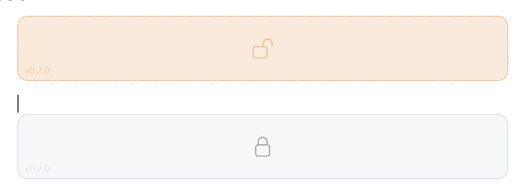
Click the locked card again and enter the password to view or edit the plaintext.
- The unlock icon means the block is still plaintext. Click it to start encryption.
- The lock icon means the block is encrypted. Click it to enter the password and view/edit the content.
Password input
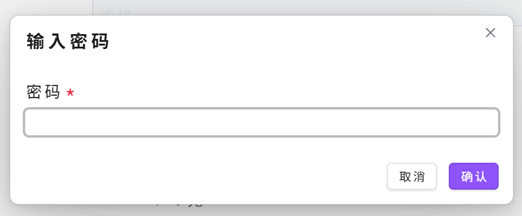
After clicking an encrypted card, a password modal opens:
- Enter the correct password to open the plaintext editor.
- If a password hint was saved during encryption, it appears in the password input placeholder.
- Plaintext is never shown when the password is incorrect.
Plaintext editor
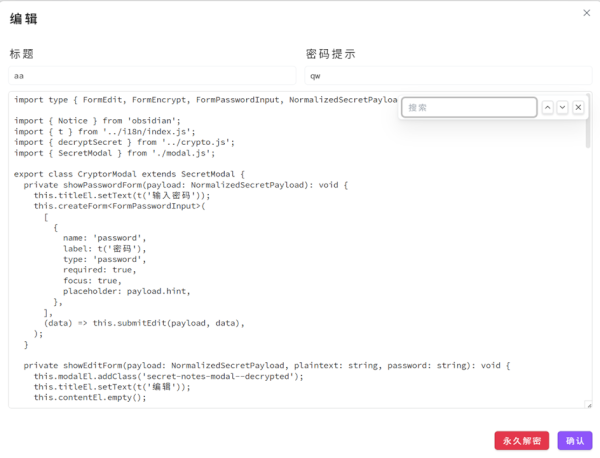
After verification, the plaintext editor opens:
- Use the search bar in the upper-right corner to search the body; previous/next navigation is supported, and jumped matches flash for easier positioning.
- Click Decrypt permanently and confirm the second-click prompt to write plaintext back into the
secretcode block. You can encrypt it again later by clicking the plaintext card.
Operations
| Action | Entry point | Result |
|---|---|---|
| Encrypt | Click a plaintext card | Enter password and confirmation password, then encrypt and write back to the current block |
| View / Edit | Click an encrypted card | Enter password to open the plaintext editor, where title, hint, and body can be changed |
| Save again | Confirm in the plaintext editor | Re-encrypt with the current password and overwrite the original block |
| Decrypt permanently | Decrypt permanently in the plaintext editor | After second-click confirmation, write plaintext back into the secret code block |
| Search body | Search in the upper-right of the plaintext editor, or press Ctrl+F in the body | Find, navigate, and flash-highlight matches inside the text area |
Write-back behavior: in source / Live Preview editing state, the current editor block is replaced directly; in Reading view, the file is modified through the Obsidian vault API.
Settings
Open Settings → Community plugins → Secret Notes to change Block name.
The default block name is secret. If you change it to private, for example, the plugin will process:
```private
Private content
```
Encryption details
- Algorithm: AES-256-GCM, executed locally through the Web Crypto API.
- Key: derived from the password with SHA-256. It is not stored or uploaded.
- Storage format: encrypted block content is JSON containing version, title, password hint, ciphertext, and encryption date.
⚠️ Passwords cannot be recovered. If you forget the password, the ciphertext cannot be restored. The password hint should be only a reminder; do not put the actual password in it.
Installation
Manual install
- Download
main.js,manifest.json, andstyles.cssfrom this repository's build output or Release. - Place them into your Obsidian vault:
<vault>/.obsidian/plugins/obsidian-secret-notes/ - In Obsidian, open Settings → Community plugins and enable Secret Notes.
Development
The entry point is src/main.ts, and build artifacts are written to dist/.
pnpm install
pnpm build      # build into dist/
pnpm dev        # watch mode
Build output includes:
dist/main.jsdist/manifest.jsondist/styles.css
Copy these three files into .obsidian/plugins/obsidian-secret-notes/ in your vault to load and debug the plugin in Obsidian.
License
MIT © 2026 Kasukabe Tsumugi
For plugin developers
Search results and similarity scores are powered by semantic analysis of your plugin's README. If your plugin isn't appearing for searches you'd expect, try updating your README to clearly describe your plugin's purpose, features, and use cases.