Every Day Calendar
approvedby sporarum
Create calendars inspired by Simone Giertz's Every Day Calendar
Every Day Calendar
Create habit trackers through dataviewjs !
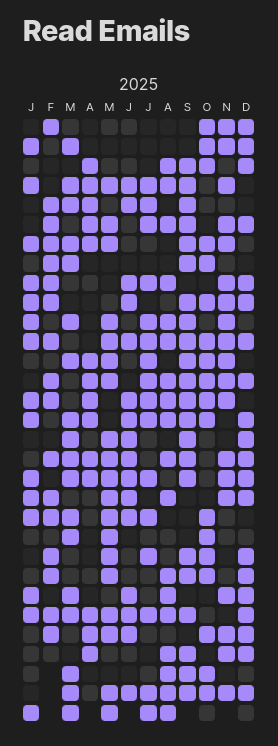
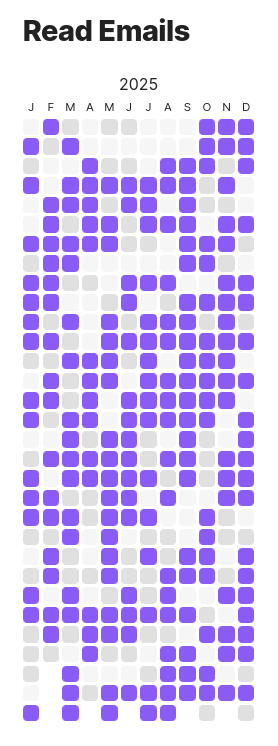
The layout is inspired by Simone Giertz's Every Day Calendar, and the idea to make a plugin in the first place from Richard Slettevoll's Heatmap Calendar.
Here is the code for the above:
# Read Emails

```dataviewjs
everyDayCalendar(this.container, 2025, date => {
	// generates random number in {0, 1, 2} with bias towards 2
	return Math.min(Math.floor(Math.random() * 5), 2)
})
```
As you can see, you only need to give it the desired year, and a function from Date to a number which represents how done is the task that day.
The default idea is that 1 and 2 mean the task was not done (resp done) that day, and 0 means the day is missing or invalid (for example if you were on vacation).
The colors are taken directly from Obsidian, so they adjust with your theme.
It's also possible to define custom CSS to support more values and/or more colors, see Customization.
Important: You need the Dataview plugin for dataviewjs blocks to work, and therefore this extension !
Example
Here is how you can extract whether you've done a task some day:
const property = "Set this as you wish"

const defaultValue = 0
everyDayCalendar(this.container, 2025, d => {
	const name = d.toISOString().substring(0,10)
	const page = dv.page(name)
	if (page) {
		const res = page.file.tasks.values.some(e => e.text === property && e.completed)
		return 1 + res
	} else {
	    return defaultValue
	}
})
This assumes your days are named YYYY-MM-DD and that there is only one page per such name in your vault
Customization
All customization is done through CSS snippets, see https://help.obsidian.md/Extending+Obsidian/CSS+snippets
Changing the colors (or adding more)
The color for a day are looked up according to the value returned by the function passed to everyDayCalendar.
For example if you want the colors for value 0 to be red, you can add the following to a snippet:
.every-day-calendar.box[value="0"] {
    background-color: red;
}
You can also add values:
.every-day-calendar.box[value="4"] {
    background-color: #00a400;
}
If the color appears as a very saturated pink (#FF00FF) it means no CSS was found for that value.
The most common reasons are typos or forgetting to put the number in quotes (value=0 will not work).
For a full reference of the usable colors, see usual CSS colors, obsidian theme-dependent colors and default obsidian colors
Here are the default values for the extension:
.every-day-calendar.box[value="0"] {
    background-color: var(--background-secondary);
}

.every-day-calendar.box[value="1"] {
    background-color: var(--background-modifier-border);
}

.every-day-calendar.box[value="2"] {
    background-color: var(--text-accent);
}
Modifying a single calendar
CSS snippets apply to the whole Vault, to personalize a single calendar:
- Add an additional class through
additionalClasses:
everyDayCalendar(this.container, 2025, date => {
	return Math.min(Math.floor(Math.random() * 5), 2)
}, {additionalClasses: ["myExample"]})
- In your snippet, add the corresponding class selector:
.myExample.every-day-calendar.box[value="0"] {
	background-color: black
}
Building locally
The first time
- Clone this repo, for example in your vault's
.obsidian/pluginsfolder - Run
npm i(from NodeJS) - Run
npm run devevery time you work on the repo - Enable the plugin in the settings (in Community plugins)
- When you want to check a change, reload Obsidian (the rest is done continuously by
npm run dev)
The following times
- Run
npm run dev - When checking changes, reload Obsidian
In case the api gets updated
- Run
npm update
For more information about plugin development, please consult https://docs.obsidian.md/Plugins/Getting+started/Build+a+plugin and https://github.com/obsidianmd/obsidian-sample-plugin
Testing your changes
- Run
npm run test
This will run the tests in multiple timezones, see "test" in package.json for the full list
Releasing a new version
- Run one of
npm version major,npm version minor,npm version patch - Run
git pushandgit push --tags - Complete draft release on github
In case the first command bumps incorrectly, use npm version <version number> instead
For plugin developers
Search results and similarity scores are powered by semantic analysis of your plugin's README. If your plugin isn't appearing for searches you'd expect, try updating your README to clearly describe your plugin's purpose, features, and use cases.