External Links Icon
approvedby Moz
Auto add icons to the external and internal links. - This plugin has not been manually reviewed by Obsidian staff.
External links icon





[ English | 简体中文 ]
A simple plugin that automatically adds icons to the external and internal links, designed to work seamlessly in your local environment.
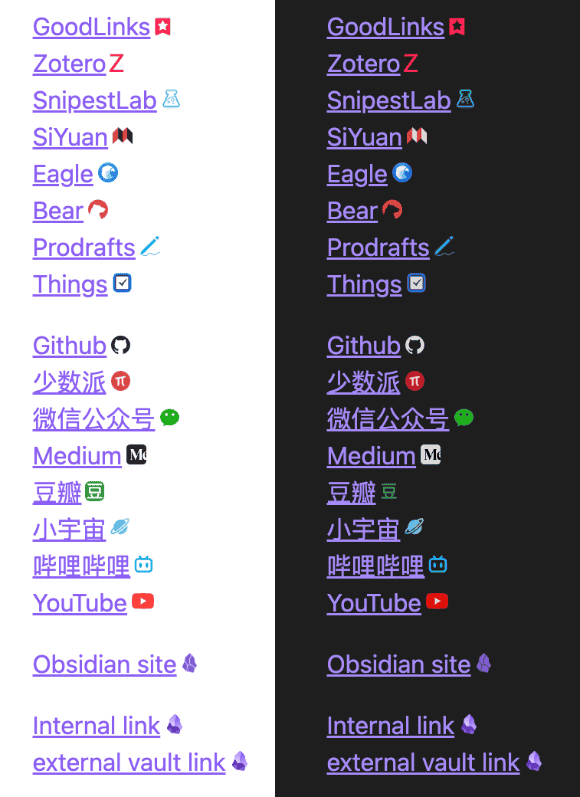
Built-in links
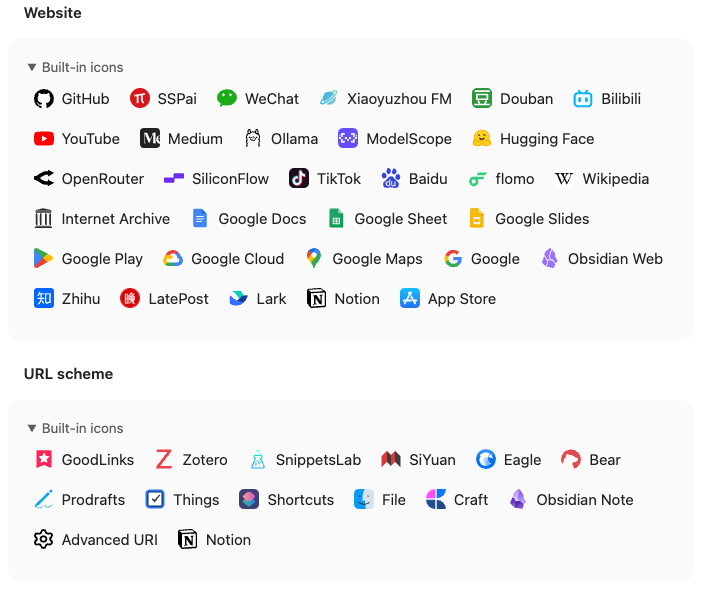
URL Scheme
- GoodLinks
- Zotero
- SnippetsLab
- SiYuan Note
- Eagle
- Bear
- Prodrafts
- Things
- Apple Shortcuts
- Advanced-URI
- Craft
- Notion
WebSite
- Github
- 少数派 / SSPai
- 微信公众号
- Medium
- 小宇宙 FM
- 豆瓣 / Douban
- 哔哩哔哩 / BiliBili
- YouTube
- Ollama
- ModelScope
- Hugging Face
- OpenRouter
- SiliconFlow
- 抖音 / TikTok
- Baidu
- flomo
- Wikipedia
- Archive.org
- Google Docs
- Google Sheets
- Google Slides
- Google Play
- Google Cloud
- Google Maps
- Other Google site
- 知乎 / zhihu
- 晚点 / latepost
- 飞书 / Lark
- Notion
- App Store
Obsidian
- Website
- official site
- help doc
- forum
- Note Link
- internal link
- external vault link
Installation
From Obsidian Community (Recommended)
Open the Community Plugins tab in the settings and search for "External Links Icon" (or click here).
Manual Installation
Use the BRAT to install this plugin.
- Install BRAT Obsidian plugin
- Use
BRAT: Plugins: Add a beta plugin for testingcommand to install a new plugin - Enter
moziar/obsidian-external-links-iconon the popup window - Enjoy
Usage
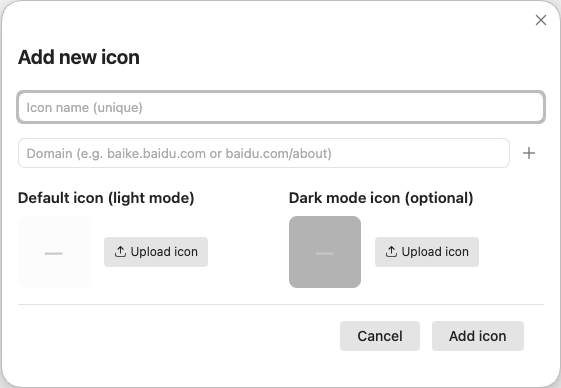
Add Icons
To add a custom icon, click Add Website or Add URL Scheme in the setting.
- Only SVG format is supported.
- The plugin will auto compress icons to improve performance.
- The default icon (light mode) is required, while the dark mode icon is optional.
- For web icon, you can set multiple target for each icon. Domain supports the following format:
baidubaidu.comhttp://baidu.comhttps://baidu.combaike.baidu.combaidu.com/about
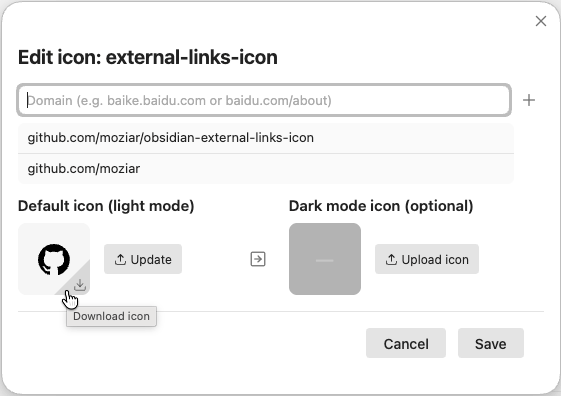
Edit Icons
- You can download the icon via the download button besides it.
Copy to dark(right arrow in the middle) is a useful button if you upload the dark mode icon to the light one.- You can remove the dark mode icon if you don't need it.
Setting
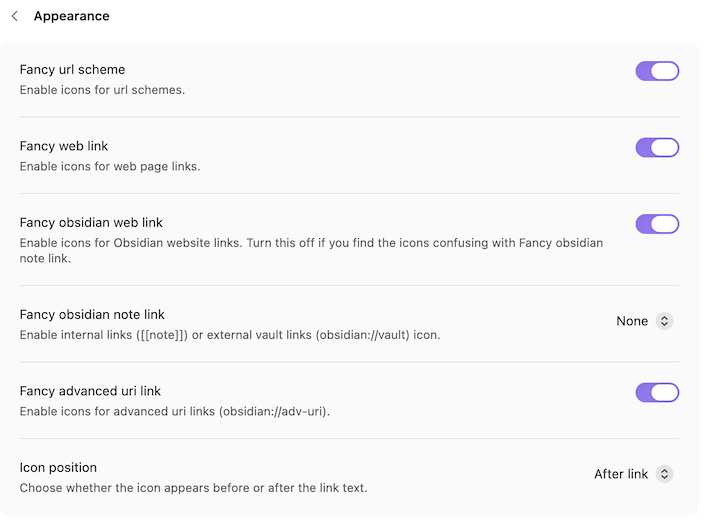
- By default, both URL Scheme and WebSite icon are enabled. You could disable any of them in the plugin setting.
- There are two different Obsidian icons to help users better distinguish between Obsidian web links and note links.
- Obsidian Note Link icon is disabled by default. You can enable either internal link, external link, or both, or disable them entirely — it all depends on your workflow.
- You can customize the icon position (before or after the link), ensuring consistency with other plugins like Iconize.
Credit
Inspire by marginnote-companion.
For plugin developers
Search results and similarity scores are powered by semantic analysis of your plugin's README. If your plugin isn't appearing for searches you'd expect, try updating your README to clearly describe your plugin's purpose, features, and use cases.