Attachment Type Icons
approvedby GOODJINC
Shows configurable file-type icons for linked attachments without changing Markdown. - This plugin has not been manually reviewed by Obsidian staff.
Attachment Type Icons
English | 한국어
An Obsidian community plugin that adds configurable file-type icons to regular internal links for attachments. It never changes your Markdown and skips embedded files and previews.
Why this plugin exists
Attachment links are often given a clear, human-friendly display name. That keeps notes tidy, but it also hides whether a link opens an image, a PDF, or a spreadsheet. Attachment Type Icons preserves the clean link text and adds just enough visual context to recognize the file type at a glance.
Before and after
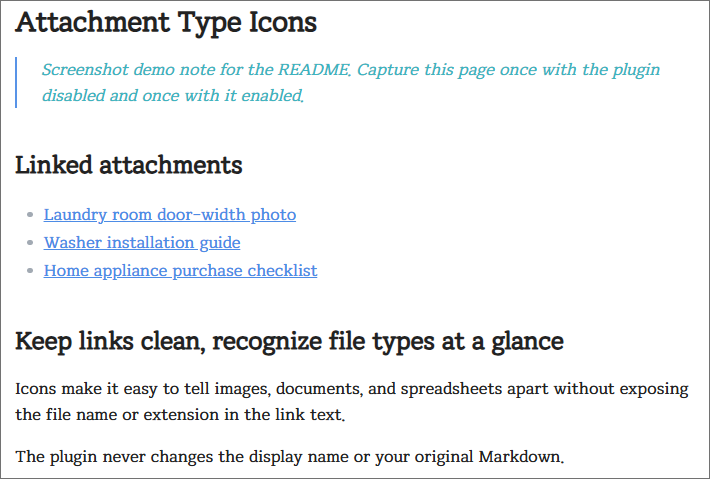
Before — file types are hidden behind link text
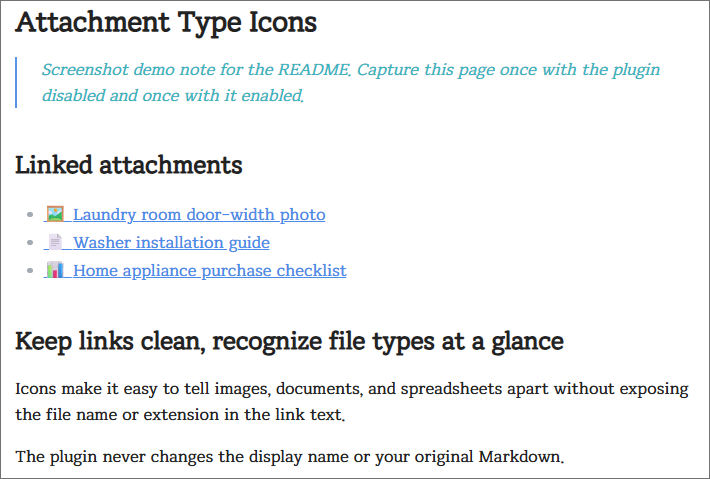
After — icons make the link target clear
What it looks like
Write a normal internal link with an optional display name:
[[90_Attachments/images/photo.jpg|Laundry-room measurement]]
With the default icon position, Reading view displays it as:
🖼️ Laundry-room measurement
The icon is added only to the rendered link. Your Markdown, file name, and link alias are never changed.
Installation
Requires Obsidian 1.8.7 or later.
- Download
main.js,manifest.json, andstyles.cssfrom the latest release. - Place them in
<your-vault>/.obsidian/plugins/attachment-type-icons/. - Reload Obsidian, then enable Attachment Type Icons under Settings → Community plugins.
Built-in file types
The following types are enabled by default. All extension matching is case-insensitive.
| Type | Default icon | Default extensions |
|---|---|---|
| Images | 🖼️ | jpg, jpeg, png, gif, webp, svg, heic |
| PDF & documents | 📄 | pdf, doc, docx, hwp, txt, rtf |
| Spreadsheets | 📊 | xlsx, xls, csv, ods |
| Audio | 🔊 | mp3, m4a, wav, ogg, flac |
| Video | 🎬 | mp4, mov, webm, mkv |
| Archives | 📦 | zip, 7z, rar, tar, gz |
Markdown note links are available as an optional type with the 📝 icon, and are disabled by default.
Settings
Open Settings → Attachment Type Icons to customize the built-in types or add your own types.
- Enable or disable its icon with a toggle.
- Change the type name to match your workflow.
- Change the icon to any emoji or text symbol.
- Add or remove extensions in the comma-separated extensions field.
- Limit a type to one or more folders. Start typing to choose from folders in your vault, or enter a path directly. Folder-specific types take priority over types that apply everywhere.
- Set matching priority with the up and down buttons. Within the folder-specific and general groups, the first matching type wins.
- Place icons before or after the link text.
The settings page follows Obsidian's app language. Korean is shown when Obsidian is set to Korean; all other app languages use English.
Use Add file type to create a type such as Ebooks with the 📚 icon and epub, mobi, pdf extensions. Custom types can also be deleted from the settings page.
How matching priority works
Rules are selected in this order:
- Disabled types and types with a different extension are ignored.
- Matching types with a folder condition are checked first. A folder also includes its subfolders.
- If multiple folder-specific types match, the highest one in the settings list is used.
- If no folder-specific type matches, the highest matching type without a folder condition is used.
In short: matching folder-specific type → matching general type → no icon. Use the up and down buttons to decide which type wins when rules in the same group overlap. Moving a general type above a folder-specific type does not override the folder-specific match.
For example, suppose the list is ordered like this:
1. PDF documents   | pdf       | Any folder       | 📄
2. Research papers | pdf       | Books/Research   | 🔬
3. Ebooks          | pdf, epub | Books            | 📚
Books/Novel.pdfuses📚because only theEbooksfolder rule matches.Books/Research/Paper.pdfuses🔬because both folder rules match andResearch papersis higher in the list.Work/Report.pdfuses📄because no folder-specific rule matches.
To make the research PDF use 📚 instead, move Ebooks above Research papers.
For example, add heif and avif to the Images extensions field:
jpg, jpeg, png, gif, webp, svg, heic, heif, avif
You may include leading dots if you prefer (.pdf, .epub). They are removed automatically, so both .PDF and pdf work the same way.
For example, an Ebooks type limited to the Books folder can use pdf without changing PDF icons elsewhere in the vault:
Name: Ebooks
Icon: 📚
Extensions: epub, mobi, pdf
Folders: Books
Scope
- Works with regular internal links to attachments.
- Does not add an icon to embeds such as
![[photo.jpg]], because their preview already identifies the file. - Does not scan your vault or modify files. It examines only the internal links while a note is rendered.
Development
npm install
npm run dev
Use npm run build for the minified release bundle.
For plugin developers
Search results and similarity scores are powered by semantic analysis of your plugin's README. If your plugin isn't appearing for searches you'd expect, try updating your README to clearly describe your plugin's purpose, features, and use cases.