Fit
approvedby joshuakto
Minimalist File gIT (FIT) to sync your files across mobile and desktop devices using GitHub.
FIT

Sync your files across mobile and desktop devices with one click.
Community project
This project is a community collaboration. If you'd like to contribute please check out the Discussions section on GitHub to suggest or discuss ideas.
Features
- Universally supported: sync your vault across multiple devices, supports both mobile and desktop
- Auto sync is now available 🎉
- One-click to sync your vault
- Conflict resolution: Stores conflicting changes from remote in the local _fit folder so you can resolve conflicts after sync
- Guided setup: Intuitive settings, easy to configure even if you are new to GitHub
- Works with existing vaults or repos
Note: This plugin is still in beta, please backup your vault before using this plugin.
Why FIT
- Conflict-safe by design — conflicting changes are preserved side-by-side, never silently overwritten
- Sync doesn't block you unnecessarily — safe changes merge automatically; only genuine conflicts need your input
- Nothing sensitive syncs by chance — config/settings files (
.obsidian/) are opt-in, not synced by default
See docs/architecture.md § Design Principles for the full philosophy behind these choices.
Coming soon
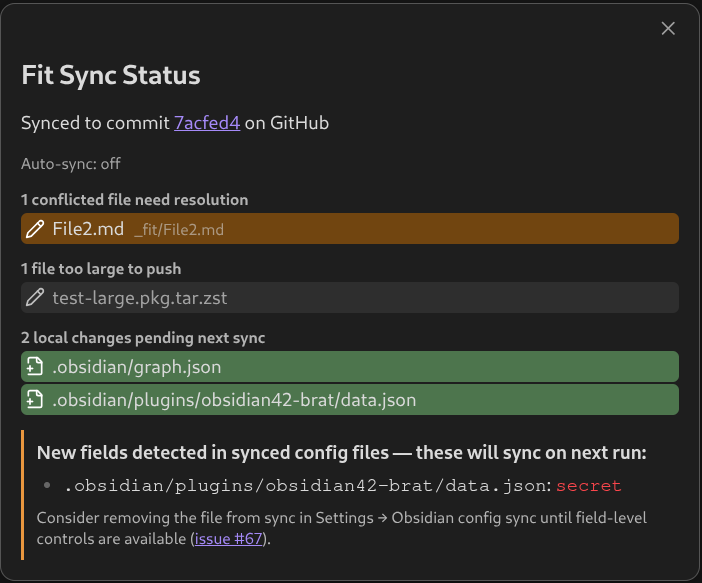
Sync status overview — an upcoming command ("Explain Sync Status") will open a detailed view of your vault's sync state: pending local changes, unresolved conflicts, files too large to push, and auto-sync timing. Preview:
Sync on save / sync on open — opt-in toggles (off by default): a full sync 30 seconds after you save a file, and a full sync when Obsidian launches, so changes from your other devices are pulled in immediately. Independent of the periodic auto-sync interval.
Quick demo
Setup
- Create a personal access token with read/write access to the repo for your vault (refer to Github: creating a personal access token). For fine-grained tokens, the only required permission is Contents: Read and Write under Repository permissions. For classic tokens, the
reposcope covers this (though it grants broader access than strictly needed). - Once the personal access token is filled in, you can authenticate the user. The GitHub username, list of repositories, and branches will auto-populate.
- Select a repo and branch and you are ready to sync.
NOTE: For security, it's recommended to limit the token scope to only the necessary repository for your vault and avoid sharing your entire plugin settings file that contains this token.
The plugin defaults to github.com. GitHub Enterprise Server support is coming soon.
How Sync Works
What gets synced
✅ Synced files:
- Regular markdown files (.md)
- Attachments (images, PDFs, etc.)
- Any files in your vault root
❌ NOT synced (protected paths):
.obsidian/folder — excluded to prevent overwriting device-specific settings (selective opt-in coming in 1.6)_fit/folder (conflict resolution area)
Coming in the 1.6 release:
- Hidden files (
.gitignore,.env, etc.) will sync by default..gitignorerules are already respected — files matched by your patterns are excluded from sync.- Selective
.obsidian/sync — a config file starts syncing once it exists in your GitHub repo (added there directly, or from another already-syncing device), and a.fitattributes.jsonat your vault root controls how it's handled. Some files (FIT's own settings, plugin installer files) are always excluded regardless. See Advanced sync configuration below.- Canvas auto-merge — when two devices independently add nodes or edges to the same
.canvasfile, FIT will auto-merge the changes without producing a_fit/clash file. Only true conflicts (the same node or edge edited differently on both devices) still require manual resolution.
Conflict handling
When the same file is modified both locally and remotely, FIT:
- Keeps your local version in place
- Saves the remote version to
_fit/path/to/file.md - You can manually compare and merge the versions
- If the same file clashes again before you resolve it, the
_fit/version is overwritten with the latest remote version (sync doesn't fail)
See Common Issues below for detailed conflict resolution steps.
First sync
- It is advised to use a new repo for syncing an existing vault, to minimize the chance of file name conflict on the first sync
- If your existing vault or repo is large, the initial sync would take longer and require a good internet connection
Manually trigger sync on Obsidian mobile
related issue: #190
On Obsidian mobile, linking sync to a hotkey which requires the presence of a keyboard is not an ideal approach to manually trigger sync. A more intuitive set of procedures are:
- Open any repository with FIT configured
- Swipe down from anywhere on the screen to open command menu
- Search for "Fit: Fit Sync" and click to sync
Alternative: "Fit Sync" can be pinned to the ribbon menu from "Setting > Appearance > Interface > Ribbon menu configuration"
Advanced sync configuration
Git-driven .obsidian/ tracking and .fitattributes.json (coming in 1.6)
Git-driven tracking. A protected .obsidian/ path (see What gets synced above) starts being tracked purely because content for it exists in your GitHub repo — added there directly (GitHub web UI, git CLI) or by another device that's already syncing it. There's no in-app opt-in step, but files only actually sync if they find a supported sync "format" via filetype heuristics or .fitattributes.json config (see below).
NOTE: A few denylisted paths are always excluded regardless (FIT's own settings file, plugin installer files like main.js/manifest.json), to avoid fighting Obsidian's own plugin manager or double-versioning FIT's sync bookkeeping.
Checking current state. Run the "Explain Sync Status" command from the command palette anytime to see what's currently tracked and syncing, without needing to read this file yourself.
.fitattributes.json. This vault-root JSON file configures per-path sync behavior. It can explicitly configure a sync "format" if the default isn't good for your file (or if heuristics aren't working for the filetype yet):
{
  ".obsidian/appearance.json": { "format": "text" },
  ".obsidian/snippets/foo.css": { "format": "text" }
}
"format": "text"— syncs the file as opaque whole-file content, with an ordinary conflict file on both-sides-changed."format": "json"— syncs a JSON file field by field. Edits to different fields on two devices merge instead of producing a conflict file. By default only the fields already present in your GitHub copy are synced, so device-local fields in the same file stay local. Add"scope": "full"to sync every field.
🔒 Security
The FIT maintainers make every effort to protect your security and protect against data loss. However, mistakes can happen. Users are highly recommended to do a security review of the code of this project before trusting it with their data. You could use an AI tool for that such as Claude Code.
You should also take care with security tokens you use to ensure they don't leak, because anyone with access to those can read and write your vault repository even if it's private (or worse if you configure broad unrestricted permissions on your token). In particular, avoid syncing your .obsidian/ files with other tools if you don't know what you're doing, and consider adding .gitignore rules to ignore .obsidian/ paths if you'll be syncing anything using git (FIT itself never syncs .obsidian/ - see How Sync Works).
Common Issues
📁 Empty directories not syncing
Why: Git (and GitHub) doesn't track empty directories. This is a fundamental limitation of Git, not a FIT bug.
Solution: Add a placeholder file like _gitkeep or README.md to keep the folder. Empty folders will only sync once they contain files.
📦 File size limits - "input too large" errors
Why: GitHub API has file size limits (~100MB hard limit, issues with files >10MB).
Symptoms: Error messages like "input too large to process" or "File 'X' is too large..."
Solutions:
- Move large files (>20MB) outside your vault before syncing
- Manually sync large files to GitHub using other tools (to create them and any time they're modified)
- Add the files to
.gitignoreto exclude them from sync
⚠️ Sync conflicts - files in `_fit/` folder
What happens: When the same file is modified locally AND on GitHub, FIT saves both versions:
- Your local version stays in place
- The remote version is saved to
_fit/path/to/file.md
How to resolve:
- Find conflict files in the
_fit/folder - Compare both versions
- Manually merge the changes you want to keep
- Delete the
_fit/version when done - Sync again
Prevention: Sync regularly (enable auto-sync) and avoid editing the same file on multiple devices simultaneously.
🖼️ Images/PDFs showing as corrupted text in GitHub
Symptoms: Binary files (JPG, PNG, PDF) appear as gibberish text in GitHub like ����JFIF��... instead of displaying properly
Cause: Bug in v1.4.0-beta.3 where binary files were incorrectly read as text on some platforms
Solution:
- Check file history in GitHub to find bad changes
- Use git to restore previous versions OR manually copy from history
- Update to v1.4 or later
- Re-sync - files will upload correctly
Note: This only affected beta versions. Images and PDFs sync correctly in v1.4+.
More info: See https://github.com/joshuakto/fit/issues/156 about the regression and older "correct format" error.
Roadmap
See CONTRIBUTING.md for current milestone and long-term priorities.
Relevant plugins
There are other community plugins with more advanced git features, if you need features such as branching of your repo, Git is a nice plugin to check out.
There are also other plugins for synchronizing changes such as Git integration, GitHub sync, and YAOS. However, they do not support mobile yet as of writing this plugin.

Developer Documentation
For developers interested in contributing to FIT or understanding its architecture, comprehensive documentation is available in the docs/ directory in GitHub.
Acknowledgements
- This plugin used Obsidian Sample Plugin as a template.
- This plugin uses Octokit to interface with GitHub rest api across devices.
For plugin developers
Search results and similarity scores are powered by semantic analysis of your plugin's README. If your plugin isn't appearing for searches you'd expect, try updating your README to clearly describe your plugin's purpose, features, and use cases.