Folder Column Navigator
approvedby leoray
Finder-style multi-column folder and file navigator for Obsidian. - This plugin has not been manually reviewed by Obsidian staff.
Folder Column Navigator
Folder Column Navigator is a Finder-style, multi-column file navigator for Obsidian. It keeps top-level folders within reach and opens each folder level in its own column, so you can browse deeply while preserving context.
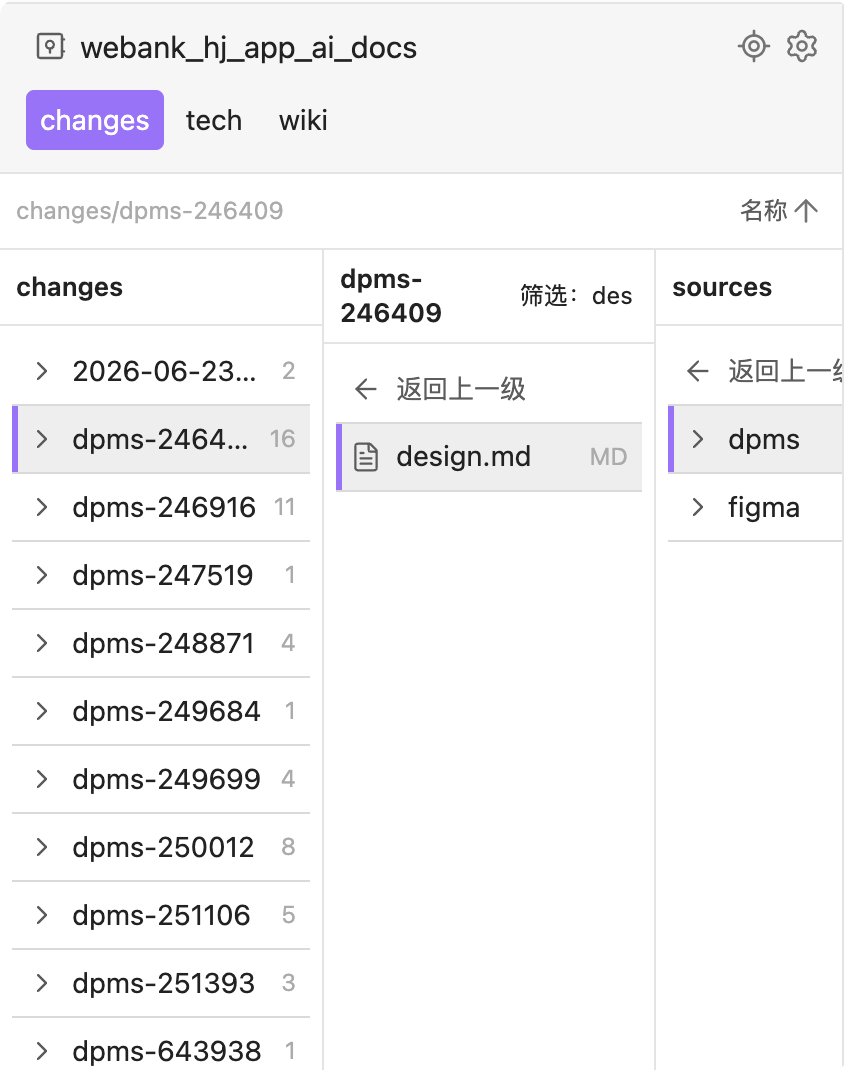
It is built for fast keyboard browsing: use ↑ ↓ ← → to move, Enter to open folders or notes, and Space for the context menu. Type directly in the focused folder area or file column to filter—no search box required. Filtering supports English, numbers, Chinese characters, pinyin initials, full pinyin, and mixed pinyin; for example, both nh and nih can match “你好”. Opening a note keeps keyboard focus in the navigator, so you can continue browsing immediately.
This plugin works entirely inside your vault. It does not send data over the network and does not collect telemetry.
Compatibility
- Minimum Obsidian version: 1.13.0.
- The plugin uses Obsidian's native categorized settings navigation and settings search APIs introduced in 1.13.0.
- Older Obsidian versions are not supported.
Highlights
- Two layouts: a left-hand root-folder list or root folders displayed as top tags.
- Finder-style column browsing: opening a folder adds a column for its direct children.
- Optional vertical tree mode: after the configured maximum number of horizontal columns, deeper levels expand as a tree inside the last column (default maximum: 4 columns).
- Keyboard-first navigation across root folders, file columns, and filterable context menus.
- Per-column pinyin-aware filtering for English, numbers, Chinese characters, initials, full pinyin, and mixed pinyin queries.
- File-list-like sorting, item metadata, configurable icons, font sizes, widths, and hiding rules.
- A collapsible bottom calendar with month/year views and week numbers; click a day to open files matched by file dates, frontmatter dates, or filename date patterns.
- Built-in file and folder context menus, plus compatibility with other plugins through Obsidian's
file-menuevent. - Same-folder multi-selection, batch moving/deletion/property editing, column-background drops, and persistent drag-defined ordering.
- Immediate duplicate-name validation when creating or renaming files and folders.
Screenshots / 截图
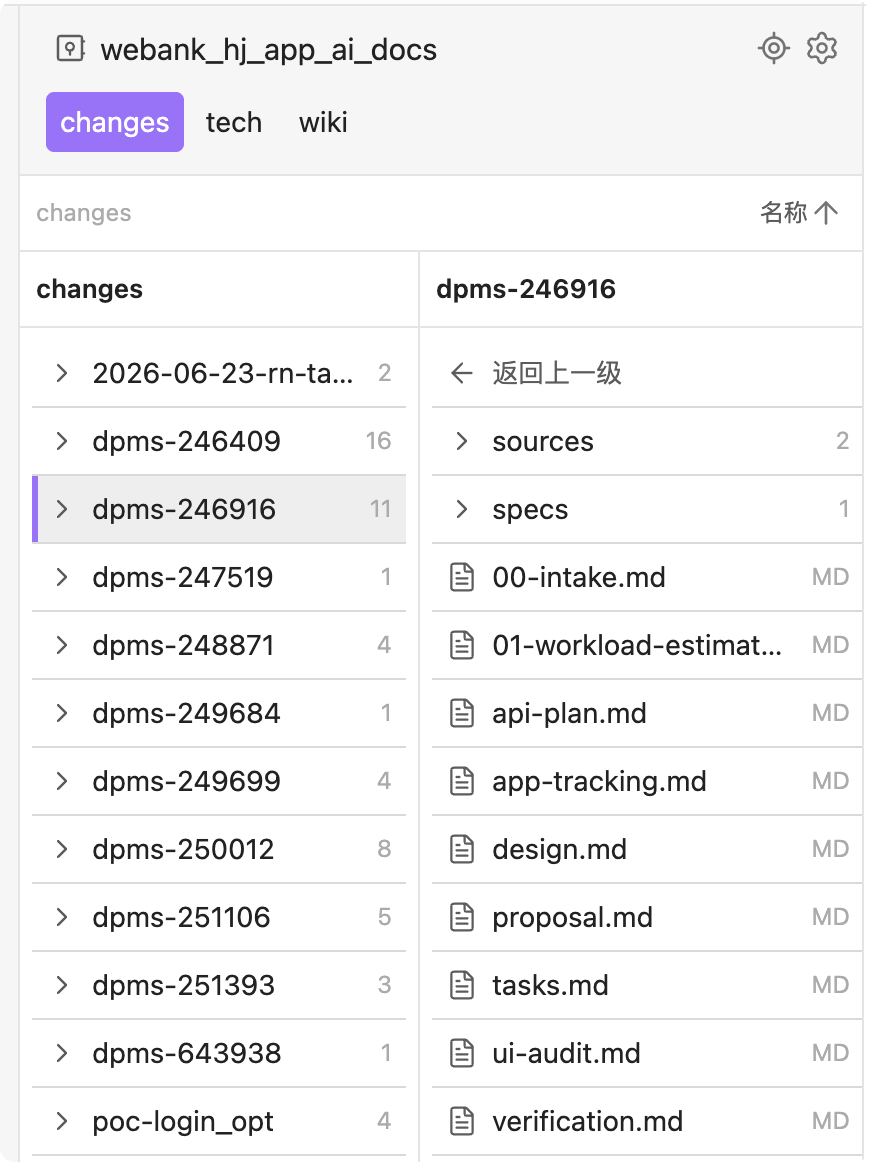
Top-level tags / 顶部一级目录标签
Use the top layout to dedicate the entire lower area to the file tree while keeping root folders one click away.
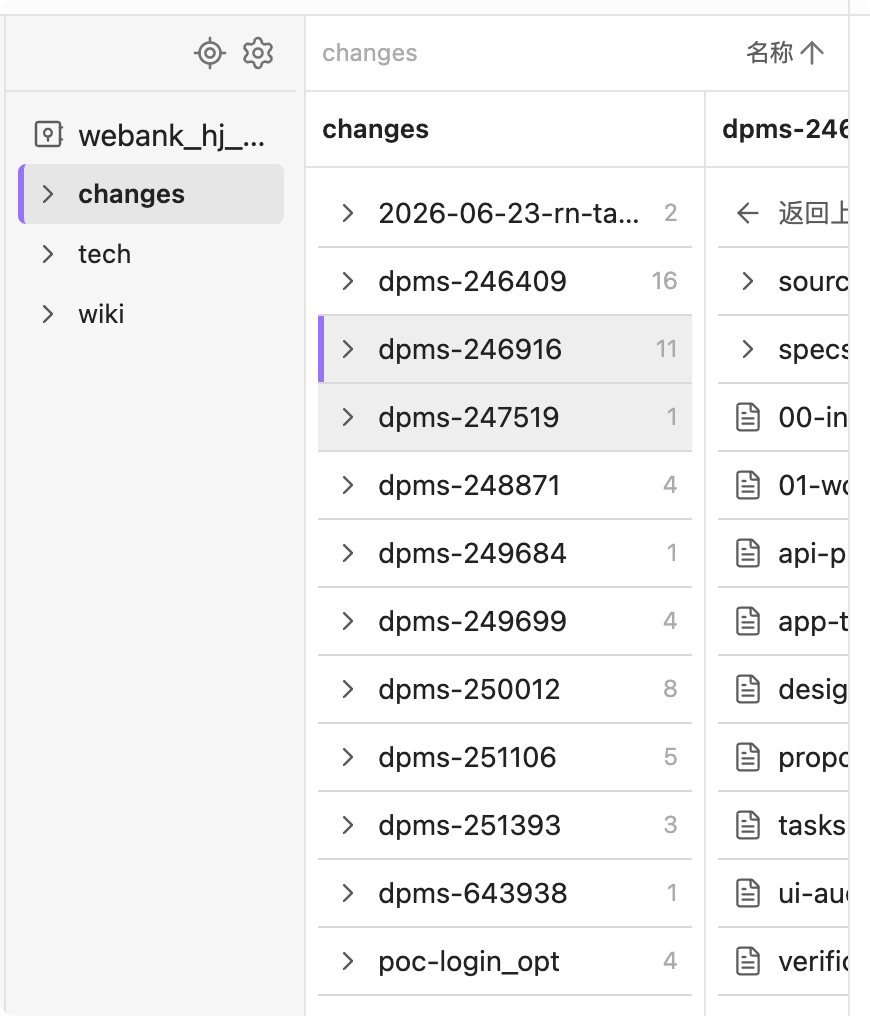
Left navigation / 左侧一级目录列
Keep root folders ordered on the left, with the selected folder and its child columns visible together.
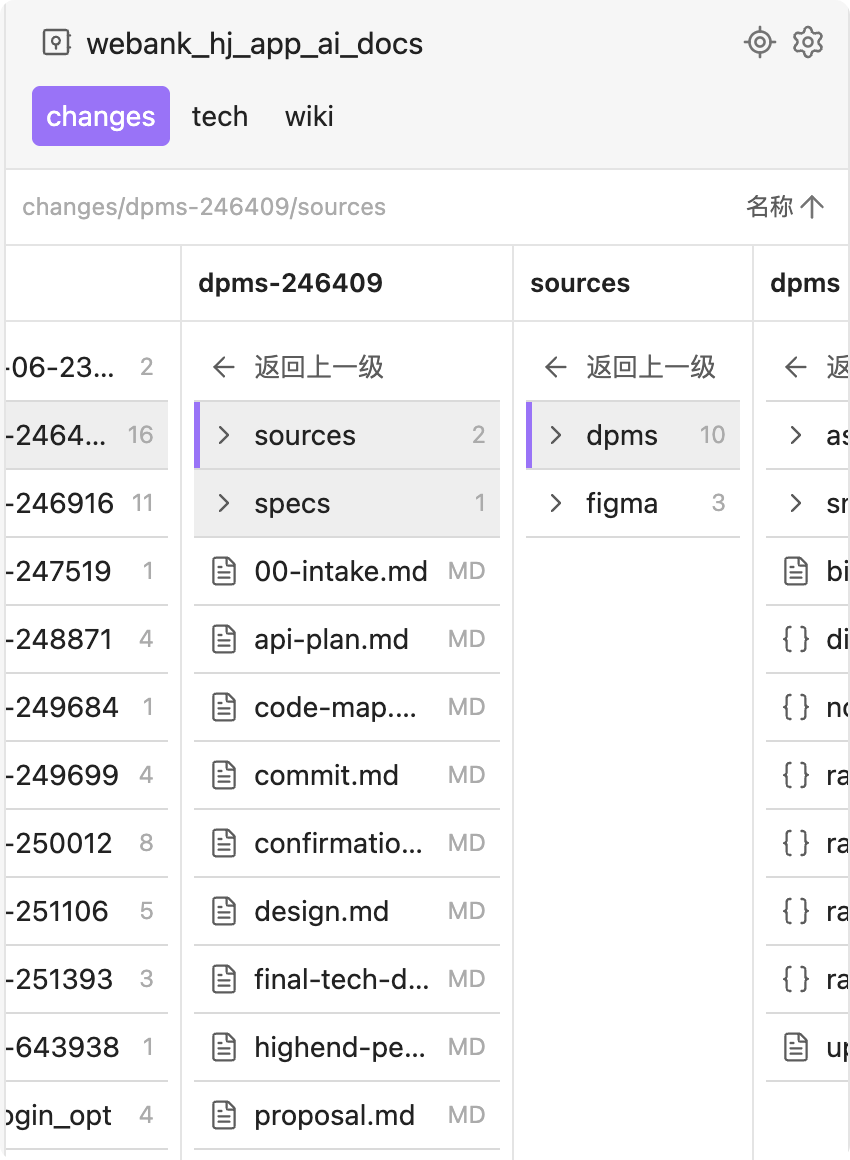
Finder-style columns / Finder 风格多列浏览
Open each folder in its own column to retain the complete path and browse several levels in context.
Pinyin filtering / 拼音筛选
Type English, numbers, Chinese text, pinyin initials, full pinyin, or mixed pinyin to filter the focused column.
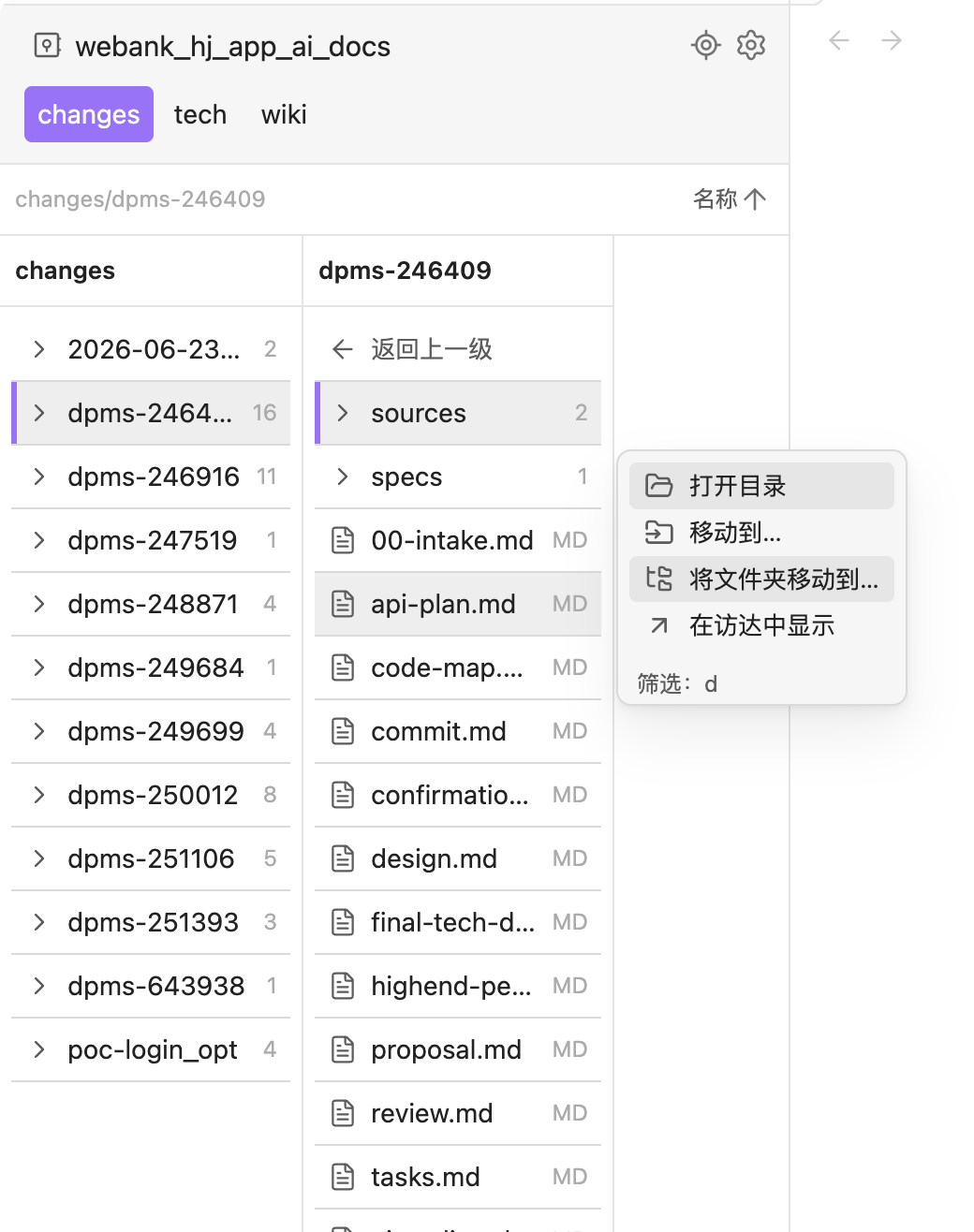
Context menu / 右键菜单
File and folder actions are available from the context menu, which also supports keyboard filtering.
Bottom calendar / 底部日历
Expand the calendar at the bottom of the navigator to browse by month or year. Clicking a date opens its matching files directly, or presents a picker when there are multiple matches.
Installation
Community Plugins
Once the plugin is available in the Community Plugins directory:
- Open Settings → Community plugins.
- Search for Folder Column Navigator.
- Install and enable it.
Manual installation
- Download
main.js,manifest.json, andstyles.cssfrom a release. - Create
<vault>/.obsidian/plugins/folder-column-navigator/. - Copy the three files into that folder.
- Enable Folder Column Navigator in Settings → Community plugins.
Open the view from the ribbon folder icon, or run Open Folder Column Navigator from the command palette.
中文说明
兼容性
- 最低 Obsidian 版本:1.13.0。
- 插件使用 Obsidian 1.13.0 引入的原生分类设置导航和设置搜索 API。
- 低于 1.13.0 的版本不在支持范围内。
它解决什么问题
Obsidian 自带文件列表适合查看完整目录树,但在层级较深的仓库里,频繁展开、收起和横向寻找目录会打断阅读节奏。
目录文件列表将常用的一级目录集中到一个导航区域,并在右侧以 Finder 风格逐列展开目录。你可以一边保留上级目录上下文,一边继续深入文件夹;打开笔记后,焦点仍留在插件中,适合连续浏览和整理笔记。
键盘流与拼音快速过滤
这是一个键盘优先的目录浏览器:焦点位于一级目录或任一文件列时,无需打开搜索框,直接输入即可筛选当前区域。
↑/↓在当前区域移动,←/→在父列、子列之间移动,Enter进入目录或打开笔记。- 支持英文、数字、汉字、拼音首字母、全拼和混合拼音;例如
nh、nih都可以匹配“你好”。 - 筛选后,方向键只会在命中项中移动;
Backspace删除一个筛选字符,Esc清除筛选。 - 打开笔记后焦点仍留在插件内,可继续移动并打开其他笔记;
Space可打开当前项目的右键菜单。
主要功能
两种一级目录布局
左侧目录列是默认布局:仓库根目录和一级目录位于左侧,右侧为当前目录的多列文件树。适合侧边栏较宽、需要长期浏览目录的场景。
顶部一级目录可在设置中开启:一级目录以标签形式横跨视图顶部,下面全部空间都用于文件树。标签可自动换行、设置默认展示行数,并支持展开/收起超出的目录。
两种布局都支持:
- 拖拽调整一级目录顺序。
- 在设置中调整一级目录顺序或隐藏一级目录。
- 添加任意层级的自定义目录,并为它设置独立显示名称。
- 使用“定位当前笔记”跳转并展开当前编辑器笔记所在的目录链。
Finder 风格多列文件树
- 单击文件夹,在右侧新增一列展示它的直属子项。
- 可选开启“深层目录纵向展开”:超过配置的最大水平列数后,后续层级会在最后一列以内按树形垂直展开,默认最多保留 4 列水平目录。
- 垂直目录树默认保留同级展开状态,也可以开启“展开时折叠兄弟目录”切换为单分支浏览。
- 单击文件,直接打开笔记;已打开的笔记会复用现有标签页。
- 每一列保留返回上一级入口,并能独立拖动调整宽度。
- 文件列宽度默认按内容计算;可在设置中设定最小和最大宽度。
- 在一级目录之间切换后,会记住该目录上次展开到的列和焦点位置。
- 移动文件或目录后,会自动定位并展开目标目录,保留键盘焦点以便继续操作。
- 文件或目录也可直接拖到目标目录;悬停约半秒会自动选中并展开该目录,再松开完成移动。
- 开启分组后,可将文件或目录拖到“归档”分组;松开后会为文件或文件夹笔记增加归档值。拖到其他分组则更新当前分组值。
- 文件或目录可拖到其他文件列的空白处,直接移动到该列对应目录。
- 同目录内可使用
Shift连选、Cmd/Ctrl增减选择;多选项目可一起拖拽移动。
排序与显示
文件树右上角可按以下规则排序,并切换正序/倒序:
- 名称
- 修改日期
- 创建日期
- 自定义排序(拖动同级条目后自动切换,并按目录持久保存)
还可配置:
- 显示或隐藏目录子项数量、文件类型缩写等元信息。
- 一级目录与文件树的独立字号。
- 文件夹图标:文件夹、右箭头或不显示;横向多列浏览时图标保持不变,仅垂直树展开时切换打开文件夹或向下箭头。
- 文件图标:通用图标、按常见文件类型显示或不显示。
- 隐藏文件扩展名;不会影响右侧可单独关闭的类型缩写。
- 目录与文件名称左对齐。
- 文件夹笔记优先显示:当目录内存在与目录同名的文件时,将其识别为文件夹笔记,置顶并显示书签图标。
- 文件夹右键菜单可直接创建与文件夹同名的 Markdown 文件夹笔记;已有文件夹笔记时会提示,避免重复创建。
主题
插件内置三套视觉主题:简洁分格(默认)、彩色风格和手帐风格。可在插件的“设置 → 显示 → 主题”中立即切换。彩色风格会按目录路径稳定分配彩虹识别色,并同步用于顶部标签、目录列、分组和日历;手帐风格使用纸张、贴纸和手帐卡片的视觉语言,覆盖文件树、操作按钮、右键菜单和日历。安装并启用可选的 Style Settings 插件后,仍可从它的 Folder Column Navigator → 主题风格 切换主题。
底部日历与日期文件
底部的“日历”栏默认收起;点击即可展开,也可再次点击收起。日历提供月视图与年视图、上一期/下一期导航和左侧周序号。
点击某一天后,插件会在仓库的可见文件中查找匹配项:
- 创建日期(
ctime)和修改日期(mtime)。 - 文件属性中的日期;默认读取
updated、created、创建日期、修改日期、date。属性值支持YYYY-MM-DD、YYYY/MM/DD、YYYY.MM.DD、YYYY年M月D日,也支持在更长文本中包含这些日期。 - 文件名日期格式;默认包含
YYYYMMDD、YYYY年MM月DD日、YYYY-MM-DD*。其中YYYY、MM、DD代表所点日期,*代表任意字符;例如YYYY-MM-DD*匹配以该日期开头的文件名。
四类匹配规则和两组规则列表都可在设置的“日历”页独立调整。多个规则命中同一文件时只保留一项;仅命中一个文件会直接打开,命中多个文件则显示选择列表。
隐藏规则
在设置的“隐藏规则”中,每行填写一条相对于仓库根目录的 Glob 规则:
附件/**
**/*.tmp
草稿/*.md
支持 *、? 和 **。命中目录后,其子项也会一并隐藏;这只影响插件视图,不会删除或移动任何仓库文件。
筛选细节
当前焦点位于一级目录或任一文件列时,直接输入即可筛选该区域:
- 支持英文、数字和汉字。
- 支持全拼、首字母与混合拼音,例如
nh、nih可以匹配“你好”。 - 筛选期间,上下方向键只在命中的条目间移动。
Backspace删除一个筛选字符,Esc清除筛选;筛选提示也可点击清除。
操作方式
鼠标
| 操作 | 效果 |
|---|---|
| 单击一级目录 | 切换当前目录并显示其内容 |
| 单击文件夹 | 在右侧展开子列 |
| 单击文件 | 打开文件 |
| 拖拽一级目录 | 调整一级目录顺序 |
| 拖拽文件/目录到目标目录 | 悬停后自动展开目标目录,松开后移动 |
| 拖拽文件/目录到其他列空白处 | 移动到该列对应目录 |
| 拖拽同级条目的上/下边缘 | 调整条目顺序并切换为自定义排序 |
Shift + 单击 | 选择同目录内两个项目之间的连续范围 |
Cmd / Ctrl + 单击 | 在同目录选择中增加或移除项目 |
| 拖拽列分割线 | 调整左侧目录列或文件列宽度 |
| 右键文件/文件夹 | 打开上下文菜单 |
键盘
| 按键 | 效果 |
|---|---|
↑ / ↓ | 在当前列或当前一级目录区域中移动焦点 |
← / → | 在父列与子列之间移动;在文件夹上向右会展开子列 |
Enter | 进入文件夹或打开文件 |
Space | 打开当前文件或文件夹的上下文菜单;菜单打开后再次按 Space 关闭 |
Shift + ↑ / ↓ | 向上或向下追加选择同目录的相邻项目 |
Esc | 清除当前筛选;无筛选时关闭上下文菜单 |
Backspace | 删除一个筛选字符;在上下文菜单中优先删除菜单筛选字符 |
在顶部布局中,↑、↓、←、→ 会按标签实际所在的行和列移动。焦点位于最下面一排标签时,再按 ↓ 会进入文件树。
上下文菜单
文件菜单提供:打开、在新标签页打开、重命名、移动、删除等操作。
文件夹菜单提供:新建笔记、新建子文件夹、新建白板、新建数据库、移动、删除等操作。删除目录前必须在确认弹窗中再次确认。
同目录选中多个项目后,菜单提供批量移动、新建同级文件夹和确认删除;仅当所选项目全部为 Markdown 文件时,额外显示“批量设置属性”。列表属性会追加并去重,文本、数字、复选框、日期和日期时间会校验现有属性类型,修改完成后展示逐文件结果。
插件会兼容其他插件加入的标准文件菜单项;如需精简菜单,可在“高级”设置中关闭“显示扩展菜单项”,关闭后仍保留本插件自带操作。菜单打开后同样支持输入字母/数字筛选、方向键移动和 Enter 执行。
新建笔记、子文件夹、白板、数据库和重命名时,会在输入过程中实时检查目标目录是否已有同名文件或文件夹。出现冲突会立即提示并禁用确认按钮。
设置说明
设置页按 导航、显示、高级、日历 四个分类页面整理,并支持 Obsidian 设置搜索。
| 设置 | 作用 |
|---|---|
| 一级目录置顶展示 | 将一级目录切换为视图顶部的标签区域 |
| 顶部默认展示行数 | 限制顶部标签默认显示的行数,超出后可展开 |
| 显示条目元信息 | 显示文件夹子项数量和文件类型缩写 |
| 一级目录名称字号 | 调整左侧模式下一级目录的字号 |
| 文件树文件名字号 | 同时调整文件树中的目录和文件字号;顶部模式下也控制一级目录标签 |
| 文件树名称左对齐 | 文件不显示图标时保留图标位置,使其与文件夹名对齐 |
| 文件夹笔记优先显示 | 将同名文件夹笔记置顶并使用书签图标 |
| 隐藏文件后缀名 | 只隐藏显示名称的后缀,不影响类型缩写设置 |
| 隐藏规则 | 按 Glob 规则隐藏文件和目录 |
| 文件列最小/最大宽度 | 限制拖拽文件列时的宽度范围 |
| 文件夹图标 / 文件图标 | 分别控制文件夹、文件的图标样式;垂直展开时文件夹图标会显示打开/关闭状态 |
| 分组 | 按指定属性分组;支持逗号分隔值或 YAML 数组,普通多值只取第一个;只要任一值命中归档名称就归入底部“归档”分组,没有任何有效分组信息时不显示分组标题,缺少属性的条目归入“其他”;“其他”固定排在普通分组之后、归档之前 |
| 主题风格 | 在“显示 → 主题”中切换简洁分格、彩色风格和手帐风格;兼容 Style Settings |
| 右键菜单背景不透明度 | 调整插件右键菜单的背景不透明度,范围 40%–100%,默认 70% |
| 悬浮预览背景不透明度 | 调整文件和文件夹笔记预览窗口的背景不透明度,范围 40%–100%,默认 70% |
| 启用悬浮预览 | 开关文件和目录的悬浮预览 |
| 悬浮预览文件夹笔记 | 控制鼠标悬停目录时是否预览对应的文件夹笔记 |
| 悬浮预览延迟 | 配置鼠标悬停后显示预览的延迟,范围 350ms–2s,默认 500ms |
| 添加自定义目录 | 添加非一级目录到导航区域,并可设置显示名称 |
| 显示扩展菜单项 | 控制是否显示由 Obsidian 或其他插件通过 file-menu 添加的右键菜单项 |
| 日历 | 分别控制创建日期、修改日期、文件属性、文件名的日期匹配规则,并编辑属性名和文件名格式 |
隐私与数据
- 不访问网络。
- 不收集或上传任何笔记、文件名、使用行为或个人数据。
- 只通过 Obsidian API 读取并在需要时执行你主动触发的本地文件操作。
- 隐藏、排序、布局、宽度和导航配置保存在当前仓库的插件数据中。
English
What it does
Folder Column Navigator adds a Finder-style multi-column navigator to Obsidian. Choose a top-level folder from a left-side list or from top tags, then browse each folder level in its own column while preserving context.
Key features
- Keyboard-first navigation with
↑↓←→,Enter, andSpace; focus remains in the navigator after opening a note. - Pinyin-aware quick filtering: type directly in the focused area to match English, numbers, Chinese, initials, full pinyin, or mixed pinyin.
- Left-side root-folder navigation or top-level folder tags.
- Finder-style multi-column folder browsing with resizable columns.
- Single-click file opening while keeping keyboard focus in the navigator.
- After moving a file or folder, automatically reveal and expand its destination folder while retaining keyboard focus.
- Drag files or folders onto a destination folder; hovering for about half a second reveals and expands it before drop.
- Name, modified-time, and created-time sorting in ascending or descending order.
- Optional property-based grouping; configurable archive values are shown as a collapsed “归档” group at the bottom.
- Dragging a file or folder onto “归档” adds the archive marker to its grouping property; dragging it onto another group updates the active group.
- Configurable item metadata, icons with open/closed folder states, font sizes, folder-note priority, extension visibility, and Glob-based hiding.
- Three built-in visual themes—Simple grid, Colorful, and Hand-account—are available in Settings → Display → Theme, with Style Settings retained as an optional alternative entry point. Colorful keeps a stable rainbow accent for each directory across navigation and columns; Hand-account uses a paper-and-sticker journal treatment across lists, menus, controls, groups, and the calendar.
- Create a same-name Markdown folder note from any folder's context menu, with duplicate detection.
- Optional hover previews for files and folder notes, with a configurable delay.
- Filterable context menus for files and folders.
- Immediate duplicate-name validation when creating or renaming files and folders.
Quick use
Open Folder Column Navigator from the ribbon or command palette. Click a folder to open its child column; click a file to open it. Use arrow keys to move, Enter to open, Space for the context menu, and type to filter the focused area. Backspace and Esc clear the active filter.
Privacy
The plugin has no network access, telemetry, or data collection. It operates only on files in the current vault through the Obsidian API.
Third-party software
The release bundle includes pinyin-pro for pinyin-aware filtering. It is licensed under MIT. Build-time dependencies are documented in THIRD_PARTY_NOTICES.md; they are not bundled with the plugin release.
For plugin developers
Search results and similarity scores are powered by semantic analysis of your plugin's README. If your plugin isn't appearing for searches you'd expect, try updating your README to clearly describe your plugin's purpose, features, and use cases.