Folder Nav
approvedby mian Fuqu
Browse the sidebar one folder at a time instead of scrolling an indented tree. Click into a folder, follow the breadcrumb back. - This plugin has not been manually reviewed by Obsidian staff.
Folder Nav
English · 简体中文
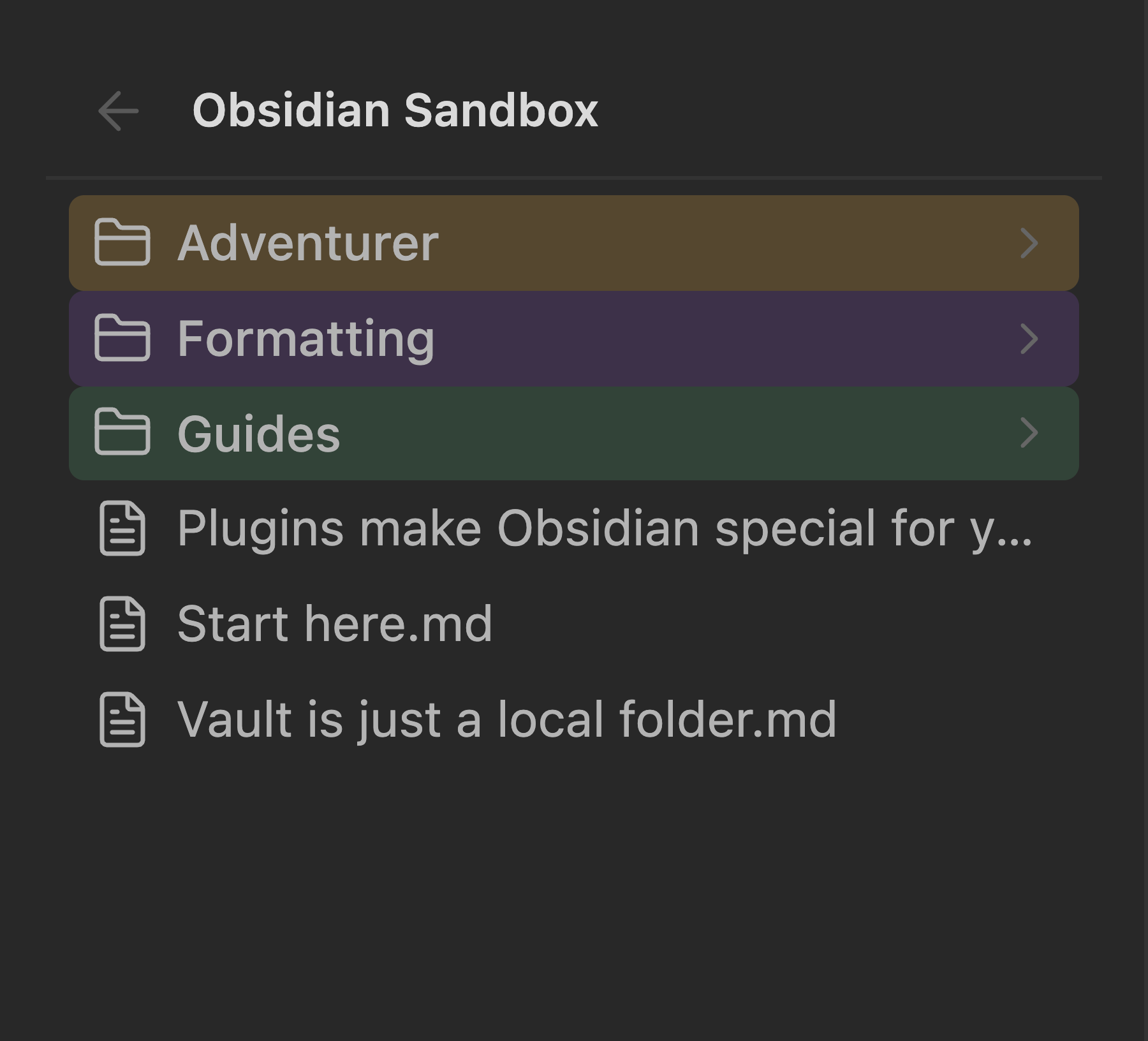
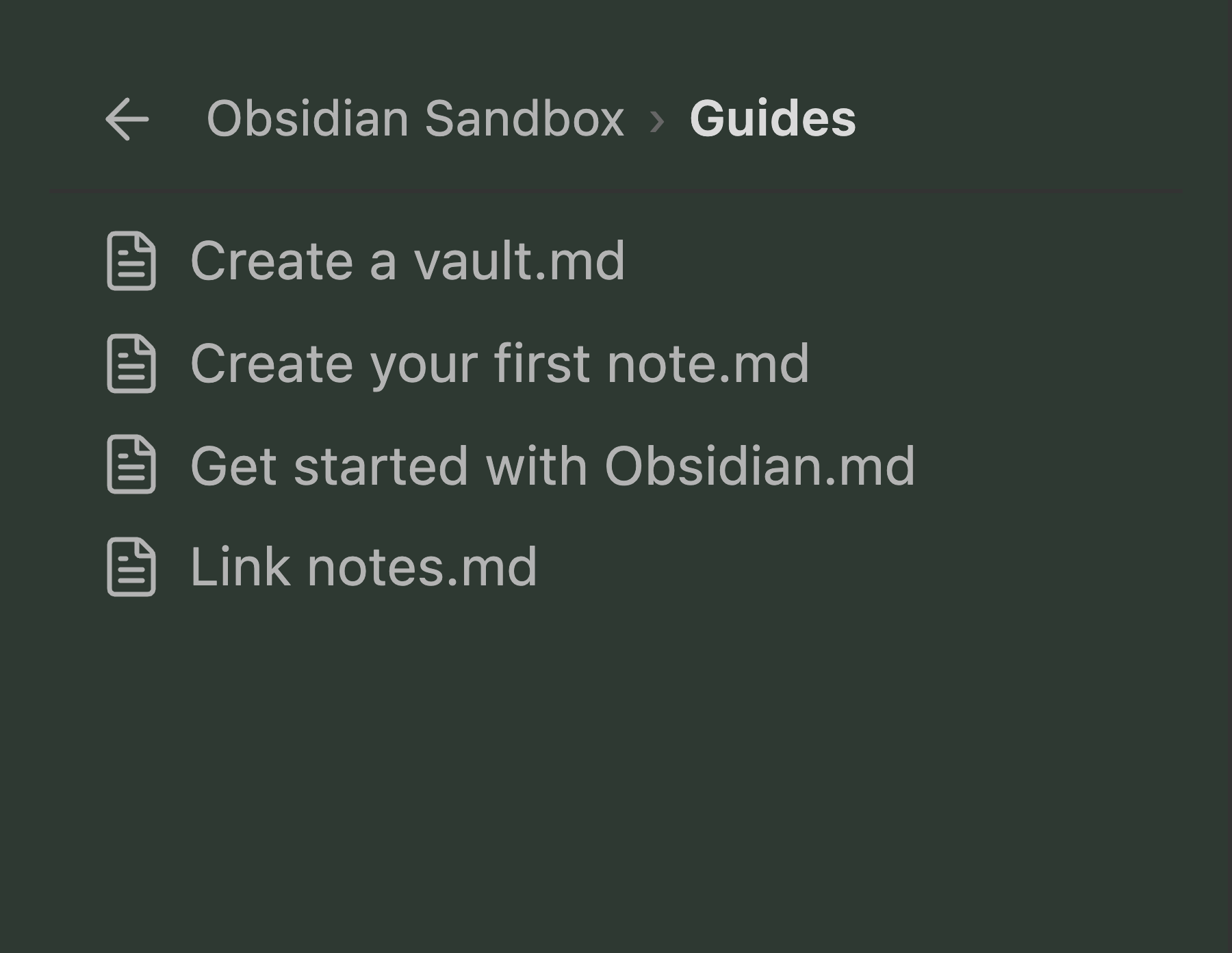
An Obsidian plugin that replaces the sidebar file tree with drill-down navigation — the sidebar shows one folder at a time, and a breadcrumb walks you back up. Like double-clicking into folders in Windows Explorer or macOS Finder.
No more ever-deepening indentation eating the width of a narrow sidebar.
Why
Obsidian's file explorer indents every level. By the third or fourth level — Notes › Course › Week 3 › Handout.pdf — the names are squeezed into a sliver, and the whole tree is always on screen competing for attention.
Folder Nav keeps the sidebar at a constant depth. You see the folder you're standing in, and the breadcrumb tells you where that is.
Usage
Enabled by default: it takes over the built-in Files view. The sidebar tab is unchanged, and so is the ribbon icon.
Mouse
| Action | Result |
|---|---|
| Click a folder | Go into it |
| Click a file | Open it in the main editor area (never in the sidebar) |
| Click a breadcrumb segment | Jump back to that level |
Click ← | Go up one level |
| Right-click a file or folder | New note / New folder, Rename, Move to…, Make a copy, Delete — plus other plugins' menu items |
Obsidian adds its core context-menu items inside the file explorer's own code, before it fires the
file-menuevent — so a plugin listening to that event only ever sees third-party contributions. Since Folder Nav replaces that view, it rebuilds the core items itself on public API. Delete in particular hands off to Obsidian's ownpromptForDeletion, so your "confirm before deleting" setting is respected.
Keyboard (click the list first)
| Key | Action |
|---|---|
↑ / ↓ | Move the selection |
Enter | Open the selection |
Backspace / Alt+← / Cmd/Ctrl+[ | Go up one level |
Esc | Clear the selection |
Commands (also bindable in Settings → Hotkeys)
Folder Nav: Toggle drill-down / native file listFolder Nav: Go to vault rootFolder Nav: Go up one levelFolder Nav: Reveal current file in list
Folder colours
Give a folder a colour and it carries into everything below it: the row is tinted where it sits, and the whole sidebar picks up a wash once you're inside. A drill-down list never shows you the parent folder, so the colour is what tells you where you are.
Set one — right-click a folder → Folder colour, then pick a swatch. A folder with no colour of its own inherits the nearest coloured ancestor, so drilling deeper keeps the cue.
Manage them — Settings → Folder Nav → Folder colours lists every coloured folder, with a Background intensity slider. At 0 only the folder row is tinted and the list background is left alone.
Colours are always layered translucently over your theme's own background; foreground colours are never touched, so text stays exactly as legible as your theme makes it.
Settings
| Setting | Description |
|---|---|
| Background intensity | How strong the wash is inside a coloured folder — the number is the opacity percentage. 0 tints the folder row only. |
| Take over the file list | Turn off to restore the native tree instantly — nothing is left behind. |
| Sort order | Follow native mirrors the sort the built-in explorer was using when Folder Nav took over (alphabetical, modified time, …). Folders first always puts folders above files, then sorts by name. |
| Reveal current file | Follow the active note into its folder. Seeded from Obsidian's own "Auto reveal" setting. |
| Show file extensions | Off shows Note instead of Note.md. |
| Hide loose files in the vault root | Only affects the vault root — handy when attachments pile up there. |
| Hidden extensions | Comma-separated list used by the setting above. |
How it works
Folder Nav replaces the view inside the existing file-explorer leaf rather than disabling Obsidian's core file-explorer plugin. Disabling that plugin would also remove the sidebar's ribbon icon, and reaching for it would mean touching undocumented APIs. Everything here goes through the public workspace API — the plugin makes no use of app.internalPlugins or any other private surface.
The replacement is re-applied on layout-change, so the built-in plugin recreating its leaf (on layout restore, or when you run "Open file explorer") doesn't leave you with a native tree. Duplicate drill-down leaves are collapsed down to one.
Nothing in your vault configuration is rewritten. workspace.json and core-plugins.json are never modified by the plugin.
Limitations
- No drag-and-drop to move files. Obsidian's native drag handling is bound to its own explorer internals; reusing it means depending on undocumented APIs. Use the context menu's Move to… instead, which opens a folder picker.
- No inline rename (F2) and no multi-select. Rename lives in the context menu and opens a small dialog. Select one file at a time.
- Custom folder order isn't reproduced. Sorting is computed from your chosen order rather than borrowed from the built-in explorer, which is destroyed on takeover. Folders you manually reordered with another plugin will sort by name or date instead.
- Obsidian's own "Reveal file in navigation" does nothing while the takeover is on. It targets the built-in explorer's view, which is no longer loaded, so it quietly no-ops — it won't open a second file list or throw. Use Folder Nav: Reveal current file in list instead, and rebind your hotkey to it if you had one on the built-in command.
- A major Obsidian update may still require fixes. The takeover is built on the public workspace API, but it does replace a core view, which no API promises to keep working. The failure mode is safe by design: if the takeover can't run, you get the native file list back.
- Desktop and mobile.
isDesktopOnlyis off, but the drill-down layout has mainly been exercised on desktop.
Development
npm install
npm run build     # typecheck + bundle
npm run dev       # watch mode
main.js is written to the project root. To also copy it into a vault while developing:
OBSIDIAN_PLUGIN_DIR=~/MyVault/.obsidian/plugins/folder-nav npm run build
Debug loop, if you have the Obsidian CLI:
obsidian vault=MyVault plugin:reload id=folder-nav
obsidian vault=MyVault dev:errors
obsidian vault=MyVault dev:screenshot path=/tmp/shot.png
Source layout
src/
├── main.ts       Plugin entry: lifecycle, commands, settings wiring
├── view.ts       FolderNavView — navigation state, history, list rendering
├── takeover.ts   Swap the built-in explorer's view for ours, and back
├── breadcrumb.ts Breadcrumb trail construction
├── render.ts     A single list row
├── palette.ts    Folder colour palette and nearest-ancestor lookup
├── colorPicker.ts Colour swatch modal
├── sort.ts       Sorting and the vault-root filter
└── settings.ts   Settings tab
Contributors
- mianfuqu — author and maintainer
- DeepSeek — implementation
See CONTRIBUTORS.md.
License
MIT
For plugin developers
Search results and similarity scores are powered by semantic analysis of your plugin's README. If your plugin isn't appearing for searches you'd expect, try updating your README to clearly describe your plugin's purpose, features, and use cases.