by unagitechlab
Open a folder as a gallery of its image files and the images linked from its notes.
Folder Image Gallery
Unagi Tech Inc.(株式会社うなぎテック) · MIT License
English | 日本語

An Obsidian plugin that shows the images in a folder as a gallery.
Besides the image files in the folder, it also shows images that the folder's notes embed or link to. Images are shown even when the files live somewhere else, such as an attachments folder. A duplicate image is shown only once.
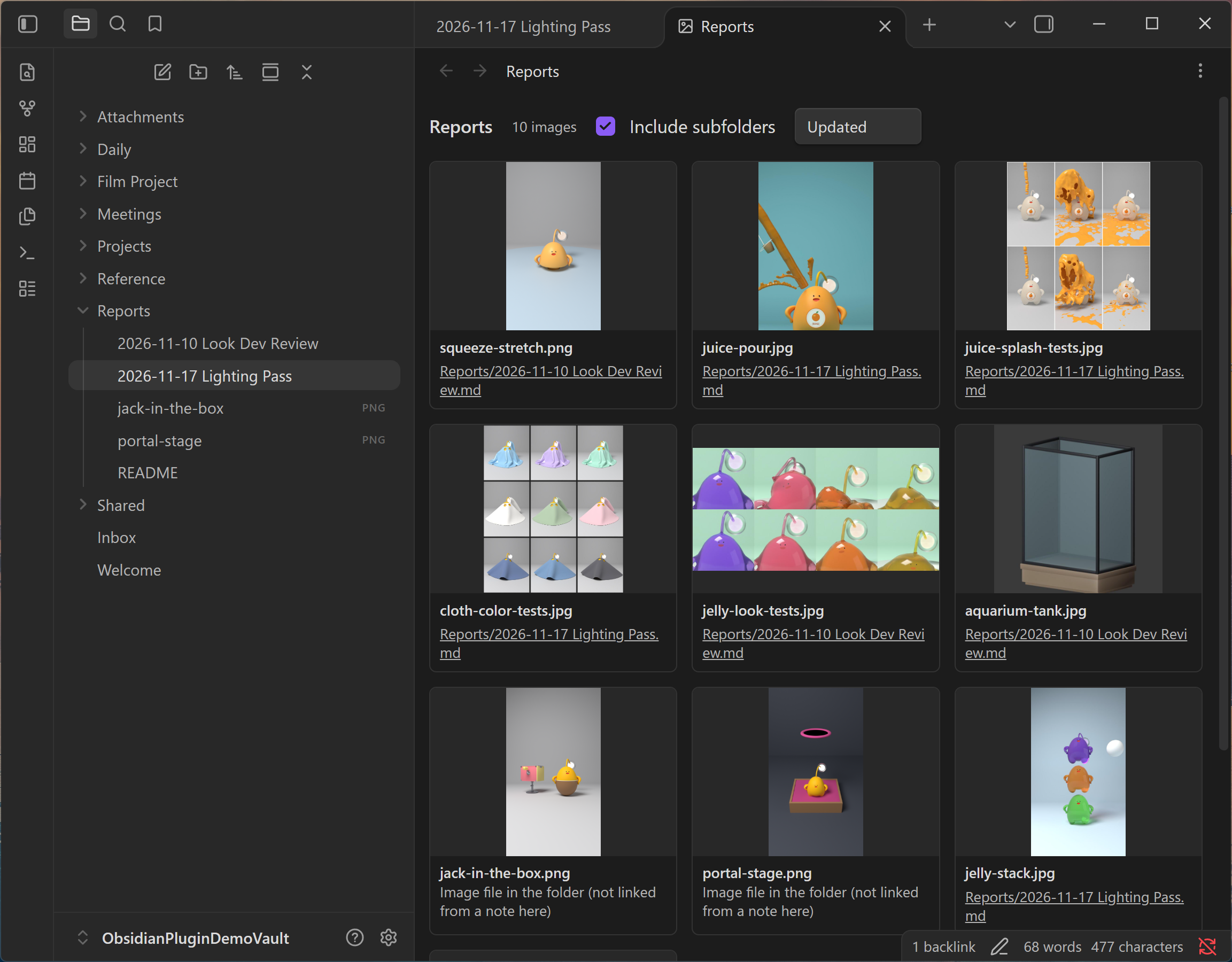
Features
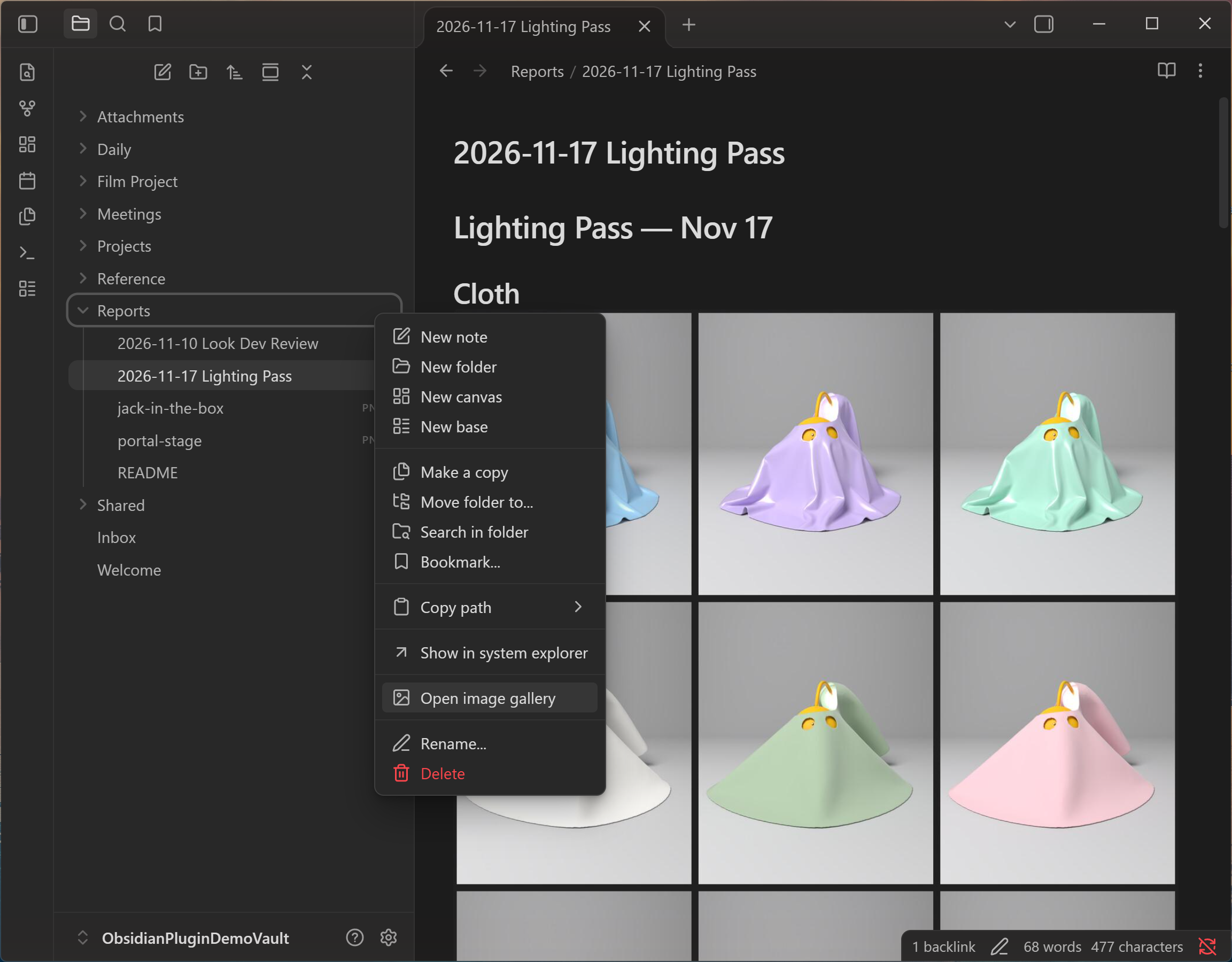
- Open from a folder: right-click a folder in the file explorer and choose Open image gallery. The gallery opens in a new tab.
- Open from a command: use the command Open image gallery for this folder. It uses the folder selected in the file explorer, or the folder of the open note.
- Images from notes, too: image files in the folder and images embedded or linked in its notes are shown together.
- Subfolders on or off: choose in the gallery tab whether to include subfolders.
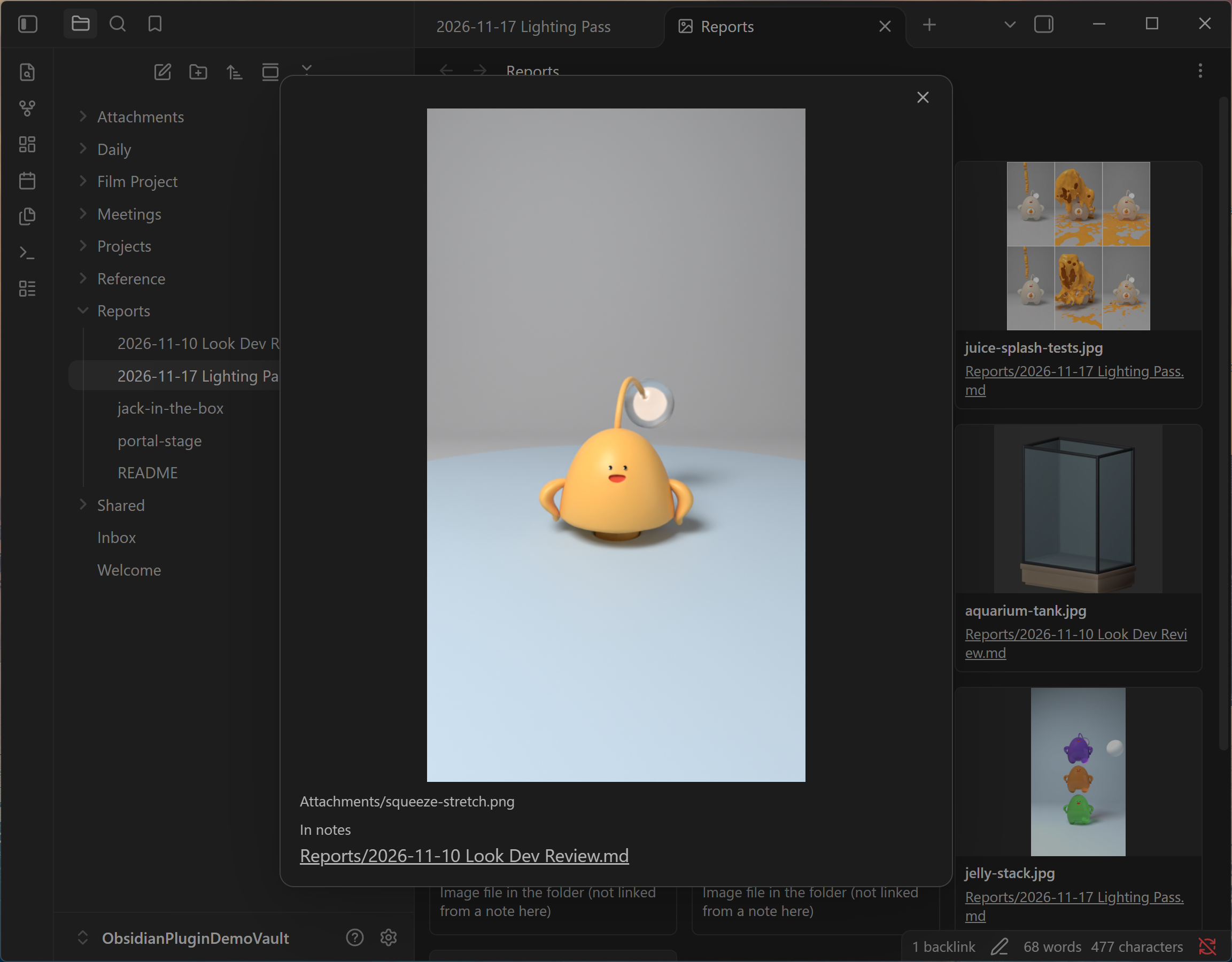
- Zoom and jump to notes: click a thumbnail to enlarge it. Each image lists the notes that use it. Click one to open that note.
- Sorting: sort by updated time, name, or note order.
- Supports English and Japanese: follows Obsidian's language setting.
Screenshots
Right-click a folder and choose Open image gallery.
Click a thumbnail to enlarge it. The notes that use the image are listed below it.
Settings
| Setting | Default | What it does |
|---|---|---|
| Include subfolders | On | When a gallery opens, also include images in folders inside the selected folder. |
| Sort | Updated | Order used when a gallery opens. You can also change it in the gallery tab. |
Install
From Community plugins
- Settings → Community plugins → Browse
- Search for Folder Image Gallery and select Install, then Enable.
Manually
- Download
main.js,manifest.json, andstyles.cssfrom the latest release. - Put them in
<your vault>/.obsidian/plugins/folder-image-gallery/. - Settings → Community plugins: select the reload button next to Installed plugins, then enable Folder Image Gallery.
Good to know
- Up to 800 notes are read, and up to 600 images are shown.
- Notes larger than 1.5 MB are not scanned for image links in the text. The link information Obsidian already has is still used.
- On a phone, open the gallery from the command. The file explorer menu may not be available, depending on the app.
Privacy
This plugin makes no network requests and collects no data. It only works with notes and images in your vault.
License
MIT — Copyright (c) 2026 Unagi Tech Inc.
Keep the copyright notice when you modify or redistribute.
Disclaimer
This plugin is provided "as is", as stated in the license. Keep backups of your vault. Unagi Tech Inc. is not liable for any loss of data or other damage arising from its use.
This is an independently developed plugin. It is not made, endorsed or supported by Obsidian (Dynalist Inc.).
Support
Tips are optional (Ko-fi). They help us keep shipping and maintaining free tools.

Links
- Lab org: UnagiTechLab
- Company: unagi.tech
- Bug reports and requests: Issues
For plugin developers
Search results and similarity scores are powered by semantic analysis of your plugin's README. If your plugin isn't appearing for searches you'd expect, try updating your README to clearly describe your plugin's purpose, features, and use cases.