HTML Gallery
approvedby kagayakii
Browse the HTML files in your vault as a grid of live thumbnails, search them by title and content, and open the notes that link to them. PDFs, SVGs and images can be shown too. - This plugin has not been manually reviewed by Obsidian staff.
HTML Gallery (Obsidian plugin)
Browse the HTML files, PDFs, SVGs and images in your vault as thumbnails and jump to the notes that reference them.
If you save generated diagrams and documents next to your notes, you know the problem: you remember the picture, not the file name or the folder. HTML Gallery shows each file as a thumbnail so you can find it by eye, and puts a button under each one that leads to the notes linking to it.
HTML is on by default. SVG, raster images and PDF are each a separate switch under Settings, off until you turn them on.

What you get
- Every HTML file in the vault shown as a scaled-down live thumbnail.
- Optionally PDFs (first page rendered as the thumbnail, with page count and full-text search over the first pages), SVGs (searchable by
<title>,<desc>and their text) and raster images. - A Backlinks button on each card opens the notes linking to the file in one click. Files nothing links to get "Same folder" candidates instead, and you can turn a candidate into a real link from the same menu.
- Search by file name, title and page text, and sort by date or folder. Sorting by folder groups the cards under folder headings.
- Filter by folder. You can also right-click a folder in the file explorer to narrow the gallery to it.
- An "Unreferenced" toggle in the header shows only the files that no note links to.
- Click a card for a full-size view. Scripts run there, so interactive and library-based pages look the way they should. PDF cards open in Obsidian's own PDF viewer instead.
- Right-click a card to copy an embed link or the path, reveal the file in the explorer, or open it in the default app.
- A command that inserts a link to a file from the current note's folder that the note does not link to yet.
- Keyboard friendly: arrow keys move between cards, Enter opens,
/jumps to the search box. - English and Japanese UI.
Screenshots
The screenshots use the sample content in examples/. Copy that folder into a vault to try the plugin with the same files.
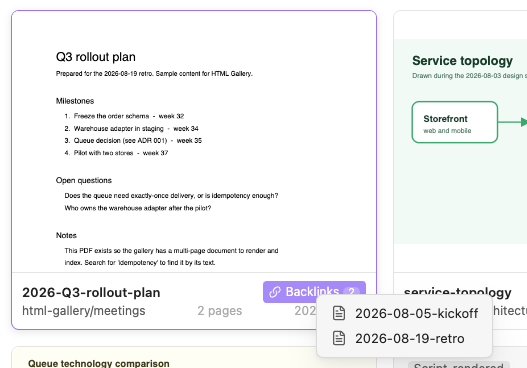
Each card has a button that lists the notes linking to the file. Files that nothing links to get a dashed "Same folder" button with the closest notes in the same folder instead.
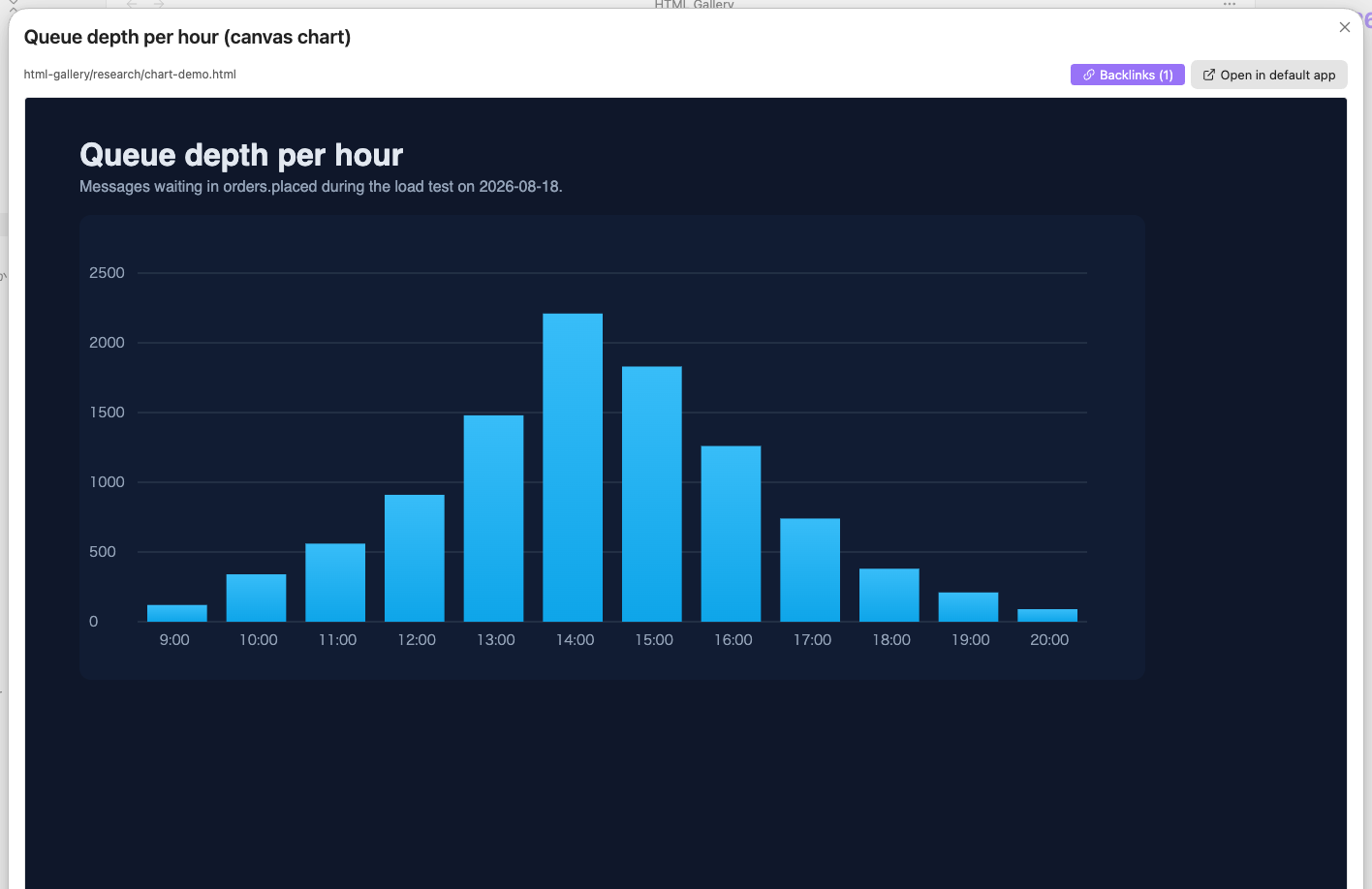
Script-rendered pages show a text fallback in the grid, but the enlarged view always runs scripts, so the chart renders as intended.
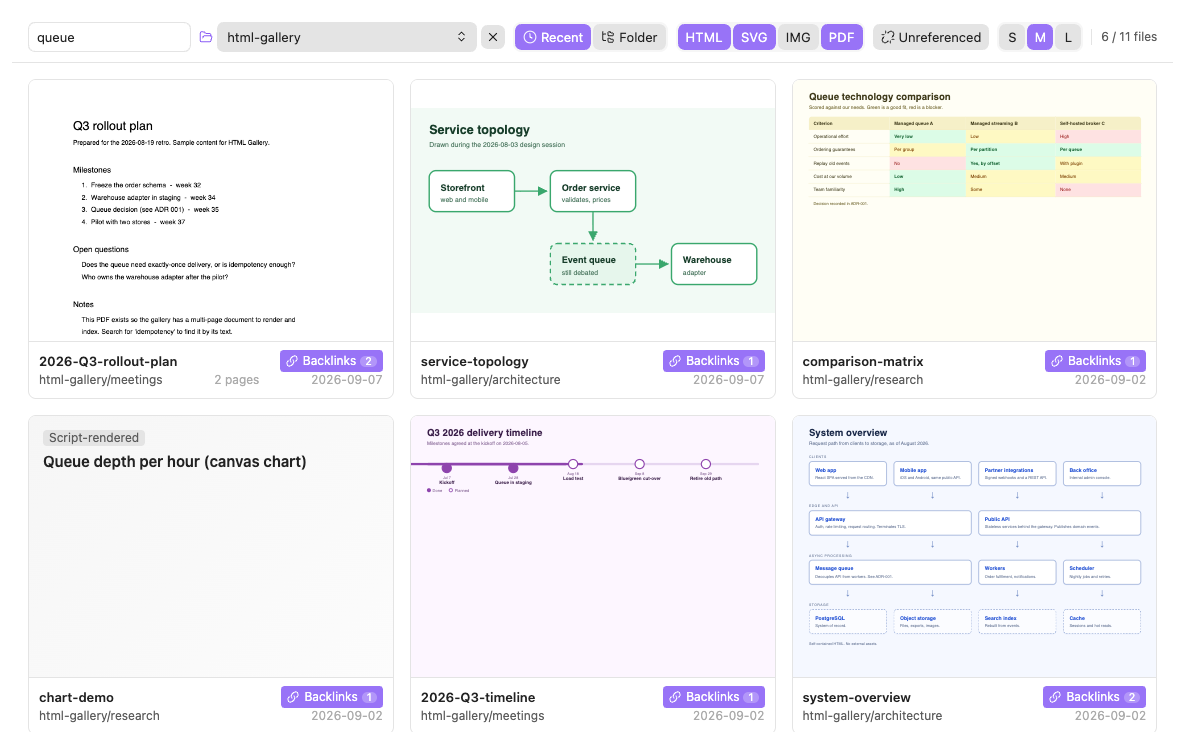
Search matches file names, titles and body text, including the text of PDFs and the labels in an SVG. Here "queue" narrows eleven files down to six, across all three formats.
Requirements
- Enable "Detect all file extensions" under Settings → Files and links. Without it Obsidian does not treat HTML as vault files and the gallery stays empty
- Files must be inside the vault
- PDF thumbnails use the PDF.js copy that ships with Obsidian, so nothing is downloaded and nothing leaves your machine. Scanned PDFs have no text layer, so they are only findable by file name; this plugin does not do OCR
Installation
Install it from the community plugin directory: community.obsidian.md/plugins/html-gallery. The "Add to Obsidian" button there opens the plugin in Obsidian. You can also search for "HTML Gallery" under Settings → Community plugins → Browse.
Manual install: put main.js, manifest.json and styles.css from a release (or from your own build, see below) into <vault>/.obsidian/plugins/html-gallery/, then enable HTML Gallery under Settings → Community plugins.
Open the gallery from the ribbon icon or the command "HTML Gallery: Open gallery".
On mobile there is no ribbon bar. The command palette is the reliable way in: run "Open gallery". Long-pressing a folder in the file explorer gives the same menu as right-clicking one. Adding "Open gallery" to the toolbar at the bottom of the screen makes it one tap away; it can be added from the mobile toolbar settings.
Commands
| Command | What it does |
|---|---|
| Open gallery | Opens (or focuses) the gallery view |
| Insert link to a file in this folder | Lists the files in the active note's folder that the note does not link to yet, and inserts an embed link to the one you pick (at the cursor in an editor, otherwise at the end of the note) |
Settings
| Setting | Default | Description |
|---|---|---|
| Language | Auto | Auto (follow Obsidian), English or 日本語 |
| Show HTML files | On | List .html and .htm |
| Show SVG files | Off | List .svg, searchable by <title>, <desc> and text elements |
| Show raster images | Off | List .png, .jpg, .gif, .webp, .avif, .bmp. They carry no text, so a vault full of pasted screenshots will crowd out everything else |
| Show PDF files | Off | List .pdf with the first page as the thumbnail and text from the first pages in the search index |
| Run scripts in thumbnails | Off | Runs JavaScript inside thumbnails. Slower with many files. HTML only |
| Thumbnail size | Medium | Small / Medium / Large. Also switchable from the gallery header |
| Target folder | (whole vault) | Only list files under this folder |
| Excluded folders | (none) | One folder per line |
| Include index.html | Off | Show entry pages such as index.html |
Sample content
examples/ holds a small set of diagrams and notes that exercise every behaviour: linked and unlinked HTML, a file with two backlinks, two script-rendered pages that fall back to a text thumbnail, and an index.html that is hidden by default. Copy the folder anywhere inside a vault to try it.
Development
TypeScript + esbuild, the same layout as the official Obsidian sample plugin.
npm install
npm run build   # type-check and emit main.js
npm run dev     # watch mode
npm run lint    # same rules as the community plugin review (eslint-plugin-obsidianmd)
npm test        # unit tests for the pure helpers (vitest)
Symlink this repository into a vault's plugin folder so every build is picked up by Obsidian:
ln -s "$(pwd)" "<vault>/.obsidian/plugins/html-gallery"
Reload the plugin with the Obsidian CLI (obsidian plugin:reload id=html-gallery) or with "Reload app without saving" from the command palette. Errors show up in the developer console (Cmd+Option+I / Ctrl+Shift+I).
Release steps are in RELEASING.md (Japanese).
Source layout
| File | Role |
|---|---|
src/main.ts | Plugin entry: view, command, settings tab, folder context menu |
src/view.ts | Gallery view (header, grid, folder headings, lazy loading, scaling, keyboard navigation, card context menu, vault events, folder filter state) |
src/thumbnail.ts | Thumbnail iframe creation and scaling, resource URL cache |
src/indexer.ts | Per-kind parsing (title, body text, blank detection) and search index |
src/kinds.ts | File kinds, the extension table and which settings switch them on |
src/shot.ts | Per-kind thumbnail element (iframe / <img> / <canvas>) and its loading |
src/pdf.ts | Typed wrapper over Obsidian's PDF.js: page-1 rendering, text extraction, concurrency limit |
src/async.ts | Concurrency limiter |
src/format.ts | Date formatting |
src/backlinks.ts | Reverse index of resolvedLinks and same-folder guessing |
src/note-menu.ts | Menu listing referenced notes, with "add link" for guessed candidates |
src/links.ts | Building embed links and inserting them into notes |
src/link-suggest-modal.ts | Picker for the "insert link" command |
src/files.ts | Collecting and filtering target files |
src/preview-modal.ts | Enlarged view |
src/i18n.ts | UI strings (English / Japanese) |
src/icon.ts | Custom ribbon / view icon |
src/settings.ts, src/settings-tab.ts | Settings model and settings tab |
styles.css | Styles. Uses Obsidian CSS variables so it follows the theme |
Implementation notes
- Thumbnails load the real file in an
<iframe>with a fixed 1280px virtual viewport and scale it down with CSS, so responsive pages keep their desktop layout. Only cards near the viewport are loaded - Scripts are off inside thumbnails by default. Pages whose body text is nearly empty (script-rendered) get a text preview built from
<title>and body text instead of a blank card - Never combine
allow-scriptsandallow-same-originin onesandboxattribute. Thumbnails default toallow-same-origin; thumbnails with scripts enabled and the enlarged view useallow-scripts - Use
vault.adapter.getResourcePath()for iframesrc. Do not buildfile://URLs by hand - Never assign file content to
innerHTML. Titles and text are extracted withDOMParser - Do not call
detachLeavesOfTypeinonunload - SVGs and images are shown with
<img>, never inlined and never in an iframe: an SVG loaded through<img>is in the SVG spec's secure static mode, so scripts inside it never run and it fetches no external subresources - PDFs are rendered with
loadPdfJs(), the PDF.js copy Obsidian ships. No bundled dependency, and the cmap / standard-font / wasm paths under/lib/pdfjs/must be passed togetDocumentor CJK pages come out blank - At most two PDFs are open in PDF.js at a time, and a render is cancelled (with the document destroyed) when its card scrolls out of view, so fast scrolling cannot pile up worker threads
- A failed thumbnail keeps its placeholder and gets an
is-errorclass. Nothing is swapped into the DOM, because rebuilding a card is what the iframe rule above forbids
CSS hooks
Cards carry data-kind="html|svg|image|pdf" and their thumbnail box carries is-kind-<kind>, so a snippet can style one kind. Every kind uses the same box ratio, --html-gallery-shot-ratio (1280 / 920); a PDF page is cropped to the top to fill it, the way an HTML thumbnail shows only the top of the page.
For plugin developers
Search results and similarity scores are powered by semantic analysis of your plugin's README. If your plugin isn't appearing for searches you'd expect, try updating your README to clearly describe your plugin's purpose, features, and use cases.