Folder Terminal
approvedby First Kang
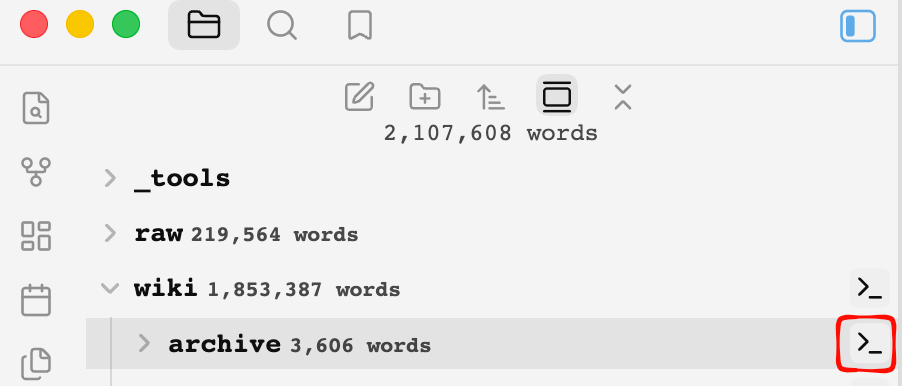
Hover over a folder in the file explorer to reveal a terminal icon; click it to open a real shell (PTY) docked at the bottom, rooted at that folder. - This plugin has not been manually reviewed by Obsidian staff.
Folder Terminal
This README is bilingual: English sections first, 中文 sections below. 本说明为双语:英文在前,中文在后。
Folder Terminal is an Obsidian plugin that adds a terminal icon to every folder in the file explorer. Hover over a folder and click the icon to open a real shell (PTY) at the bottom of Obsidian, with the working directory automatically set to that folder.
⚠️ Desktop-only (depends on Node's
child_process); not available on mobile.
Highlights
- Hover-to-reveal terminal icon on folders (auto-hidden while renaming)
- Real PTY via an embedded Python proxy —
vim/ssh/htopwork normally, no native modules required - Multi-tab sessions, drag-to-reorder, double-click rename, per-tab settings (shell / color scheme / font size / color tag)
- Cross-restart recovery, theme-aware GitHub-style colors, clickable URLs
- UI localization: Chinese / English / Follow system
Platform notes: macOS requires python3 (Xcode Command Line Tools); Linux falls back to script when python3 is missing; Windows uses winpty when available, otherwise cmd.exe.
Obsidian 插件:鼠标移到文件浏览器中的文件夹上时,标题右侧出现「终端」图标;点击后在 Obsidian 当前面板下方打开一个真实 Shell(PTY)窗口,工作目录自动切换为该文件夹。
⚠️ 仅支持桌面端(依赖 Node 的
child_process),移动端不可用。
Features / 功能
English
- 🖱️ Hover-to-reveal icon on every folder title (floats at the right edge, no layout shift, auto-hidden while renaming)
- 📂 One-click
cd— opens a terminal already rooted at that folder's absolute path (including the vault root) - 🗂️ Multi-tab sessions — one tab per folder, each an independent shell; switching tabs keeps scrollback, closing a tab ends the session
- 🧲 Drag-to-reorder tabs
- ✏️ Double-click rename a tab (does not rename the actual folder)
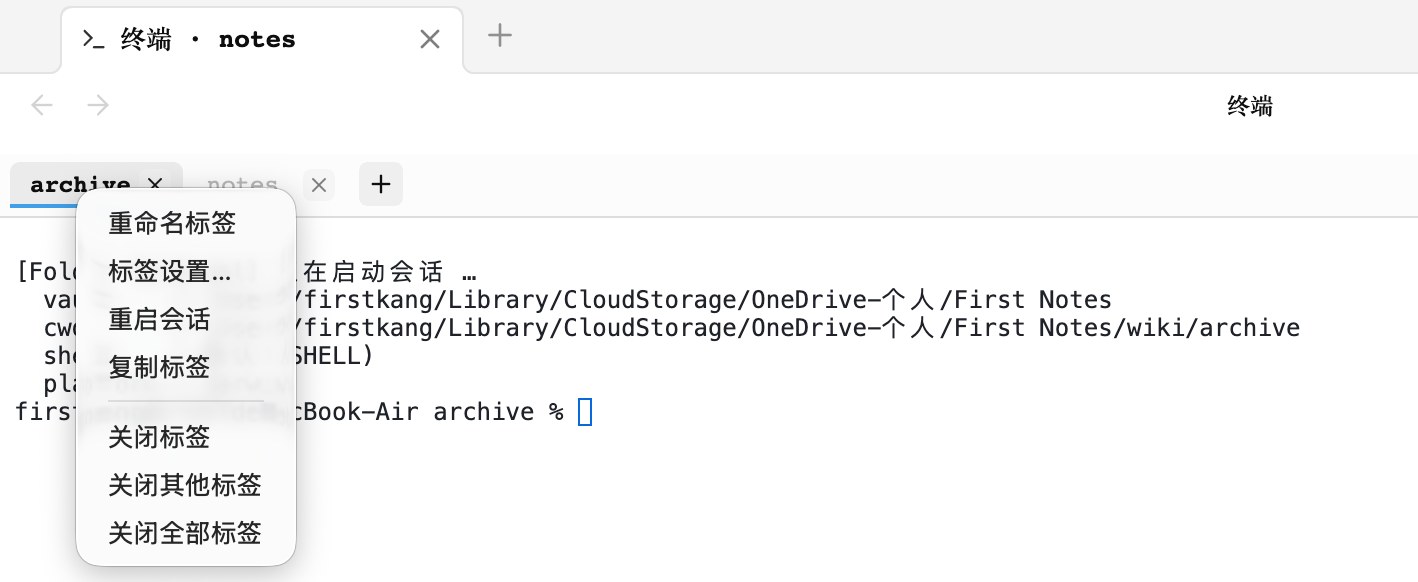
- 🖱️ Right-click menu — rename / tab settings / restart session / close
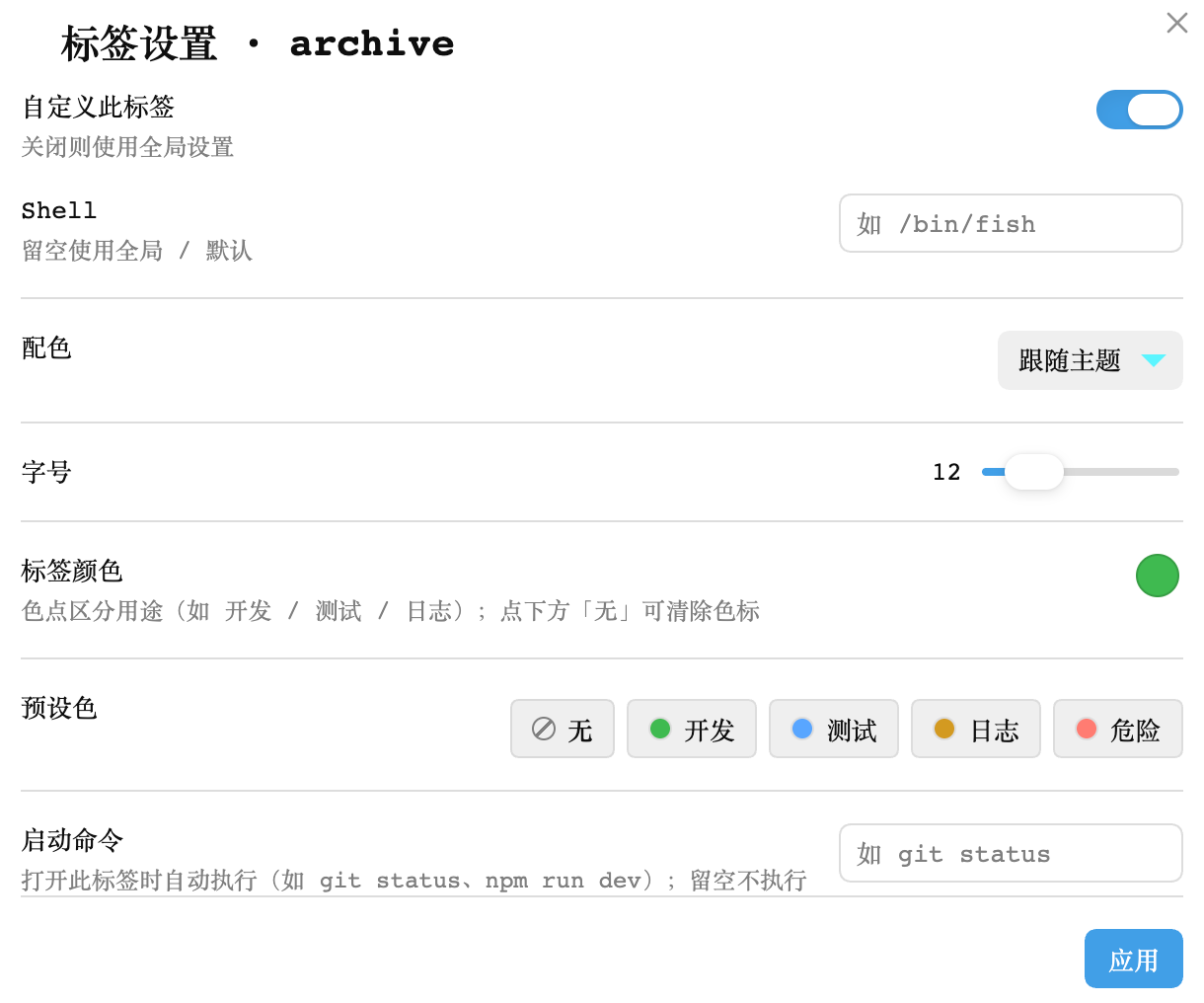
- 🎛️ Per-tab settings — override shell, color scheme, font size, color tag (persisted with the workspace layout)
- 💾 Cross-restart recovery — the tab list is persisted with the workspace layout and restored on next launch
- 🖥️ Real PTY — on macOS / Linux an embedded Python PTY proxy (
pty.fork) creates a true pseudo-terminal, so interactive programs likevim/ssh/htopwork without any native modules - 📐 Live resize —
TIOCSWINSZkeeps the PTY size in sync with the panel, so full-screen TUIs react instantly - ⚙️ Settings — default shell, font size, color scheme (theme / dark / light), panel-reuse toggle
- 🔗 Clickable URLs (xterm web-links)
- 🔍 In-terminal search — press
Ctrl/Cmd+F(or right-click → Search) to find text in the buffer, with match highlighting, prev/next navigation, live match count, and case-sensitive / regex / whole-word toggles - ⌨️ Command history & cursor navigation — on Windows (pipe mode, no readline)
↑/↓recalls previous commands and←/→/Home/Endmove the cursor within the line - 🎨 Theme-aware GitHub-style colors
中文
- 🖱️ 文件夹悬浮图标:鼠标移入文件夹标题显示终端图标(右端悬浮,不占位不误触;重命名时自动隐藏)
- 📂 一键进入目录:点击图标,终端自动
cd到该文件夹的磁盘绝对路径(含库根目录,data-path="") - 🗂️ 多标签会话:每个文件夹一个标签页,各自独立 Shell;切换标签不丢滚动历史,关闭标签才结束会话
- 🧲 标签拖拽排序:直接拖动标签调整顺序
- ✏️ 双击重命名:自定义标签名(不影响实际文件夹名)
- 🖱️ 右键菜单:重命名 / 标签设置 / 重启会话 / 关闭标签
- 🎛️ 每标签独立设置:可单独覆盖 Shell、配色、字号、颜色标记(弹窗配置,随布局持久化)
- 💾 跨重启恢复:标签列表随工作区布局持久化,重启 Obsidian 后自动恢复所有会话
- 🖥️ 真实 PTY:macOS / Linux 通过内嵌的 Python PTY 代理(
pty.fork)创建真实伪终端,vim / ssh / htop 等交互程序可正常工作,无需任何原生模块 - 📐 自适应尺寸:面板大小变化时通过
TIOCSWINSZ实时调整 PTY 尺寸,vim 内全屏程序也能即时感知 - ⚙️ 设置面板:默认 Shell、字号、配色方案(跟随主题/深色/浅色)、面板复用开关
- 🔗 链接可点:URL 自动高亮可点击(xterm web-links)
- 🔍 终端内搜索:按
Ctrl/Cmd+F(或右键 → 搜索)在缓冲区检索,支持高亮全部匹配、上/下一处跳转、实时计数,以及区分大小写 / 正则 / 全字匹配开关 - ⌨️ 命令历史与光标导航:Windows 管道模式下
↑/↓回溯历史命令,←/→/Home/End在行内移动光标 - 🎨 跟随主题:明暗主题下采用 GitHub 风格配色
Screenshots / 截图
Hover icon — 鼠标悬停文件夹时显示终端图标
Multi-tab terminal — 多标签终端与右键菜单
Per-tab settings — 标签设置弹窗
Installation / 安装
English
Option A — Community plugin browser (after this plugin is approved)
- Open Settings → Community plugins
- Turn off Restricted mode if prompted
- Click Browse, search for Folder Terminal, then Install and Enable
Option B — BRAT (for beta / pre-release testing)
- Install the BRAT plugin from the community browser
- Open the command palette and run BRAT: Add a beta plugin for testing
- Paste
https://github.com/FIRSTKANG/folder-terminaland confirm - Enable Folder Terminal in Community plugins
Option C — Manual
- Build:
npm install && npm run build - Copy the plugin folder (containing
main.js,manifest.json,styles.css) into your vault's.obsidian/plugins/folder-terminal/ - Enable Folder Terminal in Settings → Community plugins
中文
方式 A — 社区插件市场(插件过审后可用)
- 打开 设置 → 第三方插件
- 按提示关闭「受限模式」
- 点击 浏览,搜索 Folder Terminal,然后 安装 并 启用
方式 B — BRAT(用于抢先体验 beta / 未上架版本)
- 在社区市场安装 BRAT 插件
- 打开命令面板,运行 BRAT: Add a beta plugin for testing
- 粘贴
https://github.com/FIRSTKANG/folder-terminal并确认 - 在第三方插件中启用 Folder Terminal
方式 C — 手动安装
- 构建:
npm install && npm run build - 把插件目录(含
main.js、manifest.json、styles.css)复制到 vault 的.obsidian/plugins/folder-terminal/ - 在 Obsidian「设置 → 第三方插件」中启用 Folder Terminal
Development / 开发
npm install
npm run dev        # watch 模式(产出 main.js)
npm run build      # 生产构建(tsc 检查 + esbuild 打包)
npm run smoke:pty  # PTY 链路冒烟测试(不依赖 Obsidian,可直接跑)
Commands / 命令
| Command (EN) | 命令(中文) | Description |
|---|---|---|
| Open terminal at vault root | 在库根目录打开终端 | Open/focus the bottom terminal rooted at the vault root |
| Open terminal at active note's folder | 在笔记所在文件夹打开终端 | Open/focus the bottom terminal rooted at the current note's folder |
Settings / 设置
| Setting (EN) | 设置项 | Description |
|---|---|---|
| Default shell | 默认 Shell | Empty = $SHELL (macOS default /bin/zsh); e.g. /bin/bash, /bin/fish |
| Font size | 字号 | Terminal font size (10–22px) |
| Color scheme | 配色方案 | Follow Obsidian theme / force dark / force light |
| Reuse terminal panel | 复用终端面板 | When on, re-clicking an icon focuses the same bottom panel's tab (default on) |
| Interface language | 界面语言 | Chinese / English / Follow system |
Each tab can also override shell / color scheme / font size / color tag individually: right-click a tab → Tab settings… 每个标签页还可以单独覆盖 Shell / 配色 / 字号 / 颜色标记:右键标签 → 「标签设置…」。
Tab operations / 标签操作
| Action (EN) | 操作 | How / 方式 |
|---|---|---|
| Switch | 切换标签 | Single click |
| Reorder | 排序 | Drag onto a target tab (insert before it) |
| Rename | 重命名 | Double-click the tab name, Enter to save / Esc to cancel |
| Restart session | 重启会话 | Right-click → Restart session |
| Tab settings | 标签设置 | Right-click → Tab settings… (per-tab shell / color scheme / font size / color tag) |
| Close | 关闭 | The × on the tab, or right-click → Close |
How it works / 实现原理
English: a MutationObserver keeps injecting a terminal icon into every folder title in the file explorer. Clicking it opens a new panel below the current one via workspace.getLeaf('split', 'horizontal'), where a custom ItemView renders xterm.js. A child_process.spawn('python3', ['-u', '-c', <pty-proxy.py>, $SHELL]) launches an embedded Python PTY proxy; fd3 is used as a resize-control channel, and pty.fork() creates a real pseudo-terminal so interactive programs work. No native modules are bundled — child_process, path, etc. are marked external and provided by the Obsidian desktop runtime.
中文:
文件浏览器 .nav-folder-title(MutationObserver 持续补注入图标)
        │ 点击
        ▼
workspace.getLeaf('split', 'horizontal')  →  当前面板下方新开面板
        ▼
registerView 自定义视图  →  xterm.js 渲染终端
        ▼
child_process.spawn('python3', ['-u', '-c', <pty-proxy.py>, $SHELL])
        │  fd0/1 = 键盘输入 / 终端输出;fd3 = 尺寸控制通道
        ▼
pty.fork()  →  真实 PTY  →  /bin/zsh(或 $SHELL),工作目录 = vault 根 + 文件夹路径
关键点:
- PTY 代理:内嵌一段 Python 脚本(
src/pty-proxy.py,构建时以字符串打包进 main.js),pty.fork()创建真实伪终端后只做字节搬运。这样交互程序(vim/ssh)才能正常工作,且对 stdio 类型无要求。 - 为什么不用
script命令? macOS 上 Node/Electron 的child_process管道实际是 socketpair(libuv 行为),而 BSD 的script会对 stdin 做tcgetattr,遇 socket 返回EOPNOTSUPP直接退出(已实测复现)。Python 代理没有这个检查。 - 不打包原生模块:无需 node-pty / 编译 .node 二进制,esbuild 配置把
child_process、path等 Node 内置模块标为 external,运行时由 Obsidian 桌面端提供。
Known limitations / 已知限制
- Desktop only:
isDesktopOnly: true, not loaded on mobile. - macOS needs
python3: requires Xcode Command Line Tools (prompts on first use, or runxcode-select --install). - Linux without
python3falls back toscript: still interactive, but resize sync degrades tostty(only effective at the shell prompt). - Windows is best-effort: with winpty you get a PTY; otherwise
cmd.exe(no PTY, interactive programs limited). - First open is a 50/50 split: drag the divider to resize; Obsidian remembers the layout afterward.
- Fixed panel height is not yet possible: Obsidian does not expose a Leaf-size API (hard-coding CSS would break drag layout); waiting for an official layout API.
- Shortcut conflicts: when the terminal is focused, some Obsidian global shortcuts (e.g.
Cmd+P) may still be intercepted by Obsidian;Ctrl+C/ arrow keys are handled normally by the PTY. - Obsidian version drift: the file explorer's DOM class names (
.nav-files-container, etc.) may change across versions; if the icon disappears, updatefolderIcons.tsfor the new DOM. - Session end: closing a tab / uninstalling the plugin kills the session; a hard Obsidian quit may leave a few
python3/shell child processes.
中文:
- 仅桌面端:
isDesktopOnly: true,移动端不加载。 - macOS 依赖 python3:需要 Xcode Command Line Tools(首次使用会提示安装,
xcode-select --install)。 - Linux 无 python3 时回退
script:仍可交互,但尺寸同步降级为 stty(仅 shell 提示符下生效)。 - Windows 尽力而为:装了 winpty 则有 PTY;否则
cmd.exe无 PTY,交互程序受限。 - 首次打开是 50/50 分屏:拖动分隔条调整高度后 Obsidian 会记住布局。
- 面板固定高度暂不可行:Obsidian 未公开 Leaf 尺寸控制 API(CSS 硬改会破坏拖拽布局),等待官方布局 API 或后续用内部分裂配置实现。
- 快捷键冲突:终端聚焦时,Obsidian 的全局快捷键(如 Cmd+P)仍可能被 Obsidian 拦截;Ctrl+C / 方向键等由 PTY 正常处理。
- Obsidian 版本变动:文件浏览器的 DOM 类名(
.nav-files-container等)随版本可能调整,若图标消失需按新版 DOM 更新folderIcons.ts。 - 会话结束:标签关闭 / 插件卸载会 kill 对应会话;Obsidian 直接退出时可能残留少量 python3/shell 子进程。
Project structure / 目录结构
src/
  main.ts              插件入口:视图注册、设置、图标挂载、命令  (entry: view registration, settings, icon mount, commands)
  folderIcons.ts       文件浏览器悬浮图标(MutationObserver + DOM 注入)  (file-explorer hover icon)
  terminalView.ts      多标签终端视图(xterm.js,标签/会话/拖拽/重命名管理)  (multi-tab terminal view)
  tabSettingsModal.ts  标签设置弹窗(每标签 Shell / 配色 / 字号 / 颜色标记覆盖)  (per-tab settings modal)
  pty.ts               Shell 会话封装(python3 PTY 代理,Linux 回退 script,Windows winpty/cmd)  (shell session wrapper)
  pty-proxy.py         PTY 代理脚本(构建时打包进 main.js)  (PTY proxy, bundled at build time)
  settings.ts          全局设置面板(shell / 字号 / 配色 / 复用开关 / 界面语言)  (global settings panel)
  i18n.ts              多语言字典与 t() 函数(zh-CN / en / 跟随系统)  (i18n dictionary + t())
scripts/
  pty-smoke.js         PTY 链路冒烟测试(含尺寸控制通道验证)  (PTY smoke test)
Roadmap / 后续路线
- Settings: default shell, font size, color scheme, reuse-panel toggle
- Fallback when
python3is missing (Linuxscript, macOS prompts for CLT) - Multi-tab / per-folder session memory (cross-restart recovery)
- Icon moved out of the title to the folder's right edge (absolute positioning, no layout shift)
- Windows winpty best-effort (auto-fallback to
cmd.exe) - Tab drag-reorder / double-click rename / right-click menu
- Per-tab settings (shell / color scheme / font size / color tag override)
- UI localization: Chinese / English / Follow system
- Fixed terminal panel height (blocked on Obsidian layout API)
For plugin developers
Search results and similarity scores are powered by semantic analysis of your plugin's README. If your plugin isn't appearing for searches you'd expect, try updating your README to clearly describe your plugin's purpose, features, and use cases.