Folder Canvas
approvedby nancyel
Generate a Canvas view of your folder structure.
★ 18 stars↓ 3,278 downloadsUpdated 1y agoMIT
Folder Canvas Plugin
Folder Canvas is a plugin for Obsidian.md that lets you generate a Canvas view of a given folder.
Demo
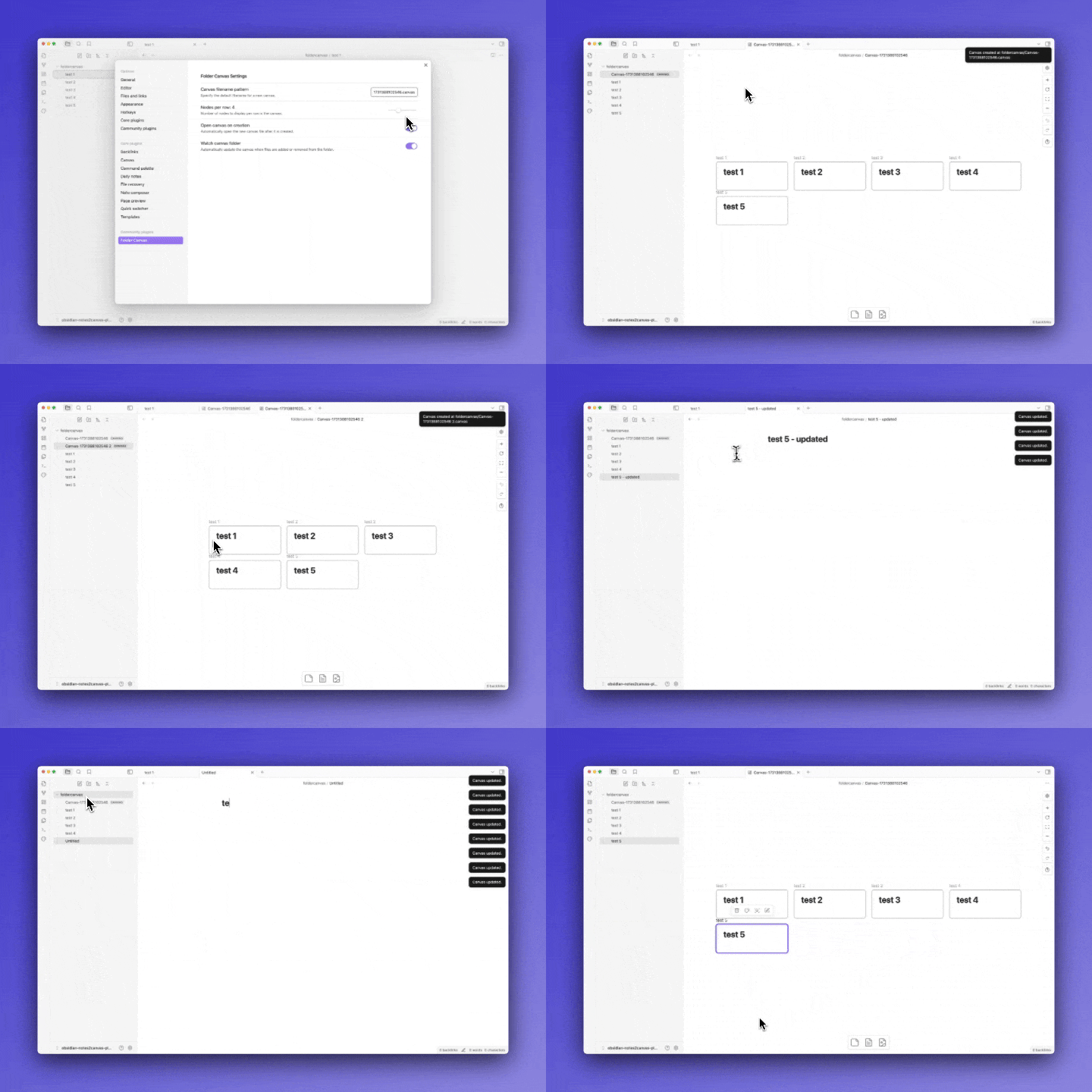
Ways to invoke the command
- "Folder Canvas: Generate Canvas from folder" command can be generated by a number of ways:
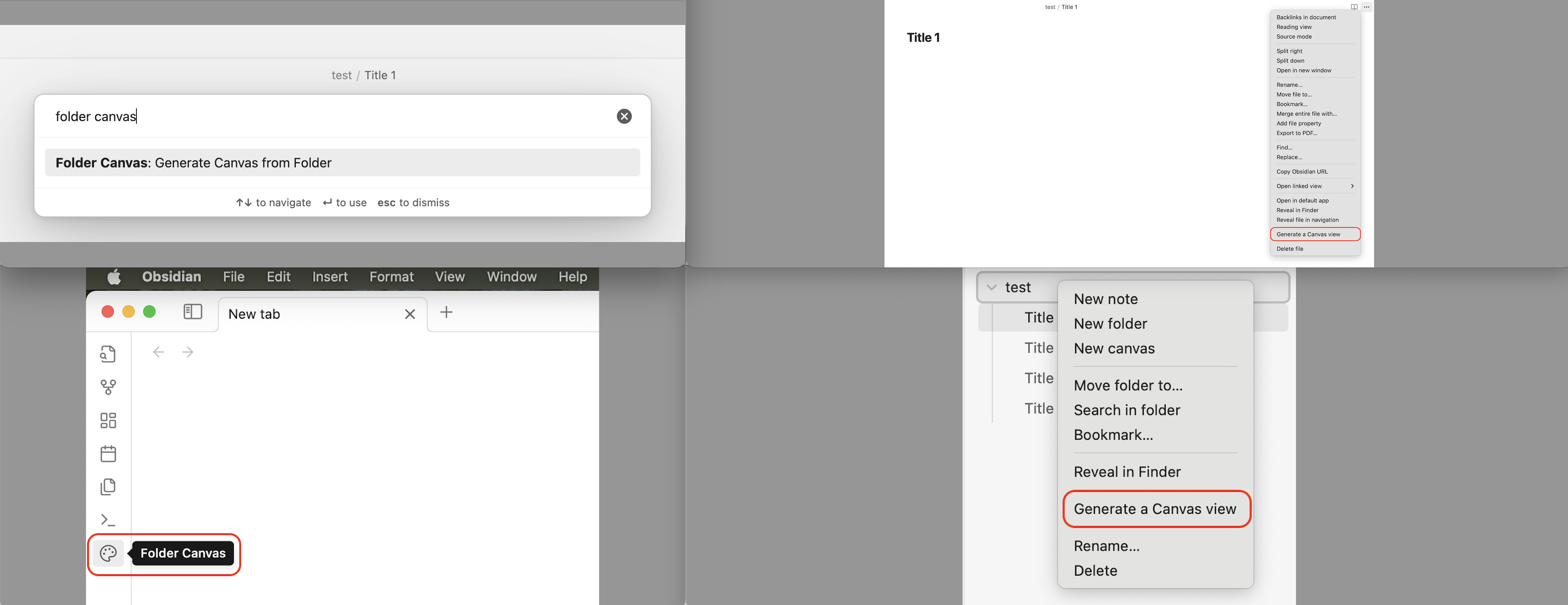
-   From the command palette
-   From the ribbon on the left sidebar ('palette' icon)
-   From the file-menu
-   From the editor-menu
Expected Behaviors
- A Canvas file will be created only if 1 or more markdown files are found in the folder. Otherwise, a notice will be displayed:
"The folder is empty!" - A Canvas file will be created in the parent folder of the files.
- Nested folders are ignored; only the direct 1st level files will be included in a Canvas.
- A filename for each new Canvas will be incremented if a Canvas file with the same name is found in the parent folder.
- If
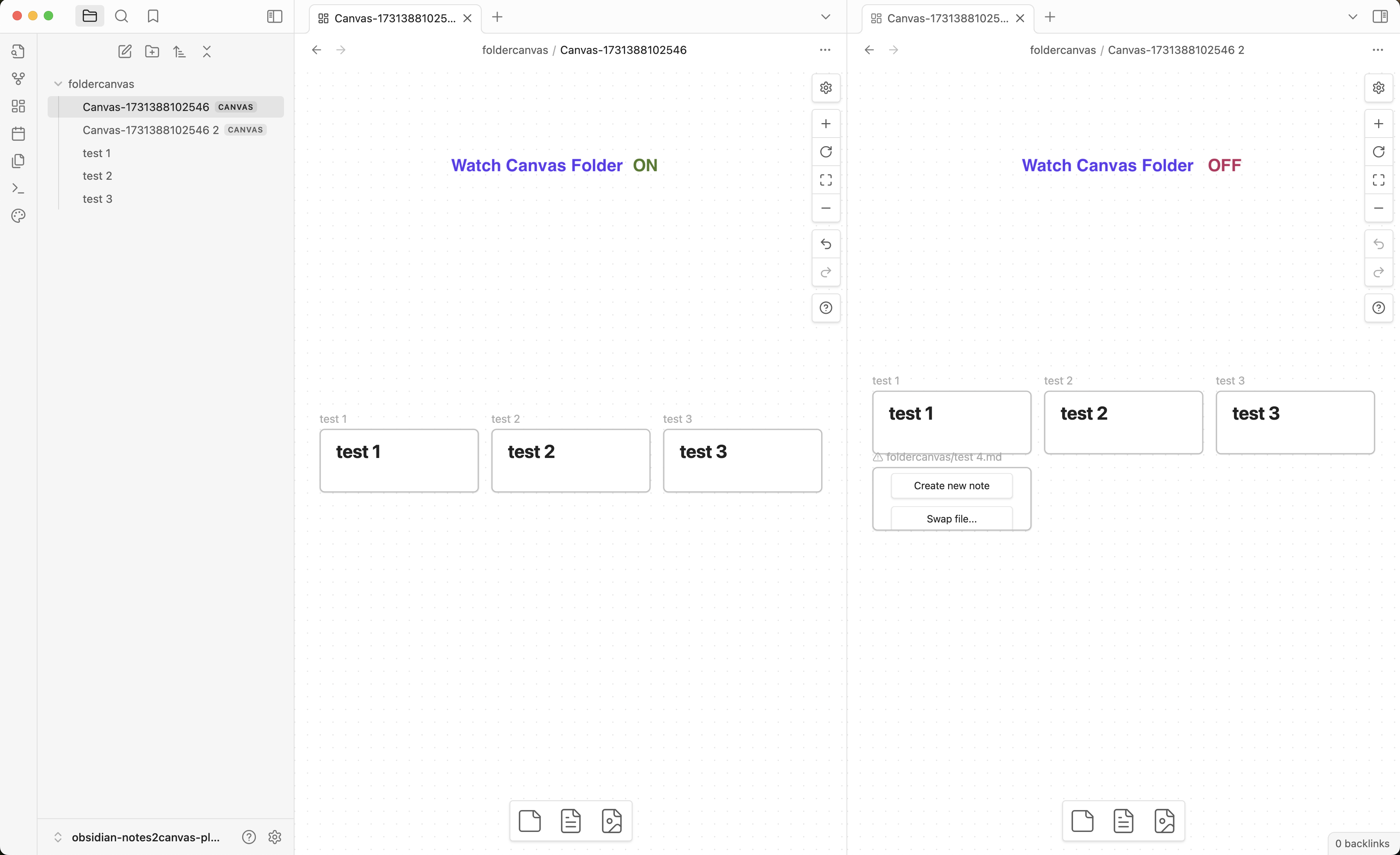
Watch Canvas folderis enabled, changes in the folder will be reflected in the latest Canvas file. - If a Canvas file is renamed,
Watch Canvas folderwill work properly ifCanvas filename patternis updated to match the new name. - If a heading is selected in
Narrow to heading, all nodes will display content under the chosen heading. If a node does not contain the selected heading, the setting will be ignored, and the full content will be shown. Create a new Canvas file for the changes to take effect.
Settings
-
The following parameters can be configured in the settings. Default values are:
- Canvas filename pattern: A new Canvas filename, if left blank, will be "Canvas-<Date.now()>.canvas" (e.g. Canvas-1731313974017.Canvas) and saved in the parent folder of the files.
- Open Canvas on creation: A new Canvas is automatically opened upon creation.
- Watch Canvas folder: A Canvas file is modified to reflect changes in the folder.
- Nodes per row: The number of columns to display notes is set to 4. It is configurable with a slider 1-10.
- Node width, height, and spacing: The width, height, and spacing of the nodes can be configured with constraints. Can be reset to default.
- Narrow to heading: A dropdown menu will display the headings from the currently active file. If no headings are found, the menu will remain empty.
- Hide heading titles: A toggle can be enabled for the selected heading's CSS properties to be modified to hide it from view.
How to Contribute
A new feature or bug fix is always welcome.
You can create an issue to report a bug, suggest a new functionality, ask a question, etc.
You can make a pull request to contribute to this plugin development.
For plugin developers
Search results and similarity scores are powered by semantic analysis of your plugin's README. If your plugin isn't appearing for searches you'd expect, try updating your README to clearly describe your plugin's purpose, features, and use cases.