by Klaus
Remote PDF library with notes and reading progress in Obsidian.
Folio Shelf
Browse your PDF collection in Obsidian, resume reading from your last saved page, and keep study notes linked to your books. Your PDFs stay in a folder on your desktop or on a server you run.
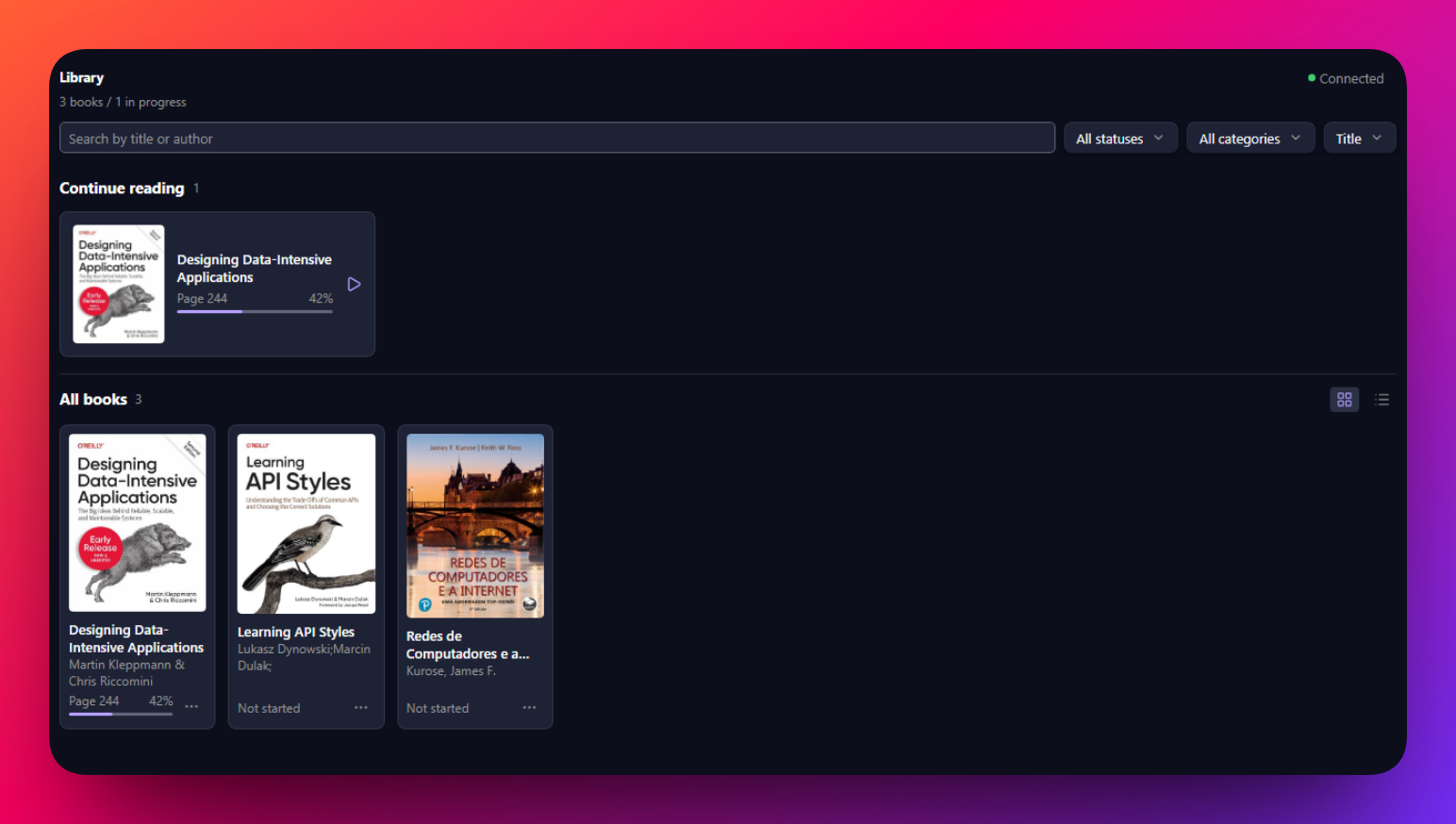
Desktop reading progress and book grid
Features
- Browse your library. Search by title or author, filter by category or reading status, and switch between grid and list views.
- Resume reading. Return to your saved page, confirm it manually, or mark a book finished.
- Organize books. Add favorites, edit titles and categories, or hide books from the catalog.
- Take study notes. Link books to vault folders and create Markdown notes from an optional template.
- See metadata and covers. In server mode, use PDF metadata, generated covers, or your own cover images.
Installation
Requires Obsidian 1.8.0 or later. Install and enable PDF++ under Settings → Community plugins, then turn on external PDF support.
Folio Shelf is not yet listed in the official Community Plugins directory. To install it with BRAT, enable BRAT from Community plugins, choose Add beta plugin in BRAT, and enter https://github.com/Klawns/folio-shelf. Enable Folio Shelf under Community plugins if needed.
Manual installation
- Download the ZIP from GitHub Releases or build from source.
- Copy
manifest.json,main.js, andstyles.cssinto.obsidian/plugins/folio-shelf/inside your vault. - Reload Obsidian and enable Folio Shelf under Settings → Community plugins.
Getting started
- Run Folio Shelf: Open library from the command palette or select the library icon in the ribbon.
- Choose Set up library. On desktop, select Local folder, enter the full path to your local or shared folder, and select Load books. To connect to a server from desktop or mobile, choose Remote server, enter its private HTTPS address, and select Test connection. On mobile, Local folder (Desktop only) is shown as a disabled option. Server setup guide / Compatibility and validation
- Open a book. Select New note to create a study note, or use ⋯ → Link folder… to associate the book with a vault folder.
- Select Refresh after adding PDFs. Remote books appear after the server indexes them.
Integrations
- PDF++ opens the external PDF references and provides the viewer used to capture reading progress.
- Fast Note Sync can sync your catalog, reading progress, book preferences, and notes between devices. Data storage and sync
Privacy and security
Local mode reads the selected PDF folder. Remote mode contacts your configured HTTPS server for health checks, the catalog, covers, and PDFs. The plugin contains no telemetry code.
Obsidian stores plugin preferences and the server address in plugin data. The selected local folder and device identifier are kept in device-local storage. Vault files can contain book metadata, reading history, and references with absolute file paths or server URLs. Syncing those files shares that information with the configured sync destination.
The server has no built-in authentication. Restrict access to trusted devices using a private network or an access-controlled proxy.
Documentation
Server setup · Advanced configuration · Compatibility · Development and contributions
License
Distributed under the MIT License.
For plugin developers
Search results and similarity scores are powered by semantic analysis of your plugin's README. If your plugin isn't appearing for searches you'd expect, try updating your README to clearly describe your plugin's purpose, features, and use cases.