by Oleksandr Bilskyi
Read PDFs and EPUBs with highlights, margin notes and a notebook kept as a note in your vault. Translate text offline with downloadable language models.
Readside
Read PDFs and EPUBs inside Obsidian, and keep what you think about them in your vault.
Highlights, margin notes and thoughts, a notebook that lives as a Markdown note, and offline translation.




Features
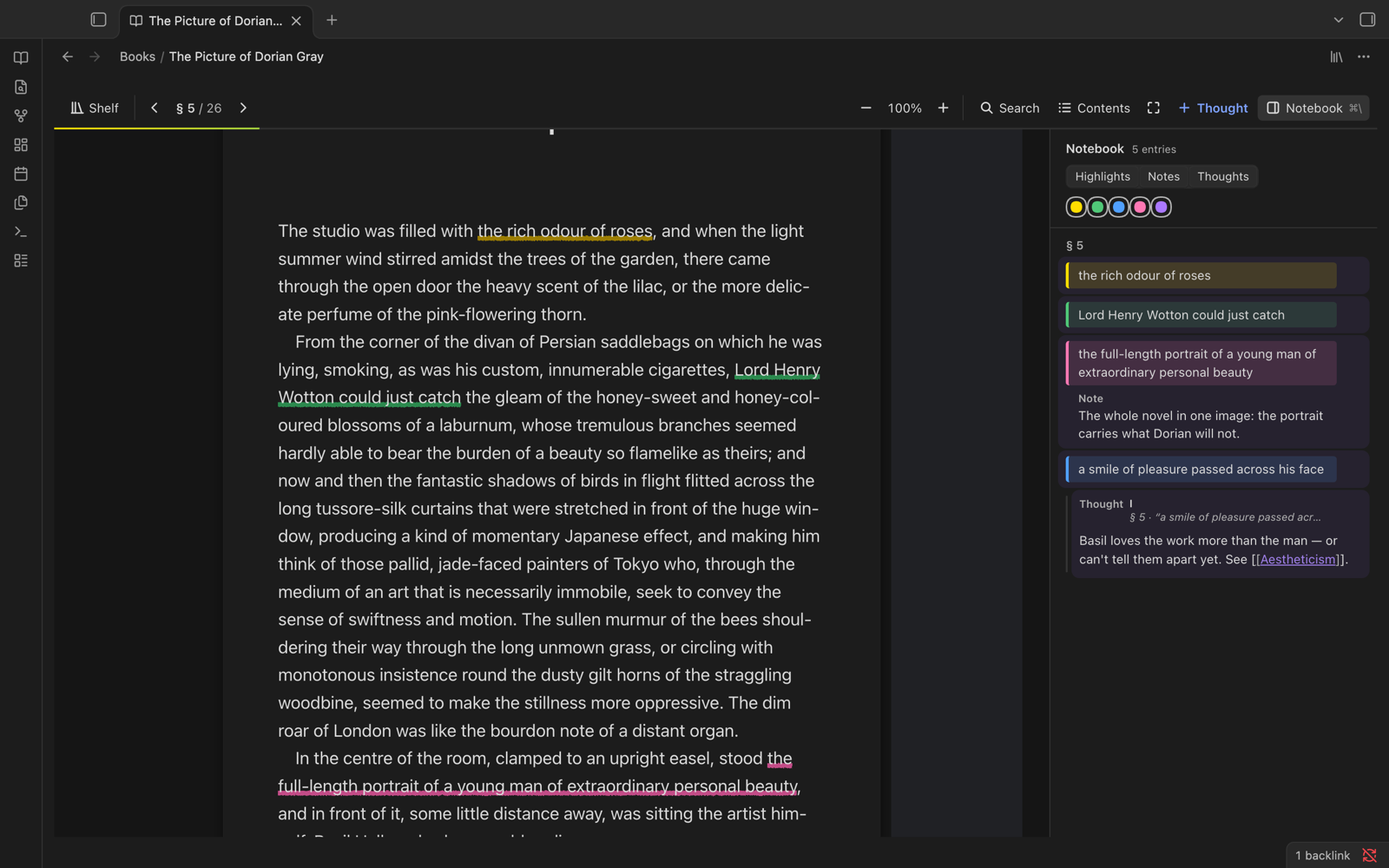
- 🖍️ Highlight and underline in five colours, add a note to any highlight, or write a thought in the margin.
- 📓 A notebook for every book: a side panel of everything you marked, filterable by kind and colour.
- ✍️ A writing sheet for longer thoughts. Press ⌘E in a thought to write it at full size, with its highlight above, its links beside it, and Bold, Italic, Link and Quote buttons. Type
#for your vault's tags, or drag a highlight from the notebook into a thought to quote it. - 🔗 Your notes stay in your vault. Each book's notebook is also written as a Markdown note, with every quote linking back to its exact place in the book.
- ↩️ Backlinks in the margin. Notes that link into a book show up right where they point. Type
[[in a thought to link any note. - 📚 A shelf of your books with covers, reading progress and your recent thoughts, plus search across every highlight.
- 🗂️ A notes hub on the shelf: an Inbox of highlights you haven't written about yet, a few older ones to reread each day, your
[[links]]and#tagsas topics across books, and related entries beside each one. Write thoughts right there. - 🔎 Search, contents, zoom and focus mode, with keyboard shortcuts for all of them.
- 🌍 Offline translation. Select text and press L, or hold ⌥ over a word. It runs on your computer with Firefox's translation models.
- 🔒 Private by design. No accounts, no telemetry. The only network requests are translation downloads you confirm.
A closer look
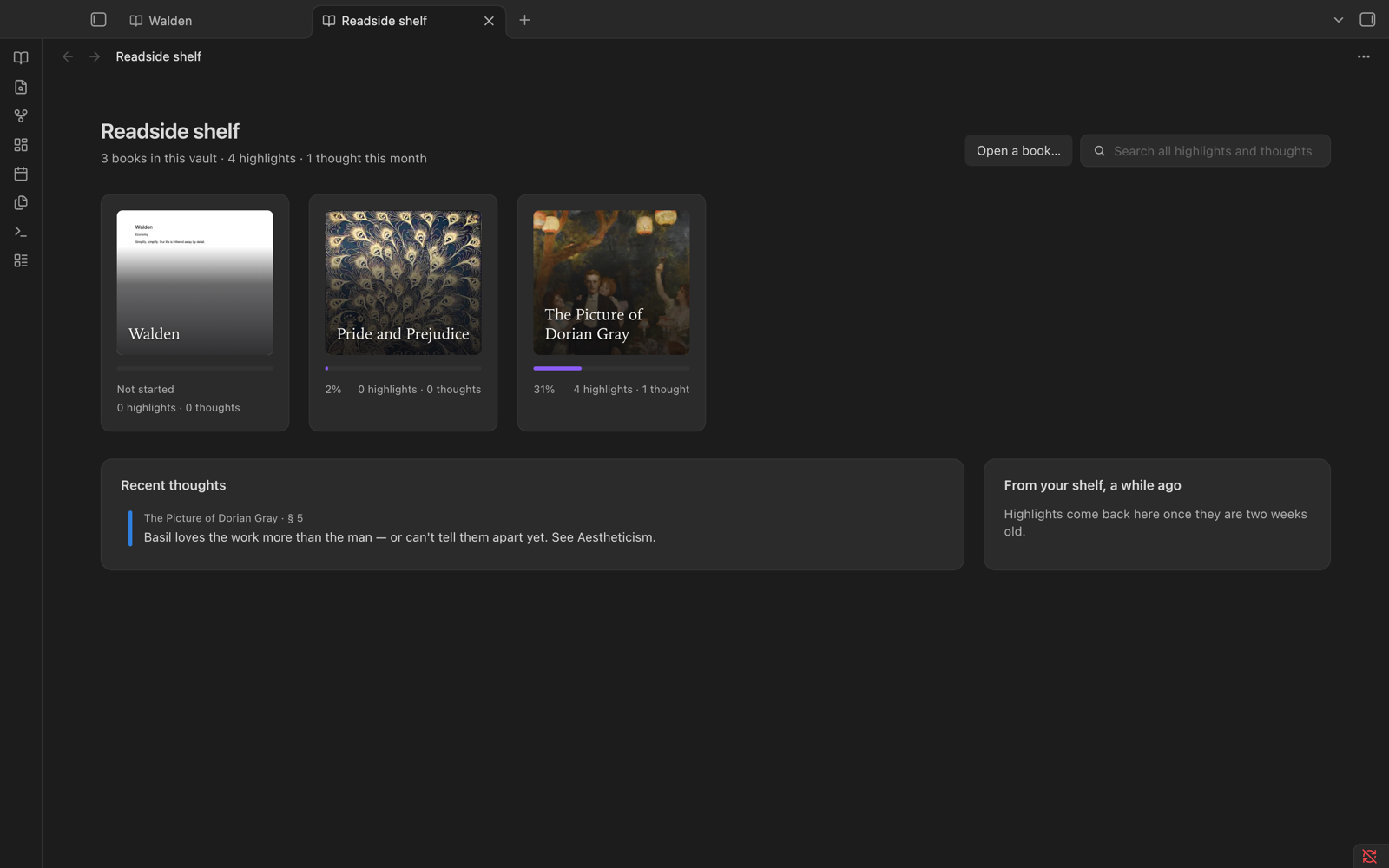 The shelf Every book in your vault with its cover and progress, your recent thoughts, and one search box for all your highlights. |
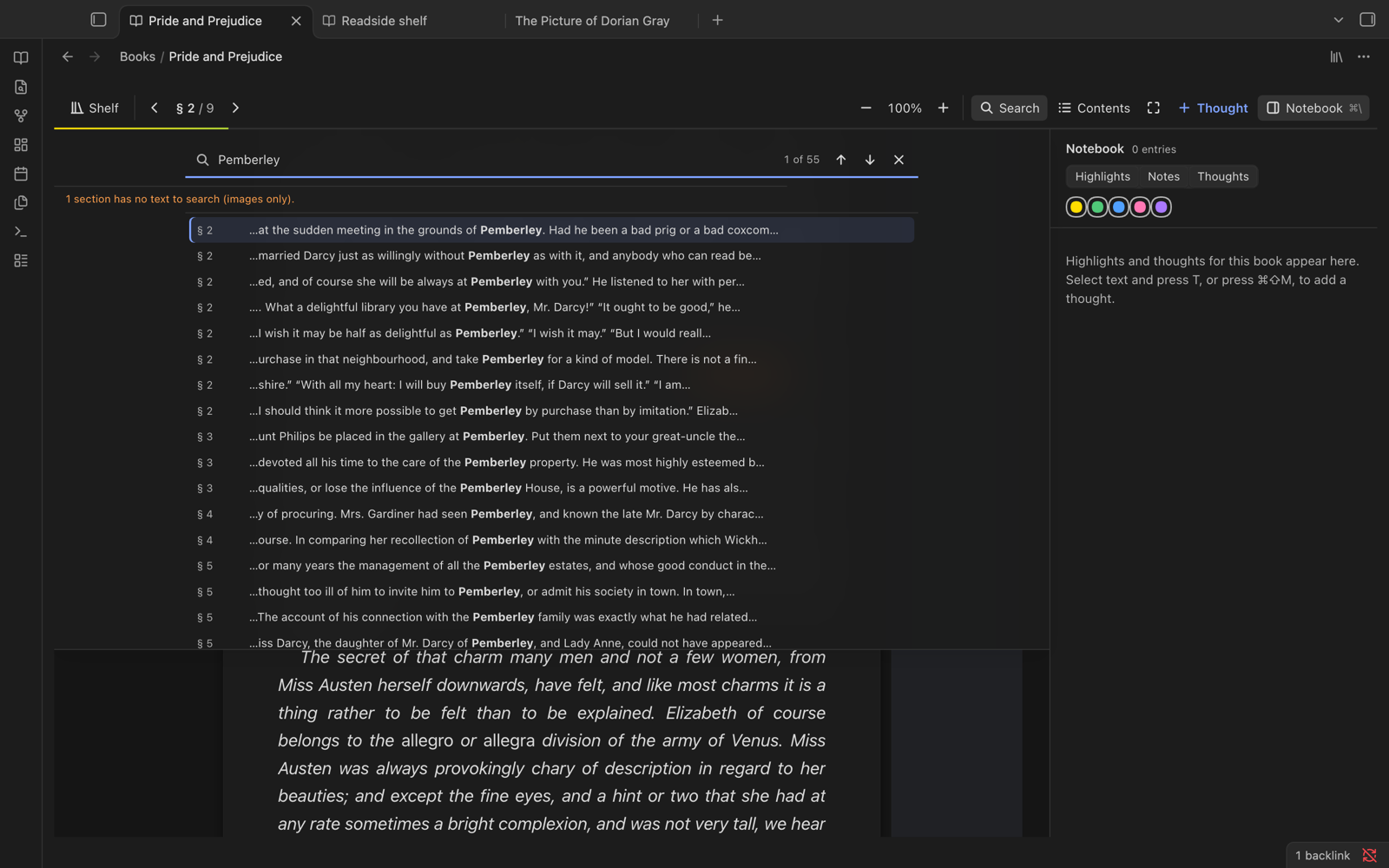 Search the whole book Every match with its context and section. Jump to one and it's marked in the text. |
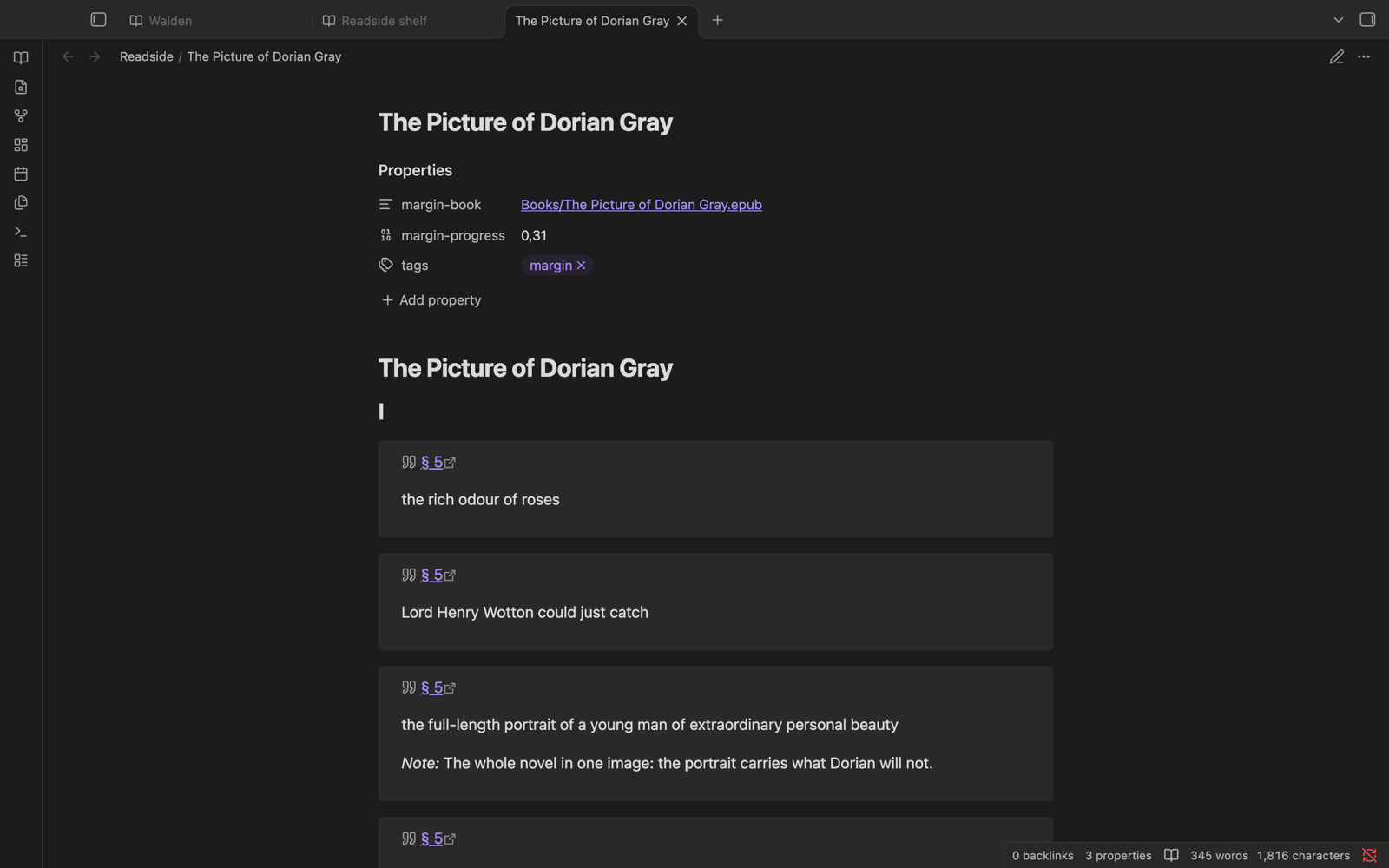 A notebook note in your vault Highlights, notes and thoughts as plain Markdown, grouped by chapter. Each quote links back to the page. |
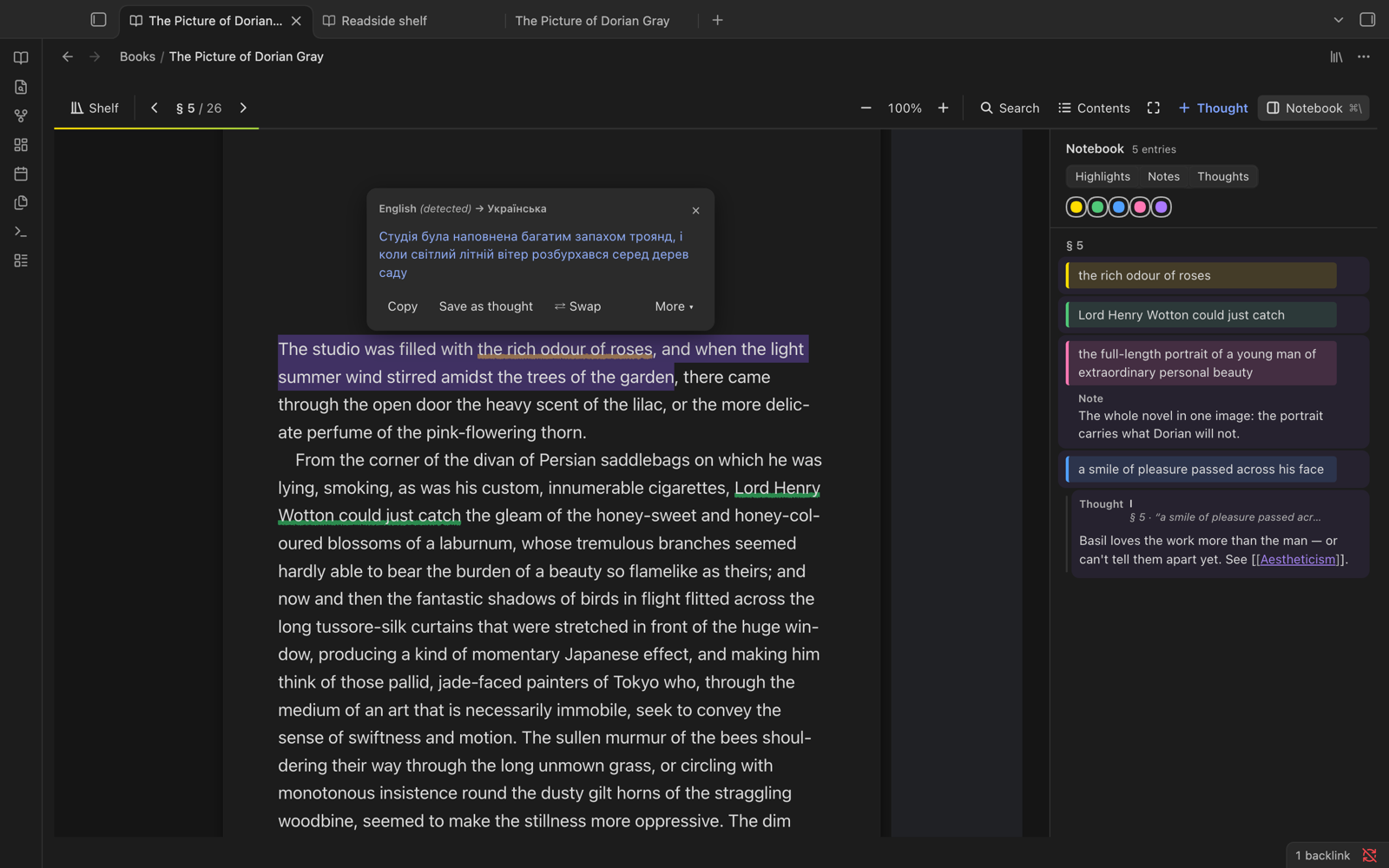 Translate on your device Select a sentence, press L. Save the translation as a thought if you want to keep it. |
Install
[!WARNING] Back up your vault first (at least its
.obsidianfolder). Requires Obsidian 1.15.0 or later: desktop (Windows, macOS, Linux), iPhone, iPad and Android.
Community plugins (once listed): Settings → Community plugins → Browse → search "Readside" → Install → Enable.
BRAT (beta): install BRAT, choose "Add beta plugin", enter bilskyi/obsidian-readside, then enable Readside.
Manually: download main.js, manifest.json and styles.css from the latest release and copy them into <vault>/.obsidian/plugins/readside/. To update, replace those three files only, never the folder.
[!CAUTION] Uninstalling deletes your highlights. Obsidian's Uninstall removes the whole plugin folder, including
books/andbackups/: every highlight, note and thought. To stop using Readside, disable it instead. If you must uninstall, copybooks/andbackups/out of<vault>/.obsidian/plugins/readside/first.
Readside used to be called Margin. Turn Margin off, then enable Readside: your books and notes are imported on the first run. See Coming from Margin.
Getting started
- Click the 📖 book icon in the ribbon to open the shelf, or right-click a PDF or EPUB → Open in Readside.
- Select text: press 1–5 to highlight, N for a note, T for a thought, L to translate.
- Press ⌘\ for the notebook. Its Markdown copy is in the
Readside/folder of your vault.
On a phone or tablet, long-press to select text; the colours and actions appear below the selection. The toolbar's buttons open the notebook and contents.
| Action | Key (macOS) |
|---|---|
| Toggle notebook | ⌘\ |
| Add thought at reading line | ⌘⇧M |
| Open a thought in the writing sheet | ⌘E (in the thought) |
| Bold / italic in a thought | ⌘B / ⌘I |
| Undo deleting a thought | ⌘Z |
| Contents | ⌘⇧C |
| Find in book | ⌘F |
| Zoom in / out / fit | ⌘+ / ⌘− / ⌘0 |
| Next / previous page | PageDown / PageUp |
On Windows and Linux, bind the commands under Settings → Hotkeys. PDFs keep opening in Obsidian's own viewer unless you turn on Open PDFs in Readside in settings.
Privacy and network use
- Everything stays in your vault: books, highlights, notes and the text you translate are processed locally.
- No telemetry, no analytics, no accounts, no update checks of its own.
- The only network requests are translation files, and only after you confirm. The first time you translate a language pair, Readside shows what it will download and its size (about 5 MB for the engine plus 21–70 MB per pair). Files come from Mozilla's CDN (
firefox-settings-attachments.cdn.mozilla.net) and are checked against sha256 hashes fixed insrc/translate/catalog.ts. Mozilla's CDN sees your IP address, as with any download.
Learn more
The guide covers everything in detail:
- Opening books and EPUB support
- Links and backlinks
- Commands and keys
- Settings
- The notebook note
- Translation
- Where your data lives
- Known limits
- Building from source
License
MIT © 2026 bilskyi. Bundled third-party code keeps its own licence. The Bergamot translator glue and the downloaded translation engine and models are MPL-2.0, used unmodified; see THIRD_PARTY_NOTICES and translation licences.
For plugin developers
Search results and similarity scores are powered by semantic analysis of your plugin's README. If your plugin isn't appearing for searches you'd expect, try updating your README to clearly describe your plugin's purpose, features, and use cases.