Giganttix
approvedby GRoY
Simple Gantt Chart based on task notes. - This plugin has not been manually reviewed by Obsidian staff.
Giganttix
Visualise your task notes as a draggable Gantt chart in Obsidian
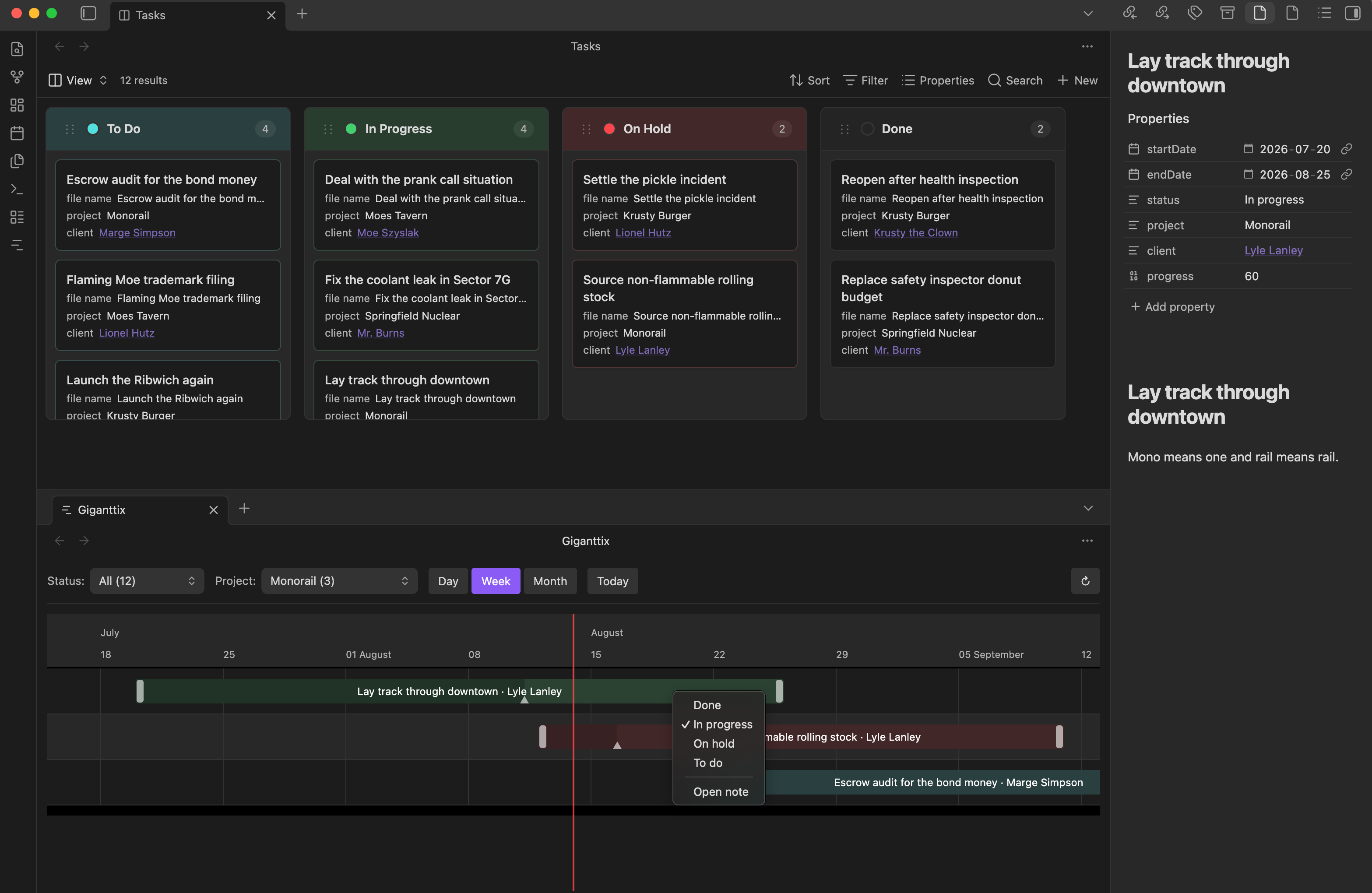
Giganttix scans your vault for notes with date frontmatter and renders them as an interactive timeline. Each note is one bar. Drag a bar to reschedule the task & the new dates are written back to the note's frontmatter. Click a bar to open the note in a new tab, right-click it to change its status.
Originally built to be viewed with a kanban board (external plugin or upcoming official kanban base core plugin).
How it works
Add dates to any note's frontmatter and it appears on the chart:
---
startDate: 2026-06-05
endDate: 2026-06-30
status: In progress
project: Springfield Nuclear
client: "[[Moe's Tavern]]"
progress: 40
---
| Field | Required | Notes |
|---|---|---|
startDate | yes* | YYYY-MM-DD |
endDate | yes* | same formats |
status | no | powers the status filter and the right-click menu |
project | no | powers the project filter (set the property name in settings) |
client | no | shown after the task name |
progress | no | 0–100, rendered as a darker segment inside the bar |
Features
- Drag to reschedule : move or resize a bar; frontmatter updates atomically
- Drag the progress handle : hover a bar and drag the small handle to set % complete, written to
progress - Click a bar to open its note in a new tab (focuses the existing tab if it's already open)
- Right-click a bar to change its status without leaving the chart, or open the note
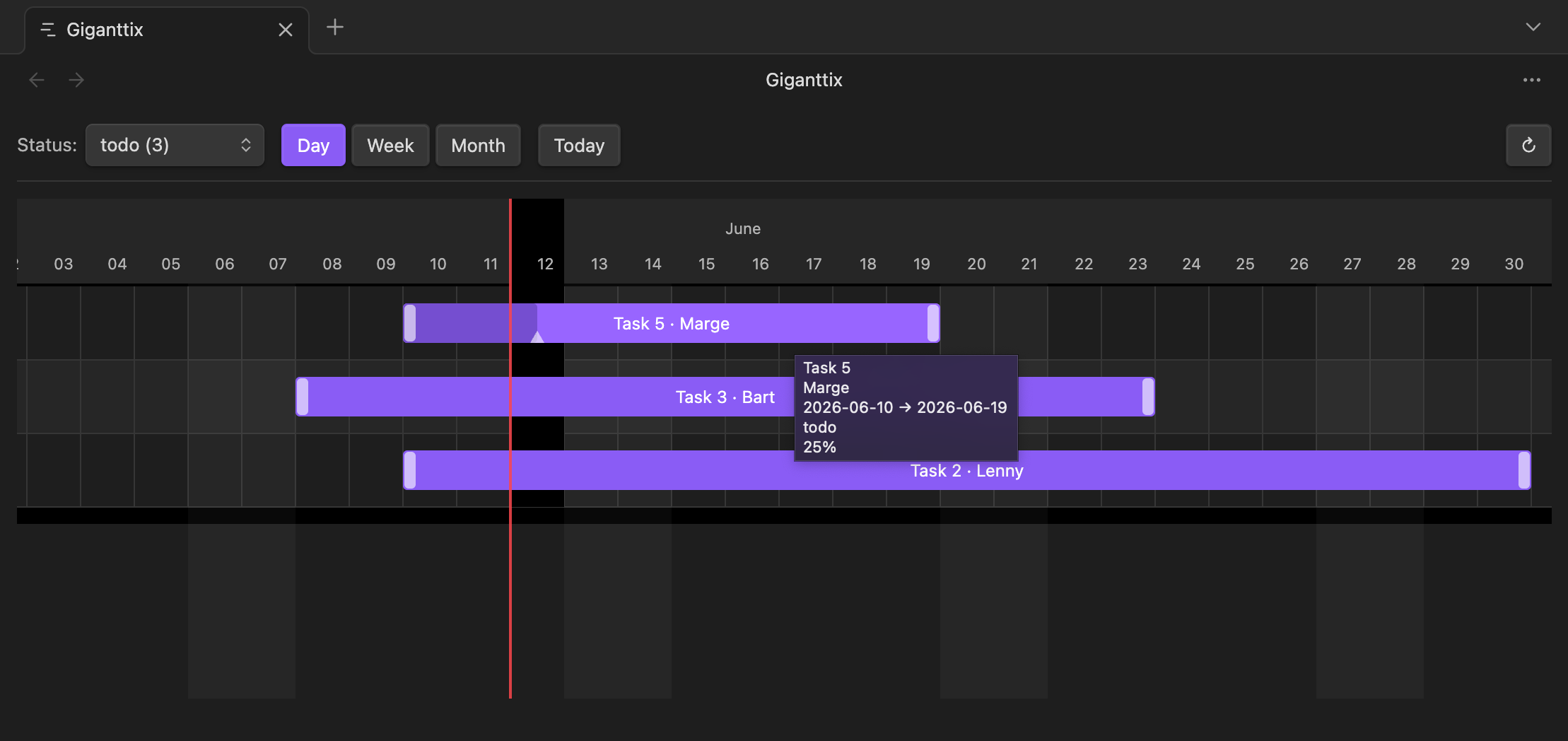
- Day, Week & Month views
- Today button to jump back to the current date
- Status filter built from your actual status values, with an "All" option to see everything at once
- Project/client filter : set a project property in settings and a second dropdown appears to filter by project
- Custom statuses : define your own status list in settings, with suggestions pulled from your notes as you type
- Custom date properties : use any frontmatter properties for start and end dates
- Tooltips : hover any bar for full name, client, dates, status, and progress
- Weekend shading in Day view
- Scope your tasks : limit the chart to a folder and/or require a frontmatter property (e.g. only notes with a
projectsproperty) - Status colors : keep the theme accent color, or assign a color per status in settings
Usage
Open the chart from the ribbon icon or the command palette.
Settings
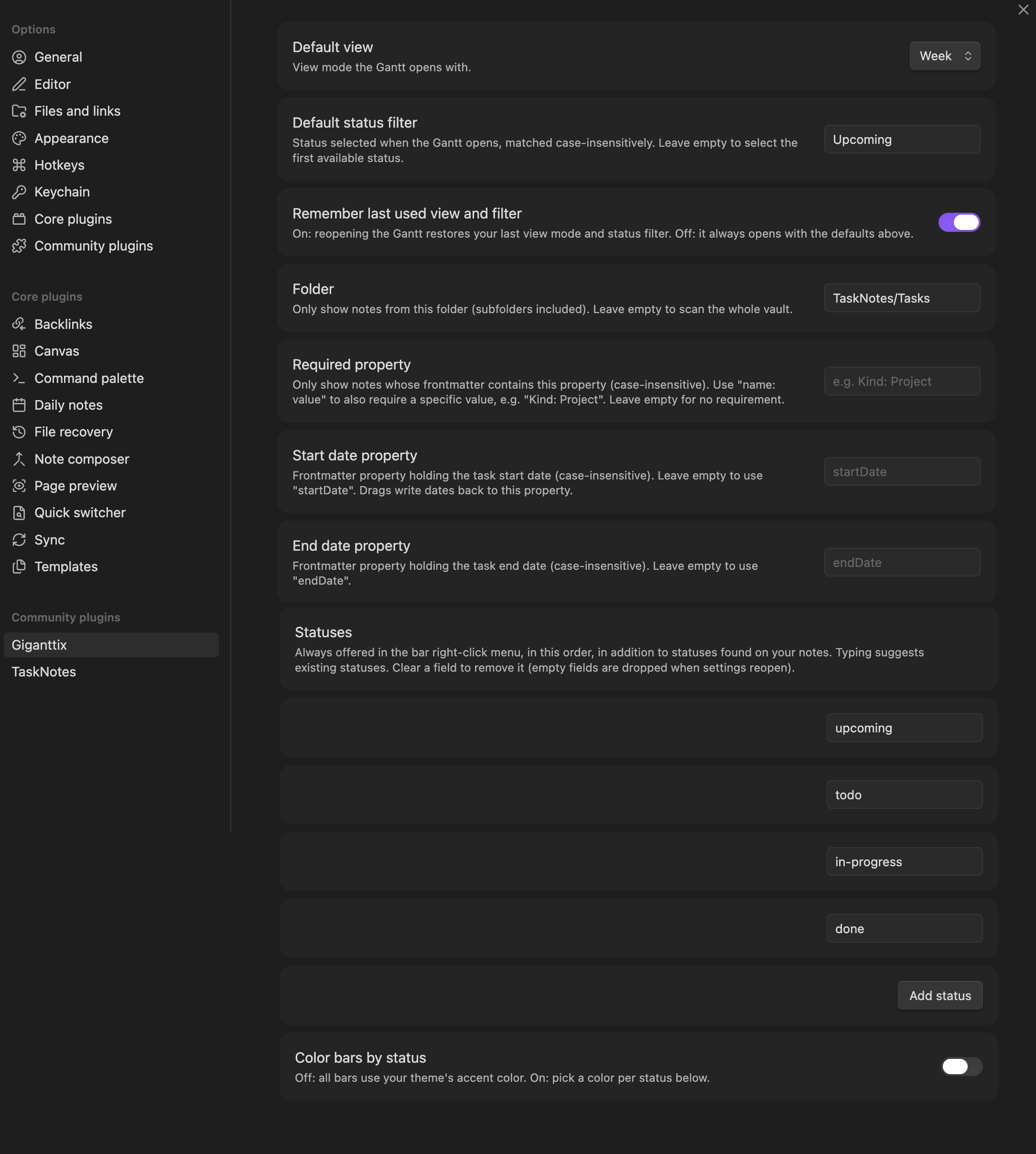
| Setting | What it does |
|---|---|
| Default view | Day, Week or Month on open |
| Default status filter | Status selected on open (case-insensitive); empty = first available |
| Remember last used view and filter | On: reopening restores your last state. Off: always open with the defaults |
| Folder | Only show notes from this folder (subfolders included); empty = whole vault |
| Required property | Only show notes that have this frontmatter property, e.g. projects |
| Start date property | Frontmatter property read for the start date; empty = startDate |
| End date property | Frontmatter property read for the end date; empty = endDate |
| Project property | Frontmatter property to group tasks by project; empty = no project filter |
| Statuses | Statuses always offered in the right-click menu, in your order |
| Color bars by status | Off: theme accent color. On: per-status color pickers |
Installation
Community plugins: Settings → Community plugins → Browse → search "Giganttix".
Notes and limitations
- Desktop only for now.
Acknowledgements
Built with TypeScript and esbuild on top of Frappe Gantt (MIT). Developed with Claude Cowork (Anthropic).
License
For plugin developers
Search results and similarity scores are powered by semantic analysis of your plugin's README. If your plugin isn't appearing for searches you'd expect, try updating your README to clearly describe your plugin's purpose, features, and use cases.