GitFacil
approvedby Alex
One-click commit & push for your vault: step-by-step setup wizard, status panel with checkboxes, pull button and auto-backup. Simple Git for non-developers. (UI in Spanish) - This plugin has not been manually reviewed by Obsidian staff.
GitFacil - Obsidian Plugin
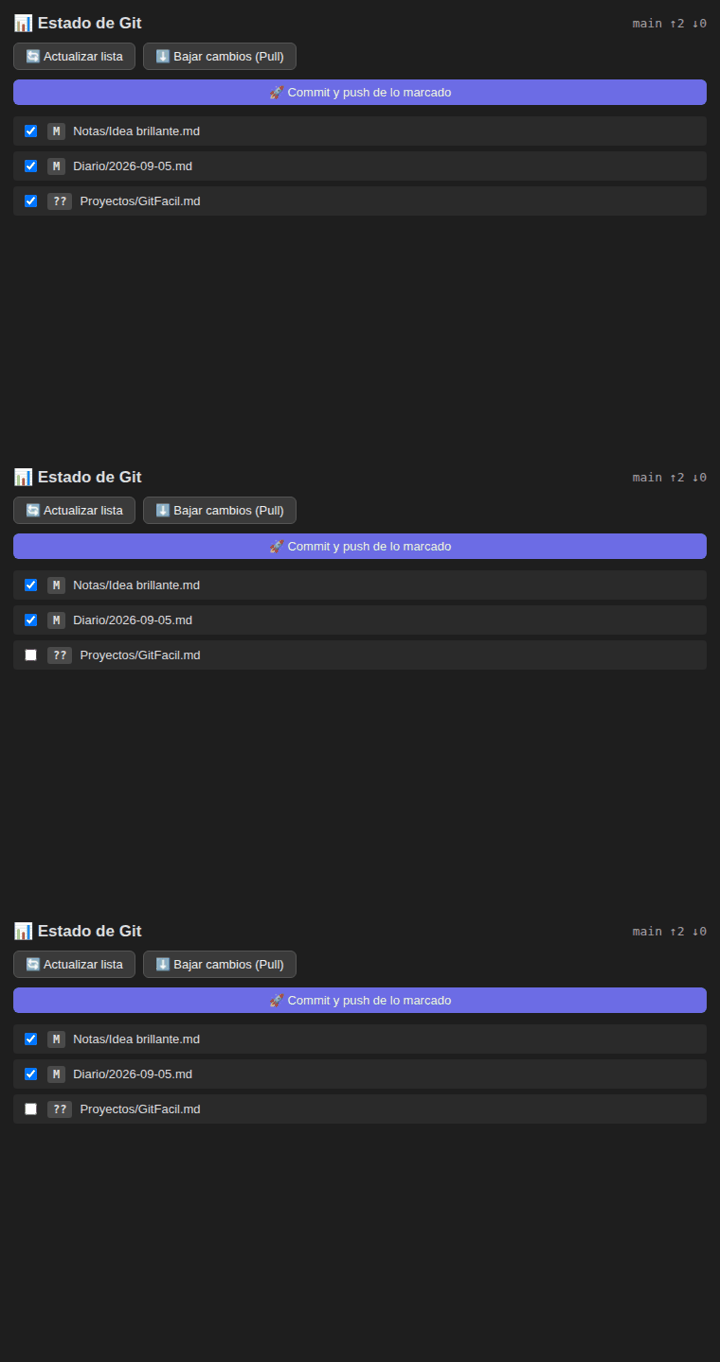
GitFacil is an ultra-lightweight and simple Git backup plugin for Obsidian. / GitFacil es un plugin ultraliviano y sencillo para Obsidian que te permite respaldar y sincronizar tus notas con Git en un solo clic, sin complicaciones ni configuraciones complejas.
📖 Manual completo / Full manual: MANUAL.md.
Why GitFacil? / ¿Por qué GitFacil?
| GitFacil | Git CLI |
|---|---|
| One-click backup | ✅ |
| Setup wizard, no terminal needed | ✅ |
| Status panel with file selection | ✅ |
| Auto backup every N minutes | ✅ |
| Advanced Git operations | ❌ |
| Mobile support | ❌ |
| Real-time sync | ❌ |
Limitations: desktop only (needs system Git), no diff viewer, no history browser, no conflict editor — on push conflicts use the guided sync button.
📋 Prerequisites / Requisitos
- Git installed / Tener Git instalado: Download from git-scm.com.
- Git repository initialized / Repositorio inicializado: Run
git initin your vault root folder. - Remote repository configured / Repositorio remoto: Connect your vault to GitHub with
git remote add originusing your repository URL — or skip the terminal entirely with the Setup Wizard below.
Installation / Instalación
Option 1: Community Plugin Directory (Recommended)
- Open Obsidian Settings -> Community plugins.
- Search for GitFacil and click Install.
- Enable the plugin.
Option 2: Via BRAT (Beta Tester)
- Install Obsidian BRAT from community plugins.
- Open BRAT settings -> Add Beta plugin.
- Enter
https://github.com/Alecwce/obsidian-git-facil. - Click Add Plugin and enable GitFacil.
Option 3: Manual Installation
- Download
main.js,manifest.json, andstyles.cssfrom Releases. - Inside your vault folder, create the folder
.obsidian/plugins/git-facil/. - Copy the downloaded files into that folder and reload plugins.
Usage / Modo de Uso
⚡ Pulsa
Ctrl+P(oCmd+P), escribe GitFacil y verás todo: commit, panel y asistente.
- 🚀 One-click Ribbon Icon: Click the rocket icon 🚀 in the left ribbon to commit and push changes immediately.
- 📊 Git Status Side Panel: Open the side panel (icon
git-compare) to view modified files, select checkboxes, pull changes, or commit selected files. - 🪄 Setup Wizard: Click
🪄 Configurar mi bóvedain plugin settings for a 3-step zero-terminal guided setup. - 🔄 Auto-sync: Enable Auto-sync in settings to backup your vault automatically every N minutes.
- Command Palette: Search
GitFacil: Commit y PushusingCtrl+P/Cmd+P.
Settings / Ajustes
- Commit Message Template / Plantilla: Custom message template; the plugin automatically inserts the current date and time (a default message looks like: 📝 notas 2026-08-04 17:45).
- Auto-sync Toggle & Interval: Enable automatic background backups every N minutes.
Network use / Uso de red
GitFacil runs git (and optionally your own gh CLI) locally. It calls api.github.com only when you verify a manual token in the setup wizard, and gh talks to GitHub only when you create a repository from the wizard. There is no telemetry and no GitFacil server.
Troubleshooting / Solución de Problemas
| Error Notice | Cause / Causa | Solution / Solución |
|---|---|---|
❌ No se encontró Git | Git not found in PATH | Install Git from git-scm.com |
❌ Tu bóveda no es un repositorio Git | Vault not initialized | Run git init or use Setup Wizard |
❌ No hay remote | No remote repository | Connect it with the Setup Wizard or run git remote add origin with your repository URL |
License
MIT License - Created by Alex Lazo.
For plugin developers
Search results and similarity scores are powered by semantic analysis of your plugin's README. If your plugin isn't appearing for searches you'd expect, try updating your README to clearly describe your plugin's purpose, features, and use cases.