Heading Outliner
approvedby tgrrrr
Outliner-style editing for heading-based Markdown: move, indent, and unindent full sections with keyboard shortcuts. - This plugin has not been manually reviewed by Obsidian staff.
Heading Outliner
Heading Outliner is an Obsidian plugin that brings Outliner-style editing to heading-based Markdown. Move, indent, and unindent entire sections using the same keyboard hotkeys as bullet lists.
Features
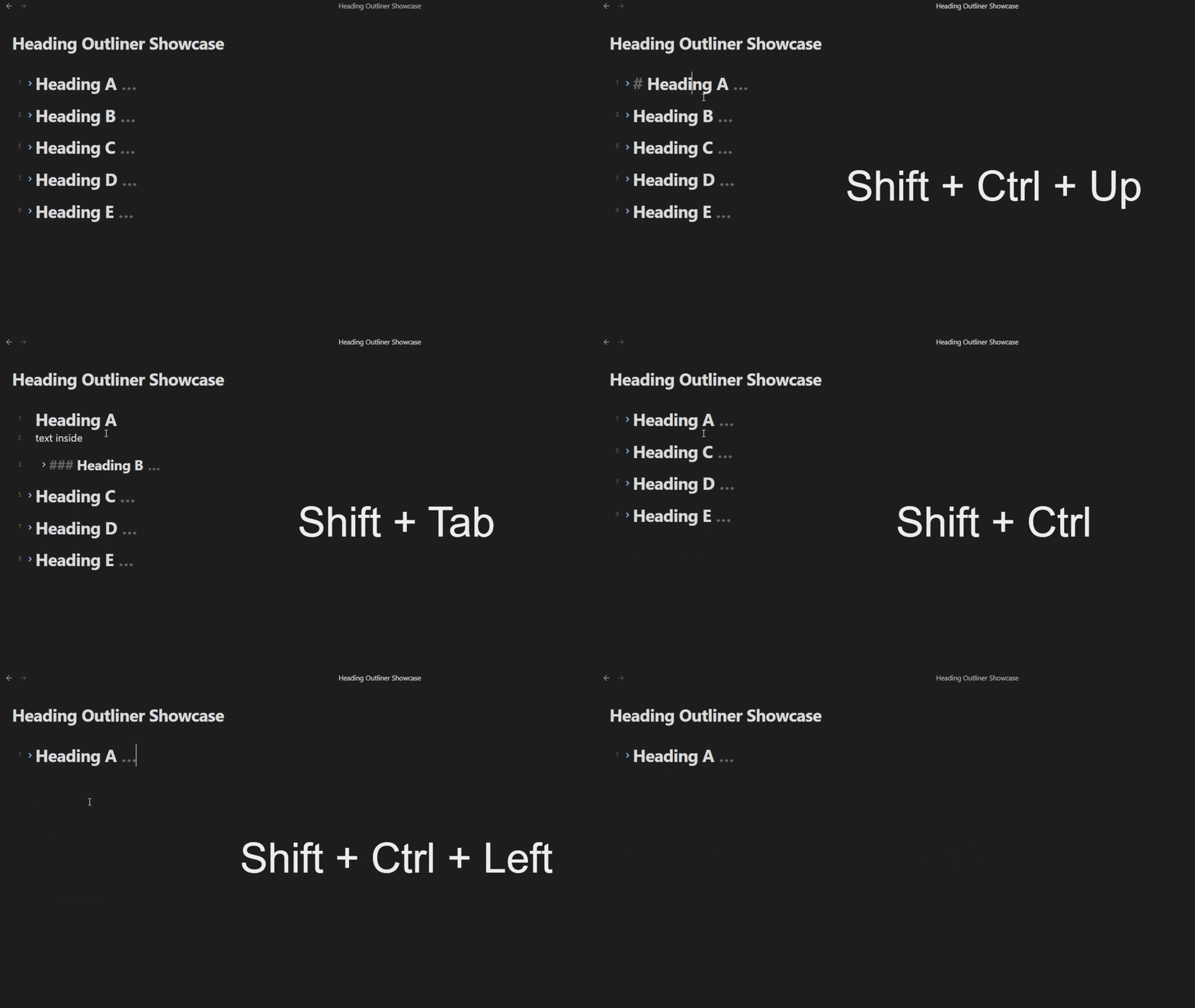
Section movement (Ctrl+Shift+↑ / Ctrl+Shift+↓)
Move a heading and all its content (body text + sub-headings) up or down past sibling sections. Fold state is preserved - sections that were folded before the move stay folded afterward.
Indent / unindent (Tab / Shift+Tab)
Increase or decrease heading levels. Tab/Shift+Tab only activates when the cursor is on a heading line - body text and list items are unaffected. Supports single or multiple selected headings (range selection or multi-cursor). Fold state is preserved. Smart fold handling: When indenting a heading to become a child of a folded parent, the parent automatically unfolds to show the new child. All other fold states remain unchanged.
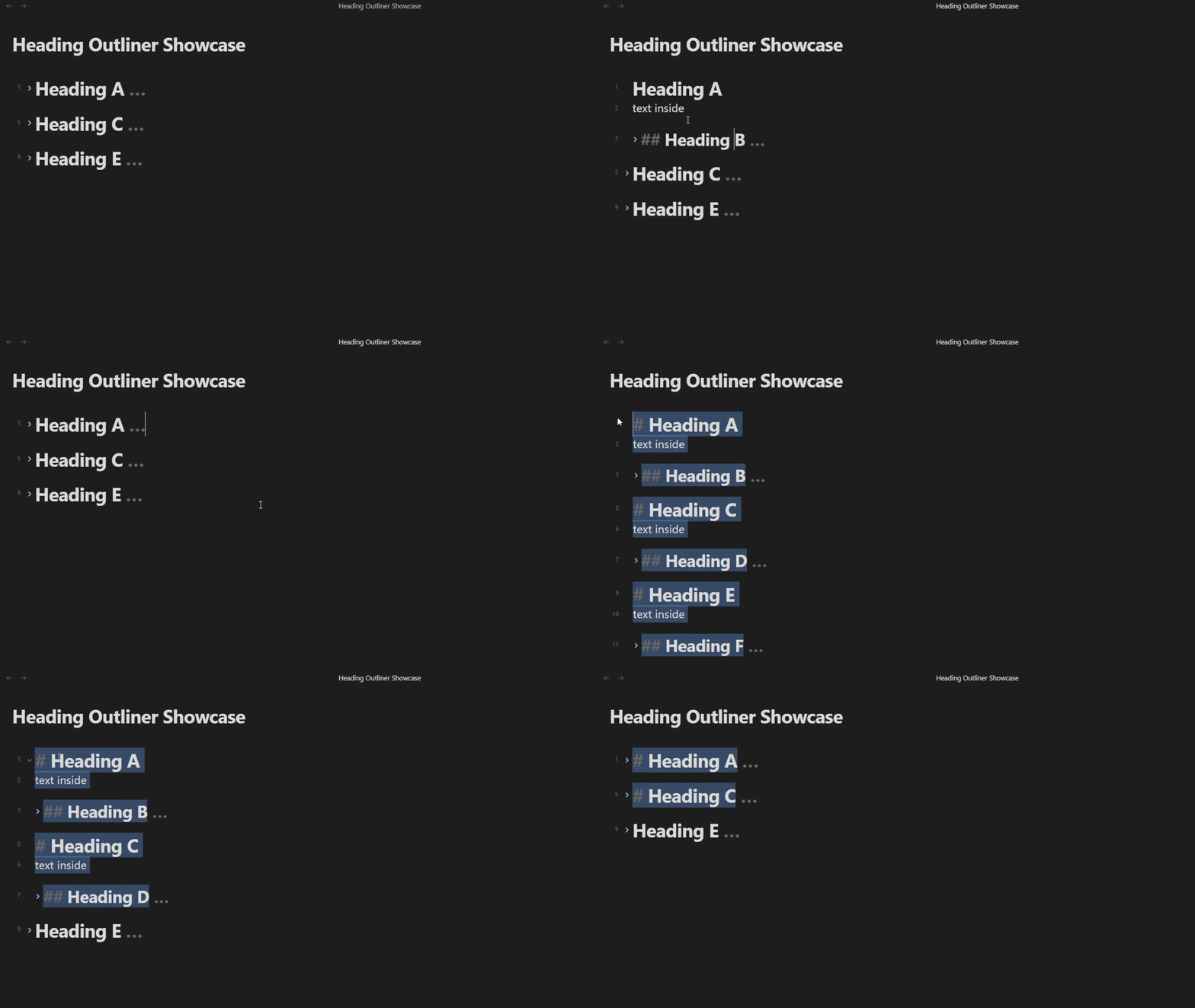
Progressive outline folding (Fold more / Fold less)
Expand or collapse the document outline level by level, operating on all selected visible headings at once. Works seamlessly with Obsidian's built-in fold commands.
Workflow: Use Obsidian's Fold all headings and lists to collapse everything, then run Fold less to reveal one heading level at a time across your selection. Run Fold more to collapse back down. When nothing is selected, the command falls back to the heading under the cursor.
| Action | Behavior |
|---|---|
| Fold less | Unfolds the shallowest folded heading level among selected visible headings |
| Fold more | Folds the deepest unfolded heading level among selected visible headings |
Visual heading indent
Optional per-level indentation in both the editor and reading view, styled via CSS.
Compatibility with Outliner
Fully compatible with the Outliner plugin. Both plugins use context-aware CM6 keymaps: Heading Outliner intercepts keypresses only when the cursor is on a heading line and explicitly passes through to Outliner on bullet/list lines. There are no hotkey conflicts.
Installation
Obsidian Community - Heading Outliner
Or just search Heading Outliner in Obsidian Settings → Community plugins → Browse
Hotkeys
| Action | Hotkey |
|---|---|
| Move section up | Ctrl+Shift+↑ |
| Move section down | Ctrl+Shift+↓ |
| Indent section | Tab (on heading line) |
| Unindent section | Shift+Tab (on heading line) |
Hotkeys are handled via CodeMirror 6 keymaps and are not exposed to Obsidian's hotkey manager. This is intentional: these keys need context-aware interception (activate only on heading lines, pass through otherwise) which Obsidian's command system cannot provide (see Hotkey Architecture Dilemma). Custom modifier configuration is planned for a future release.
Settings
| Setting | Default | Description |
|---|---|---|
| Indent headings by level | On | Visually indent headings by level |
| Indent size (em) | 0.5 | Spacing per heading level |
Roadmap
- Implement moving all selected blocks up/down, same way as indenting/unindenting selected blocks work
- Implement custom movement modifier configuration via individual ALT, CTRL, SHIFT boolean toggles in settings
- Implement Drag-n-drop
Changelog
1.1.0
- New:
Fold moreandFold lesscommands for progressive outline folding - New: Commands operate on all selected visible headings, falling back to cursor heading when nothing is selected
1.0.2
- Prepared for release, bugs fixed
0.0.4
- Fixed: Multi-selection now preserves all selections after indent/unindent
- Fixed: Nested headings no longer cause duplicate text changes
- Fixed: Fold states are now properly preserved during operations
- Fixed: When indenting into a folded parent, only that parent unfolds (siblings stay folded)
- Refactored: All operations now use native CodeMirror 6 API for better reliability
0.0.3
- Initial release with core features
For plugin developers
Search results and similarity scores are powered by semantic analysis of your plugin's README. If your plugin isn't appearing for searches you'd expect, try updating your README to clearly describe your plugin's purpose, features, and use cases.