by ttangents
Show a start page of note cards, in sections drawn from recent activity, properties, tags and links, styled by your active theme.
Home Cards
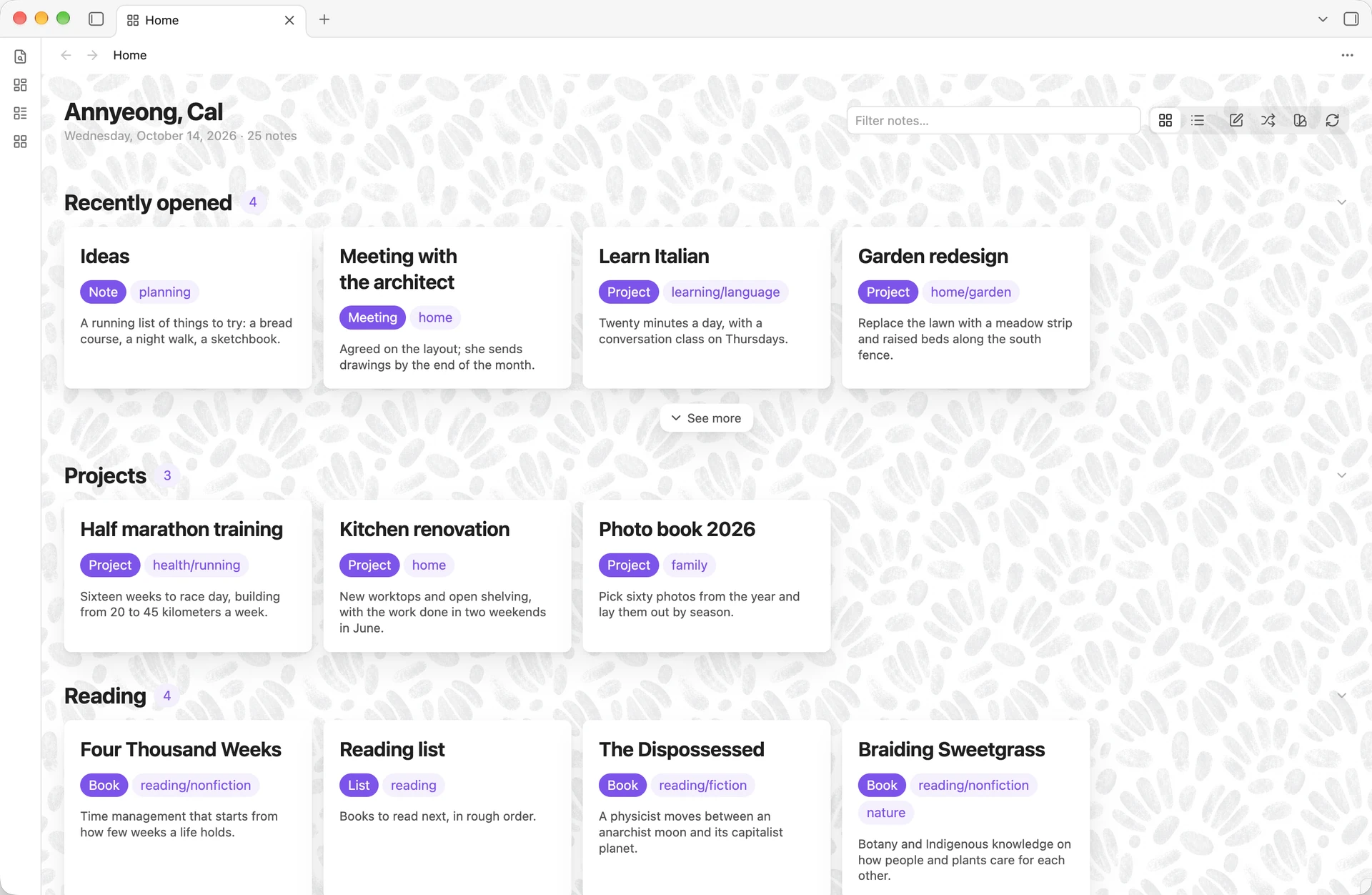
Home Cards gives your vault a start page. The page shows sections of note cards: the notes you opened or created most recently, notes with a given property or tag, and the notes other notes link to most and least. Your theme sets the colors, fonts and spacing. You can add a background pattern and pick a card style in settings.
Features
- Sections. Recently opened, created or modified; notes by property (with an optional value) or by tag; most and least linked; and Rediscover, a daily sample of notes untouched for months. Each section sets its own card count, sort order, and filters on tags, properties and folders.
- One note, one section. By default, a note appears only in the first section that claims it, so the page does not repeat itself. Section order sets which section wins.
- Cards. Each card shows the note's title, its type and tags, its first sentence (or a
summaryproperty), and a footer with the value the section sorts on. - Header actions. New note creates a note where Obsidian's settings put new notes. Rediscover opens a random note you haven't changed in months.
- Card actions. Right-click a card for Obsidian's file menu. Hold Cmd or Ctrl over a card for a preview, through the Page Preview core plugin.
- Fold and see more. Click a section heading to fold it; the chevron at its end shows the state, and the page remembers it. "See more" under a section shows further matches, one section's worth at a time, up to three times; "Show fewer" puts them back.
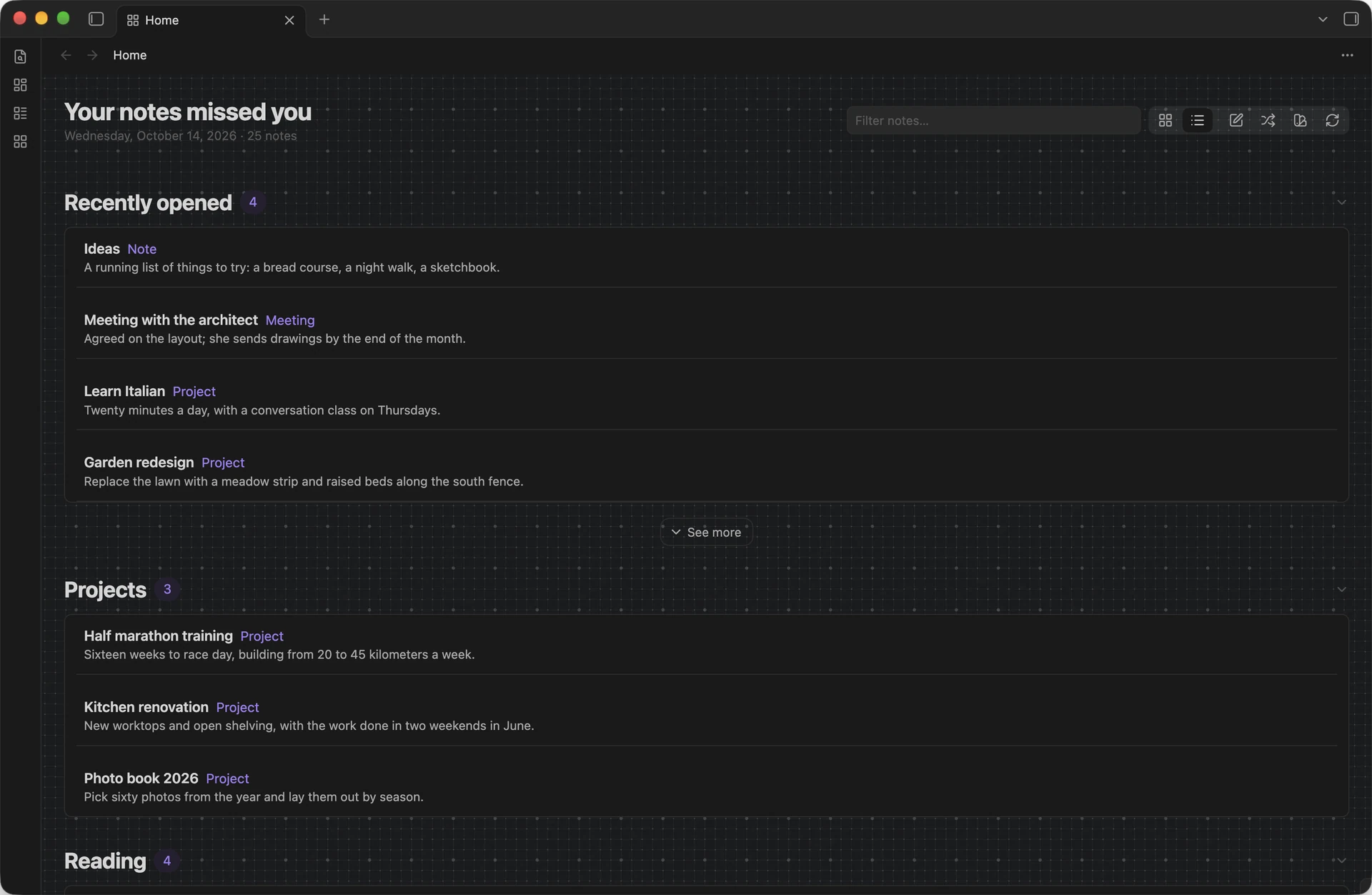
- Two layouts. A grid of cards and a compact list of rows, switched from the header.
- Background patterns. Thirteen tiled patterns, each with a light and a dark version that follows the theme. Pick one in settings or from the swatch button in the header, which applies it as you click.
- A Bases view. Any base can show its results as "Home cards", with one section per group.
- A greeting. About 180 built-in greetings follow your local time of day, the day of the week and, optionally, fixed-date holidays, some in other languages, always in Latin script.
Quick start
- Install and enable Home Cards, then click the grid icon in the ribbon, or run Home Cards: Open from the command palette.
- The first page shows four sections that work in any vault: recently opened, recently created, most linked and least linked.
- To add a section for your own notes, open Settings → Home Cards, press + next to Sections, and set the source to By property or By tag.
- If your notes record their kind in a property other than
type, set Cards → Type property to that property. - Turn on Open on startup to make Home Cards your start page.
Installation
Search for Home Cards under Settings → Community plugins → Browse, then install and enable it.
To install a release by hand, copy main.js, manifest.json and styles.css from the latest release into <vault>/.obsidian/plugins/home-cards/, then reload Obsidian and enable Home Cards.
Home Cards requires Obsidian 1.13.1 or later and works on desktop and mobile.
Settings
Every setting appears in Obsidian's settings search.
- General: whether the home page opens at startup, the layout it opens in, whether a note may appear in more than one section, and how long a note must sit untouched before Rediscover offers it.
- Sections: the sections, in page order. Drag a row to reorder it, use its toggle to show or hide it, and press its pencil to edit its source, card count, filters and sort order.
- Cards: the corner glyph, the type label and the property it reads, tags, the opening sentence and its length, and file size.
- Card text: the summary property, and the openings and title prefixes Home Cards passes over.
- Appearance: minimum card width, card surface (Flat, Elevated or Frosted) and background pattern.
- Header: the greeting and your name, holiday greetings, and the note count.
Optional: Typify icons
If you use the Typify plugin, set Cards → Glyph to Icon from Typify. Home Cards then reads Typify's icon settings and shows the icon for each note's type. Home Cards only reads Typify's settings file, and only while this option is on. Without Typify, the option falls back to each note's initial letter.
Commands
- Home Cards: Open shows the home page, opening it in a new tab if needed.
- Home Cards: Recompose redraws every open home page and Home cards base view.
Privacy and access
Home Cards makes no network requests, works with no files outside your vault, sends no data anywhere, shows no ads and needs no account. It reads your notes' metadata and the first paragraph of each note it shows. On each device, it keeps the paths of the last 100 notes you opened, and which sections you folded, in Obsidian's local storage, outside your synced settings.
With Icon from Typify on, Home Cards also reads the Typify plugin's settings file in your vault's configuration folder.
Architecture
The source divides into four layers. Each imports only from the layers above it; the views and settings tab also hold a type-only reference to the plugin class.
| Layer | Directory | Responsibility |
|---|---|---|
| Settings | src/settings/ | The schema, defaults and choice registries (schema.ts), and the normalizer that turns untrusted data.json into valid settings (normalize.ts). No imports from Obsidian. |
| Compose | src/compose/ | Ranking, filtering, text extraction, the card model, the dek cache and the open history. Type-only imports from Obsidian; no DOM. |
| Render | src/render/ | The home page view, the Bases view, the card DOM they share, and the card actions. |
| Settings tab | src/settings-tab/ | The settings tab, declared through Obsidian's settings definitions, and the section editor. |
src/main.ts wires the layers together and owns persistence. Settings edits go through two methods: touch() records an edit and writes once edits stop, for keystrokes and sliders; commit() writes at once, for structural changes. After a write, the plugin fires a refresh event; each open view subscribes to it and redraws.
Each compose takes one snapshot of the vault: one file listing and at most one pass over the link table, shared by every section.
The test suite enforces the layering: it bundles the tested code with obsidian marked external, and the obsidian package ships no runtime code, so a runtime import in settings/ or compose/ fails to load. A separate test checks each layer's imports.
Styles
styles.css is generated. Edit the partials in styles/, which scripts/build-css.mjs concatenates in filename order. Background tiles live in assets/tiles/ as WebP files, each a seamless repeat 800px wide that the page draws at 400 CSS pixels under a per-tile veil of the theme background (the --hc-veil-<id> variables in styles/10-backgrounds.css); the build inlines them as data URLs, because Obsidian loads a plugin's stylesheet with no asset path. The build refuses to write a stylesheet with unbalanced braces or a placeholder that names a missing tile.
To add a background pattern, add <id>-light.webp and <id>-dark.webp to assets/tiles/, declare the two variables and one selector in styles/10-backgrounds.css, and add the entry to BACKGROUNDS in src/settings/schema.ts. The tests fail if any of the three is missing.
Development
npm install
npm run build   # styles.css, type check, Obsidian's lint rules, main.js
npm test        # type-checks the tests, then runs them
npm run dev     # rebuilds main.js on save
npm run lint applies Obsidian's review rules, the checks the community directory runs on each release, to every file in the repository. See RELEASING.md for the release steps.
License
For plugin developers
Search results and similarity scores are powered by semantic analysis of your plugin's README. If your plugin isn't appearing for searches you'd expect, try updating your README to clearly describe your plugin's purpose, features, and use cases.