Hearth
approvedby ondreu
A beautiful, heavily customizable home screen — dashboard, launchpad, mission control, homescreen, search - all in one. As simple or complex as you need. - This plugin has not been manually reviewed by Obsidian staff.
Hearth — a home screen for Obsidian
English · 简体中文


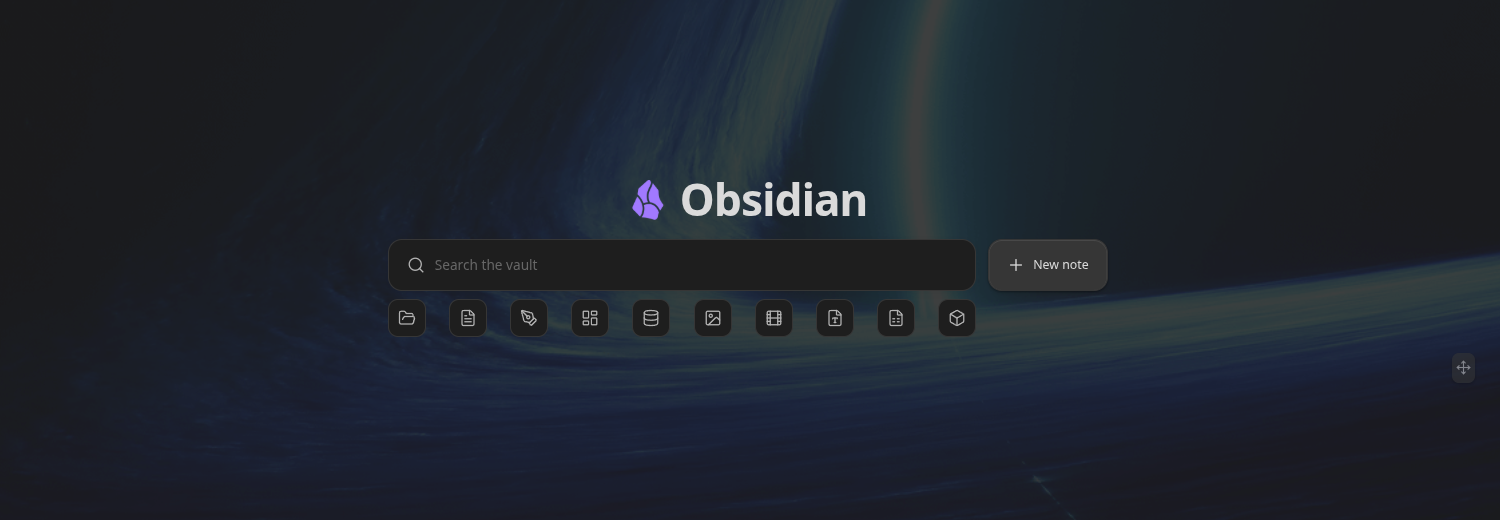
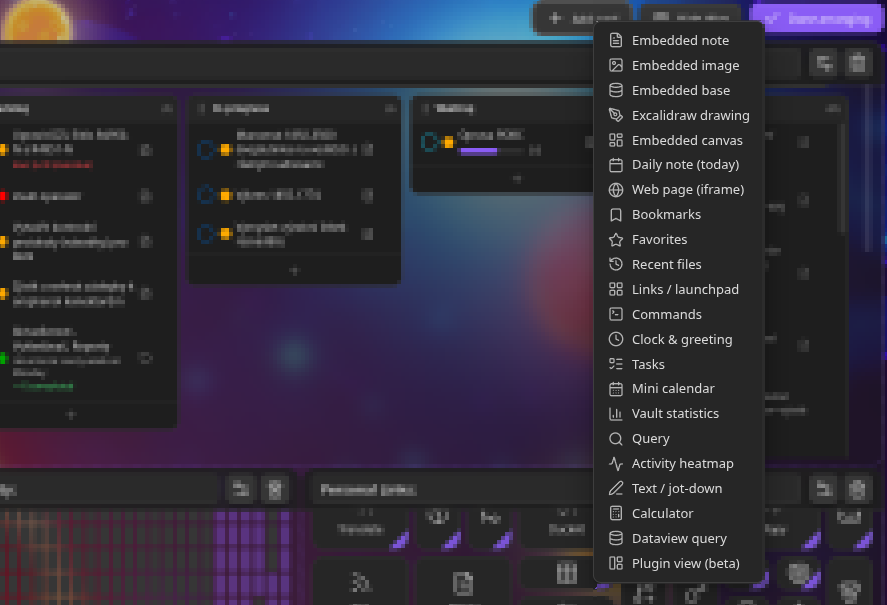
Hearth turns your Obsidian vault into a welcoming front page. A fast fuzzy search bar, quick file-type filters, and a freely arrangeable grid of live widgets — notes, tasks, kanban boards, calendars, web pages, stats, clocks and launchers — on desktop and mobile.
Think of it as a new-tab dashboard, start page and command launcher in one.
- 🔍 Search everything — fuzzy, full-text, tags, frontmatter and commands
- 🧩 35+ cards — embeds, tasks, calendars, Dataview, Git, Jira, Operon, and more
- 🔌 26 integrations — picked up automatically when the plugin is enabled
- 🎛️ Free-form layout — drag, resize and snap cards anywhere
- 🪟 Frosted glass — per-card opacity, blur, color and corner radius
- 🗂️ Multiple dashboards — switch with a click or a hotkey
- 🪄 Plugin view dashboards — give a whole board to one plugin's view
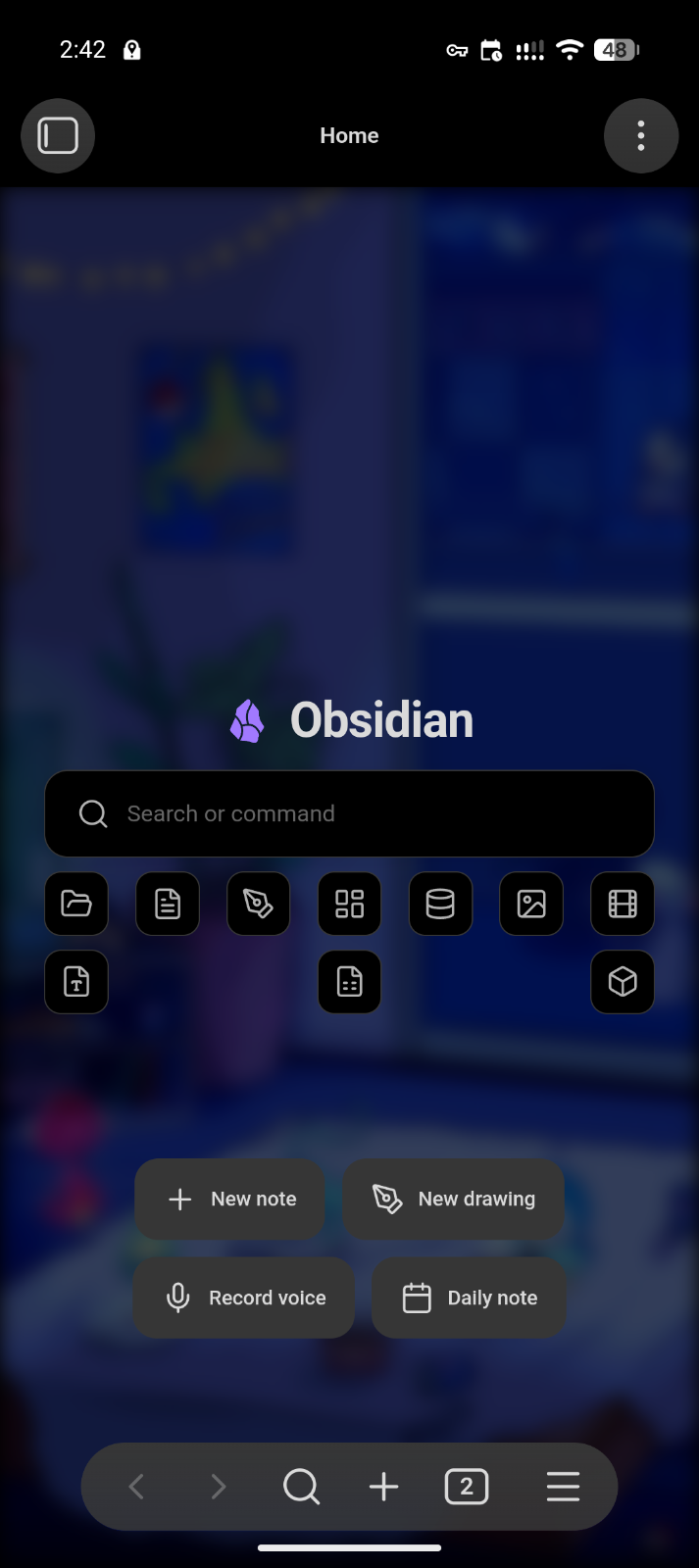
- 📱 Works on a phone — the board stacks into one readable column
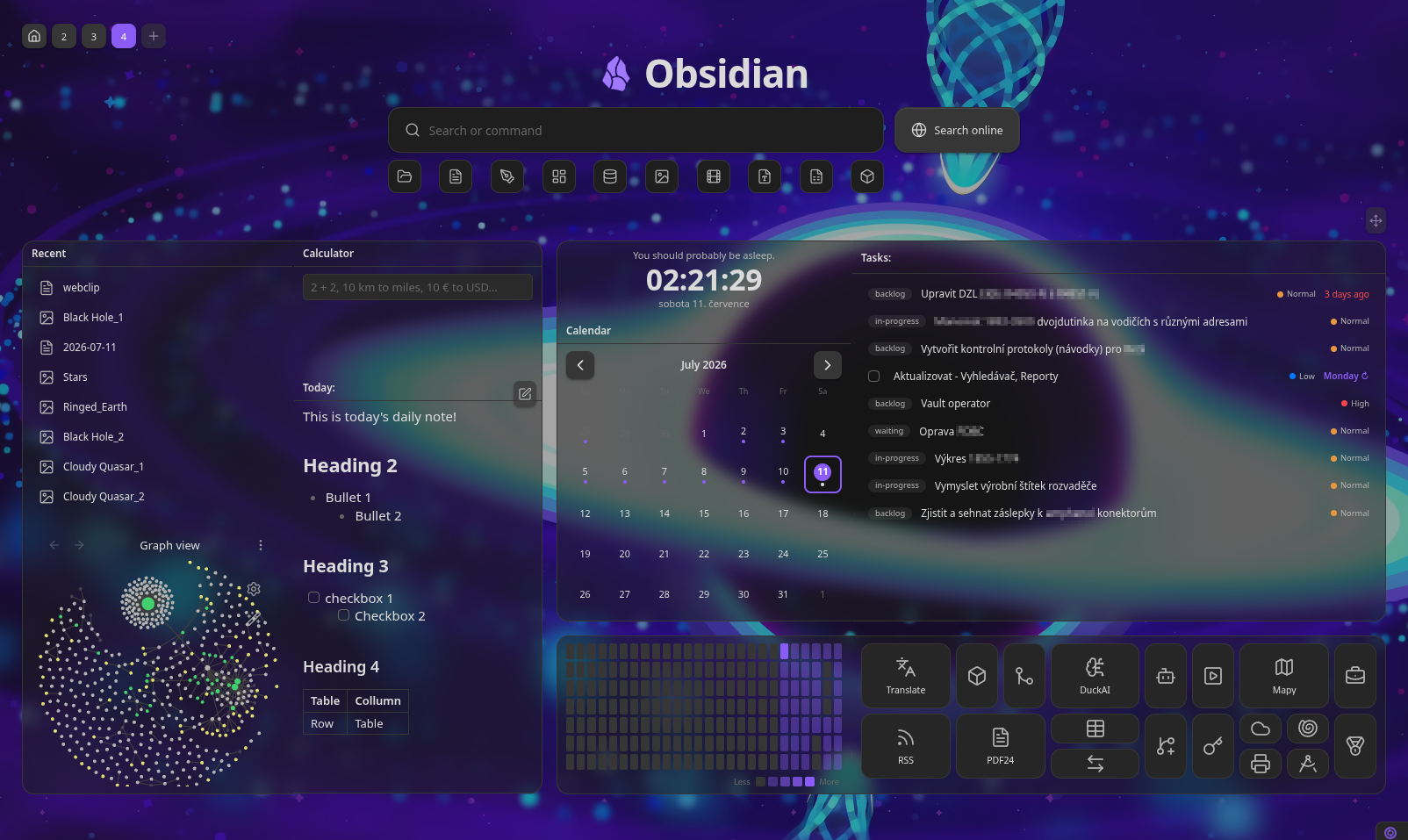
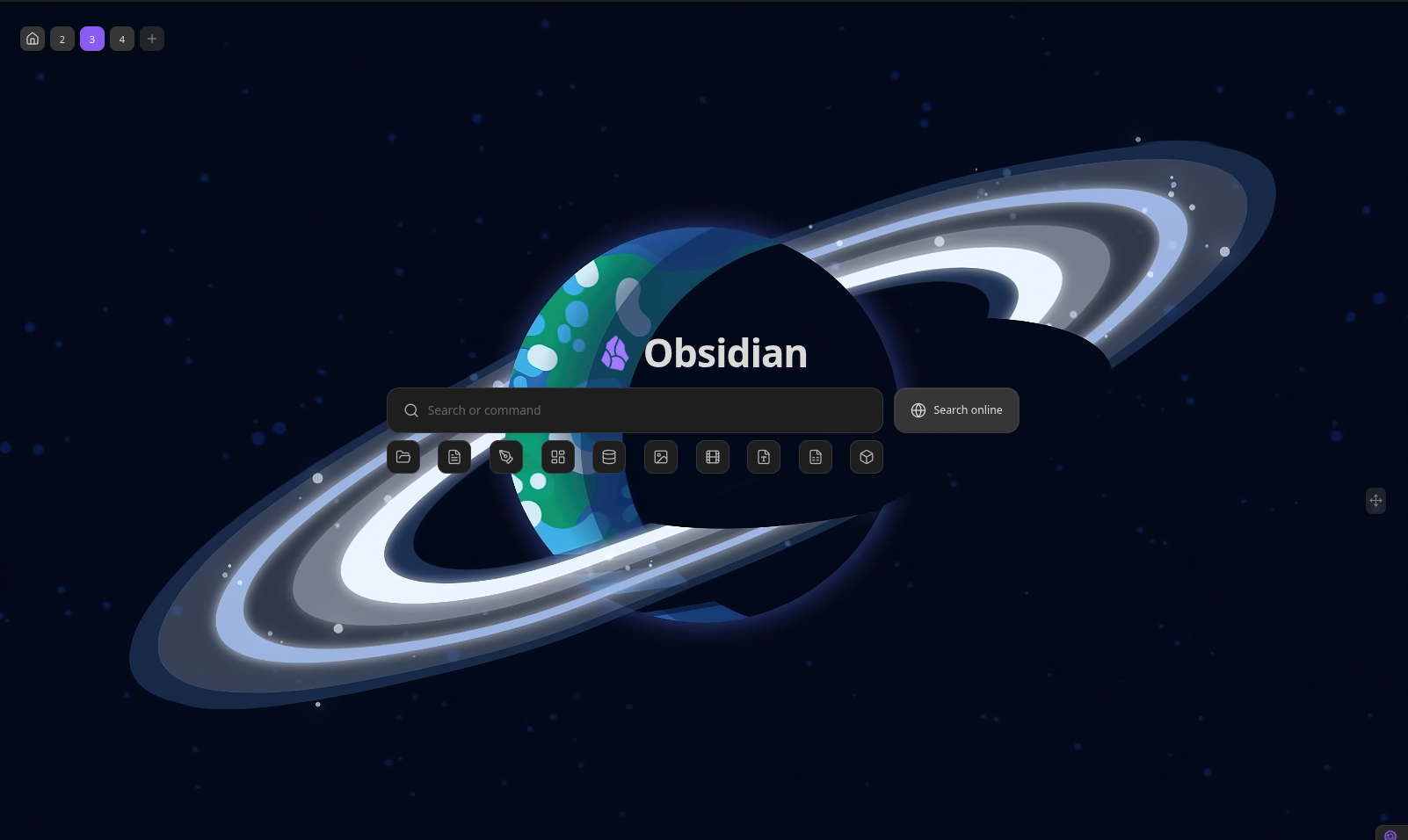
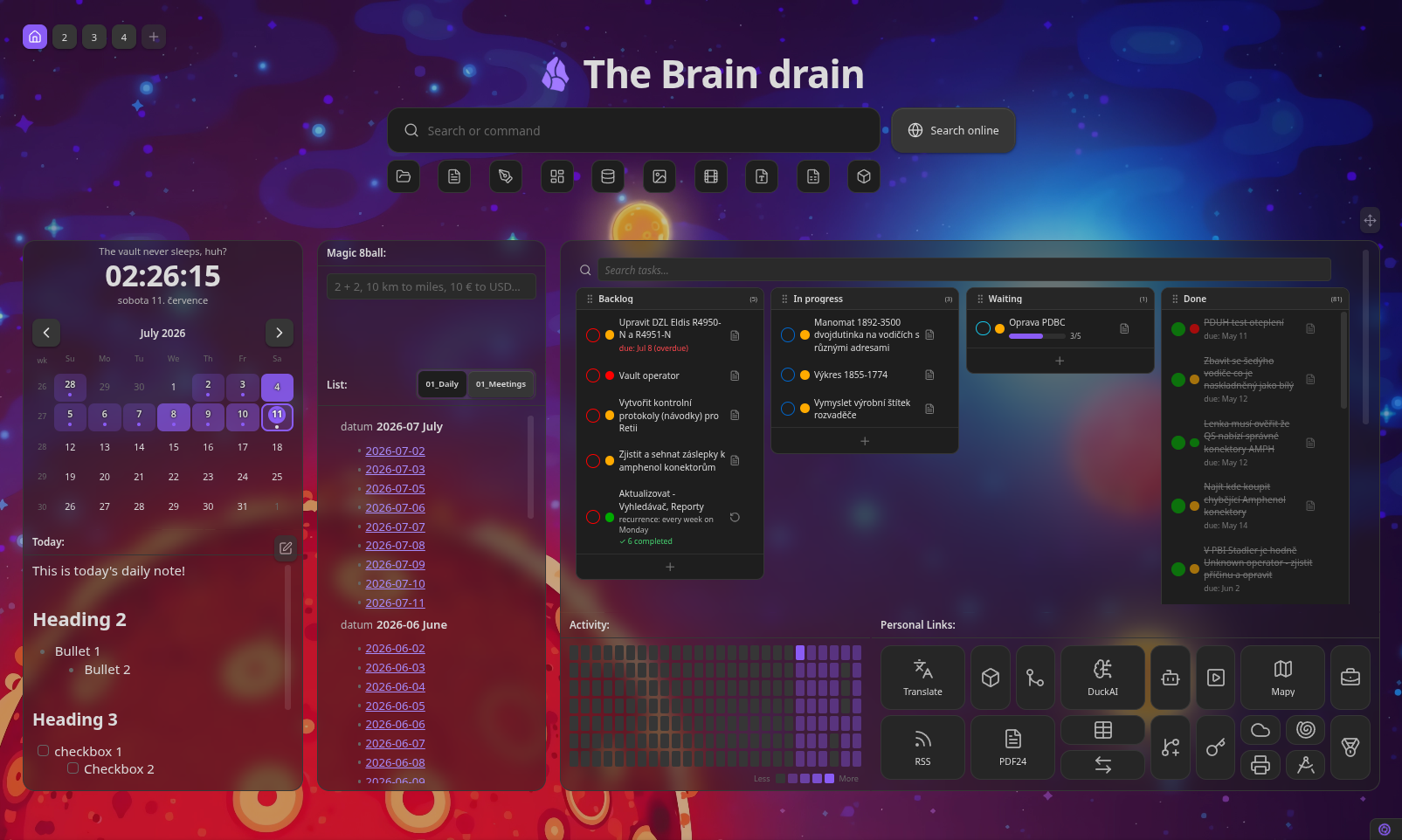
Screenshots
 |  |
 |  |
Contents
Quick start · Setup wizard · Search · Cards · Integrations · Layout · Appearance · Mobile · Settings & shortcuts · Development · Contributing
Looking for more detail? The Hearth User Guide is a full, chapter-by-chapter manual: every card, every setting, every integration, plus troubleshooting and a glossary. This README is the tour; the guide is the reference.
Quick start
- Install Hearth from Obsidian's community plugin browser — or drop
main.js,manifest.jsonandstyles.cssinto<vault>/.obsidian/plugins/hearth/and enable it. - Hearth opens on startup and replaces empty new tabs (both toggleable in Settings → Hearth).
- Open it any time from the ribbon home icon or the Open home dashboard command.
- Hit Arrange (top-right) to add, move, resize and configure cards right on the board.
Setup wizard
On a fresh install Hearth offers to build your first dashboard for you. It asks a handful of questions — a title, a look, what you use your vault for — and lays out a board from the answers rather than dropping you on a generic starter grid.
It also looks at what you already have. Every plugin below that is installed and enabled is offered with the one thing accepting it will do:
| Found | What Hearth does with it |
|---|---|
| TaskNotes | Adds a Tasks card on the TaskNotes source, using TaskNotes' own field names and completed statuses |
| Kanban | Adds a Tasks card showing your board as draggable columns |
| Dataview / Datacore | Adds a card, seeded with an editable query |
| Templater | Adds a launchpad with a button per template you already have |
| Git | Adds a Git card with status, commit and sync |
| Operon | Adds an Operon tasks card (desktop only — Operon still asks you to approve Hearth) |
| Bases | Embeds a base from your vault |
| Daily notes / Bookmarks | Adds the matching card |
The TaskNotes case is the one worth calling out: its field names are
user-remappable and its statuses user-defined, so Hearth reads them from the
plugin and copies them onto the card it builds. A vault that renamed due to
deadline gets a Tasks card that works on its first render.
The wizard offers the integrations above; everything else in Integrations is added by hand from the Add card picker.
The wizard only ever writes to the dashboard it builds. The title, its icon, the accent, the card surface, the spacing and the background all land as per-board overrides on that one dashboard, and the TaskNotes field mapping lands on the Tasks card itself — so your vault-wide settings, and every other board you have, come out of a setup run exactly as they went in. That is also why it no longer asks about things that can only be vault-wide (whether Hearth opens on startup, where notes open, which search engine to use, whose file icons to show): those live in Settings → Hearth, one toggle each, and apply to everything by design.
The last step previews the board — a scale drawing plus a list of every card and why it's there — before anything is written. Nothing is applied until you press Build my dashboard.
You can run it again any time from Settings → Hearth → About → Build a dashboard, or the Set up Hearth command. Run that way it always adds a new dashboard: every board you already have is left exactly as it is.
Search
The search field is keyboard-first, with four transparent modes:
| Prefix | Mode | Matches |
|---|---|---|
| (none) | Fuzzy + full text | File names, tags, properties, and note bodies |
# | Tags | Vault tags, showing which tag matched |
key:value | Frontmatter | Notes whose property matches |
> | Commands | Any registered command, run by name |
- Auto-detected filters — file-type chips built from what actually lives in your vault (notes, images, video, canvas, bases, Excalidraw…). Click one to list its items; hide the ones you don't need.
- Recent files appear in an empty, focused search field.
- New note button creates a note in your default location — or sends the query to a web search instead, if you'd rather. That button carries a small arrow: click it to search with DuckDuckGo (the default), DuckDuckGo without AI, Brave, Kagi, Google, Mojeek, Ecosia or Qwant for that one query. Which engine the button itself uses is Settings → Appearance → Online search engine.
- Omnisearch engine (optional) — swap the built-in engine for Omnisearch under Settings → Appearance → Search engine.
- Hide it — Settings → Appearance → Home → Show search section turns the whole section off vault-wide, and each dashboard's Search visibility can follow that default or override it to show or hide the section on that board alone.
Cards
Add cards from the Arrange toolbar; configure each one from the card itself (title, content, colors, size, opacity, blur). Add card opens a searchable picker — type to match a card's name or description, or browse by the categories below. Cards backed by a community plugin are always listed, marked Needs Dataview (or Git, Operon…) when the plugin isn't there, with a one-click jump to install it. If the card you want doesn't exist, Request a card at the bottom of the rail opens a pre-filled GitHub issue or email.
Notes & files
| Card | What it shows | Needs |
|---|---|---|
| Embedded note | Any note, rendered live by Obsidian, with per-card zoom, optional in-place editing (raw or Live Preview) and a second view you can flip to | — |
| Daily note | Always today's note, created on first click | Daily notes (core) |
| Periodic note | Always the current week's, month's, quarter's or year's note, created on first click from your own template | Periodic Notes |
| Embedded image | A picture from the vault — fill and crop, fit, stretch or scroll, anchored to any of nine points | — |
| Slideshow | Pictures from a list or a folder: on a timer, one a day (or every few days, worked out from the date) or only by hand, with captions, sort order, transition and length, slow zoom and hover controls | — |
| Embedded canvas | A canvas you can pan around in place | Canvas (core) |
| Excalidraw drawing | A drawing with native pan and zoom | Excalidraw |
| Embedded base | A .base file, rendered by Obsidian's Bases | Bases (core) |
| Recent files | The files you opened most recently | — |
| Folder | What is in a folder, one level down, in the file explorer's own order — with a browser behind it: a breadcrumb, every subfolder opened one level, and any folder on the page steppable into | — |
| Favorites | The notes you starred in Hearth | — |
| Bookmarks | Your Obsidian bookmarks, with site favicons | Bookmarks (core) |
Planning
| Card | What it shows | Needs |
|---|---|---|
| Tasks | Markdown checkboxes, TaskNotes task notes or a Kanban board — as a list or a drag-and-drop board | — |
| Calendar | Month, week, day and list views over the same sources, with a scrolling time grid, overlapping-event columns and an all-day band | — |
| Mini calendar | A month grid or agenda with dots for existing notes, ISO week numbers and an edit heatmap | Daily notes (core) |
| Clock & greeting | Digital or analogue face, custom date formats, optional playful greeting | — |
Inside the Tasks card
- Kanban write-back — drops are written in Kanban's own format, so the note stays editable in the Kanban plugin.
- Dates & priorities — full
obsidian-tasks
marks (🔺⏫🔼🔽⏬ 🔁 🛫 ⏳ 📅 ✅), relative labels ("Today", "Next Friday"),
natural-language input (
📅 in 3 days), and per-occurrence completion for recurring tasks. - Sorting & filtering — smart chain (due → scheduled → priority → created) or a custom multi-rule sort, per list and per Kanban column.
- Custom task fields (opt-in) — name a field, pick how it's drawn (chip, dot, text, row tint or glow), and map any frontmatter or built-in key to labels and colors. Click a value to change it.
- Quick view — click a task for a compact popover with editable metadata and description instead of jumping into the note.
Inside the calendars — both follow your locale's week start and clock by default; week start, hidden weekends, week numbers, drawn hours and hour height are all yours to set. Mini calendar also subscribes to external ICS/iCal feeds, reads TaskNotes (scheduled, due, recurrences, timeblocks) and Operon due dates, and creates a note from any event, linked back by ID.
Vault insight
| Card | What it shows | Needs |
|---|---|---|
| Query | A saved search, kept live | — |
| Search bar | A search field on the board, framed or bare | — |
| Vault statistics | Notes, attachments, folders, tags and daily-note streak | — |
| Activity heatmap | A year of vault activity, day by day — or, in advanced mode, any metric you define: a frontmatter date, a summed property, your own rules | — |
Tools
| Card | What it shows | Needs |
|---|---|---|
| Links / launchpad | A grid of buttons opening notes, URLs or commands, each with its own column and row span, filling the card or fixed in pixels | — |
| Commands | Buttons that run any command-palette command | — |
| Text / jot-down | A quick Markdown scratchpad saved with the card | — |
| Calculator | Math, unit conversions, number bases (FF hex to decimal), live currency and plain-language queries (20% of 150), with an optional keypad | Network for rates |
| Web page | Any http(s) URL in a sandboxed iframe, optionally auto-refreshed | Network |
Integration cards
Categorized as Integrations in the picker.
| Card | What it shows | Needs |
|---|---|---|
| New note from template | Buttons that each make a note from a Templater template, in a folder and filename pattern you pick | Templater |
| Dataview query | A DQL or DataviewJS query, rendered by Dataview's own live renderers, with resizable table columns | Dataview |
| Datacore query | A Datacore query, or a full JS/JSX/TS/TSX script rendered by Datacore's views | Datacore |
| Git | Branch, staged and changed files, unpushed commits and recent log, with commit / sync / push / pull / stage / discard buttons and per-file diffs | Git |
| Jira filter | Issues from a saved Jira filter or JQL search, filtered by status, assignee, priority, type, sprint and version | Jira over HTTPS |
| RSS feed | Headlines from any RSS 2.0 or Atom feed you follow | Network |
| Weather | Current conditions and forecast from Open-Meteo in five styles, up to an edge-to-edge painted sky that follows real conditions and time of day — click a card for the full forecast, hour by hour | Network |
| Operon tasks / board / agenda / timer | Four cards on Operon's own API — a task list, a pipeline board, a few days' agenda, and the running time tracker | Operon (desktop) |
| Plugin view (beta) | Another plugin's side-panel view (calendar, outline, tag pane, Kanban…) hosted in a card, optionally pinned to one file | A plugin with a view |
The Templater card does something Templater's own per-template commands can't:
the same template can feed three different folders from three different
buttons. Templater still does the templating — user scripts,
tp.system.prompt() dialogs and tp.file.cursor() placement all behave as they
do from its own command.
Git and Operon both work through the other plugin rather than around it: Git commits go through the Git plugin's own task queue, so your remote, credentials and commit-message template apply unchanged, and Hearth never parses Operon's notes. See Operon for its setup, which is the one that needs a step from you.
Fun
| Card | What it shows | Needs |
|---|---|---|
| Pet | A pixel-art companion (cat, dog, bird, fox, frog or blob) whose mood follows your vault — content, happy, bored, or asleep on a quiet day, with drawn animation and eyes that follow your pointer. Set a night window, name it, color it. Nothing to lose; clicking it earns hearts | — |
| Vault Pet | The Vault Pet plugin's own pet, living on the board: its card (sprite, level, streak, click to pet) or its whole house — quests, dex, badges, wardrobe and stats | Vault Pet |
Everything is live: embeds and editable notes follow vault events without losing your cursor, data cards redraw on vault and metadata changes, and web cards refresh on a timer. Everything that reaches the network respects Settings → Behaviour → Disable external calls — every card, and a background image or title icon given as a web address.
Integrations
Hearth picks these up on its own — nothing to connect, no keys to paste. The full list, with live status and where each one's settings live, is under Settings → Hearth → Integrations.
Community plugins
| Plugin | What Hearth does with it | Configured in |
|---|---|---|
| Omnisearch | Becomes the engine behind the search bar | Search tab |
| TaskNotes | Tasks cards read one-note-per-task vaults — status, due date and priority from frontmatter, under TaskNotes' own field names | Integrations tab |
| Dataview | The Dataview card: DQL and DataviewJS, rendered live | The card |
| Datacore | The Datacore card: queries and JS/JSX/TS/TSX scripts | The card |
| Templater | The "New note from template" launchpad | The card |
| Periodic Notes | The Periodic note card: this week's, month's, quarter's or year's note, resolved and created by the plugin itself | The card |
| Git | The Git card, acting through the plugin's own task queue | The card |
| Operon | Four cards on Operon's Developer API — details below | Integrations tab |
| Iconic / Iconize | Your per-file icons show wherever Hearth lists a file | Integrations tab |
| Excalidraw | Drawings render live in Embed cards; "New drawing" runs its command | The card |
| Kanban | Tasks cards read and write its board notes in its own format | The card |
| Vault Pet | The Vault Pet card gives the plugin a place on the board — its own pet card, or its whole pet house | The card |
Obsidian core plugins
| Core plugin | What Hearth does with it |
|---|---|
| Daily notes | Daily note, Mini calendar and Vault statistics resolve today's note from its folder, format and template |
| Bases | Embed cards show a .base view |
| Canvas | Embed cards show a canvas, interactive and edge to edge |
| Bookmarks | The Bookmarks card, groups and all |
| Search | Hands a query to Obsidian's search pane for the full results |
| File explorer | Powers "Reveal in file explorer" on search results |
| Workspaces | A dashboard can switch to a saved workspace when you open it |
| Audio recorder | The mobile "Record voice" action button |
| Any plugin with a side panel | The Plugin view card hosts whatever views are registered, or a whole dashboard can be one |
External services — all silenced at once by Behaviour → Privacy & network → Disable external calls.
| Service | Used by | Account / key |
|---|---|---|
| Open-Meteo | Weather cards and the live weather sky | None. Only the coordinates you pick are sent, and a pinned sky needs no location at all |
| Frankfurter (ECB rates) | Calculator currency conversion | None |
| Jira Cloud / Server | Jira cards, over REST with bearer PAT auth | Yours, entered on the card; exports never include the PAT |
| RSS / Atom feeds | RSS cards | None |
| ICS / webcal feeds | Mini calendar subscriptions (Google, iCloud, Fastmail, Nextcloud…) | The feed URL |
| DuckDuckGo, Brave, Kagi, Google, Mojeek, Ecosia, Qwant | The search bar's optional web-search button, whichever engine you pick for it | None |
| Whatever host you name | A background image or title icon given as a web address; the bundled default wallpaper is one of these, served from raw.githubusercontent.com | None |
Operon
The four Operon cards read through Operon's own in-process developer API, so recurrence, statuses and completion stay Operon's to define. Filters are pickers over what Operon actually has — pipeline, status, priority, completion, note or text — or you can hand the whole question over to one of Operon's own scopes (Happening today, Overdue, Recently touched). Clicking a task opens its note on the exact line.
Reading is the default; changing is a choice. Switch on Allow changes (Settings → Hearth → Integrations → Operon) and the board card lets you drag a task into another status column — or pick one from the row's right-click menu, so it works without a mouse — and every card grows a + that creates a task where Operon's own settings say new tasks go. Hearth previews the change, Operon rates it and applies it, and anything more than routine is confirmed with you first. A move carries the status the board was drawn from, so a drag onto a stale board is refused rather than quietly undoing someone else's change. Leave the switch off and Hearth can only read.
Before you add one:
| Platform | Desktop only, Obsidian 1.12.2 or newer |
| Approval | Hearth's request appears in Settings → Operon → Core → General → Developer API Integrations — approve it there. Until then the cards say what they're waiting for |
| Widening it | Operon grants all-or-nothing, so turning Allow changes on needs a fresh approval |
| Status & kill switch | Settings → Hearth → Integrations shows the connection, what was requested, and how to cut it |
Layout
-
Free-form drag & resize — move cards anywhere and resize from any edge or corner, with magnetic snapping to neighbours and the board.
-
Edge-merging — snap two cards together and their shared border drops out, so the pair reads as one continuous tile.
-
Multiple dashboards — a
[1] [2] [+]switcher in the top-left. Name each board, give it an emoji or a Lucide icon, reorder by dragging, and override the global width, columns, row height, background and title icon per board. Open a board's settings from Dashboard settings in the Arrange toolbar or by right-clicking its switcher button. -
Plugin view dashboards — set a board's Dashboard type to Plugin view and it stops being a grid of cards: the whole board becomes one plugin's view — your RSS reader, a Kanban board, a Canvas, the outline — at full size and fully working, with the switcher, header and background still around it. So the reader you check twenty times a day is one click from your task board rather than a tab you have to find your way back from.
Pick the view on the board's Plugin view tab. The list is every view the app has registered right now, Obsidian's own document surfaces included (Markdown, PDF, image, audio, video) — a full board has the room and a file picker beside the type picker, so a specific note, drawing or PDF can be a dashboard. You can also hide the hosted view's breadcrumb header, and let it take focus so the plugin's own commands and hotkeys find it (experimental — Obsidian may then open a clicked note into it).
Edge to edge. The hosted view gets the whole pane — no page gutter, no card frame, no toolbar row — and the only chrome left is the switcher strip across the top with the board's settings gear at the end of it. The title and search start hidden for the same reason; all of it is an ordinary per-board override you can switch back on.
Switching is instant. A plugin board stays loaded while another board is showing instead of reloading from cold; up to three are kept warm at a time, and a heavy plugin can opt out per board under Keep running in the background. The board keeps its cards, so turning it back into a Cards board brings them back untouched.
-
Pinned cards — pin a card to appear on every dashboard, sharing one definition and position.
-
Fit to page — lock the board to one screen or let it scroll.
-
Import / export — share one dashboard as a file that looks the same in someone else's vault (wallpaper optionally carried inside it), signed with an anonymous handle Hearth makes for you that nobody else can publish under, with one switch to leave your note paths, calendar links and location out of it — or back up every board and setting as JSON.
-
Dashboard gallery — browse boards other people have published, by category, search or rating, install one in a click and leave a comment; publish your own — with a picture of the board, its every word blanked out before the screenshot is taken — from the same dialog you export from, with your paths and private feeds removed and the file signed so nobody can publish under your handle. Every upvote you get adds up on your profile. Nothing is fetched until you open the gallery and nothing is sent until you publish, and clearing the address in settings turns it off for good. Anybody can run their own: the server is in this repository and starts with one Docker command.
Appearance
- Background — solid color, vault image, URL, or a live weather sky: the board's backdrop becomes the painted sky the weather card's artistic style draws, spread across the whole window and following the real conditions and time of day over a place you pick. Or pin one sky — clear night, snow, thunder — and keep it whatever the weather is doing, which needs no location and never goes online. All with opacity and blur. Ships with a soft ambient default.
- Banner or full background — wear that same backdrop either way: filling the whole view, or as a banner across the top of the board, the way a cover image sits above a note, with the cards below it on your theme's own surface. Set the height, fade the lower edge into the page, and choose whether it lines up with the content or runs edge to edge — each a per-board override, so one dashboard can show the vault's background as a banner while the next keeps it as a wallpaper.
- Frosted glass — card opacity and backdrop blur at three levels (global → per-dashboard → per-card). Merged cards blur as one seamless sheet.
- Card corner radius — from the default 14 px down to sharp 0 px.
- Per-card colors — an accent and a background tint for any card.
- Title, title icon and compact spacing for the dashboard header.
- Its own search row and chrome — a dashboard can set its own search placeholder, its own button beside the search field (or none), its own filter chips, whether it stacks into one column when narrow, whether the arrange button and the switcher stay visible or fade in on hover, and whether the painted sky drifts. Each follows the vault until the board says otherwise, and each travels with the board when you export it.
- One title icon, four ways to set it — the mark beside the board's heading takes a Lucide icon (searched from a picker rather than typed from memory), an emoji or a couple of characters, the vault path of an image, or the URL of an image on the web. Each dashboard can override it; leave it empty and the Hearth crystal stays as it was. Hearth's tab and ribbon button takes a Lucide icon of its own.
Mobile
Hearth's board is laid out freely — cards sit where you drop them, at a fraction of the board's width. Below about 600px that stops meaning anything, so the board reflows into a single full-width column, top to bottom, in the order the desktop board reads in. Your layout is never rewritten: the same board is a launcher on your phone and a wall of cards on your monitor.
The threshold is the measured width of the board, not the platform — so a narrow desktop pane gets the same treatment, and you can see the phone layout by dragging a pane narrow.
- Stacked column — cards full width, one per row. Turn it off in Settings → Hearth → Mobile to keep the free-form layout.
- Per-card overrides — in a card's settings (Layout → On a narrow board): hide it, give it a position in the column, set its height, or start it collapsed as a title row that builds the card only when tapped — so an expensive card costs one row until you open it.
- Phone preview — hit Arrange → Preview at phone width to build and check your phone board without a phone, inside a drawn phone so the proportions read properly. While stacked, drag a card's bottom edge to set its height, and use the move up / move down buttons in its header to reorder.
- Edge to edge — the side gutters go, the safe-area insets stay; filter chips and search results grow to 44px tap targets.
- Full-width search — the chips and results span the screen instead of the search bar's share of it, and the button beside the field drops to an icon.
- Its own performance tier — defaults to Balanced on mobile; your desktop tier is stored separately and untouched.
- Its own settings category — everything above lives under Settings → Hearth → Mobile.
- Mobile mode — still there: an optional search-only launcher, if that is all you want on a phone.
- Action bar — a row of buttons under the search field (New note, New drawing, Record voice, Open daily note by default), each swappable for any command.
- Keyboard-aware — the visible area tracks the on-screen keyboard.
Settings & shortcuts
Everything lives under Settings → Hearth, grouped by a category ribbon: Appearance, Search, Dashboard, Behaviour (startup, new tabs, where notes open, mobile, privacy), Integrations, Backup and About. Per-card settings are edited from the card itself in arrange mode.
Bindable under Settings → Hotkeys:
- Open home dashboard
- Switch to dashboard 1…9 — changes the active board
- Open dashboard 1…9 — changes it and brings Hearth up, so jumping to a particular board from anywhere in the vault is one shortcut
- Switch to next / previous dashboard
In the search field: ↑/↓ to move, Enter to open, Esc to dismiss.
Disclaimer
This plugin was created using AI.
All PRs are tested in a testing vault by a human before merging, and all releases are beta tested in a testing vault by a human before being promoted to stable.
Development
npm install      # install dependencies
npm run dev      # watch build -> main.js
npm run build    # typecheck + production build
npm run typecheck
To test in a vault, symlink or copy main.js, manifest.json and styles.css
into <vault>/.obsidian/plugins/hearth/.
Translations — user-facing strings live in src/locales/.
English (en.ts) is the source of truth; copy it, translate the values and
register the file. See src/locales/README.md.
Contributing
Hearth moves fast, so the most valuable contributions right now are bug reports, feature ideas and translations. Small, obvious fixes are always welcome; for anything larger, please open an issue first — big PRs against a fast-moving codebase tend to go stale. See CONTRIBUTING.md.
Support
Hearth is free and open source. If it's earned a place on your vault's front page, you can buy me a coffee — it genuinely helps keep the updates coming.

License
For plugin developers
Search results and similarity scores are powered by semantic analysis of your plugin's README. If your plugin isn't appearing for searches you'd expect, try updating your README to clearly describe your plugin's purpose, features, and use cases.