Note Minimap
approvedby yairsegel
Add a minimap to your Markdown notes.
🗺️ Note Minimap — A Minimap View for Obsidian Notes
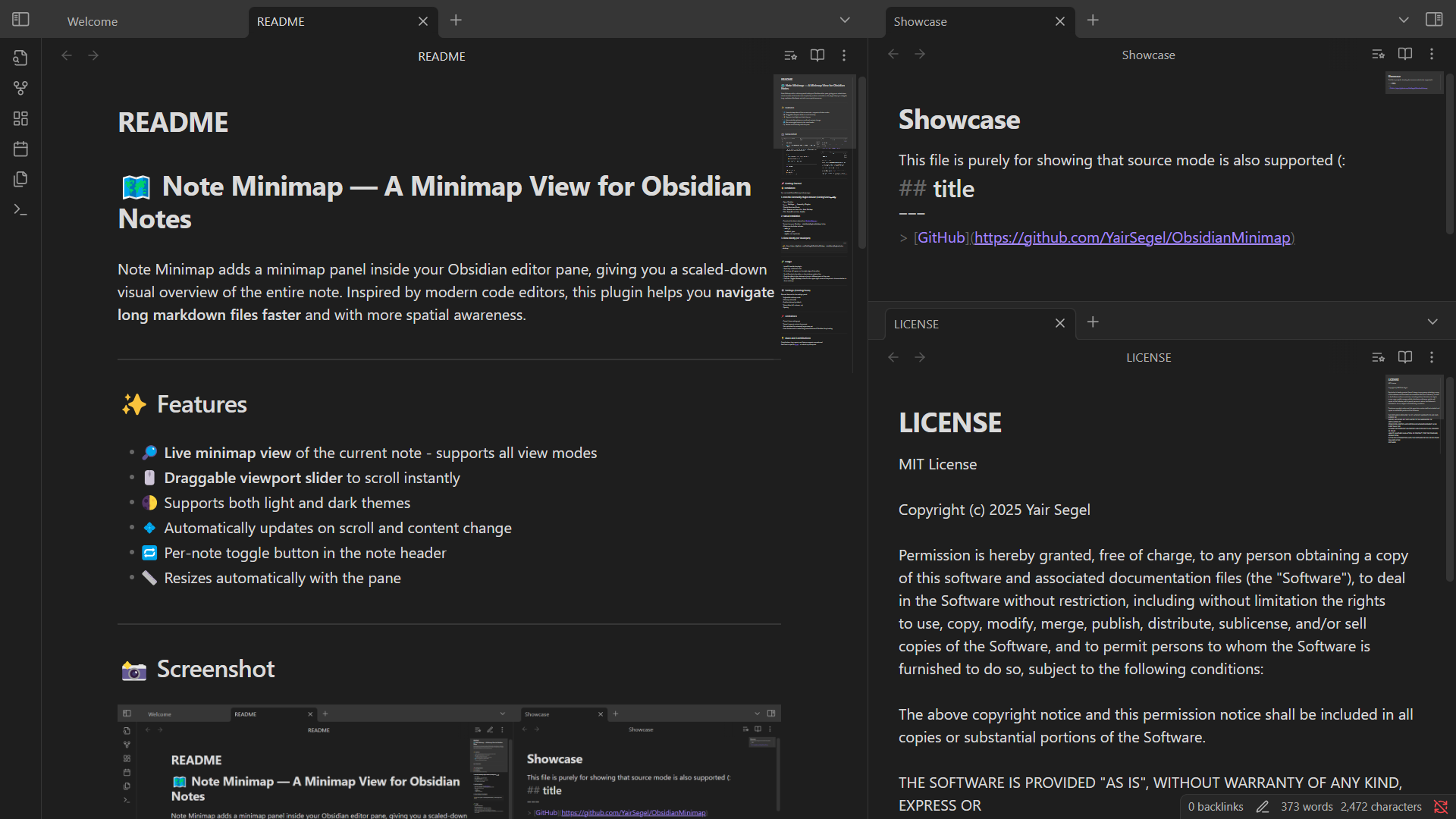
Note Minimap adds a minimap panel inside your Obsidian editor pane, giving you a scaled-down visual overview of the entire note. Inspired by modern code editors, this plugin helps you navigate long markdown files faster and with more spatial awareness.
✨ Features
- 🔎 Live minimap view of the current note - supports all view modes
- 🖱️ Draggable viewport slider to scroll instantly
- 🌓 Supports all themes
- 💠 Automatically updates on scroll and content change
- 🔁 Per-note toggle button in the note header
- 📏 Resizes automatically with the pane
📸 Screenshot
🚀 Getting Started
📦 Installation
You can install Note Minimap in three ways:
1. From the Community Plugins Browser (Recommended!)
- Open Obsidian
- Go to
Settings→Community Plugins - Disable Restricted Mode
- Click
Browseand search forNote Minimap - Click
Installand thenEnable
2. Manual Installation
- Download the latest release from GitHub Releases
- Extract into your Obsidian
.obsidian/plugins/minimapfolder - Make sure the folder includes:
-
main.js-manifest.json-styles.css(optional)
3. Clone Directly (For Developers)
git clone https://github.com/YairSegel/ObsidianMinimap .obsidian/plugins/note-minimap
🧪 Usage
- Install & enable the plugin.
- Open any markdown note.
- A minimap will appear on the right edge of the editor.
- Scroll & write in the editor — the minimap updates live.
- Drag the slider in the minimap to jump to different parts of the note.
- Click the
Toggle Minimapbutton in the upper-right corner of the pane to choose whether to show minimap.
⚙️ Settings
- Adjustable minimap scale
- Enable minimap by default
- Opacity (separate for minimap and slider)
- Top offset (for custom toolbars in the note)
- Rendering methods
ℹ️ About Better Rendering
The new rendering method is using a semi-hidden note to get the full Markdown render. This is required because of Obsidian's (always on) lazy loading, and is can be noticed only by seeing the extra tabs in the right panel - those cannot be opened or closed manually, and instead are handled by the plugin. Better Rendering should significantly improve the consistency of fully loading the note, and it solves the flickering issue that was encountered by some.
📌 Limitations
- Not optimized for extremely large notes yet
- Uses workaround to render long notes because of Obsidian's lazy loading
💡 Ideas and Contributions
Contributions, bug reports, and feature requests are welcome! Feel free to open an issue or submit a pull request.
For plugin developers
Search results and similarity scores are powered by semantic analysis of your plugin's README. If your plugin isn't appearing for searches you'd expect, try updating your README to clearly describe your plugin's purpose, features, and use cases.