by siulved54
Relative and hybrid line numbers for Vim-style jumps. A folded section counts as one line, and numbers can turn absolute in Vim insert mode.
Hybrid Line Numbers
Relative and hybrid line numbers for Obsidian's editor, for anyone who moves
with Vim counts such as 5j or 12dd, or just wants to see how far away a
line is.
 3  ## Method
 2  First step
 1  Second step
14  The cursor is on this line
 1  Third step
 2  ## Results      (folded: counts as one line)
 3  Next paragraph
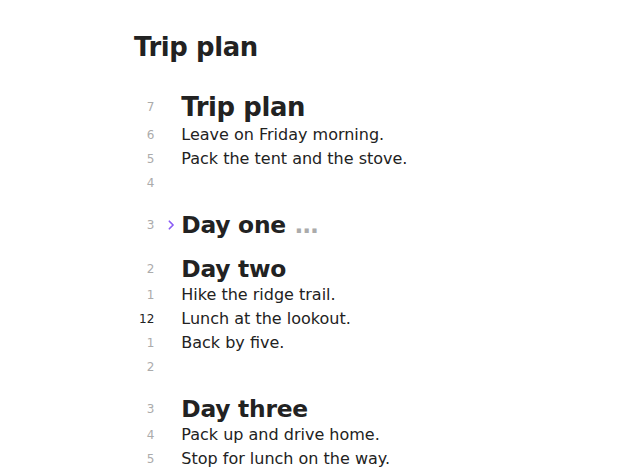
The cursor is on line 12. Every other line shows how far away it is, and the
folded "Day one" section counts as one line, so 3k lands on it.
What it does
- Hybrid (the default): the real line number on the cursor line, the distance to the cursor on every other line.
- Relative:
0on the cursor line, the distance everywhere else. - Absolute: plain line numbers.
- A folded section counts as one line, which is how Vim counts a jump, so the number next to a line is always the count that reaches it.
- Absolute numbers in Vim insert mode (optional): relative numbers while you move around, line numbers while you type, like Vim's popular "number toggle" setup.
- In a Vim visual selection the numbers follow the cursor, not the other end of the selection.
- Select lines from the numbers, like a code editor: see below.
The plugin draws its own column of numbers and hides Obsidian's while it is on, so it works whether or not Settings → Editor → Show line numbers is enabled, and you never get two columns.
Selecting lines from the numbers
The numbers work like the line numbers of a code editor:
- Click a number to select that whole line, line break included, so Backspace or Cut takes the line out cleanly. On the last line the selection runs to the end of the note.
- Drag over the numbers to select line by line. Drag above or below the editor and the note scrolls along.
- Shift-click a number to extend the selection to that line.
- Alt-click (Option-click on a Mac) to add the line as another selection, for editing several places at once.
- A folded section's number selects the whole section, the hidden lines too, and the section stays folded.
With Vim key bindings, a selected line works like a Vim visual selection, so
d, y or c act on it. Turn this off with Select lines by clicking the
numbers if you prefer the numbers to ignore clicks.
Commands
| Command | What it does |
|---|---|
| Toggle line numbers | Shows or hides the numbers. Obsidian's own line numbers come back while they are hidden, if you have them switched on. |
| Switch to the next numbering mode | Hybrid → relative → absolute → hybrid. |
| Go to relative line… | Type +12 to move 12 lines down, -5 to move 5 up, or 42 to go to line 42. |
Go to relative line counts the way the numbers do, so typing the number
you see next to a line, with + or -, takes you there, and a folded section
counts as one line. A line hidden inside a fold takes you to the fold, which
stays closed. The cursor lands on the first character of the line that is not
a space, as in Vim.
None has a hotkey by default; assign one in Settings → Hotkeys.
Vim's :set number and :set relativenumber
With Vim key bindings on, the numbers answer to Vim's own options, typed on
the : command line or put in a vimrc (for example with the Vimrc Support
plugin):
| Vim | Here |
|---|---|
:set nu rnu | Hybrid |
:set rnu nonu | Relative |
:set nu nornu | Absolute |
:set nonu nornu | Hidden |
The short names, inv…, …! and :set nu? work as in Vim, and a change
is saved like one made in the settings.
Settings
| Setting | Default | |
|---|---|---|
| Show line numbers | On | The same as the toggle command. |
| Numbering | Hybrid | Hybrid, relative or absolute. |
| Absolute numbers in Vim insert mode | Off | Needs Settings → Editor → Vim key bindings. |
| Select lines by clicking the numbers | On | Click, drag, Shift-click and Alt-click on the numbers select lines. |
Coming from Relative Line Numbers
This plugin does the same job as Relative Line Numbers, which has not had a release since 2023. Differences you will notice:
- It works without switching on Obsidian's own line numbers first.
- In a Vim visual selection, or any selection made upwards, the numbers count
from the cursor. The older plugin counts from the end of the selection, so
after
Vkkits numbers still count from the line where the selection started. - The column only redraws when a number actually changes (the cursor moves, the note changes, a section folds or unfolds, or the Vim mode changes), instead of reconfiguring the editor on every cursor move.
- Hybrid mode, the insert-mode option and the mode command are new.
Disable the old plugin before enabling this one, or you will see two columns of numbers.
Installing
Once the plugin is in the community directory: Settings → Community plugins → Browse, search for "Hybrid Line Numbers", then install and enable it.
Until then, download main.js, manifest.json and styles.css from the
latest release into
<vault>/.obsidian/plugins/hybrid-line-numbers/, reload Obsidian and enable
the plugin under Settings → Community plugins.
Development
npm ci
npm run lint
npm test          # needs Node 22.18 or later
npm run build
The numbering itself is plain arithmetic in src/numbers.ts, and the line
ranges a click selects and the line +12 reaches are in src/select.ts, both
tested under Node; src/extension.ts is the CodeMirror gutter that draws the
numbers and handles the clicks.
More plugins by Siulved54
| Plugin | What it does | Source |
|---|---|---|
| Shared Blocks | Write a block of text once and reuse it in any note. Edit the source and every reference re-renders live. | shared-blocks |
| Text Case and Cleanup | Change case, make camelCase or slugs, sort lines and remove duplicates, and repair text pasted out of a PDF, without touching code or URLs. | text-format |
| Typography as You Type | Curly quotes, dashes and ellipses as you type, kept out of code and maths, with Backspace to take one back. | smart-typography-plugin |
| Section Numbering | Number headings as an outline (1, 1.1, 1.2) and keep every link to them working when they renumber. | section-numbering |
| Spreadsheet to Table | Paste cells from Excel or Google Sheets as a Markdown table with a real header, insert CSV files, and copy tables back out. | spreadsheet-to-table |
| List Item Callouts | Colour a single list item as a callout by starting it with a character such as &, ! or ?. | list-item-callouts |
| Folder Counts | See how many notes or files each folder holds, right in the file explorer, with a vault total and folder exclusions. | folder-counts |
| Note Reading Time | Reading time of the current note or your selection in the status bar, optionally saved to a property. | note-reading-time |
| Task Rollover | Roll unfinished tasks from your last daily note into today's when it is created, with a real undo. | task-rollover |
| Zoom Into Section | Zoom into a heading or list item to see only it and its contents, with a breadcrumb bar to climb back out. | zoom-into-section |
| Link Title on Paste | Paste a web address and get a Markdown link with the page's title, fetched in the background and undone in one step. | link-title-on-paste |
| Update Radar | Checks your installed community plugins for updates in the background, shows what changed, and flags the ones that look abandoned. | community-update-checker |
| Dataview to Bases | Convert Dataview queries into Bases blocks, and see which queries in your vault can be converted. | dataview-to-bases |
| Line Editing Commands | Duplicate, join, sort and reverse lines, insert blank lines and jump to a line number, with multi-cursor support. | line-editing-commands |
| Note Mover Rules | Move notes into folders by ordered rules on tags, properties, titles and paths, with a preview before any bulk move. | note-mover-rules |
| Tab History | Keeps each tab's back and forward history across restarts, and adds commands to move, maximize and close tabs. | tab-history |
| URL Cards | Shows web addresses as cards with title, description and image, and reads existing cardlink blocks. | url-cards |
| Vim Config | Loads a vimrc-style file from your vault so your key mappings and editor commands are ready when vim mode starts. | vim-config |
| Task Archive | Moves completed tasks, with their sub-items, into an archive section or note. | task-archive |
| Revisit Later | Link the current note into a future daily note, with a date typed in plain English, so it comes back when you want to review it. | revisit-later |
| Explorer Colors Plus | Color files and folders in the file explorer, with a palette, cascading to children, and import from File Color. | explorer-colors-plus |
| Book Lookup | Create book notes from Open Library or Google Books, with cover images, ISBN search and Book Search compatible templates. | book-lookup |
| Web Search Menu | Search the web for selected text or the note title from the right-click menu, with engines you define. | web-search-menu |
All of them are in the community directory: Settings -> Community plugins -> Browse, then search for the name.
License
MIT
For plugin developers
Search results and similarity scores are powered by semantic analysis of your plugin's README. If your plugin isn't appearing for searches you'd expect, try updating your README to clearly describe your plugin's purpose, features, and use cases.