by shiyao
Companion plugin for the Ignorance theme: Mermaid and ECharts blocks, paged reading, presentations, exports (PDF, Word, PPTX, HTML), image tools, code and table helpers.
Ignorance Advanced
Works on its own, or together with the Ignorance theme: diagrams, tables, images, presentations and exports in one place.


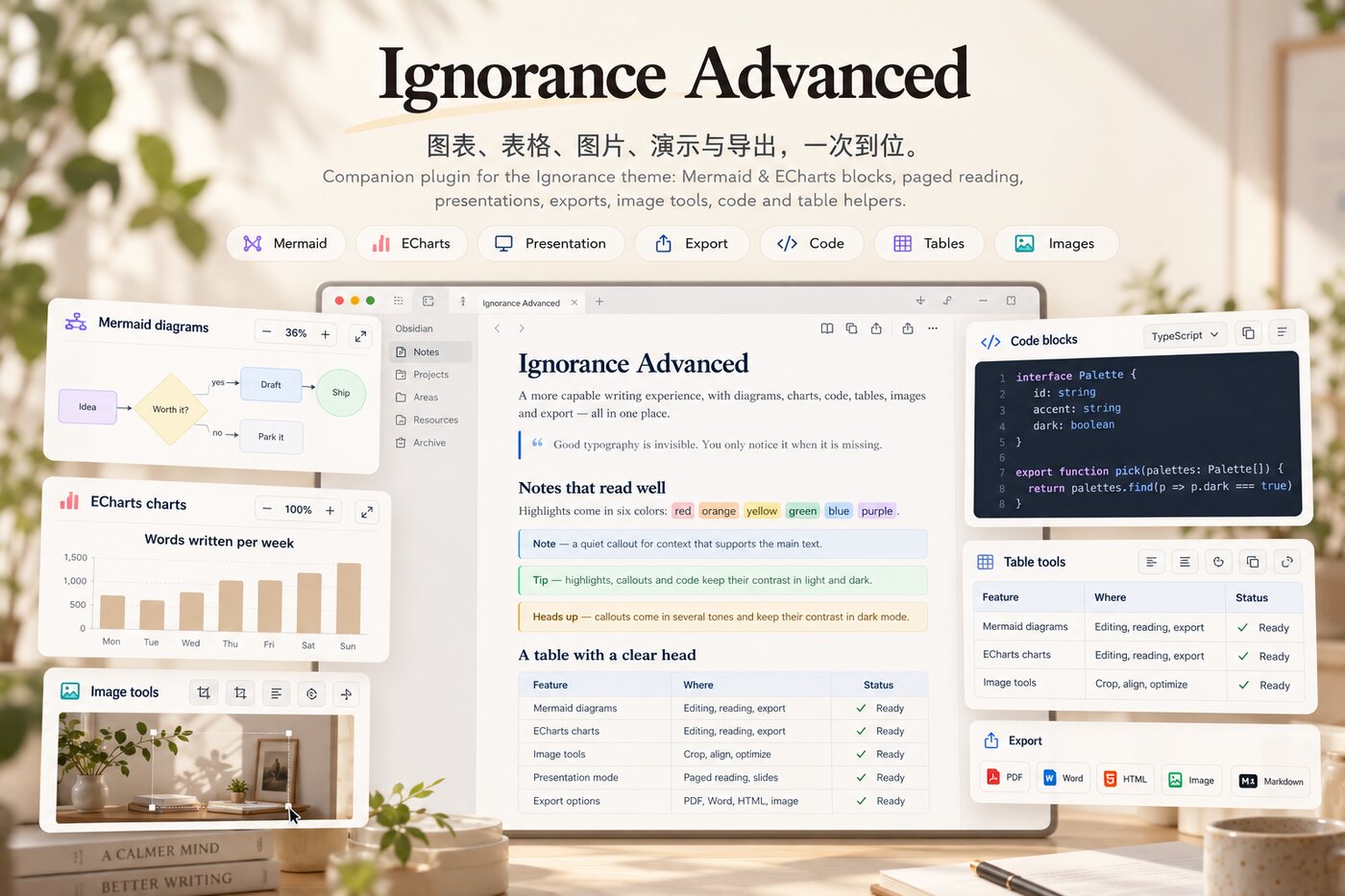
The plugin carries Ignorance's design tokens, so its components look the same under any theme; add the Ignorance theme to match the note text as well.
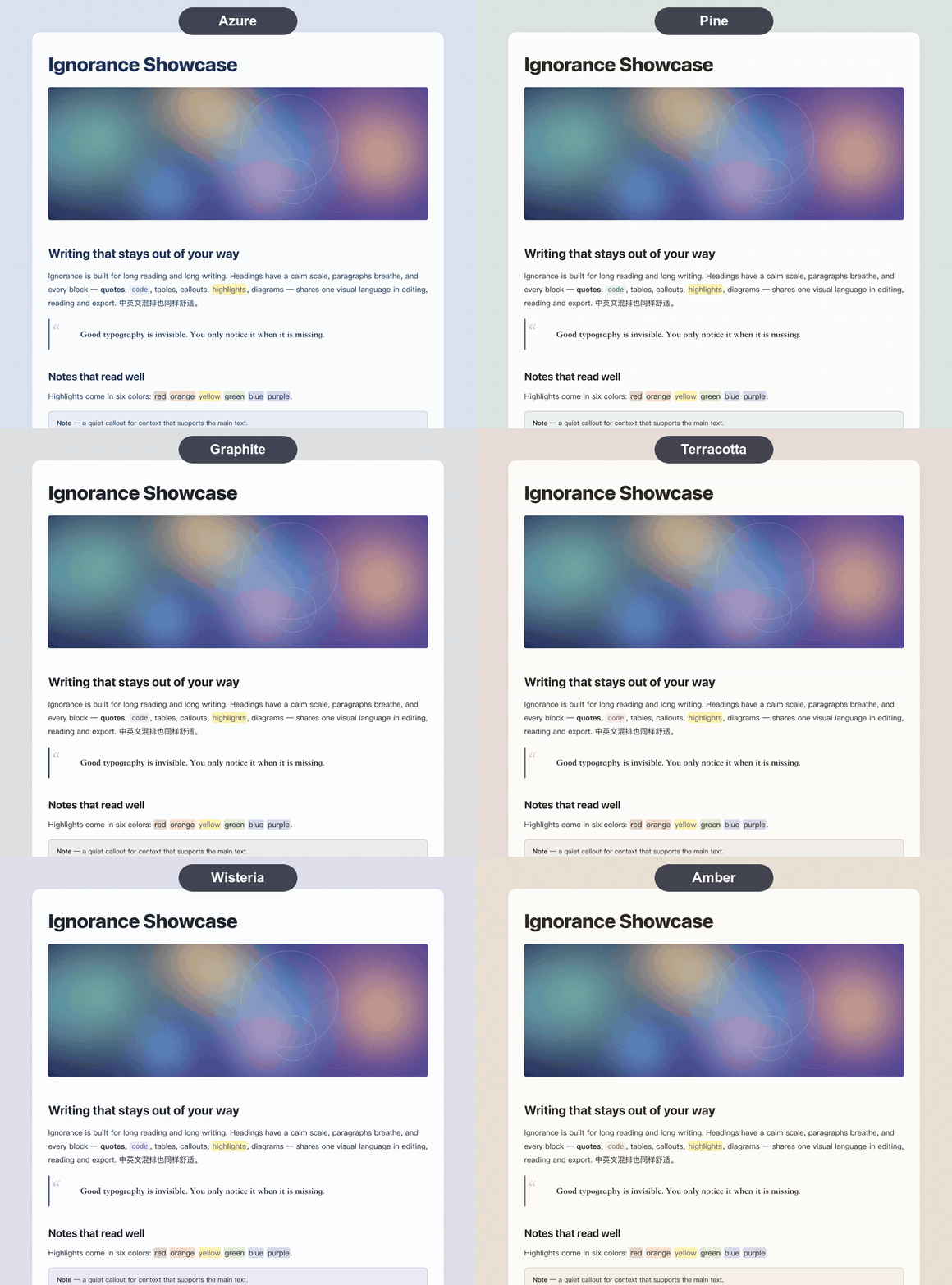
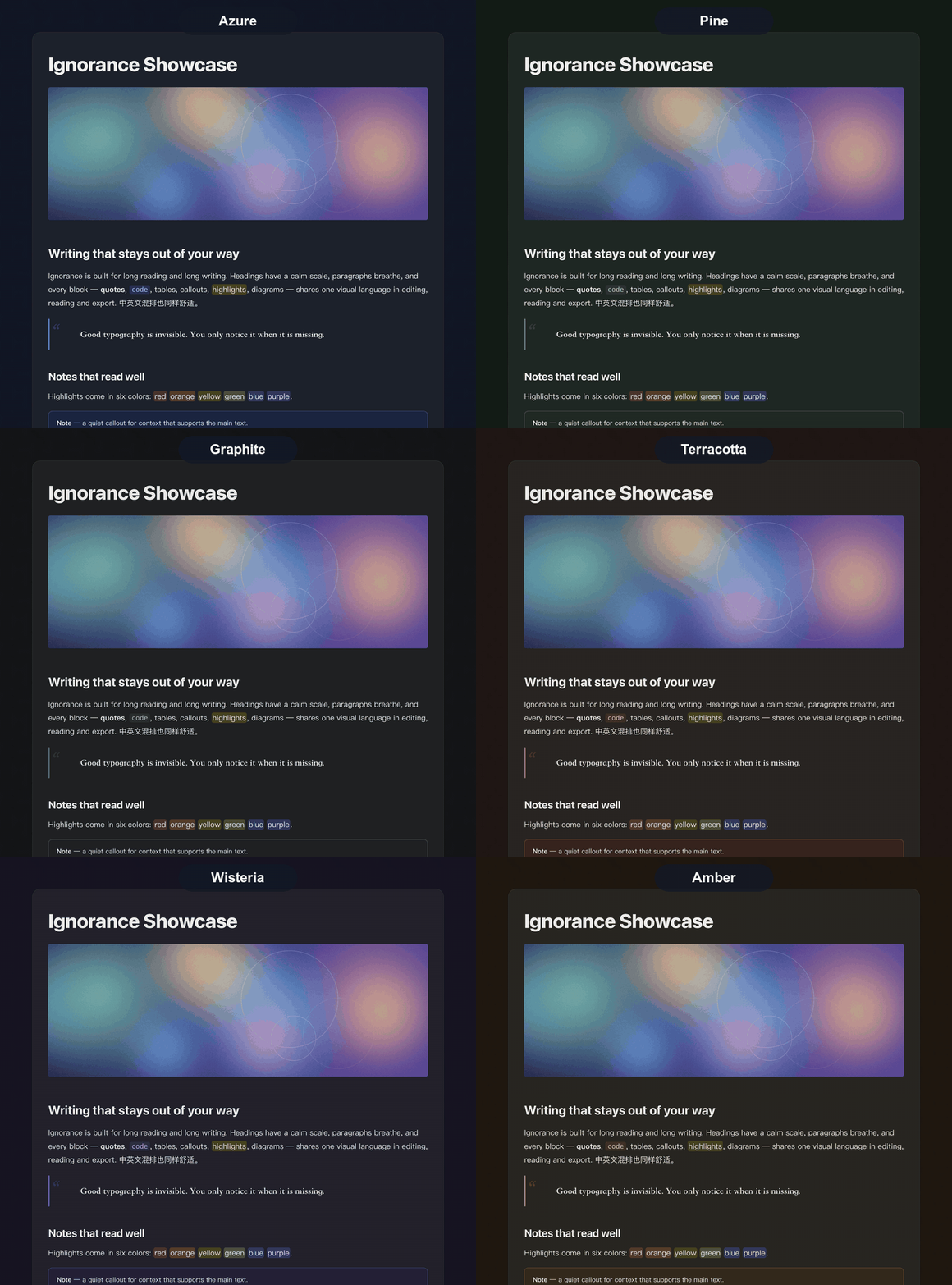
Palettes: eight, one click
Choose Azure, Pine, Book, Graphite, Terracotta, Teal, Wisteria or Amber from the palette button at the bottom left, the ribbon icon, or the command Theme light / dark and colours, each tuned for light and dark.
Features
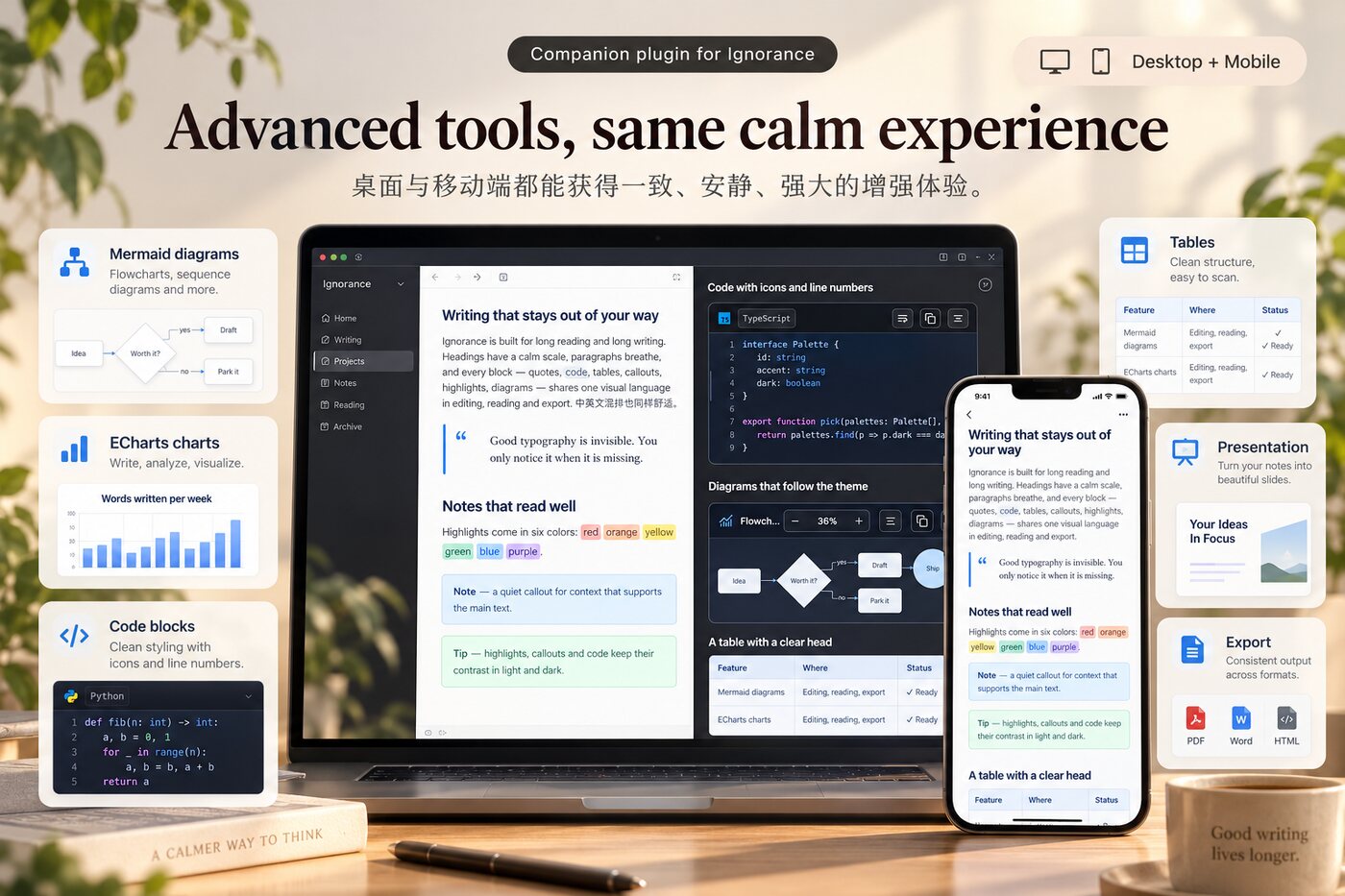
Mermaid enhancement
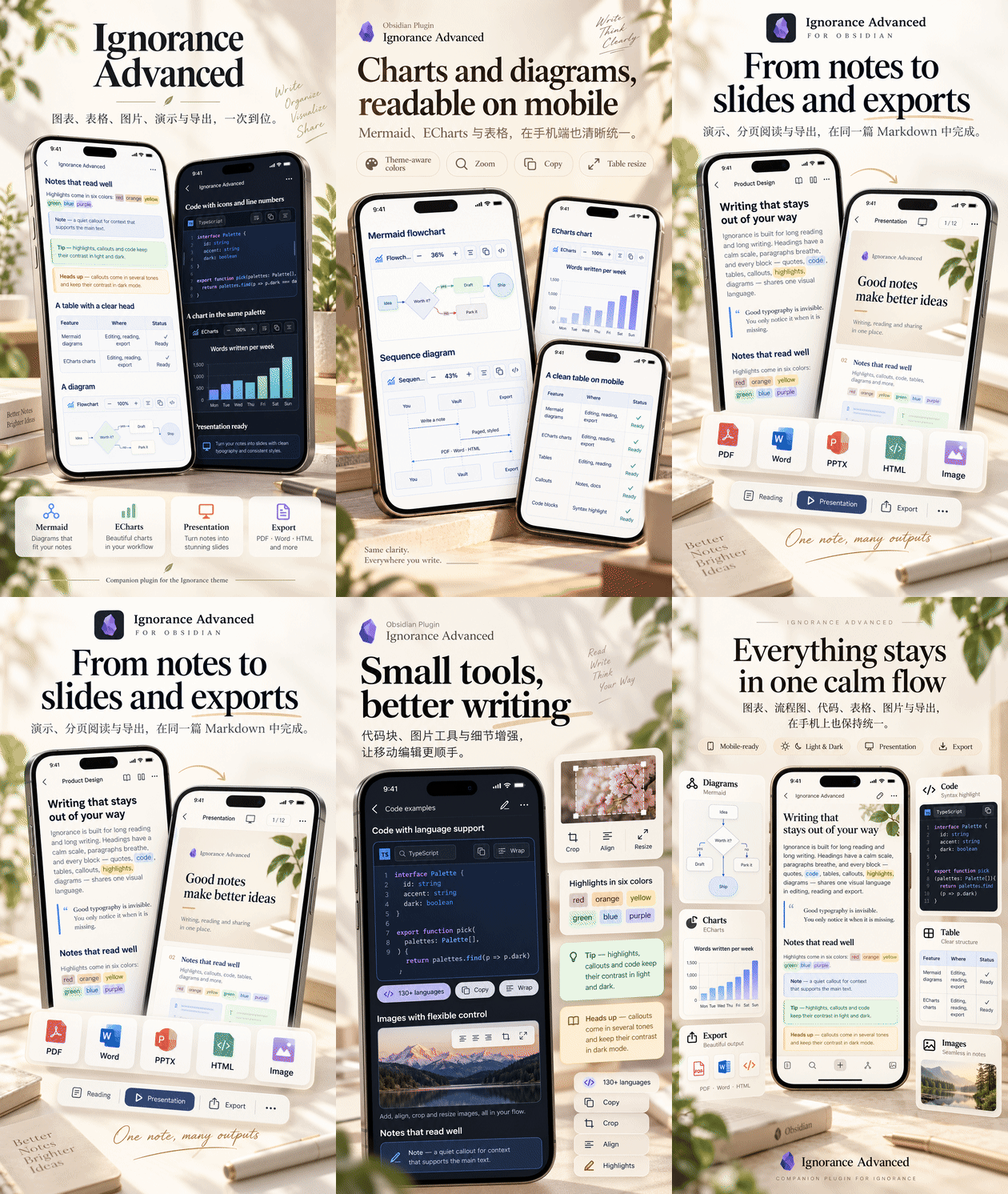
Obsidian's built-in Mermaid, recolored to the active theme and palette in light and dark. Each diagram has zoom, copy / edit source, left / center / right placement and drag-to-resize width (saved on the fence as {align=center} {width=560}).
ECharts enhancement
Apache ECharts blocks render in place, follow the theme palette, and share the same controls as Mermaid.
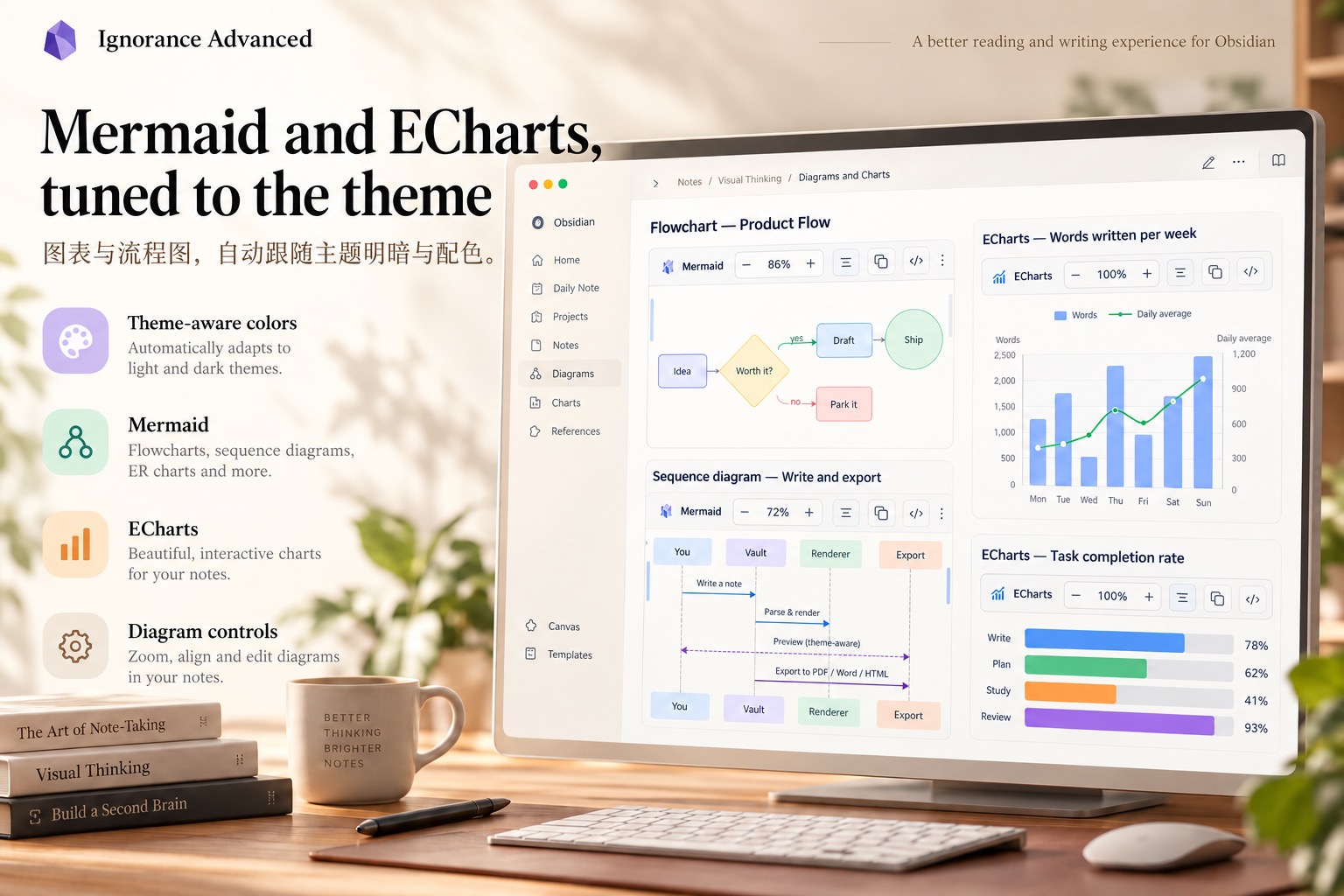
Table enhancement
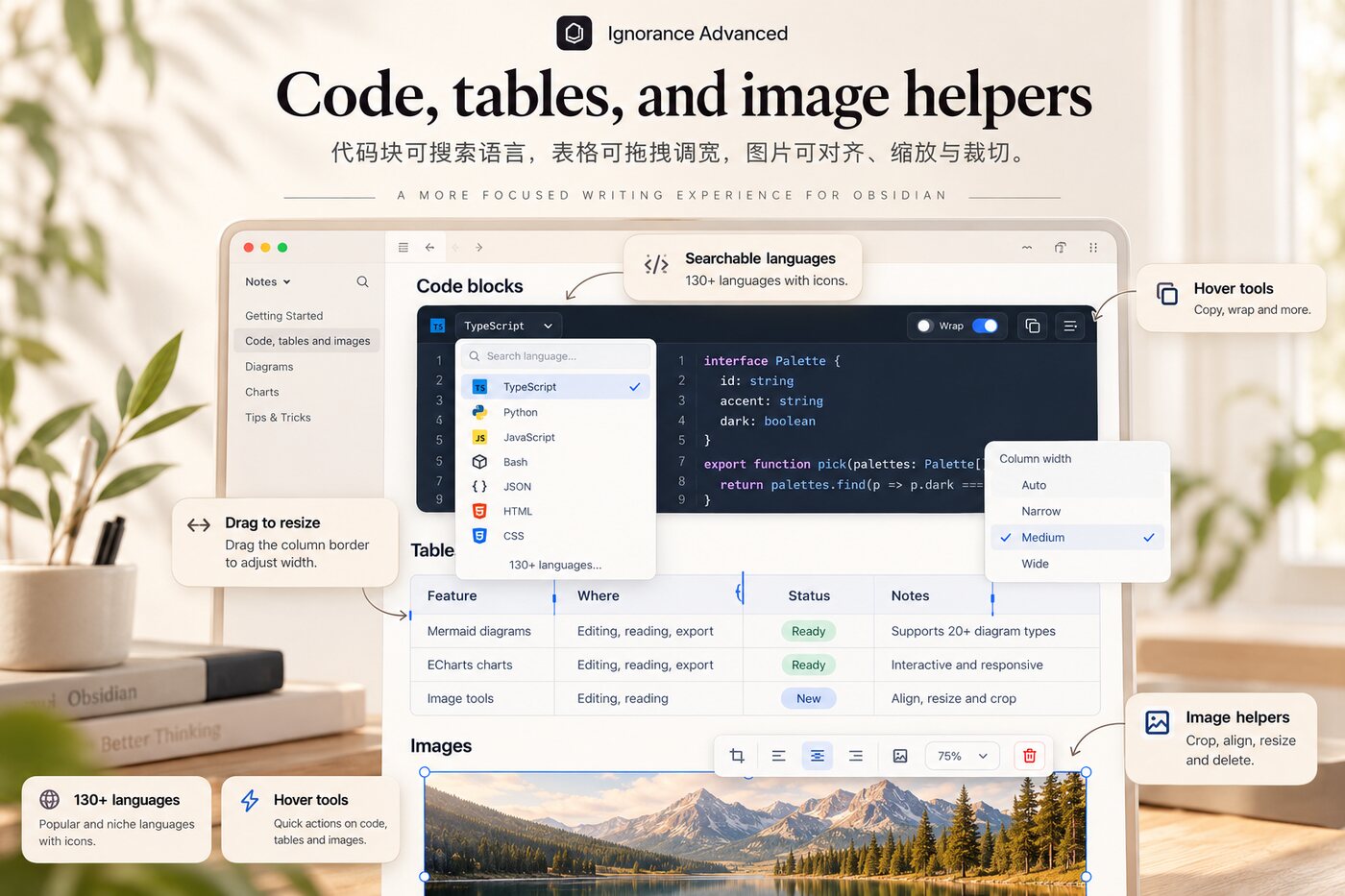
Drag column and row edges with detents (fit-to-content or equal share; Alt drags freely, Shift steps by 10 px). A size menu fits all columns, equalizes, fills the text width or resets; double-click an edge to fit it; left / center / right placement. Buttons appear on hover and work on mobile.
Presentations (PPT)
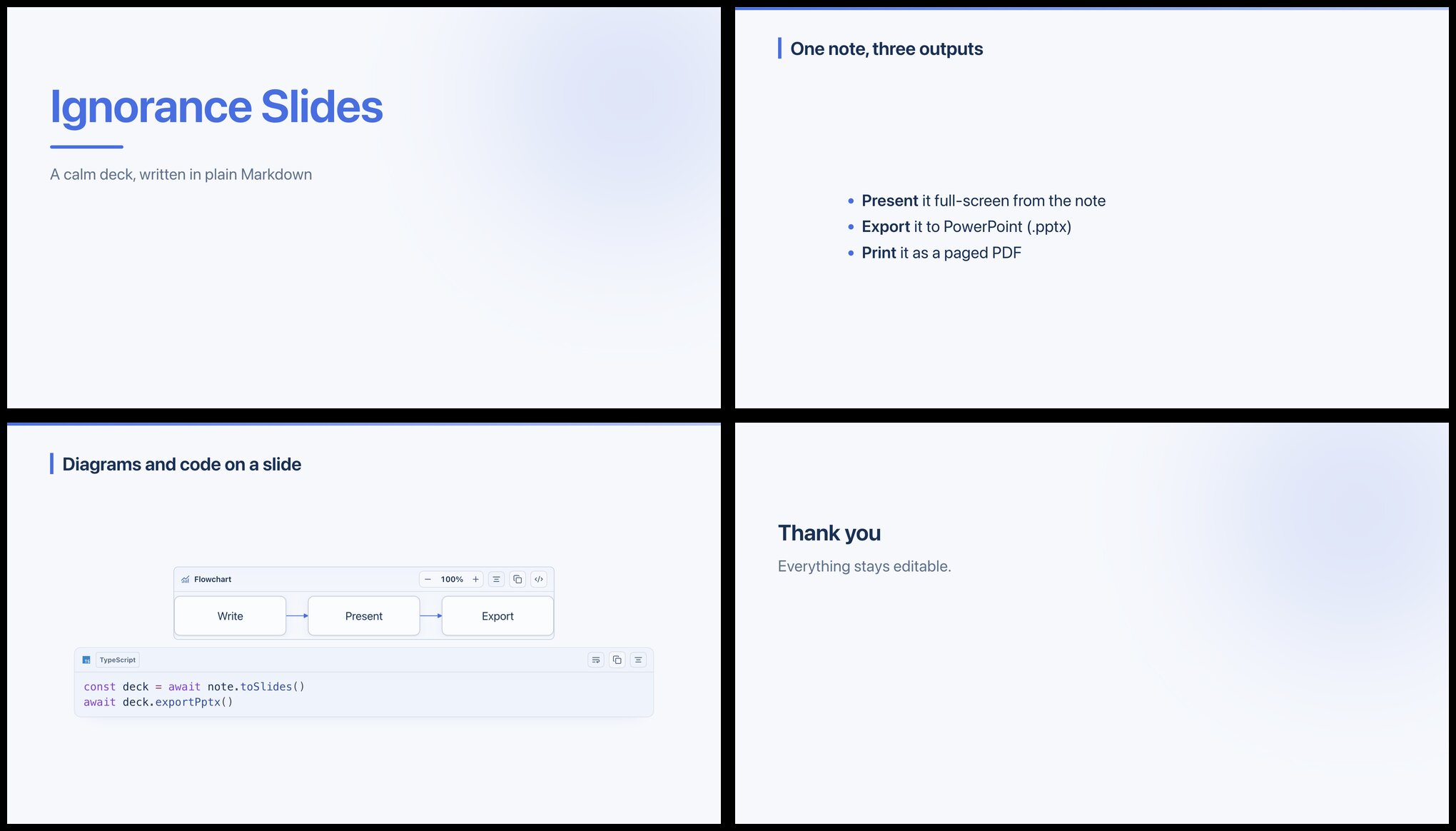
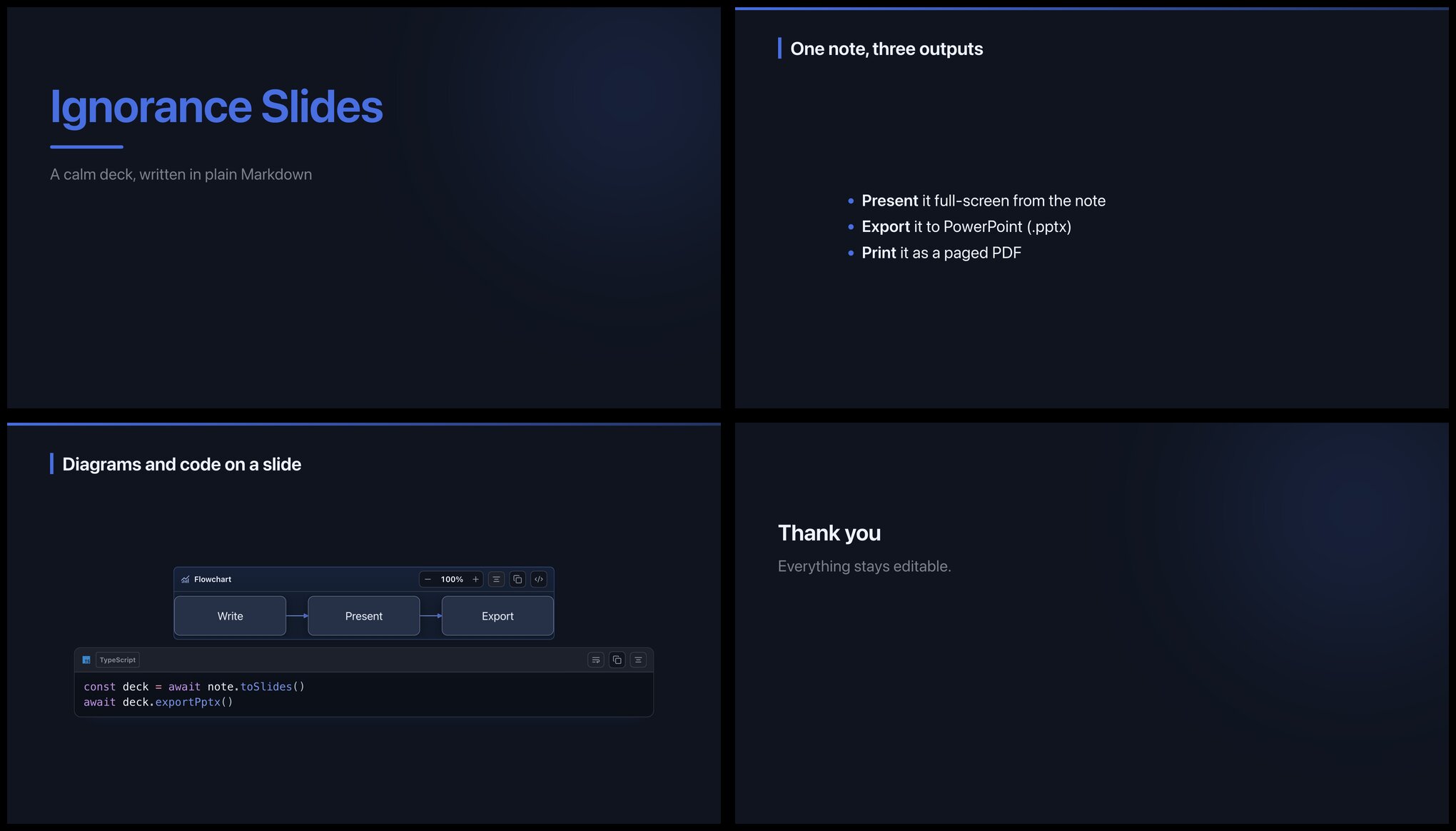
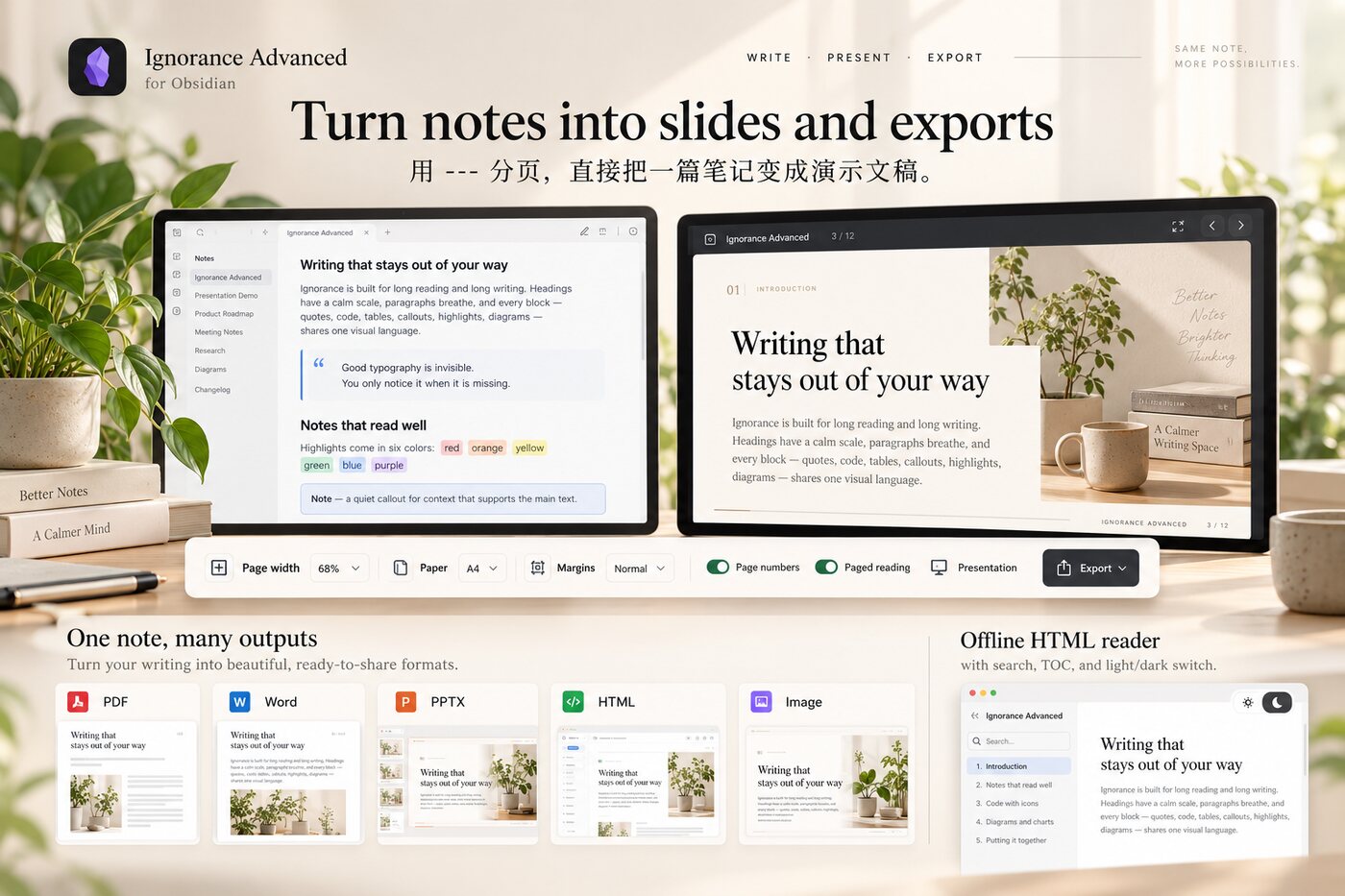
Turn any note into a deck with --- between slides: full-screen presenting, diagrams and code blocks carried onto the slide as-is, PPTX export, or a paged PDF. The note stays plain Markdown and editable.
Code blocks
A searchable language picker (type py, ts, sql), 130+ languages, language icons, line numbers, copy, soft wrap. The file explorer gets Material Icon Theme file icons, with distinct open, closed and empty folders.
Images
Align, resize with eight handles, copy, remove, and crop (then replace the original or add a new image).
Reading and export
A page toolbar (content width, paper size, margins, page numbers, a paged view that matches PDF output). Export to PDF, Word, PowerPoint, images, and a standalone offline HTML reader with table of contents, search and a light/dark switch. Choose Microsoft YaHei, theme fonts or SimSun for Word in settings. HTML readers keep theme and width in the URL fragment across reloads without browser storage.
And more
Tab reuse, typewriter and focus modes, smart punctuation, ==🟢colored== highlights, web clipping, and Markdown import from Word, PDF, Excel, PowerPoint and more (desktop).
Desktop and mobile
Install
- Community plugins: Settings → Community plugins → Browse → search "Ignorance Advanced". (plugin page)
- Manual: download
main.js,manifest.jsonandstyles.cssfrom the latest release into<vault>/.obsidian/plugins/ignorance-advanced/, then enable it. - Theme: install Ignorance from Settings → Appearance for the full look.
Requires Obsidian 1.8.7 or later. Works on desktop and mobile; Word/PDF import and some exports need the desktop app.
Usage
- Diagrams and charts: write a fenced block with the language
mermaidorecharts. It renders in Live Preview and Reading view; hover it for zoom, copy, edit-source and alignment controls, and drag its edges to resize. - Tables: drag a column or row edge to resize; Alt drags freely, Shift steps by 10 px, double-click an edge to fit it.
- Images: click an image to align, resize or crop it.
- Code blocks: click the language label to search the language list; line numbers and soft wrap are in the block toolbar.
- Presentations: separate slides with a line containing
---, then use the Presentation button in the page toolbar at the top of the note (or run Open presentation mode from the command palette). - Presenting aids: the presentation toolbar and the fullscreen bar have a laser pointer (a red dot that follows the mouse) and a spotlight (only the area around the mouse stays bright); click again to turn off. "Step by step" shows the next block of a slide before moving to the next slide, and "Quiet view" hides the toolbar until the mouse reaches the top.
- Inline components:
((green:build | passed))two-part badge,((spoiler:answer))click to reveal,((ruby:汉字 | hànzì))ruby annotation,((crumb:Settings > Appearance > Themes))breadcrumb, plus((bar:72:progress))and((spark:3,5,2)). - Image compare: put two images inside
::: compare; drag the divider in Reading view, and exports show them side by side. - Click-to-play GIFs: write
clickin a GIF's alt text (); it shows its first frame with a play badge, plays on click and stops on the next click; exports keep the still frame. - Image filters: write
gray,sepia,invert,dark-invert(inverts only in dark mode) orblur(clears on hover) in the image's alt text, for example. - Tabs: wrap
::: tab Titleblocks in::: tabs; click a title in Reading view to switch, and print or export lays every panel out in order. - Table extras: a cell holding only
<joins the cell on its left, only^joins the cell above, and[ ]/[x]show as boxes. In a right-aligned column (---:) integers of five or more digits get thousands separators and72%draws a bar; a row whose first cell starts with>becomes a child of the row above, which gets a fold button; tables over 16 rows scroll inside their own frame with a frozen header in Reading view. - Captions and cross references: turn on "Figure and table captions" in settings, or add
ib-captionsto a note'scssclasses. An image alone on a line,, shows as "Figure 1 Architecture"; a lineTable: Quarterly revenue {#tab-q}under a table shows as "Table 1 …";Listing: …under a code block andEquation: …under a$$equation are numbered the same way; refer to either with((ref:fig-arch)), which links to it. - Card layout: add
ib-cardsto a note'scssclassesand every H2 section is drawn as a card in Reading view. - Table crosshair: turn it on in settings, or add
ib-crosshairto a note'scssclasses, and pointing at a cell in Reading view lights up its row and column. - Long code blocks folded: with the setting on, code blocks over 40 lines show only their start in Reading view with a "Show all" button; paged reading and exports always keep them whole.
- Unpublished content: strike a whole heading through (
## ~~Draft~~) and that section, sub-sections included, is dimmed and marked in Reading view, left out of paged reading and exports, and does not take a number. - Heading numbers: turn on "Heading numbers" in settings, or add
ib-numberedto a note'scssclasses, to show 1, 1.1, 1.1.1 before headings in Reading view and Live Preview; a setting switches to a Chinese 一、(一) style. - Navigation: the "Jump to a heading, figure, table or code block" command lists headings, images, tables, code blocks and diagrams of the current note; type to filter, Enter to jump.
- Navigation sidebar: the "Open navigation in the sidebar" command keeps the same list open on the right; it follows the current note, filters as you type, and jumps on click.
- Link check: run "Check links and headings in the current note" from the command palette to list missing notes, missing embeds, broken heading links and duplicate headings; click a row to jump there.
- Batch clipping: the "Clip web pages in bulk" command takes many links at once and skips ones already clipped; "Sort by site" in settings files clippings into one sub-folder per website.
- Gray mode: list dates in settings (for example
4-4) and the whole interface turns grayscale on those days; off by default. - Reading time: on desktop the status bar shows the estimated reading time of the current note; turn it off in settings.
- Cover: add
ib-coverto a note'scssclassesand Reading view opens with a cover built from the properties (title,subtitleordescription,author,dateorcreated,tags); the inline title is hidden. - Page footer: "Footer" in the page settings menu puts text at the bottom left of every page in the paged view and in exports, with
{title},{page},{pages}and{date}. - Layout presets: "Layout presets" in the page settings menu fills in paper, margins and page numbers for a paper, a report, an official document or a blog post; every value can still be changed afterwards.
- Start page and feature gallery: Open start page lists four jobs (weekly report, presentation, Word delivery, tidy clippings) with a ready example for each; Create feature gallery page writes one copyable sample note for the theme and the plugin.
- Export support table: Show export support table lists what each export format keeps of each kind of block; the check at the top of an export preview points at the exact lines in the current note.
- Your own templates: put Markdown templates in the folder set under Templates and language, then run New note from template;
{{title}},{{author}},{{date}}and{{time}}are filled in, andib-layout: layout namein the properties applies a saved layout. Export template pack and Import template pack move templates and layouts between vaults. - Scripting:
app.plugins.plugins["ignorance-advanced"].apioffersexportNote,createNote,checkNote,listLayoutsandlistTemplatesfor QuickAdd, Templater or your own scripts. Calls name the note, layout and format explicitly, never open a dialog, and return{ ok, ... , warnings }instead of throwing. - Interface language: Interface language in settings follows Obsidian or is set to Chinese or English. Command names, the toolbar, dialogs, notices, settings and the exported HTML reader are translated; inserted templates come with English sample text, and cover and document labels follow the language. File and folder names stay as they are.
- Per-note layout: built-in and saved layouts share one menu; set
ib-layout: <name>in a note's properties (or pin it from the menu) and that layout applies while the note is open. - Export folder and drag-out: choose any folder for exports in settings, or be asked on every export; drag a file from the file list into another app with Alt held (or from the export folder) to hand over the real file.
- Layouts across devices: saved layouts carry an update time and deletion marks, so layouts changed on two devices are merged rather than one overwriting the other.
- Export: use the export button in the page toolbar to produce PDF, Word, PowerPoint, images or an offline HTML reader.
- Settings: Settings → Ignorance Advanced (palette, page layout, highlight colors, tab behavior).
Privacy and network use
- No telemetry, no analytics, no ads.
- Nothing is downloaded or updated by the plugin itself. Mermaid, PDF.js and the HTML converter are Obsidian's own; the other libraries (ECharts, the export engines…) are bundled in
main.js(about 3.6 MB) and start only when a feature needs them. - Network requests happen only when you ask for them: fetching a web page you clip, an image URL you export or copy, or a cover image URL you set in a note.
- The vault by default: notes and exports are read and written through Obsidian's vault API, and exports are saved into the vault's
导出/folder. Only on desktop, and only when you use them, three features reach outside the vault with Node and Electron: saving an export to a folder outside the vault (the "Export folder" setting), the system "Save as" and folder-picker windows ("Choose where to save each export"), and dragging a file out of the file list into another app (it hands over that one file). They are off by default or need you to set them up, and nothing is scanned or uploaded. On desktop, PDF goes through the system print dialog (choose "Save as PDF"). Everything else works the same on desktop and mobile.
Build from source
npm install
npm run build          # writes dist/main.js, dist/styles.css, dist/manifest.json
npm test
OBSIDIAN_VAULT=/path/to/vault npm run install:vault   # build and copy into a vault
Feedback
If you run into a problem or want a feature, please open an issue. A screenshot, your Obsidian version and the platform (desktop or mobile) help a lot.
Support
If this is useful to you, you can buy me a coffee. Thank you!
| Alipay | |
|---|---|
 |  |
License
MIT. Third-party software is listed in THIRD_PARTY_NOTICES.md; license texts are in licenses/.
For plugin developers
Search results and similarity scores are powered by semantic analysis of your plugin's README. If your plugin isn't appearing for searches you'd expect, try updating your README to clearly describe your plugin's purpose, features, and use cases.