by Johannes Kaindl
Turn a Markdown note into a slide deck and export it to PDF or a PNG image series, with live readability checks.
Slide Deck
🇬🇧 English · 🇩🇪 Deutsch
Turn a Markdown note into a slide deck and export it to PDF or a PNG image series, with live readability checks.




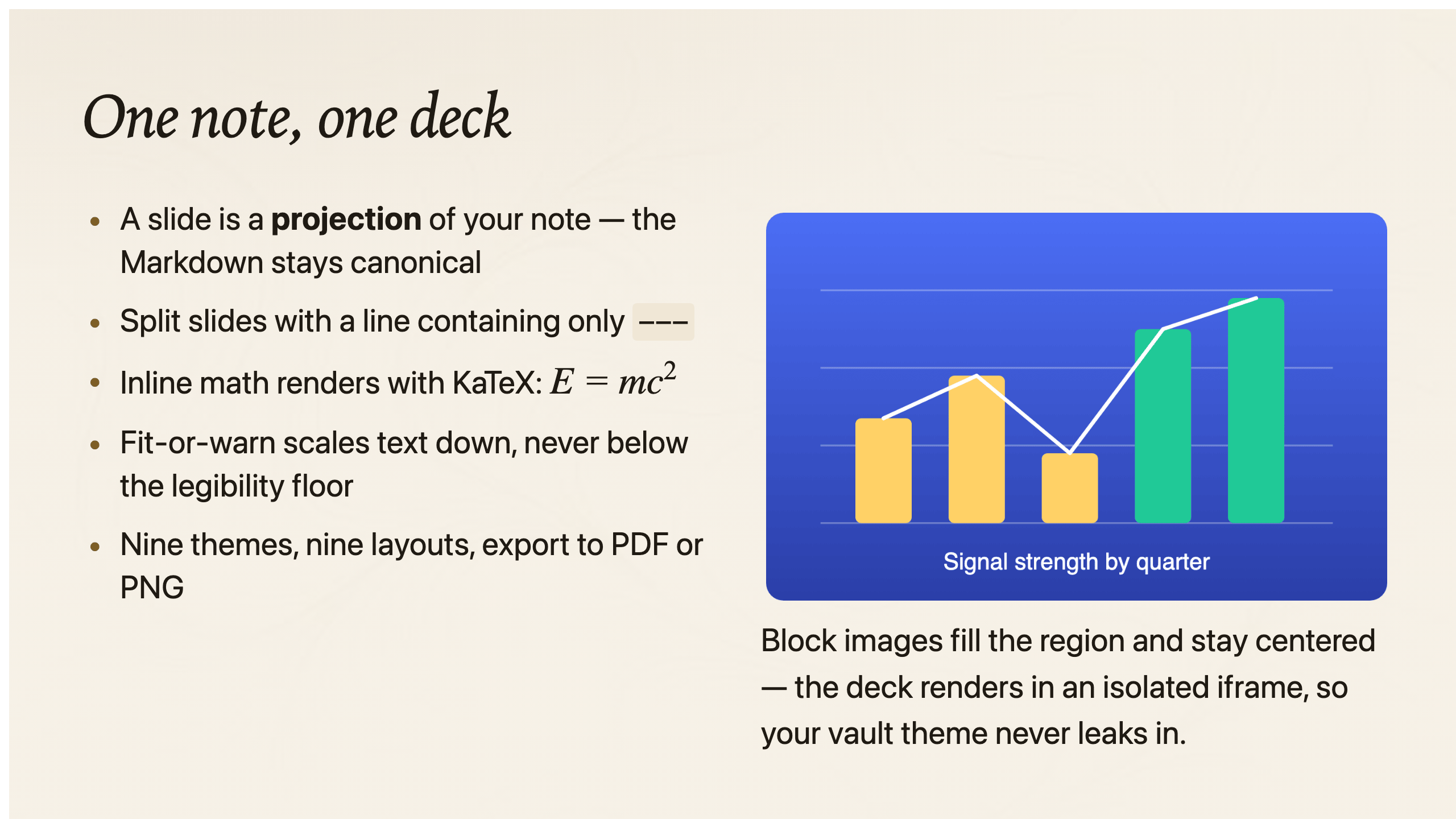
Features
- Theme isolation — slides render inside a sandboxed iframe, so the active Obsidian theme never leaks into the preview or the exports. A deck looks identical regardless of the vault theme.
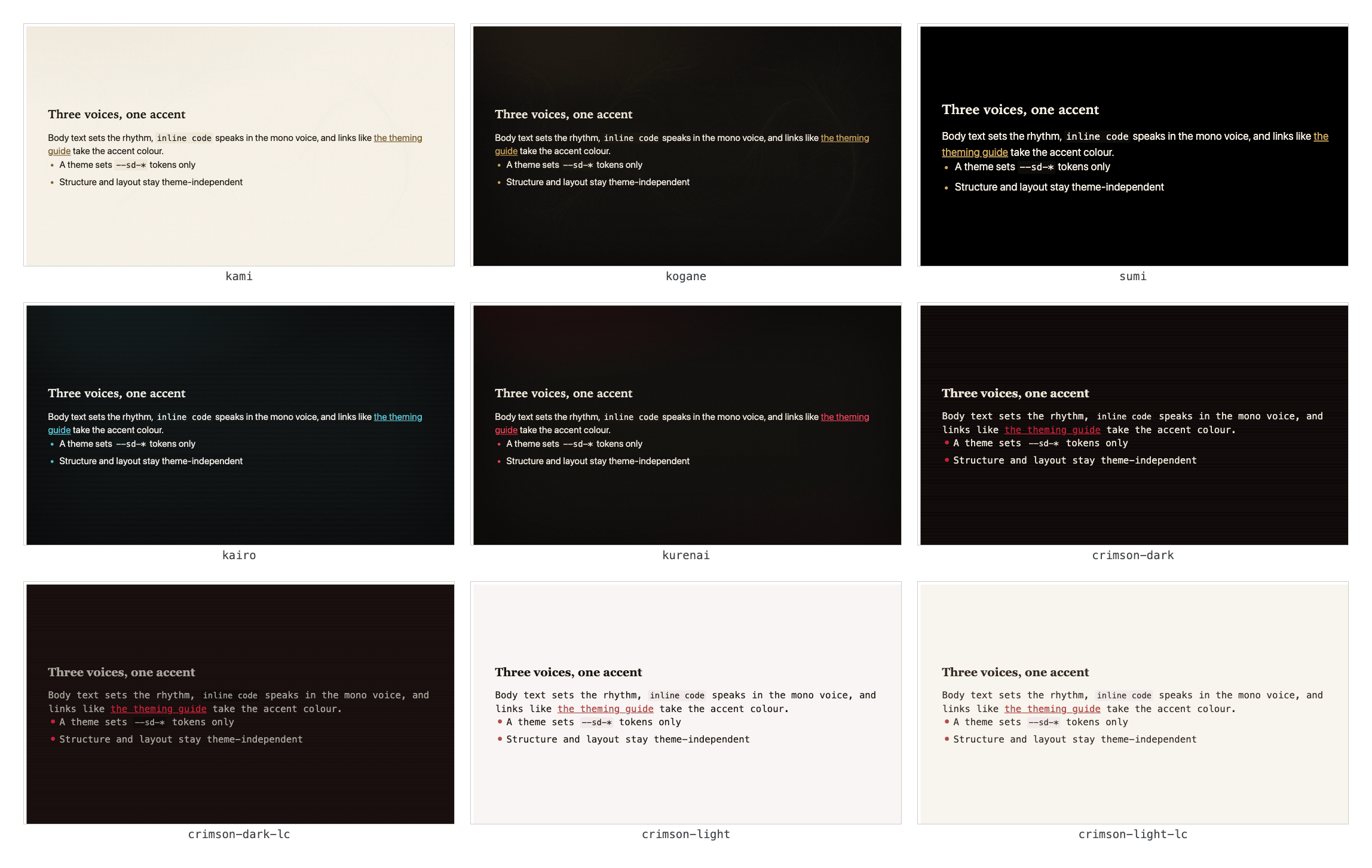
- Nine built-in themes — the Nordstern set:
kami紙 (light, default),kogane黄金 (dark),sumi墨 (true-black, high-contrast),kairo回路 (dark, cyan),kurenai紅 (dark, red); plus thecrimson紅 family in four modes (crimson-dark,crimson-dark-lc,crimson-light,crimson-light-lc), which adds a serif display face over a mono body and a faint scanline the low-contrast modes dim. Selected per deck via thetheme:frontmatter key; each carries a matching code-highlight and Mermaid theme. Legacy 0.4.x keys (default,dark,serif,high-contrast) still work — they resolve silently to their Nordstern successor. - Live theme switcher — the preview toolbar has a theme dropdown for ephemeral try-on, a source label (
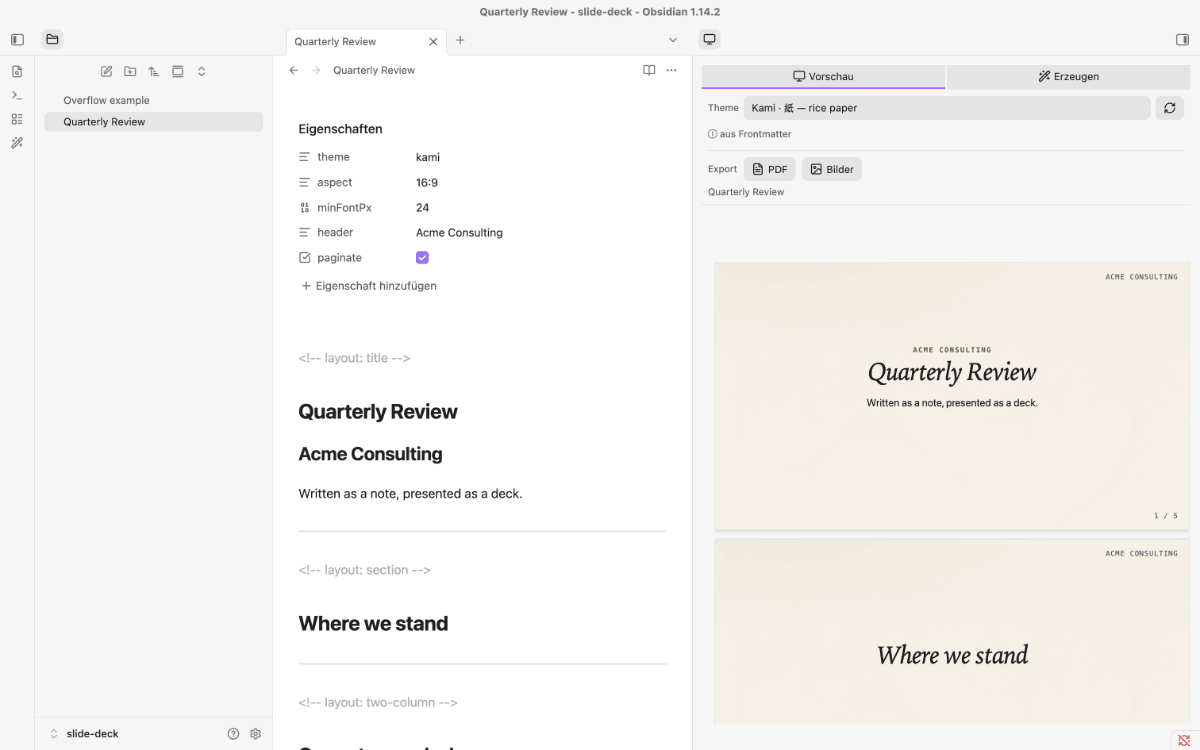
from frontmatter/from default/● unsaved) that shows where the active theme comes from, and a Set button that writestheme:directly into the note's frontmatter. Frontmatter is the source of truth; the Settings default applies only to notes without atheme:key. - User themes — drop
.cssfiles into a configurable themes folder (defaultSlide-Deck-Themes/); the frontmattertheme:value is the filename without the.cssextension. Each file is a--sd-*token block with optional extra CSS on top of the plugin's design system (type scale, spacing, rhythm) — a 7-token theme already looks finished; user themes inherit thekamitheme's code-highlight and Mermaid styles unless overridden. See the theming guide. The Settings tab shows all valid theme keys live. - Theme import/export — an Open in Finder button reveals the themes folder so you can drop files in; Export theme as .css writes any theme as an editable
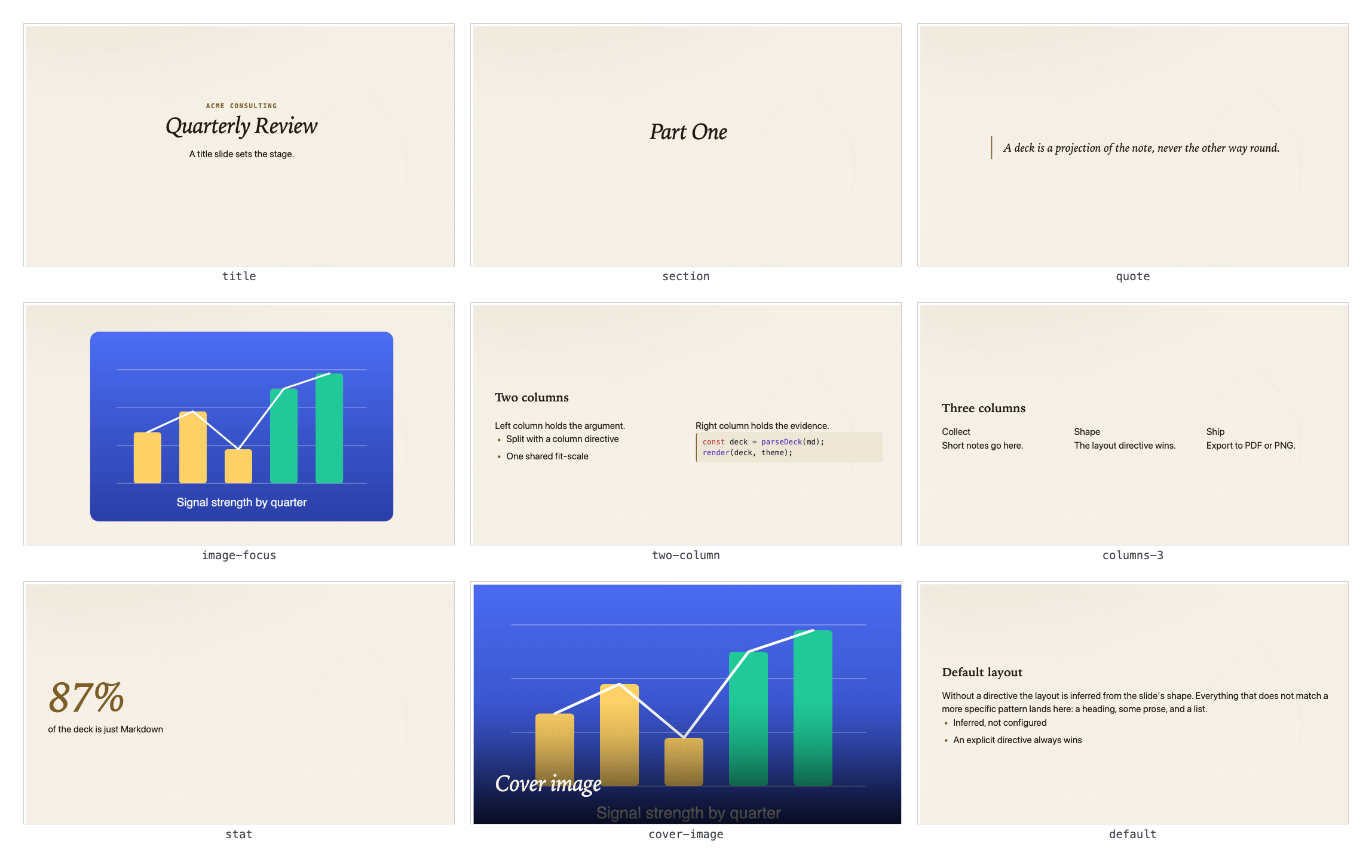
.cssstarting point; a toggle hides the themes folder in Obsidian's file explorer. - Twelve per-slide templates —
default,title,section,quote,image-focus,two-column,columns-3,stat,cover-image,agenda,threads,closing— set per slide with a layout directive (an HTML comment); columns are separated by a column directive, and in multi-column templates the leading heading spans all columns. See the layout guide. - Combinable density modifiers — add
compact(tighter type) orcode-heavy(smaller code) to any template in the same layout directive. - Smart layout inference — with no explicit directive, the layout is inferred from content shape: a lone heading becomes
section, a lone block quote becomesquote, a lone image or diagram becomesimage-focus, and column splits picktwo-column/columns-3. An explicit layout directive always wins. - Deck slots —
header:,footer:, andpaginate:frontmatter keys render as floating corner slots on every slide (pagination showsn / N). - Media that fills and centers — block images and Mermaid diagrams occupy the available space, horizontally and vertically centered and scaled to fit (
object-fit: contain), for both Obsidian embeds (![[…]]) and standard Markdown images. - Sparse slides compose vertically — slides with little content are vertically centered instead of clinging to the top.
- Markdown notes → slides — separate slides with a line containing only
---; YAML frontmatter controls theme, aspect ratio, and font floor per note. - Live preview pane — renders the current note as a slide deck in a side panel, scaled to pane width, with a click-to-source link on overflow warnings.
- Fit-or-warn readability — each slide auto-scales content down to a configurable legibility floor (
minFontPx); slides that would need smaller text are flagged as overflowing instead of becoming unreadable. - Custom CSS — an optional CSS snippet in Settings is appended to the deck styles in both preview and exports, for branding or tweaks.
- PDF export — renders all slides at their native resolution; on desktop, triggers the system print dialog (choose "Save as PDF"); on mobile (iOS/iPadOS), writes a self-contained HTML file and opens it via the OS so you can print or share to PDF from there.
- PNG image-series export — captures each slide via
modern-screenshotand writes numbered PNGs into a configurable export folder (Settings, defaultSlide-Deck-Export/); typographically accurate inter-word spacing. - Mobile support — runs on iOS/iPadOS (Obsidian Mobile); all desktop-only APIs are platform-guarded.
- KaTeX math — inline and display math (
$…$/$$…$$) rendered by KaTeX. - Code highlighting — fenced code blocks highlighted by highlight.js, per-theme.
- Accessible callouts — Obsidian-style
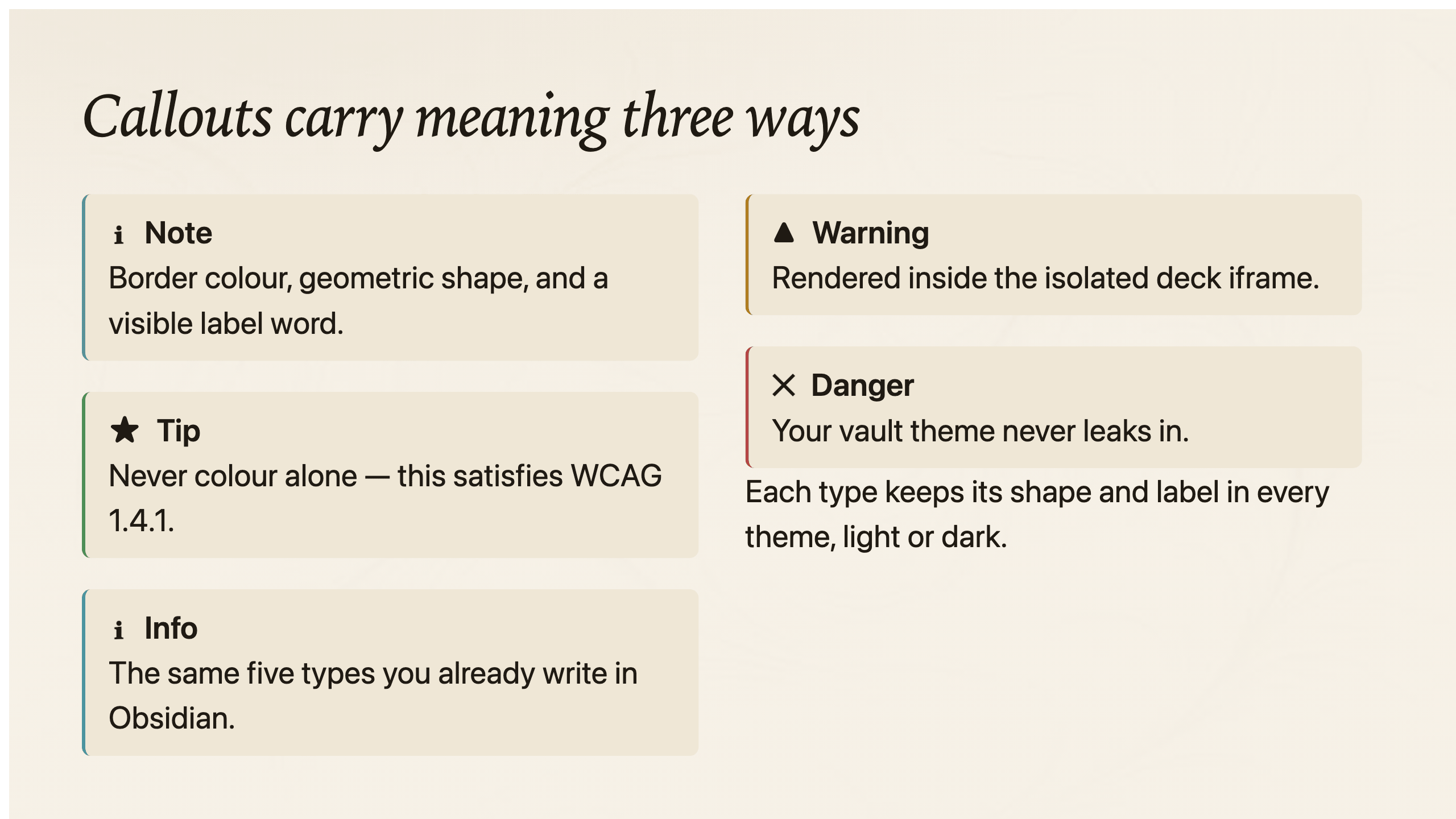
> [!note],[!warning],[!danger],[!tip],[!info]blocks rendered with redundant coding: border color + geometric shape + visible label word (not color-only; satisfies WCAG 1.4.1). - Mermaid diagrams — fenced
```mermaid ```blocks rendered as SVG, per-theme. - EN/DE interface — all UI strings follow Obsidian's language setting (English canonical, German supported).
- Image slots (desktop, requires local-image-generator) — a
slide-imagecode block renders as a card with a generate button; on click it calls the neighbor plugin to produce and save an image, then replaces itself with a normal embed plus a prompt comment for re-rolling later.
Screenshots
The note and its projection. The deck renders in a side panel and carries the toolbar: theme picker, where the active theme comes from, and the two export paths.
Nine built-in themes. The same slide in each — only colour, type and accent change; the structure is theme-independent.
Twelve per-slide templates. Set one with a layout directive, or let the layout be inferred
from the slide's shape. The grid shows the nine general ones; agenda, threads and closing are in the layout guide.
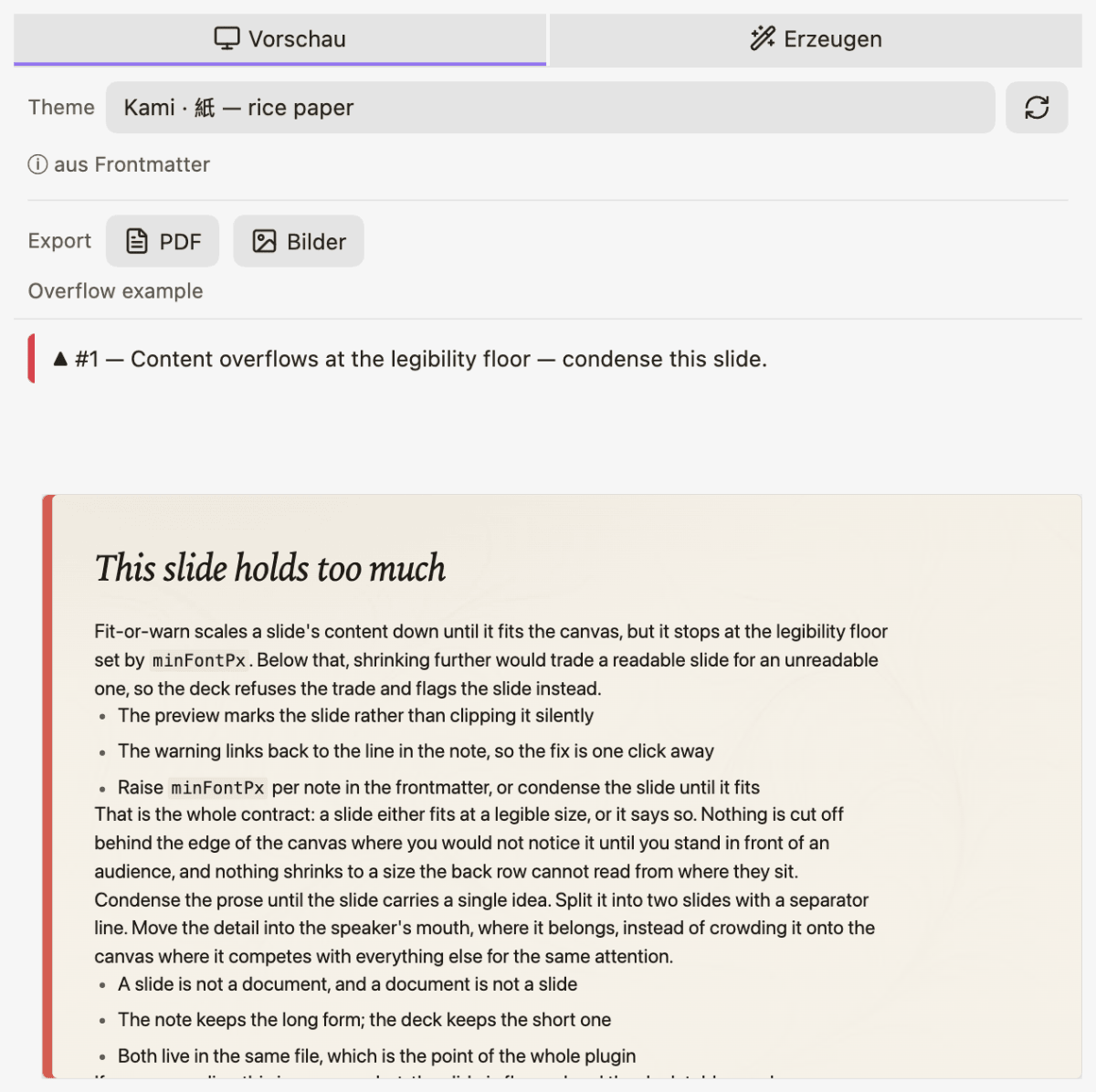
Fit-or-warn. A slide that would need text below the legibility floor is flagged in the preview instead of being silently clipped.
Accessible callouts. Meaning is carried three ways at once — border colour, geometric shape, and a visible label word.
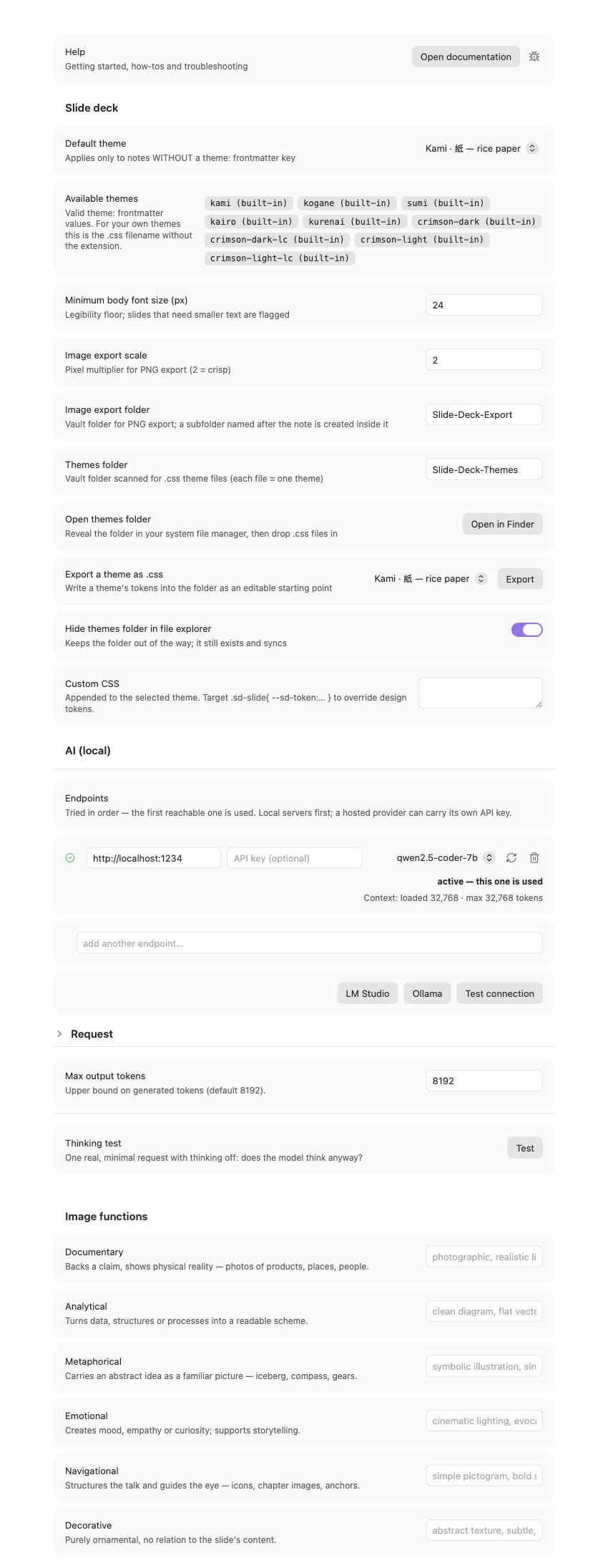
Settings. The tab lists every valid theme: value live, including themes you drop into
the themes folder yourself.
Click the preview for the full-resolution image.
Requirements
- Obsidian ≥ 1.11.4 (
minAppVersion; API keys live in Obsidian's secret storage, which arrived with 1.11.4). From 1.13.0 the settings tab uses the declarative settings API; older versions get the same settings through a classic fallback. - Desktop + Mobile (
isDesktopOnly: false) — runs on desktop (Windows, macOS, Linux) and on mobile (iOS/iPadOS); desktop-only APIs are platform-guarded. - Desktop PDF export uses the system print dialog — choose "Save as PDF" in the printer dropdown. It does not produce a PDF file directly.
- Mobile PDF export writes a self-contained HTML file into the export folder and opens it with the OS default app; from there you can print or share to PDF. The file name is
<export-folder>/<note-name>.html. - PNG export writes files into a configurable export folder (Settings → Slide Deck → Export folder, default
Slide-Deck-Export/). PDF export on desktop goes through the system print dialog, where you choose the location.
Install
Catalog (recommended)
Via AnySource Sideloader, which installs and updates plugins from any git forge. Subscribe to the plugin catalog once under Settings → AnySource Sideloader → Catalogs → Add:
https://git.jkaindl.de/jkaindl/obsidian-catalog/raw/branch/main/catalog.json
Slide Deck then appears in the sideloader's plugin list and updates like any other plugin. Version checks go live to this repository's releases — the catalog only lists what exists, it never serves the files itself. To install just this one plugin without the catalog, add its repository URL as a source instead: https://github.com/johannes-kaindl/slide-deck.
Manual
- Download
main.js,manifest.json, andstyles.cssfrom the latest release. - Create the folder
.obsidian/plugins/slide-deck/inside your vault. - Copy the three files into that folder.
- In Obsidian: Settings → Community plugins → Installed plugins — enable Slide Deck.
Build from source
git clone https://git.jkaindl.de/jkaindl/slide-deck.git
cd slide-deck
npm install
npm run build          # produces main.js
cp main.js manifest.json styles.css /path/to/vault/.obsidian/plugins/slide-deck/
Usage
- Open a Markdown note and separate slides with a line containing only
---. - Run Open presentation preview (command palette) — the deck renders in a side panel and updates as you edit. Slides that overflow are flagged there rather than silently clipped.
- Set theme, aspect ratio and font floor per note in the YAML frontmatter:
---
theme: kami
aspect: "16:9"
minFontPx: 24
header: My talk
paginate: true
---

# First slide

---

# Second slide
- Export with Export presentation to PDF or Export presentation to image series. PDF prints the isolated deck directly on desktop; on mobile a self-contained HTML file is written to your export folder and handed to the OS, where you print or share it as PDF.
Per-slide layout is chosen with a layout directive — an HTML comment on its own line:
<!-- layout: two-column compact -->

# Heading spanning both columns

Left column content.

<!-- column -->

Right column content.
Omit the directive and the layout is inferred from the slide's shape. The full template and modifier reference is in the layout guide.
Image slots
Requires the local-image-generator plugin (desktop only). Run Insert image slot (command palette), pick one of six image functions (documentary, analytical, metaphorical, emotional, navigational, decorative) — each steers the prompt with its own style suffix — and write a prompt:
```slide-image
funktion: metaphorical

A single lantern in fog, one clear light source
```
The block renders as a card with a Generate button. Clicking it asks the neighbor plugin for an image, saves it per that plugin's own settings, and replaces the block with a plain embed plus a prompt comment (so a later re-roll has something to start from):
<!-- image: metaphorical | A single lantern in fog, one clear light source -->
![[lantern-fog.png]]
Without local-image-generator installed and enabled, the card shows an empty state instead
of a button.
Configuration
Plugin settings
| Setting | Key | Default | Description |
|---|---|---|---|
| Default theme | defaultTheme | kami | Preset used when a note has no theme frontmatter directive |
| Minimum body font size (px) | minFontPx | 24 | Legibility floor — slides that would need smaller text are flagged as overflowing |
| Image export scale | imageScale | 2 | Pixel multiplier for PNG export (2 = 2×, crisp on HiDPI screens) |
| Custom CSS | customCss | (empty) | CSS appended to the deck styles in preview and exports, for branding or tweaks |
| Image export folder | exportFolder | Slide-Deck-Export | Vault folder for the PNG image-series export |
| Themes folder | themesFolder | Slide-Deck-Themes | Vault folder scanned for user .css themes |
| Hide themes folder in file explorer | hideThemesFolder | true | Hide the themes folder in Obsidian's file explorer |
| Image functions | imageSuffixes | (built-in defaults) | One editable prompt suffix per image function (blank restores the default) |
Per-note frontmatter
Add a YAML frontmatter block at the top of your note to control presentation-level settings:
---
theme: kogane
aspect: 16:9
minFontPx: 24
header: My talk
footer: ACME Corp
paginate: true
---
| Key | Values | Description |
|---|---|---|
theme | kami · kogane · sumi · kairo · kurenai · crimson-dark · crimson-dark-lc · crimson-light · crimson-light-lc · user-theme-key (legacy default/dark/serif/high-contrast still resolve) | Visual preset name; user theme key = the .css filename without the extension |
aspect | 16:9 (default), 4:3 | Canvas size: 1280×720 (16:9) or 960×720 (4:3) |
minFontPx | any positive number | Per-note legibility floor; overrides the plugin setting |
header | any text | Floating header slot shown on every slide |
footer | any text | Floating footer slot shown on every slide |
paginate | true · yes · on | Show a page indicator (n / N) on every slide |
Slide layout & syntax
Twelve per-slide templates (default, title, section, quote, image-focus, two-column, columns-3, stat, cover-image, agenda, threads, closing), combinable density modifiers (compact, code-heavy), the layout and column directives, and smart layout inference are documented in the Slide layouts & syntax guide.
Slide separator
Use a line containing only --- to split slides:
---
theme: kami
aspect: 16:9
---

# Slide 1

Content here.

---

# Slide 2

More content.
Note: the --- in the YAML frontmatter block is the standard YAML delimiter and is not a slide separator.
How it works
- Parsing — the active note's Markdown is split on
---lines into individual slide bodies. A YAML frontmatter block (if present) sets deck-level directives. - Fixed canvas — each slide is rendered onto a fixed canvas: 1280×720 px (16:9) or 960×720 px (4:3). The canvas size does not change with window size.
- Theme isolation — slides render inside a sandboxed iframe with the chosen theme's styles injected directly. The active Obsidian theme does not reach inside the iframe, so the deck looks identical in preview, PDF, and PNG regardless of vault theme.
- Fit-or-warn — each slide's content is measured in the DOM. If it exceeds the canvas, the content is scaled down uniformly. Scaling stops at
minFontPx(the legibility floor). If the content would still overflow at that scale, the slide is flagged with a warning in the preview pane rather than scaled further. - Export — the same theme-isolated iframe artifact feeds all export paths: the print pipeline (PDF) and per-slide
modern-screenshot(domToCanvas) capture (PNG). On desktop, PDF is printed viacontentWindow.print(); on mobile, a self-contained HTML file is written to the vault and handed to the OS viaopenWithDefaultApp.
Network use (local AI)
The Generate presentation from note command sends note content to an OpenAI-compatible
LLM endpoint that you configure (default http://localhost:1234, i.e. a local LM Studio).
No cloud service is involved unless you point the endpoint at one — the settings tab holds an
ordered list of endpoints, tried in order, and each row can carry its own optional API key,
so a local server and a hosted provider (e.g. OpenRouter) can sit side by side in the same list.
API keys are not stored in the plugin's data.json: they go into Obsidian's secret storage (Settings → Keychain), and a plain-text key from an older version is moved there on first start.
If the LLM Endpoint Manager plugin is installed, the endpoints (and their keys) come from it instead: the settings tab then offers an endpoint and model choice, and your local list stays as a fallback for when the manager is off.
- Reachability pings and model lists are requested when you open the generation dialog or the settings tab. These are automatic requests to the configured endpoint(s).
- Note contents are sent only when you press "Generate". Secrets in the text (private keys, bearer tokens, API keys) are replaced by placeholders on the way out; the generated deck gets the originals back.
- No telemetry, no analytics, no third-party services.
Server CORS
Streaming runs over XMLHttpRequest under the Obsidian origin, so the endpoint must allow
cross-origin requests. LM Studio's CORS toggle must be on; Ollama needs
OLLAMA_ORIGINS=app://obsidian.md (or *). If the endpoint answers the reachability ping but
refuses the stream, the plugin automatically falls back to a non-streaming request (you lose
the live token view, but the deck still generates).
Documentation
- Documentation index — all guides in one place.
- Getting started — from the install to your first exported deck.
- Troubleshooting — the exact message, its cause and the fix.
License
Code: AGPL-3.0-or-later — a commercial license is available on request, see LICENSING.md.
Documentation: CC BY-SA 4.0.
Author: Johannes Kaindl — https://jkaindl.de
For plugin developers
Search results and similarity scores are powered by semantic analysis of your plugin's README. If your plugin isn't appearing for searches you'd expect, try updating your README to clearly describe your plugin's purpose, features, and use cases.