Immersive Folder
approvedby Blink
One click hides everything but the folder you're working in. Drag folders into your own order instead of naming them 01_Inbox, 02_Projects to line them up. - This plugin has not been manually reviewed by Obsidian staff.
Immersive Folder
English · 简体中文 · 繁體中文 · 日本語 · 한국어
An Obsidian plugin. While you are working in a folder, one click narrows the file explorer to that folder's notes and covers everything else up until you switch it back.
It also lets you drag folders into the order you want, so you no longer have to
name them 01_Inbox, 02_Projects just to make them line up.

The folder is picked automatically from the file you have open, so there is nothing to select.
Why
- Focus. A vault of two thousand notes stops competing for attention with the dozen you are actually working on.
- Presenting in a meeting. Put one project on the projector to walk a room through it, and the room reads that project, not the name of the one beside it, or of another client, or of whatever you keep for yourself.
- Screen recordings. Show the folder the video is about and leave the rest of the sidebar unreadable, without rearranging your vault first.
Using it
- The button at the top of the file explorer toggles it. It takes on your accent colour while the cover is up, so the state is readable at a glance.
Immersive Folder: Toggle immersive folderdoes the same from the command palette, so you can bind a hotkey. Worth doing if you switch it on and off around recordings.
The state is remembered across restarts.
Arranging the folders
Press the up-and-down arrow button at the top of the file explorer. Every folder lifts a little and grows a handle, and from there you drag folders into the order you want. Changes are saved as you make them, and pressing the button again — or Escape — leaves the mode.
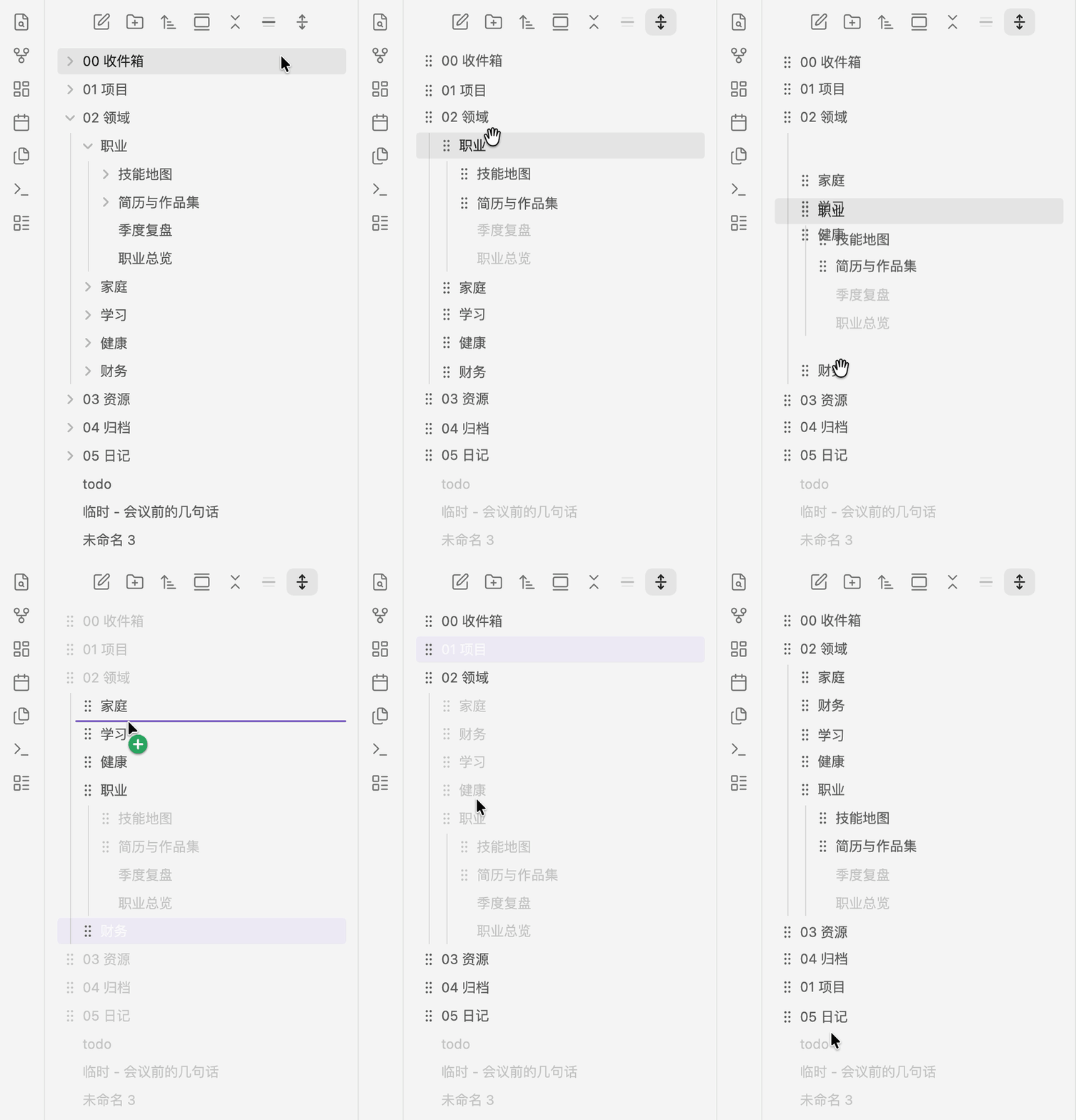
You can only reorder among siblings. A folder moves within the folder it lives in and cannot be dragged out to another level, which is what keeps reordering and moving apart.
Only folders take part. File order is still Obsidian's to decide, so whatever you picked in the sort menu, by name or by date, goes on working as before.
This is a mode of the plugin's own, and inside it you do one thing: set the order of folders. Leave the mode and Obsidian's own dragging behaves exactly as it always did, moving files and folders wherever you drop them. The two stay out of each other's way.
The plugin records the order and nothing more. It renames nothing, moves no files, and writes nothing else into your vault.
Settings
Language — the interface follows whatever language Obsidian itself is set to. English and 简体中文 ship with the plugin; pick one here to override the match. Everything switches over on the spot, the command name included.
Toolbar buttons — which of the plugin's two buttons sit at the top of the file explorer. Both are switches that show whether their mode is on, so both stay in plain sight by default; hide one if you only ever use the other feature. Whatever you hide is still on the command palette, and the settings page will offer to take you straight to the hotkeys page once something is hidden.
Keep the active file in view — scrolls the explorer to each note as you switch to it, expanding whatever it takes to show it. Without it, switching to a note whose folder is scrolled out of view leaves you looking at a screen of bars and nothing else. On by default.
Collapse every other folder — on each switch, folds away every folder except the one you are in. Less to scroll past, and it stops the bars from giving away how many files the other folders hold. Whatever was open is put back when you leave immersive mode. On by default.
Keep everything inside this folder readable — the cover spares the folder you are in and whatever sits directly in it. Switch this on and it spares the rest of the way down as well: open a subfolder and its contents read normally instead of turning into bars. Everything outside the folder you are in, the folders above it included, is covered either way. On by default.
What it does not do
This is a visual cover, not encryption. The names are still in the page, and anyone with developer tools can read them. It is built for cameras, projectors and the person sitting next to you, not for someone who already has your machine.
The cover applies to the file explorer only: tab titles, the note's own breadcrumb, search results and the quick switcher are untouched, so switch it off when you want to search by name. And with Collapse every other folder turned off, the bars still give away how many files each folder holds and how deep the tree goes.
Installing
In Obsidian, open Settings → Community plugins → Browse and search for Immersive Folder. You can also go straight to the plugin page.
Requires Obsidian 1.13 or later. Everything works on mobile as well.
To install it by hand instead: download main.js, manifest.json and
styles.css from the latest
release, put them
in YourVault/.obsidian/plugins/immersive-folder/, and enable the plugin under
Settings → Community plugins. (main.js is a build artefact and is not kept in
the repository; it exists only in the releases, or after you run
npm run build yourself.)
Questions and suggestions are welcome in Issues.
Development
npm install
npm run dev     # watch build
npm run build   # type-check and build main.js
npm run lint    # the rules the community-plugin review runs
npm run sync    # build, then copy into the vaults listed in sync.mjs
npm run lint has to be run from the repository root: the rules read
manifest.json from the working directory.
License
MIT
For plugin developers
Search results and similarity scores are powered by semantic analysis of your plugin's README. If your plugin isn't appearing for searches you'd expect, try updating your README to clearly describe your plugin's purpose, features, and use cases.