by Anthirayas
Shows your vault's folders and files as an animated, canvas-style dashboard.
Island tree
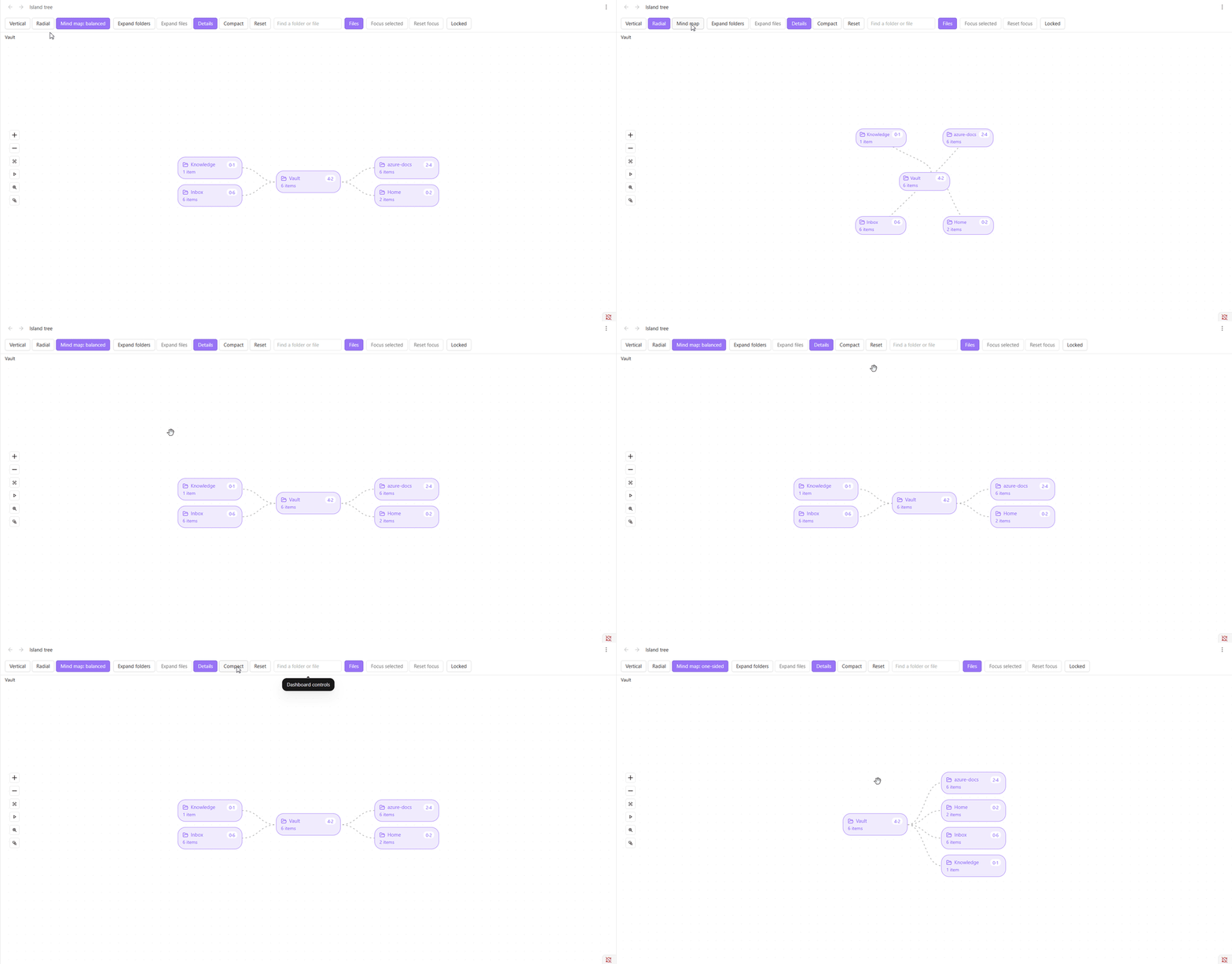
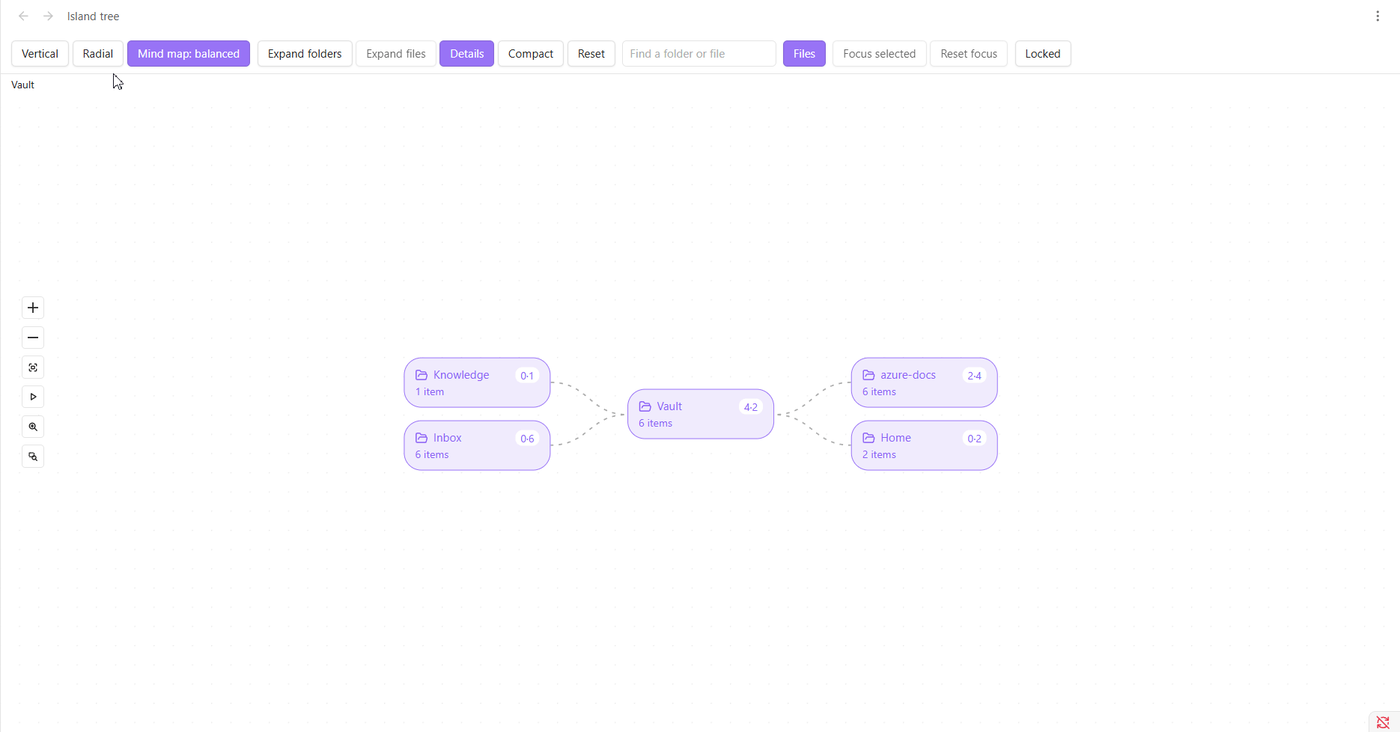
An Obsidian plugin that shows your vault's folders and files as an animated, canvas-style dashboard: rounded "island" cards joined by curved, flowing branches, in a vertical, radial or mind map layout.
First release (1.0.0). It is built, tested and checked in Obsidian, but it has not had a full run in a wide range of real vaults yet. Please try it in a copy of your vault first, especially editing. See
PROGRESS.md.
What it does
- Three layouts: vertical, radial and mind map (balanced or one-sided), on a dotted grid.
- Pan and zoom like Obsidian's Canvas, with a zoom-to-area tool, a Close-up button and Auto-scroll for reading hands-free.
- Search that suggests as you type, like the quick switcher. Pick one and only that card is loaded.
- Stays fast on big vaults. Tested with 10,000 notes (see
docs/PERFORMANCE.md). - Details on cards: file type, links, tags, status, modified date and size, each switchable.
- Follows your vault: new, renamed, moved and deleted notes appear without reloading.
- Optional editing (rename, create, delete, drag to move, undo) behind a lock. It starts locked.
- Keyboard, screen reader and reduced motion support, and searchable settings with presets.
Install
- Needs Obsidian 1.13.0 or later (desktop).
- From Obsidian: open Settings → Community plugins → Browse, search for "Island tree" and install it (once it is listed).
- By hand: download
main.js,manifest.jsonandstyles.cssfrom the latest GitHub release, put them in<your vault>/.obsidian/plugins/island-tree/, then turn the plugin on under Settings → Community plugins. - From source: see
docs/DEVELOPMENT.md.
Getting started
- Click the network icon in the ribbon, or run Open dashboard from the command palette. (Open dashboard in sidebar opens it on the right.)
- Click a folder to open or close it. Click the small badge on a folder to show or hide its files.
- Switch layouts with Vertical, Radial and Mind map.
- Type in the search box and press Enter to go to a folder. Turn on Files to find files too.
- Double click a folder to focus on it, or a file to open it. The breadcrumb takes you back up.
- Scroll to pan, hold Ctrl (or Cmd) and scroll to zoom, and press Shift and 1 to fit everything.
No hotkeys are set by default. Assign your own in Settings → Hotkeys.
The full guide covers the keyboard, the mouse, Details, Compact, editing, and every setting: docs/USAGE.md.
Settings
Open Settings → Island tree. A live preview at the top shows each change as you make it. There are pages for cards, lines and grid, layout and editing, plus presets (Compact, Comfortable, Large, and your own) and import and export as JSON. Every setting has a reset button, and an empty colour or a text size of 0 follows your Obsidian theme.
Known limits
- Desktop only for version 1.
- One folder shows at most 1,000 cards (40 at a time), and the whole dashboard draws at most 1,500 at once. A card says how many are "not shown"; the search box finds them.
- Search matches file and folder names, not the text inside notes. It lists folders only unless Files is on, and at most 8 suggestions at a time.
- Editing has been checked against a stand-in for the vault, not yet in many real vaults. Deleting a note can be undone; deleting a folder cannot, so use Obsidian's trash.
- A very large paste of files takes a moment to show, because changes are gathered into one update.
Privacy
No network calls, no telemetry and no ads. The plugin reads your vault's file and folder names and the details Obsidian already keeps about notes (dates, sizes, links, tags and properties) to draw the cards. It changes files only when you unlock editing and rename, create, move or delete something, and it does that through Obsidian's own file functions. Its settings are stored in the plugin's own data file inside your vault, and the dashboard remembers how it was left in Obsidian's workspace file, as every view does. The clipboard is used only when you press Copy or Paste in the settings, to export or import settings.
Documentation
docs/USAGE.md: the full guide to using and configuring the dashboard.SPEC.md: agreed design and milestones.docs/ARCHITECTURE.md: how it is built.docs/DECISIONS.md: why it is built that way.docs/PERFORMANCE.md: what was measured on big vaults.docs/DEVELOPMENT.md: setup, commands and testing.docs/SUBMISSION.md: releasing and submitting the plugin (for the maintainer).
Credits
The pan, zoom and canvas surface is built on Svelte Flow by xyflow, used under the MIT licence. Its small on-screen credit is hidden in the dashboard, so it is credited here instead.
Licence
For plugin developers
Search results and similarity scores are powered by semantic analysis of your plugin's README. If your plugin isn't appearing for searches you'd expect, try updating your README to clearly describe your plugin's purpose, features, and use cases.