Journals
approvedby srg-kostyrko
Manage your journals.
Journals for Obsidian
A comprehensive journaling solution for Obsidian that transforms your note-taking experience. This plugin helps you create, organize, and navigate structured journal entries across multiple timeframes, from daily notes to custom periods. Whether you're tracking daily work logs, organizing research notes by week, or managing project sprints, Journals provides powerful tools for consistent formatting, easy navigation, and visual organization of your time-based notes.
Key Features
Journal Types
- Standard Intervals: Daily, weekly, monthly, quarterly, and yearly notes
- Custom Periods: Create notes for any custom duration (sprints, financial quarters)
- Sequential Numbers: Auto-number entries (Sprint 1, Sprint 2, Quarter 3)
- Multiple Journals: Set up different journals for different aspects of your life
Visual & Navigation
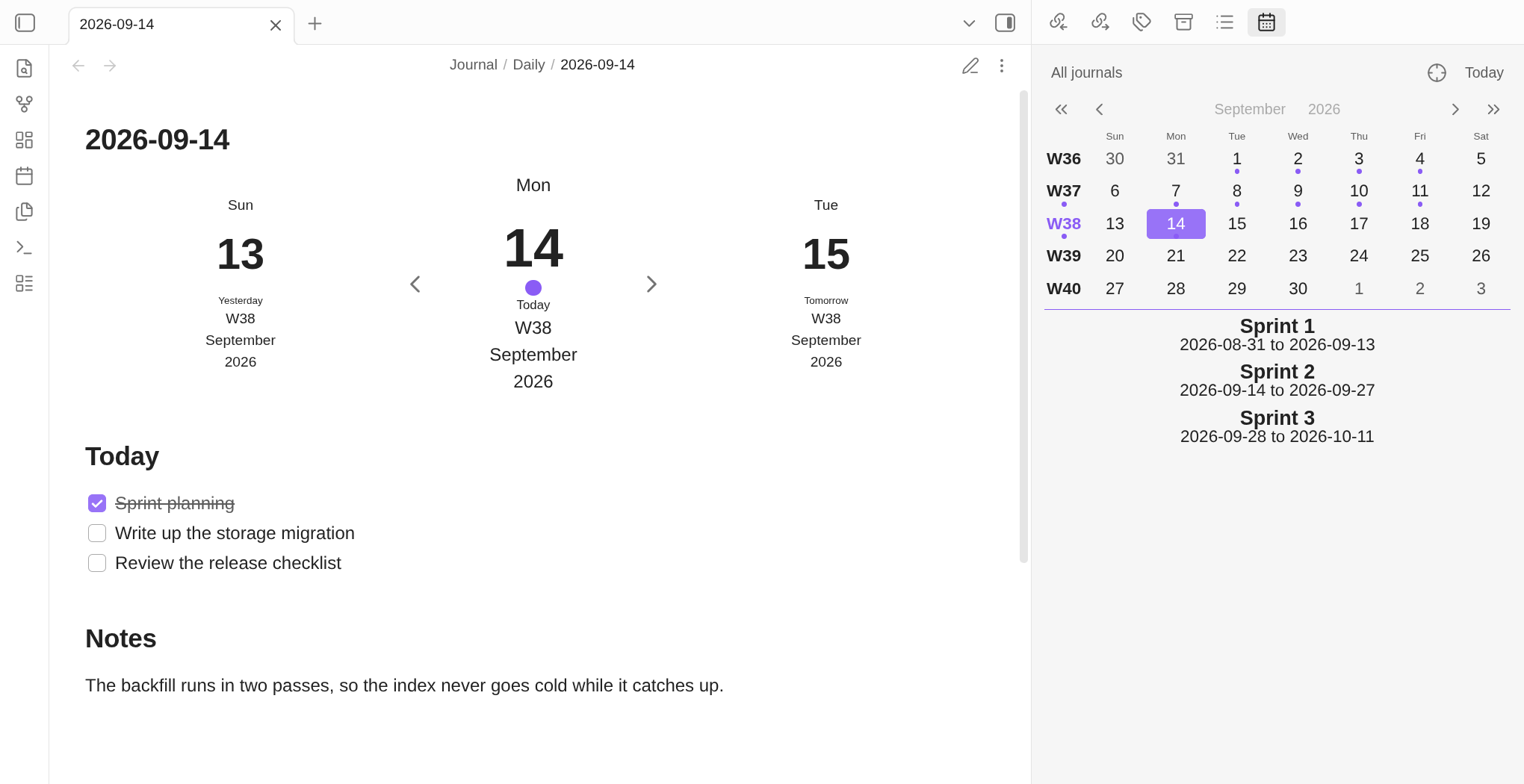
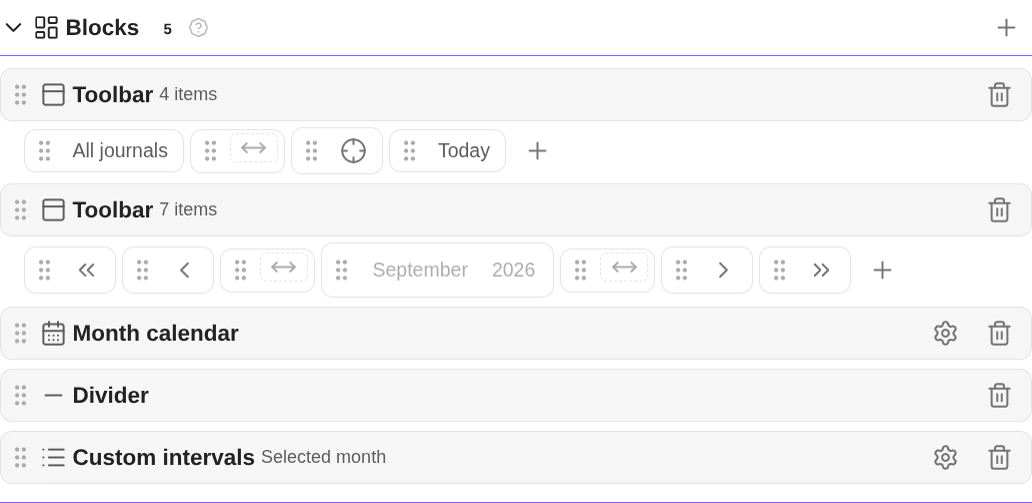
- Configurable Views: Build your own views by composing blocks — month calendars, week calendars, notes-by-date lists, custom-interval lists, toolbars, dividers, and rendered markdown templates — and fill each toolbar with items (shelf selector, period buttons, existing-note navigation, buttons, spacers); open each view in the left or right sidebar or as a tab
- Notes by Date: Browse every note created during the selected day, week, month, quarter, year, or decade, with configurable sorting and optional period navigation
- Timeline View: Navigate through time periods with customizable code blocks
- Note Decorations: Visually highlight notes based on contents, dates, or status, vault-wide, per shelf, or per journal
- Navigation Blocks: Quick links to related journal entries
- Zoom Navigation: Step from the open note to the journal one granularity longer or shorter — day to week to month, and back
- Date Picker: Drill down across day, week, month, quarter, year, and decade
Organization
- Journal Shelves: Group related journals together and target commands and views at a whole shelf
- Custom Commands: Create shortcuts for your most common journal operations, including opening the next, previous, or nearest existing note, and target them at one journal, a whole shelf, or every journal of one period type
- Templating: Powerful variable system for consistent journal entries, with Templater support
- Frontmatter: Automatic metadata for better organization
- Auto-attach: Notes you create yourself are connected to a journal automatically when their path matches that journal's folder and name template, the date it resolves to falls within that journal's timeline, and no other journal matches the same note
- Questions: Ask for values when a note is created, saving each answer to frontmatter, rendering it into the note, or using it to name the note or its folder
- Notelets: Define extra kinds of note a journal can create for a period, alongside the period's own note — meeting notes on a day, retros on a sprint — each with its own folder, name template, templates, questions, and numbering
Integrations & Tooling
- URI Scheme: Open (and create, applying templates) journal notes via
obsidian://links - Insert Link to Journal Note: Command to insert a link to any journal date at the cursor
- Translated Interface: The interface follows Obsidian's language setting, with translations for ten languages besides English (Chinese, German, French, Russian, Spanish, Portuguese, Japanese, Korean, Italian, Ukrainian)
- Theming Hooks: Stable class names on the plugin's code blocks, so themes and CSS snippets can restyle them
- Logging: Capture plugin activity and dump it to a note for troubleshooting
What it looks like
Every note links to the ones around it. A navigation block in a daily note opens the day before and after, and the week, month and year that day belongs to — creating the note if it is not there yet.
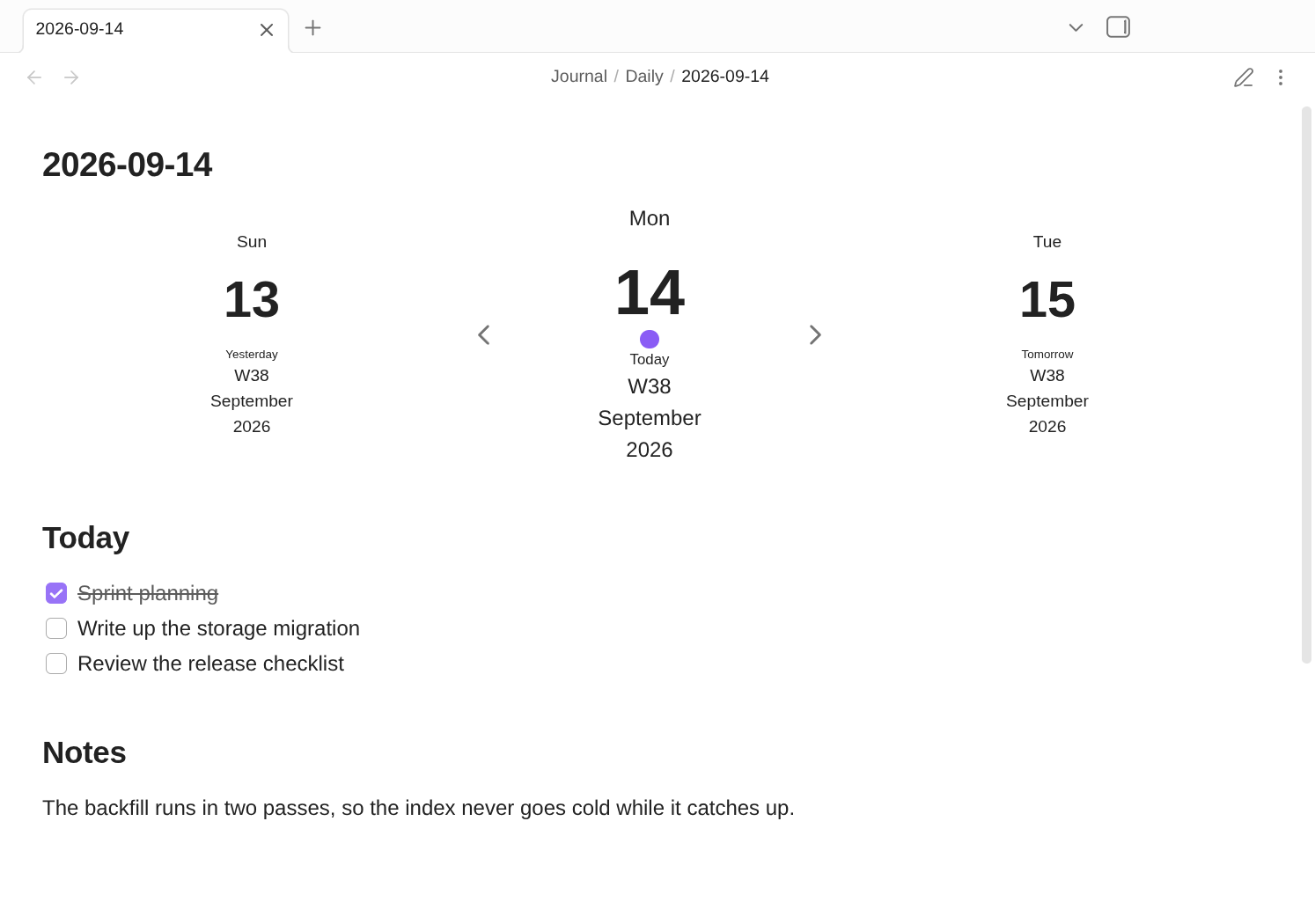
A period can hold more than one note. Notelets are extra kinds of note a journal writes for the same period — meetings on a day, a retro at the end of one — listed in the note itself.
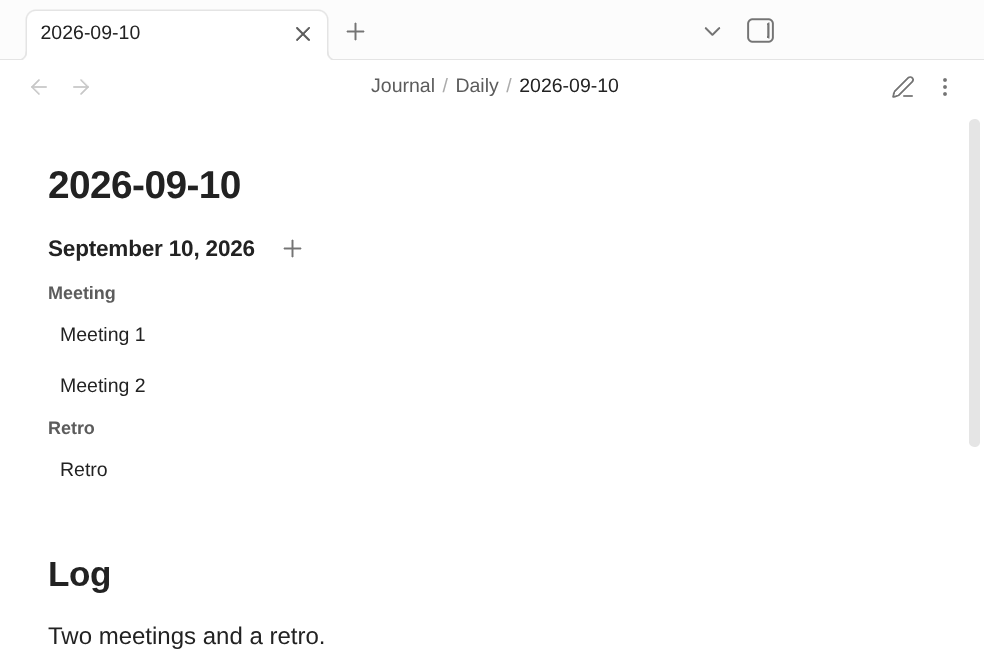
Calendars work inside notes too. A timeline block renders any span you ask for — here a whole quarter — with the days that have notes marked.
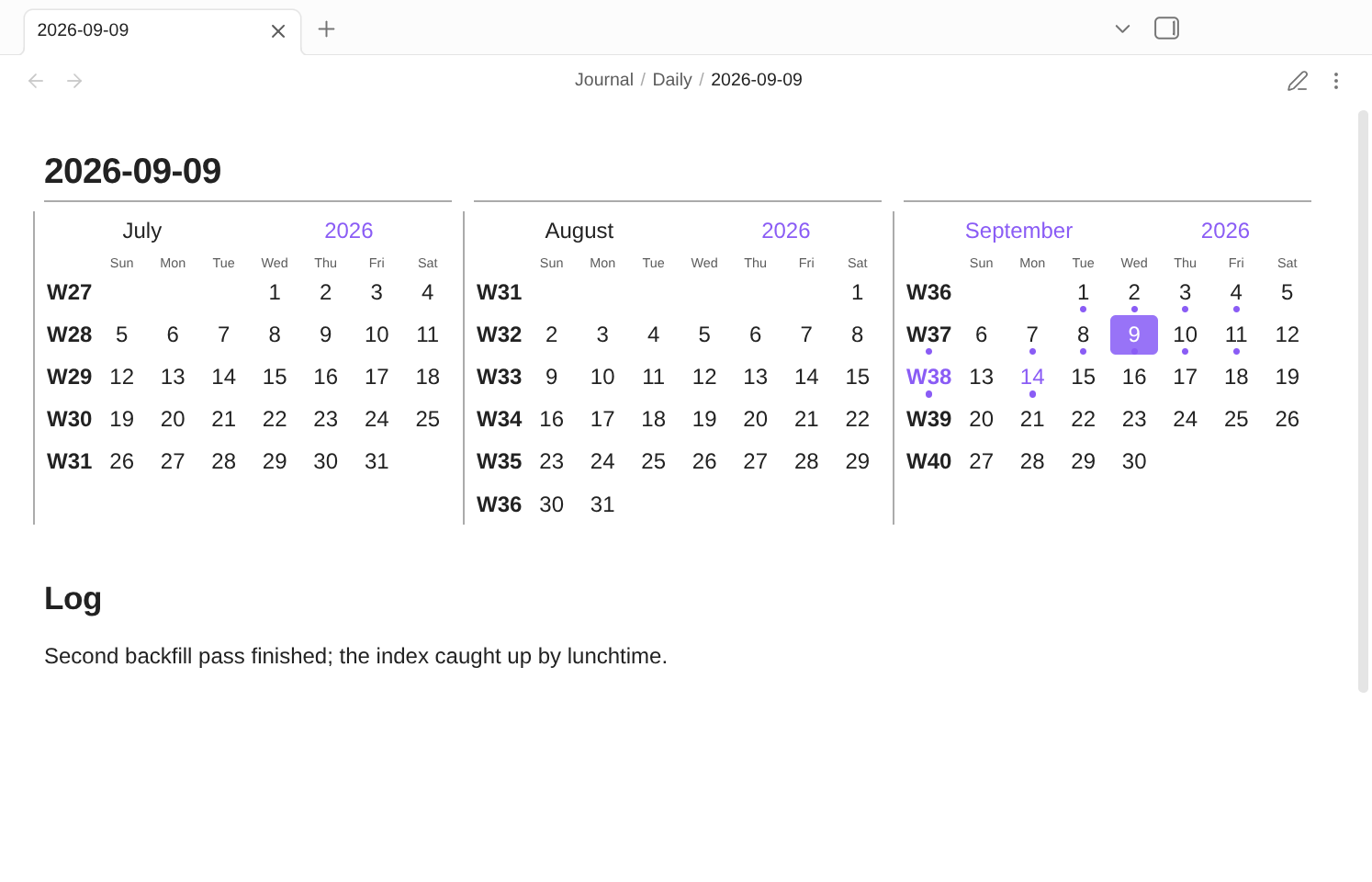
Dates carry what their notes say. Decorations style a date by its note's tags, tasks, properties, length or weekday — a highlighted holiday, a corner where tasks are still open, a check where they are all done.
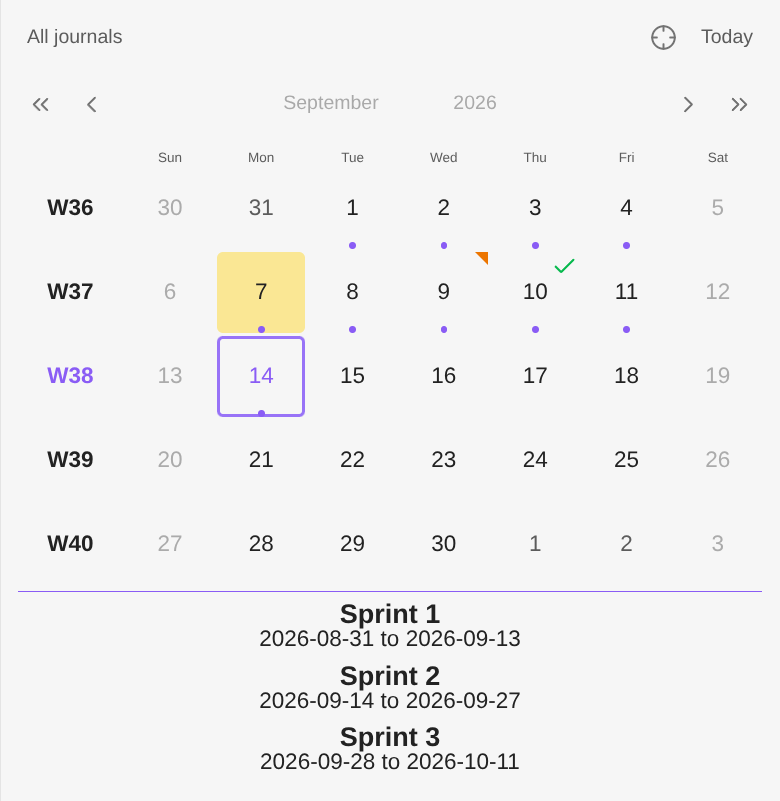
Views are yours to compose. Each view is a stack of blocks — toolbars, calendars, note lists, dividers — that you add, reorder and configure.
Installation
Follow the steps below to install plugin.
- Search for "Journals" in Obsidian's community plugins browser
- Enable the plugin in your Obsidian settings (find "Journals" under "Community plugins").
- Check the settings. Configure journals that you need.
Compatibility
Journals needs Obsidian 1.8.7 or later and runs on desktop and mobile. It works alongside Templater and Notebook Navigator, and replaces Daily notes, Periodic Notes and Calendar — see Compatibility for how they interact.
Documentation
The full user manual lives at srg-kostyrko.github.io/obsidian-journal.
| Periods | Period lengths, custom intervals and week configuration |
| Journals | Configuring a journal — naming, templates, timeline, frontmatter |
| Notes | Creating notes, attaching existing ones, and bulk add |
| Shelves | Grouping journals, and scoping views and commands to a group |
| Questions | Prompting for answers when a note is created |
| Notelets | Extra notes attached to a period |
| Decorations | Styling dates by their notes, dates and weekdays |
| Views | Calendars, toolbars and note lists in a view |
| Navigation blocks | The links a journal draws in its own notes |
| Commands | Built-in commands, and writing your own |
| Settings | Every setting, and what explains it |
| Variables | Template variables and date modifications |
| Code blocks | All four code blocks and their options |
| Glossary | Terms used throughout the manual |
| Coming from Periodic Notes | Migration guide |
| Coming from Calendar | Migration guide |
| Setup examples | Complete configurations for common setups |
| Compatibility | Working alongside other plugins, including Templater |
| Troubleshooting | Common issues, the vault check, and reporting a bug |
For plugin developers
Journals exposes an API other plugins can use to list journals, find the note for
a date or for a whole window of dates, create or open one, and subscribe to
changes — see
docs/plugin-api.md. Types are published as
obsidian-journals-api.
Contributing
Contributions via bug reports, bug fixes, documentation, and general improvements are always welcome. For more major feature work, open an issue about the idea first so we can judge feasibility and how best to implement it.
See CONTRIBUTING.md for development setup, the checks a change needs to pass, and how to open a pull request.
Licence
For plugin developers
Search results and similarity scores are powered by semantic analysis of your plugin's README. If your plugin isn't appearing for searches you'd expect, try updating your README to clearly describe your plugin's purpose, features, and use cases.