Journal View
approvedby RUverse
Turn your daily notes into one continuous, editable journal—scroll through time, jump to any date, and write without leaving the view. - This plugin has not been manually reviewed by Obsidian staff.
Journal View
Give your daily notes a sense of continuity. Journal View brings them together in one scrollable, editable timeline, so revisiting the past and writing today feel like part of the same story.
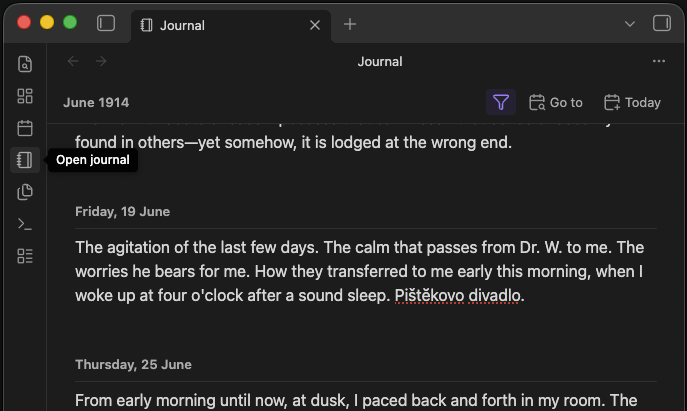
Open Journal View from the sidebar or run Open journal from the command palette.
- Use the daily notes you already have. Journal View works with your existing notes and daily-note settings—no plugin-specific formats, duplicate files, or lock-in.
- Navigate through time with ease. Scroll through your journal, jump to any date with the calendar, return to today in one click, or open the surrounding days from the notebook button on a daily note.
- Edit directly in the timeline. Read and write without switching between files, views, or editing modes.
- Write only when there is something to say. Start typing on an empty day and Journal View creates the daily note only when you need it.
- Rediscover past entries. Search across your journal to quickly find notes, ideas, and memories from any day.
- Focus the timeline. Filter daily notes by tags or exact property values, with include and exclude rules that also carry through to calendar navigation and journal search.
- Stay responsive across years of notes. Journal View keeps the days around you ready to edit while efficiently handling the rest of your timeline.
Settings
Journal View uses your existing daily-note configuration by default. You can override the date format, folder, and template in Settings → Journal View without changing how the rest of your vault handles daily notes.
Some Customization is only visible in the customization menu accessible from the view's toolbar.
| Setting | Default | What it does |
|---|---|---|
| Date format / Folder / Template | Inherited | Overrides your vault's daily-note settings for Journal View |
| Day order | Oldest to newest | Reverses the complete timeline when set to newest to oldest |
| Daily header format | dddd, D MMMM | Controls how each daily header displays its date |
| Daily header style | Subtle | Shows each date subtly, as an H1, or hides the date display |
| Group days by year | On | Marks year boundaries between consecutive visible daily entries |
| Group days by month | Off | Groups daily entries beneath compact month and year headings |
| Focus today on open | On | Opens the journal at today's note and places the cursor there |
| Open journal on startup | Off | Opens or reveals Journal View after Obsidian restores the workspace |
| Only show days that have a note | On | Skips empty days while always keeping today visible; turn it off to show every day |
| Rich editor | On | Uses Obsidian's Markdown editor; turn it off to use the plain-text fallback |
| Autosave delay | 2000 ms | Sets how long Journal View waits after typing before saving |
| Days kept loaded | 60 | Sets the target number of days kept in the timeline; dropped days reload when you scroll back to them |
Filters
Select the funnel button in the journal toolbar to open the filters. Show only days with notes is enabled by default; Today remains visible even when it is empty or does not match the metadata filters. Turn that option off to keep empty days available for writing while still hiding existing notes that do not match.
Tag filters use tags from both frontmatter and note content. A parent tag also matches its nested
tags, so #project matches #project/client. Property filters compare exact string, number, or
boolean values, and a list property matches when one of its items equals the configured value.
Every include filter must match. A note matching any exclude filter is hidden, even if it satisfies all includes. The funnel uses the accent color whenever a tag or property filter is active; the note-only toggle does not highlight it. Filtered dates are disabled in Go to date, and Find in journal searches only the notes currently included.
Startup
Journal View is a custom view, so the Homepage plugin cannot select it as a homepage note. Enable Open journal on startup in Journal View instead. If you also use Homepage, configure only one of the two plugins to open content at startup so they do not compete for the active tab.
Date commands
- Go to today opens the journal when needed, then focuses today's entry.
- Go to yesterday opens or reveals the journal, then focuses yesterday's entry.
- Go to tomorrow opens or reveals the journal, then focuses tomorrow's entry.
Yesterday and tomorrow are shown while focused even when the note-only toggle or a metadata filter would normally hide them. All three commands scroll when the target is nearby and snap when it is more than two view heights away.
Privacy
Journal View works locally with files in your Obsidian vault. It does not make network requests, collect telemetry, require an account, or access files outside your vault.
License
MIT © 2026 RUverse
For plugin developers
Search results and similarity scores are powered by semantic analysis of your plugin's README. If your plugin isn't appearing for searches you'd expect, try updating your README to clearly describe your plugin's purpose, features, and use cases.