Diary
approvedby pobsiz
Turn date-based Markdown notes into yearly, monthly, daily, and 3-day planners with ranges, recurrence, reminders, holidays, and calendar overlays. - This plugin has not been manually reviewed by Obsidian staff.
Diary
Diary turns ordinary Markdown notes into yearly, monthly, daily, and 3-day planner views in Obsidian.
Diary는 Obsidian 볼트의 일반 Markdown 노트를 연간·월간·일간·3일 플래너로 보여주는 커뮤니티 플러그인입니다.
📖 Full documentation: English | Deutsch | Español | Français | 日本語 | 简体中文 | 繁體中文 | 한국어
At a glance
| Item | Value |
|---|---|
| Plugin ID | diary |
| Version | 1.17.0 |
| Minimum Obsidian version | 1.7.2 |
| Platforms | Desktop and mobile (isDesktopOnly: false) |
| Default language | en |
| Default planner folder | Planner |
What's new
1.17.0: adds a collapsible all-day section with event counts to the daily and 3-day planners, and improves sub-20-minute events with readable compact cards, time tooltips, and collision-aware layout.
Older changes are listed on the Releases page.
Screenshots
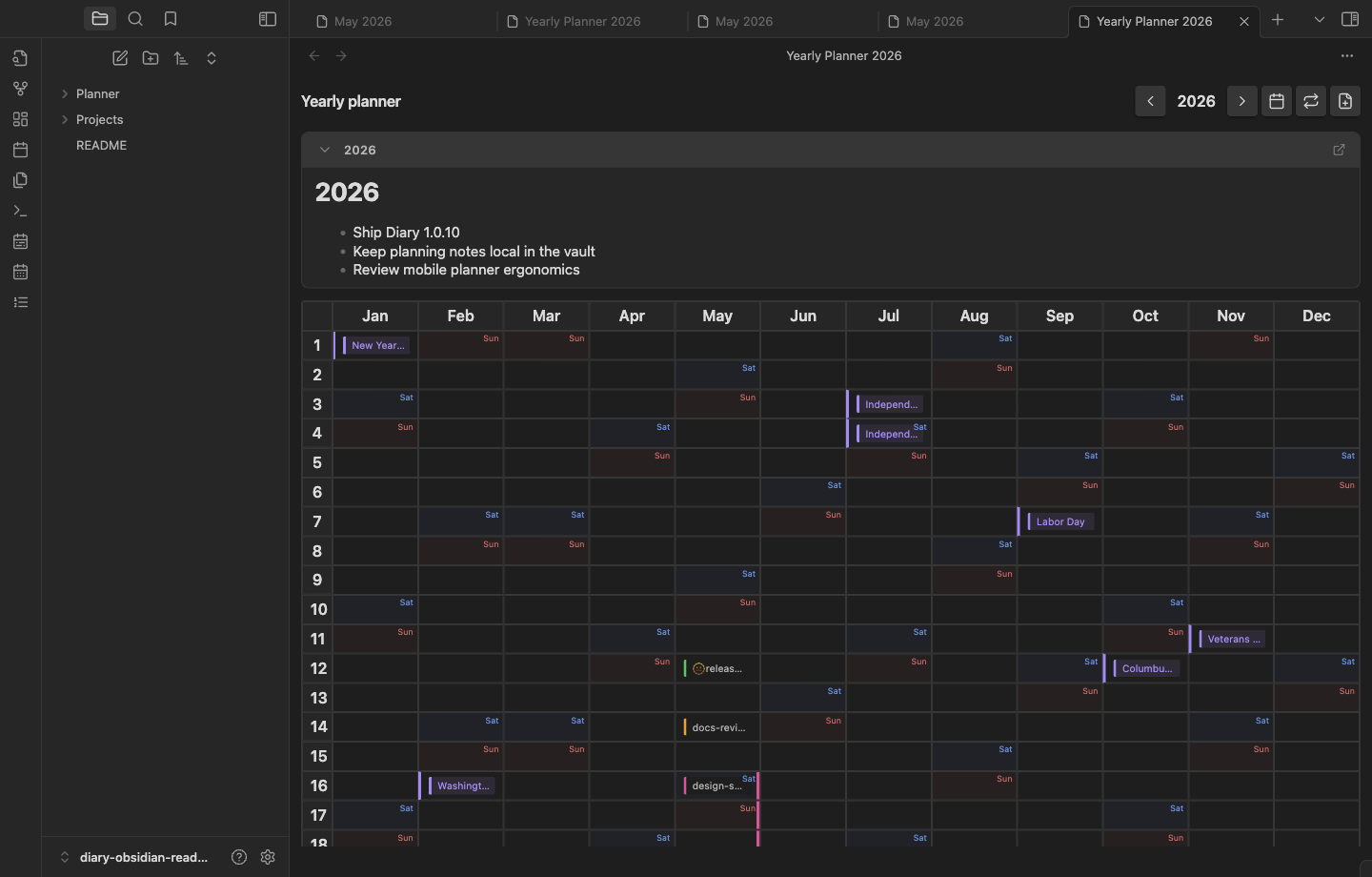
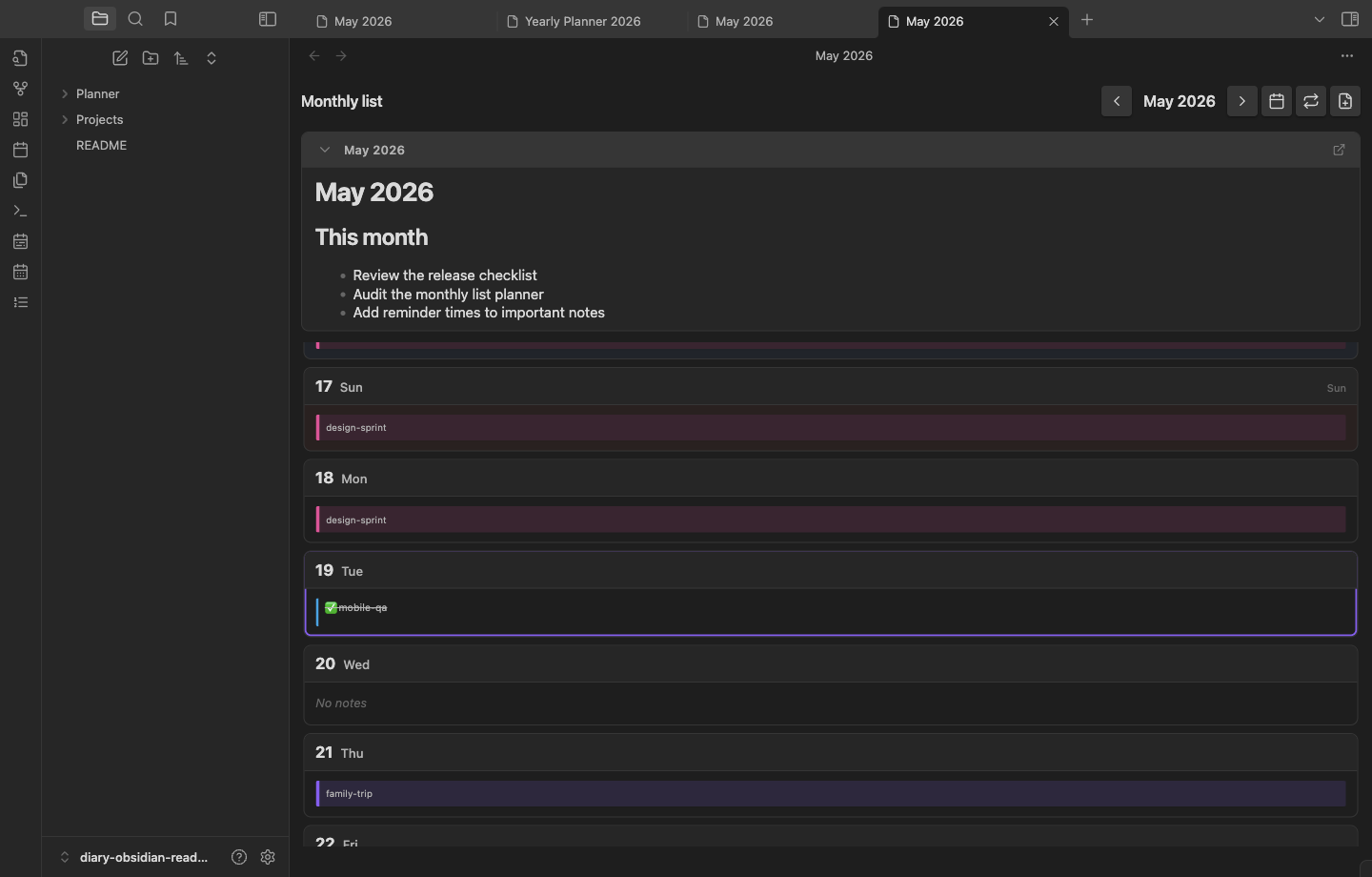
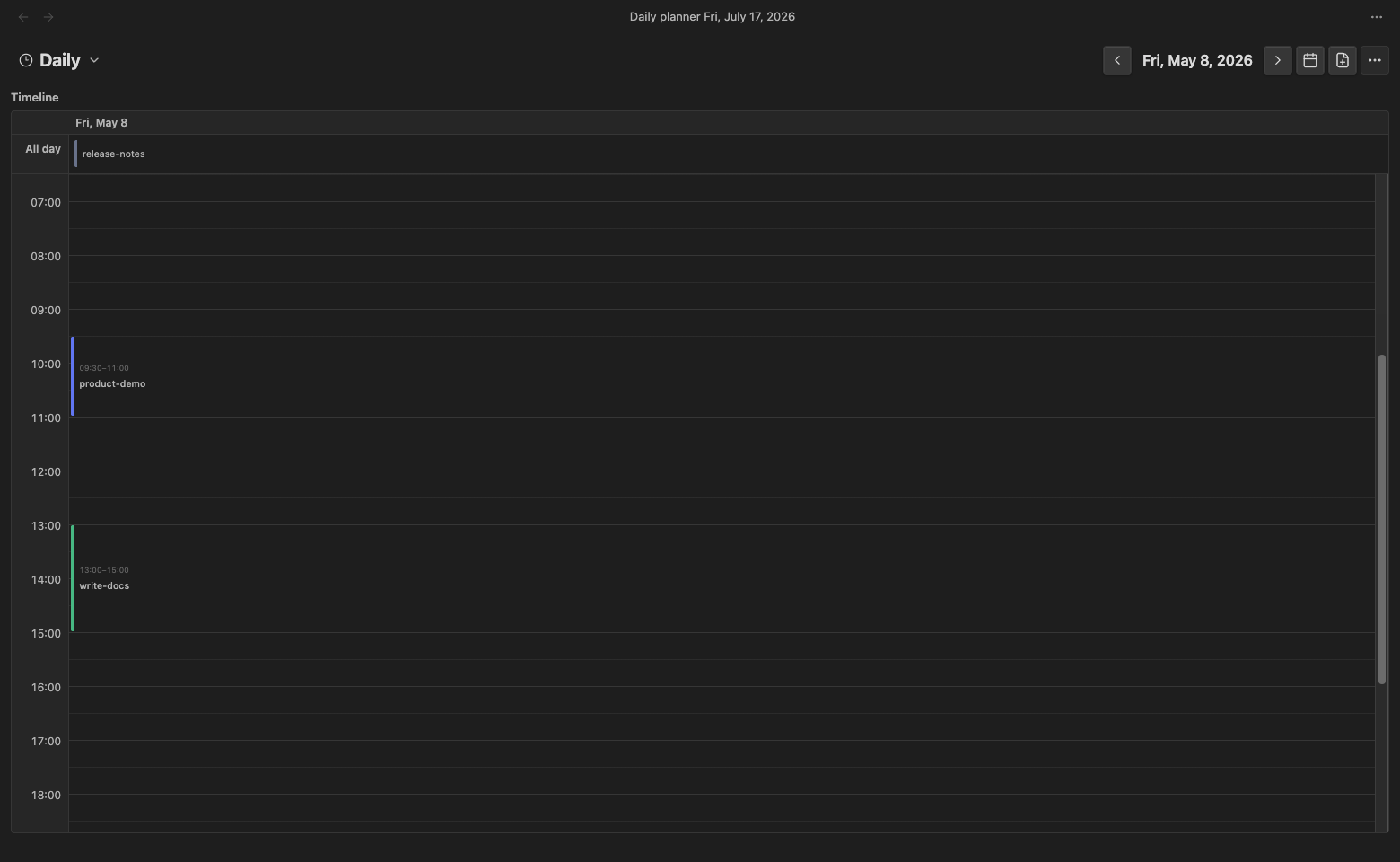
These screenshots use temporary demo notes for all-day, timed, range, todo, and plan entries. The demo folder was removed after capture.
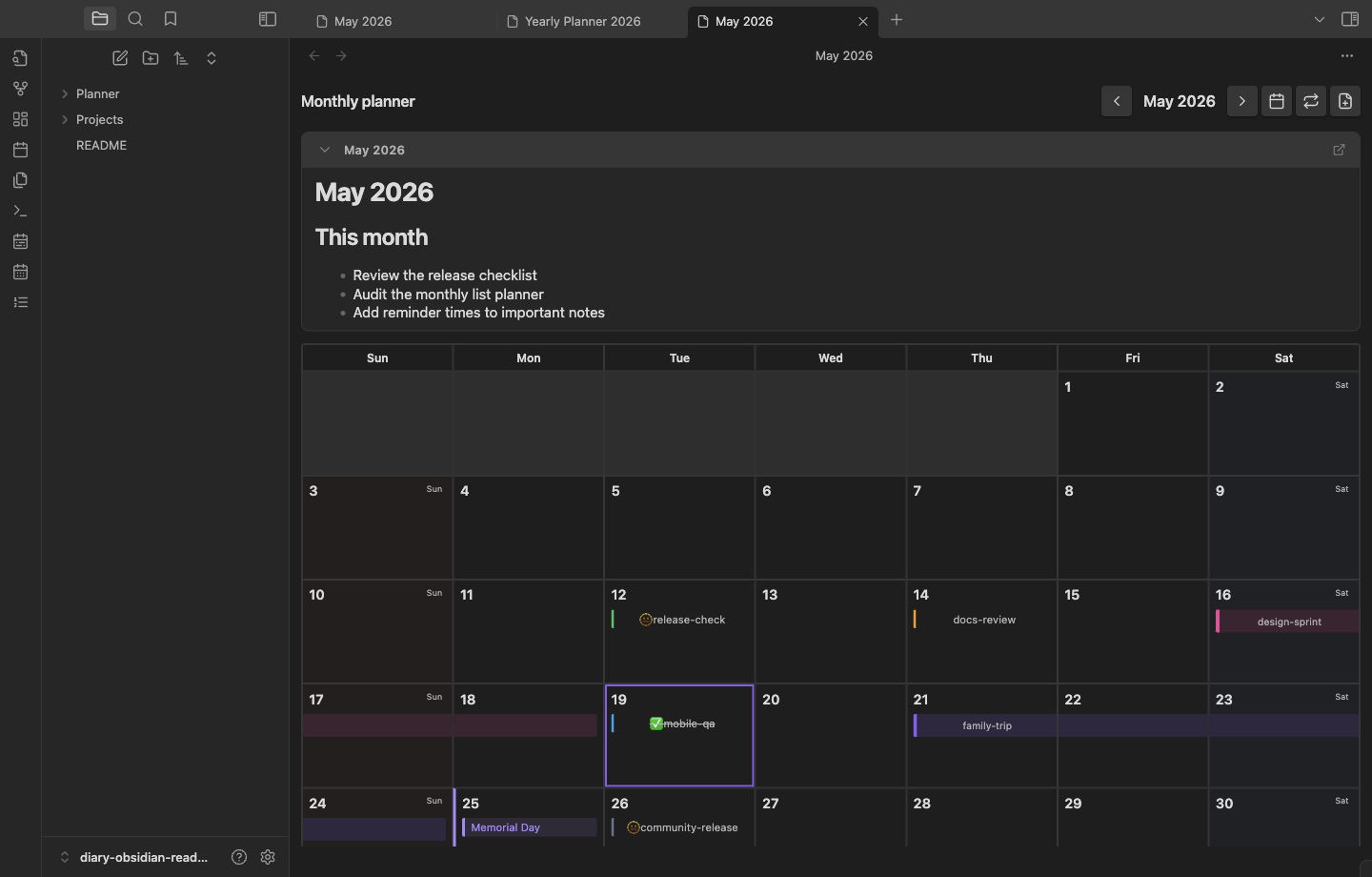
| Yearly planner | Monthly list planner |
|---|---|
 |  |
| Daily timeline | 3-day timeline |
|---|---|
 | 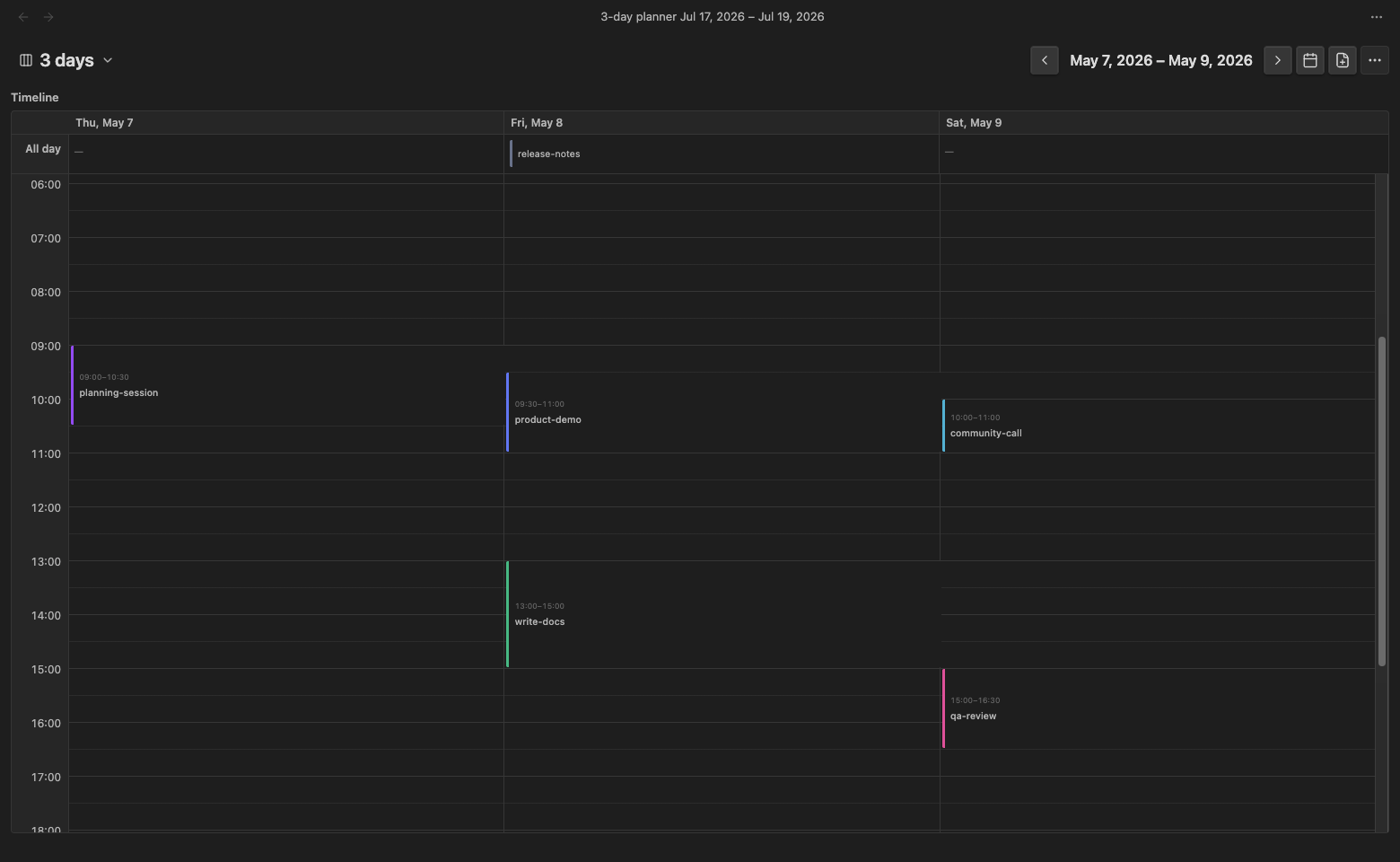 |
| Narrow monthly grid | Narrow monthly list |
|---|---|
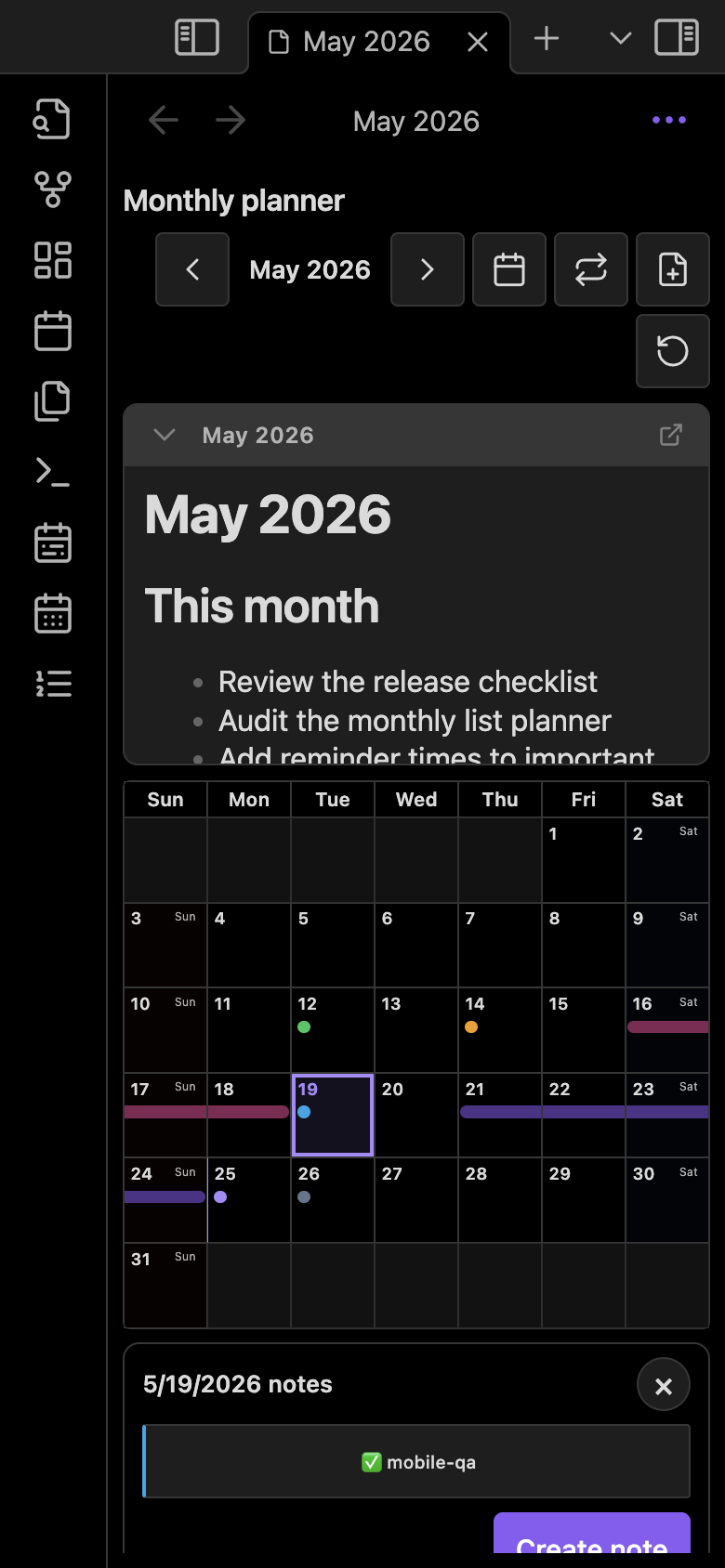 | 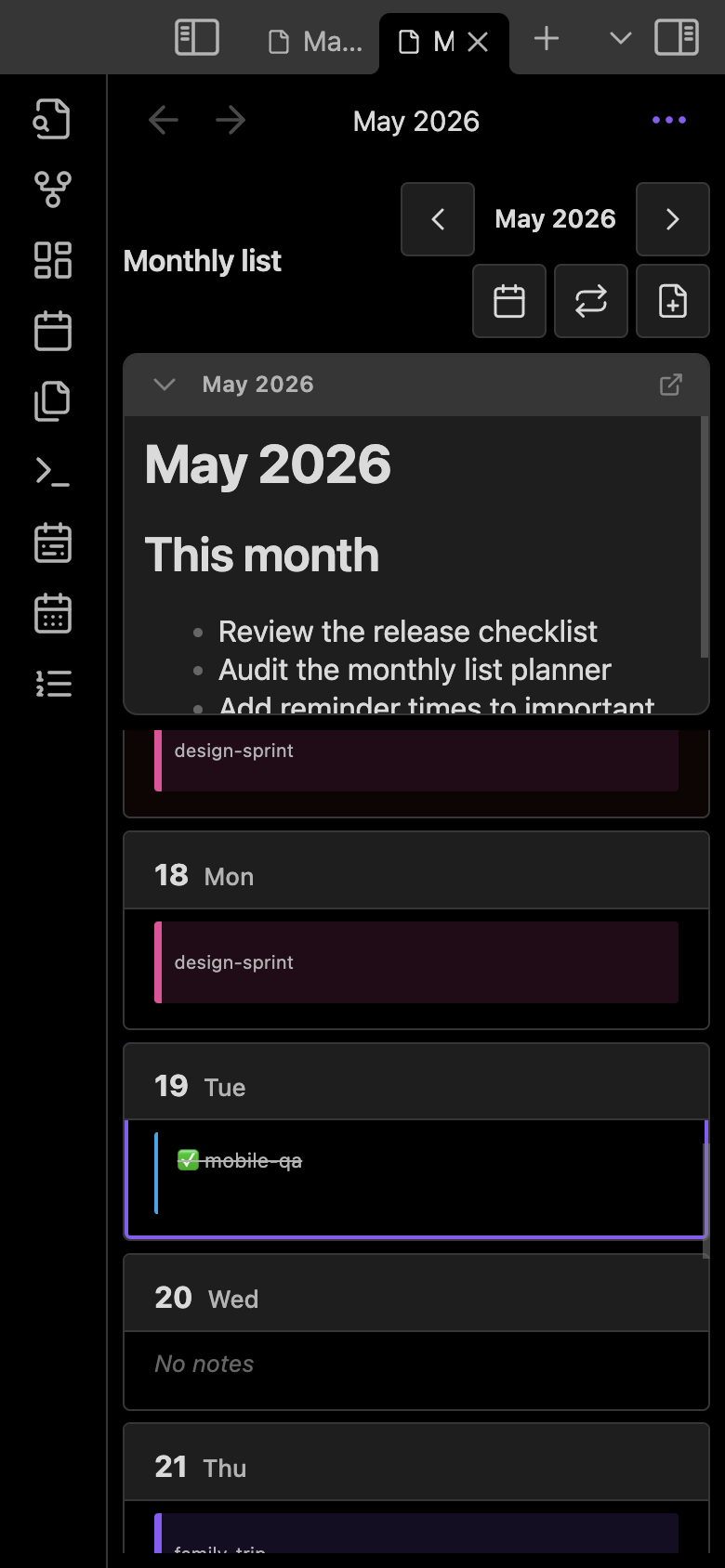 |
Features
- Yearly planner:
12 months × 31 daysoverview. - Localized UI: switch Diary between English, German, Spanish, French, Japanese, Simplified Chinese, Traditional Chinese, and Korean.
- Monthly grid planner: one-month calendar view with date chips, range bars, holidays, calendar overlay labels, external calendar overlays, and mobile pinch zoom.
- Monthly list planner: day-by-day list for dense monthly review, with
All,With notes, andUpcomingfilters. - Daily planner: a 24-hour timeline that separates timed plans from all-day and untimed notes. Collapse the all-day section to reclaim timeline space; its saved state and event count remain visible. Multi-day ranges render as continuous all-day bars or datetime slices, with cross-date time selection and boundary resizing. Events shorter than 20 minutes use readable compact cards with time tooltips and collision-aware columns. Select an empty time slot to create a note with start and end times prefilled.
- 3-day planner: compare three consecutive days in parallel columns on the same 24-hour timeline. Narrow screens keep readable column widths with horizontal scrolling.
- Direct view selector: switch directly among yearly, monthly grid, monthly list, daily, and 3-day views. In narrow layouts it remains visible while secondary actions move into More.
- Sidebar planner: a compact monthly planner opens in the right sidebar by default, can be revealed from the ribbon or command palette, and can cycle through yearly, monthly grid, and monthly list layouts in the same side leaf.
- Date notes and range notes: recognized by
YYYY-MM-DDandYYYY-MM-DD--YYYY-MM-DDfilenames. By default Diary scans the entire vault, with an optional planner-folder-only scope. Title suffixes can keep visible spaces. - File options: switch an existing planner note between single-date and range modes, choose its folder, and edit the complete date-based filename. Diary moves the file and synchronizes
date_start/date_endmetadata. - Range title continuity: monthly range bars repeat their title at new week and month boundaries, while yearly cells repeat it at month and year boundaries.
- Plan notes: yearly
{plannerFolder}/{year}.mdand monthly{plannerFolder}/{year}-{month}.mdnotes, with persisted preview state on desktop and separate mobile state. - Remembered yearly cell width: expanded month-cell widths are saved across reloads.
- Chip metadata:
color,todo,completed,start_time,end_time,notify_minutes,title,date_start,date_end, and recurrence frontmatter. For range files,date_start+start_timeanddate_end+end_timedefine one continuous datetime interval; times remain independent from reminders. - Recurring events: repeat every N days, weeks, months, or years with a Gregorian or alternate-calendar basis. Occurrences stay virtual until you explicitly create Markdown notes from them.
- Custom calendar overlays: create local fantasy/campaign calendar profiles and show one custom label in planner cells while keeping normal
YYYY-MM-DDfiles. - External calendar overlays: add opt-in
webcal://orhttps://.icsfeeds, refresh them manually or on an interval, and show events as read-only chips/ranges. Select an external event only when you want to create a normal Markdown note for it. - Scoped styling: Diary's CSS is limited to planner views, settings panels, and plugin modals so it does not restyle ordinary vault content.
- Desktop workflows: right-sidebar companion planner, drag range selection, chip drag-to-move, keyboard activation, internal planner copy/paste/delete/undo.
- Mobile workflows: use 44/48 px standalone controls, responsive modal action layouts, safe-area-aware modal sizing, keyboard-safe form scrolling, day summary sheets, monthly-grid pinch zoom, and automatic clearance above standard or floating Obsidian navigation.
Quick start
- Enable Diary in Settings → Community plugins.
- Run Open monthly planner in sidebar, Open monthly planner, Open yearly planner, Open monthly list planner, Open daily planner, or Open 3-day planner from the command palette.
- Select a date cell or the add-file button.
- Choose Single date or Range, then set the folder, dates, filename, color, todo state, reminder time, and optional every-N-days/weeks/months/years repeat rule, calendar, and end date.
- Select Create. Diary creates an ordinary Markdown note and renders it in the planner.
한국어로 빠르게 시작하기:
- Settings → Community plugins에서 Diary를 활성화합니다.
- 커맨드 팔레트에서 Open monthly planner in sidebar, Open monthly planner, Open yearly planner, Open monthly list planner, Open daily planner, Open 3-day planner 중 하나를 실행합니다.
- 날짜 셀 또는 파일 추가 버튼을 선택합니다.
- Single date 또는 Range를 고르고 폴더, 날짜, 파일명, 색상, todo 여부, 알림 시간, N일·주·월·년 반복 간격/역법/종료일을 입력합니다.
- Create를 선택하면 Markdown 노트가 생성되고 플래너에 표시됩니다.
Install
- Download the latest release from Releases.
- Copy
main.js,manifest.json, andstyles.csstoVault/.obsidian/plugins/diary/. - Enable Diary in Settings → Community plugins.
Development
npm install
npm run dev
Production build:
npm run build
Lint:
npm run lint
Design document lint:
npm run design:lint
Test:
npm test
Repository layout
src/main.ts: plugin lifecycle, view registration, sidebar planner setup, commands, refresh wiring.src/settings.ts: settings schema/defaults and settings tab UI.src/views/yearly-planner/*: yearly calendar UI, interactions, modals, file operations.src/views/monthly-planner/*: monthly grid UI, sidebar compact layout, mobile pinch zoom, interactions.src/views/monthly-list-planner/*: monthly list UI, filters, and interactions.src/views/*/sidebar-view.ts: compact side-leaf variants for planner views.src/views/planner-clipboard.ts: multi-select copy/paste/delete/undo flow.src/views/planner-components.ts,src/views/planner-dom.ts: shared planner chips, badges, labels, and pointer/DOM lookup helpers.src/views/planner-layout.ts,src/views/plan-note-panel.ts: shared headers, filters, container/scroll restoration, and reusable plan-note panels.src/ui/components.ts: shared buttons, button rows, fields, disclosures, badges, errors, and press feedback for planner, modal, and settings surfaces.src/planner-reminders.ts: runtime reminders based onnotify_minutes.src/i18n.ts,locales/*: English, German, Spanish, French, Japanese, Simplified Chinese, Traditional Chinese, and Korean localization.docs/*/README.md: full documentation for each supported UI language.design.md: current planner design rules; runtime tokens and component primitives live instyles.css,src/ui/components.ts, andsrc/views/planner-components.ts.styles.css: shared styling tokens and per-view UI styles.
Release
- Release workflow:
.github/workflows/release.yml - Release assets:
main.js,manifest.json,styles.css - Version bump helper:
npm version patch|minor|major --no-git-tag-version - Release assets are built from the tagged source in GitHub Actions and uploaded directly to the matching GitHub release.
Feedback and support
These links open public GitHub issues and require a GitHub account. Do not include private vault content, calendar URLs, access tokens, or other sensitive information.
License
See LICENSE.
For plugin developers
Search results and similarity scores are powered by semantic analysis of your plugin's README. If your plugin isn't appearing for searches you'd expect, try updating your README to clearly describe your plugin's purpose, features, and use cases.