by David Hurt
A little pixel companion walking along your status bar, with your favorite commands a hover away.
Just Simple NPC
Not everything has to be about productivity and keyboard shortcuts. Sometimes your workspace just needs a tiny friend who wanders around, waves hello, and gives you an excuse to slow down for a second. The handy commands are a bonus.
A little company at the edge of your Obsidian workspace. Pip, Arden and Nova are original pixel-art companions with a life of their own. Your chosen character strolls along the status bar, takes little breaks, watches your mouse, and opens a fan of your favorite commands when you hover or click.


Your commands, a hover away
Hover over the character to open a fan of speech bubbles. Click a bubble to run that command in your current Obsidian context. You can also click the character to open the fan immediately.
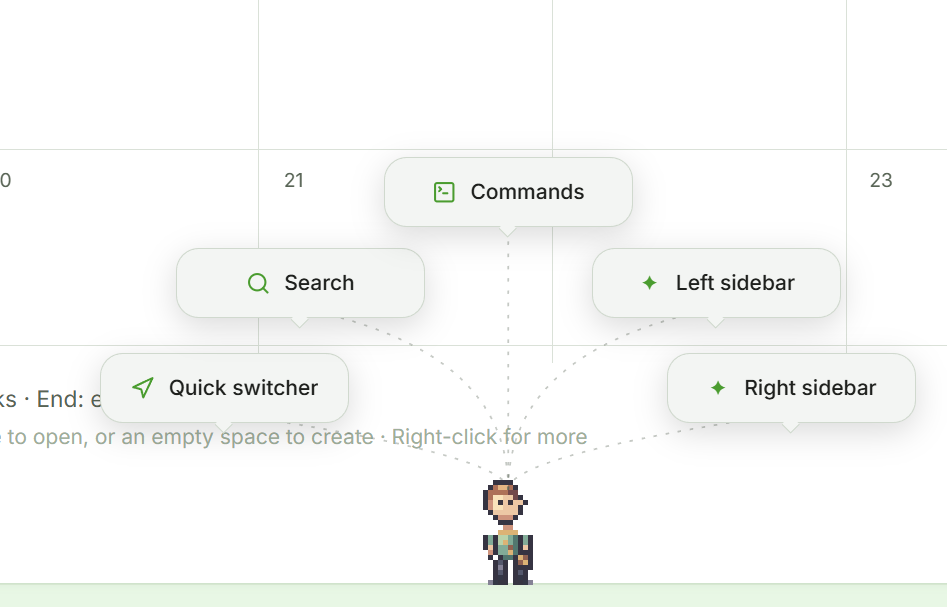
- Choose up to six fixed commands from Obsidian or enabled plugins. Five slots are shown by default.
- Keep them in your preferred order. Just Simple NPC does not rank commands or track how often you use them.
- Add an optional short label. Long labels are shortened, and the tooltip keeps the full command name.
- Leave a slot empty to show fewer bubbles. Hidden slots retain their choices when you reduce the slot count.
- Move across the gaps toward a bubble: the fan stays open. Move away and it closes after a short grace period.
- Editor focus and selection are restored before the selected command runs.
The default five commands are Quick switcher, Search, Command palette, Toggle left sidebar and Toggle right sidebar. The sixth default slot opens Settings when you enable it. A command from a disabled or removed plugin appears unavailable until you choose a replacement.
The command picker searches names and IDs. You can find the sidebar controls with left sidebar, right sidebar, barra izquierda or barra derecha. Both app:toggle-left-sidebar and app-toggle-left-sidebar work as search queries; the saved command ID uses the original colon.
A small companion, a gentle pace
Your NPC chooses its own little activities. It might wander, sit down, stretch, wave or doze. Bring the mouse closer and it pauses what it is doing to look at you. Its head follows the pointer in four directions: left, right, up-left and up-right.
You can also drag your companion to move it. Lift it above the status bar and it raises both hands and fidgets a little. Release it and gravity brings it back to the floor, with a limited falling speed and no bounce. It lands softly, sits for two seconds, then carries on. A small movement threshold keeps ordinary clicks working; dropping the character never opens the command fan. Press Escape to release it while dragging.
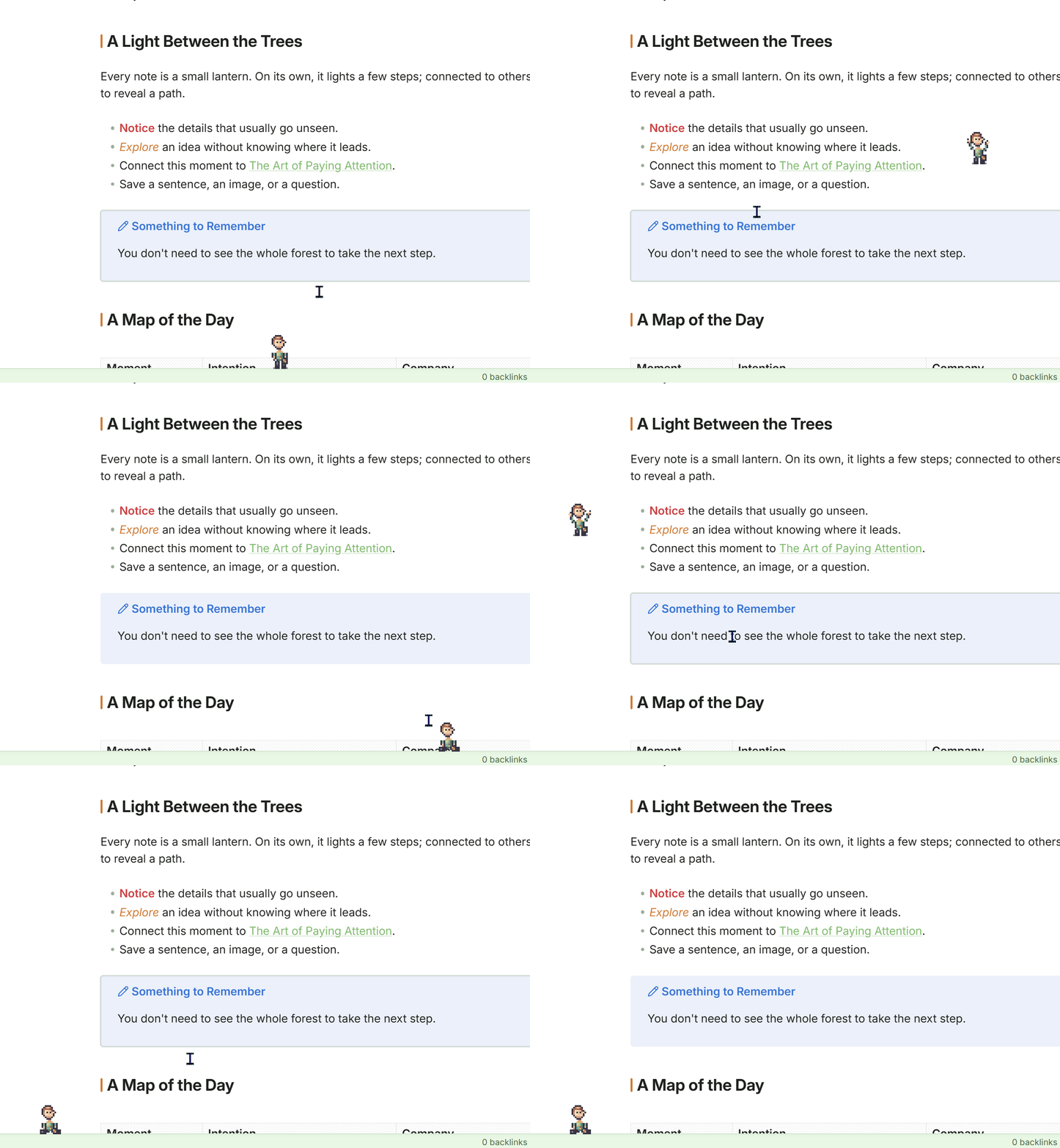
Pick up your tiny friend, let go, and give it a moment to catch its breath.
With Reduce motion enabled, the character holds a still pose while lifted and returns directly to the floor when released, keeping the short seated pause.
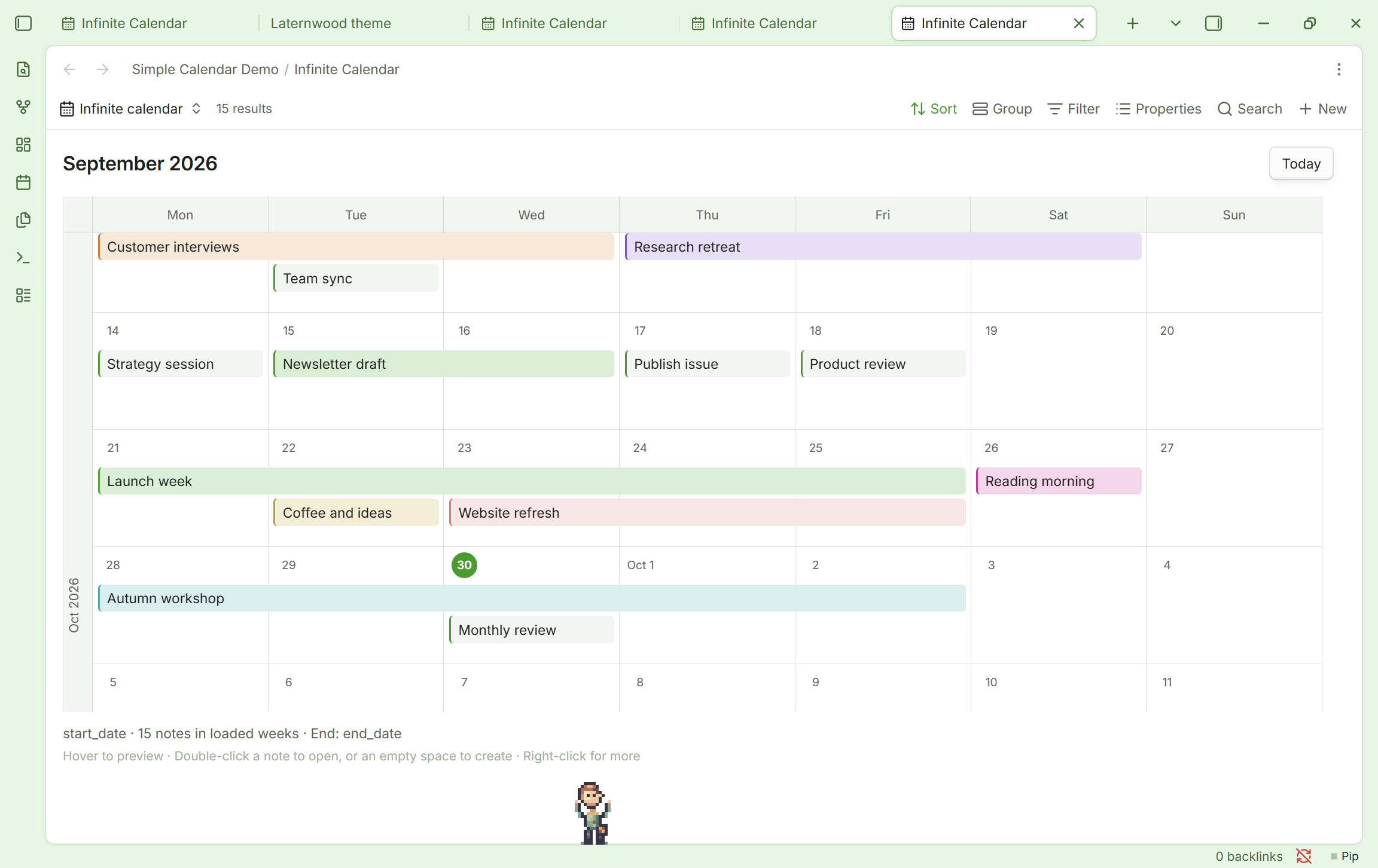
Pip taking a stretch while you work. This example uses the Lanternwood theme and an Infinite Calendar view; neither is required by Just Simple NPC.
Meet the companions
| Character | Personality in pixels |
|---|---|
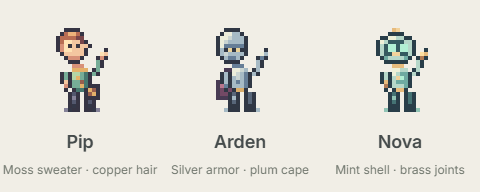
| Pip | Copper hair, a moss sweater and a little satchel. |
| Arden | A gentle medieval knight in silver armor with a plum cape. |
| Nova | A curious mint robot with a luminous face and warm brass joints. |
The names and designs are gender-neutral. One character is active at a time; switch between them in settings.
The artwork is drawn cell by cell on a 16 × 24 pixel grid, with colored highlights and shadows. Small, Medium and Large adjust to your display scale so every art pixel remains a uniform square, including at fractional display scales and when Obsidian's zoom changes. The character's position follows the same screen grid. Smaller sizes retain a comfortable hover target.
Install
Requires Obsidian 1.13.0 or later on desktop.
In Obsidian, open Settings → Community plugins → Browse, search for Just Simple NPC, then install and enable it. To update an existing installation, use Check for updates in Community plugins and update Just Simple NPC.
You can also install it manually from GitHub:
-
Download
main.js,manifest.jsonandstyles.cssfrom the latest release. -
Create a folder named
just-simple-npcinside your vault's.obsidian/plugins/folder. -
Place the three files directly inside that folder:
<your-vault>/ .obsidian/ plugins/ just-simple-npc/ main.js manifest.json styles.css -
In Obsidian, open Settings → Community plugins, enable community plugins if needed, and refresh the installed plugin list or restart Obsidian. Enable Just Simple NPC.
-
Open Settings → Just Simple NPC to choose your companion and commands.
Obsidian's community plugin help explains the plugin controls. Releases include only the three installable files.
To update a manual installation, disable Just Simple NPC, replace those three files with the new release, and enable it again. Keep data.json: it contains your saved choices.
If you tried the earlier Little NPC development build, disable it first and use the new just-simple-npc folder. Copy its data.json into the new folder to keep your character, size and command choices, then enable Just Simple NPC. Only enable one of the two installations. Plugin command IDs now use the just-simple-npc: prefix.
Make it yours
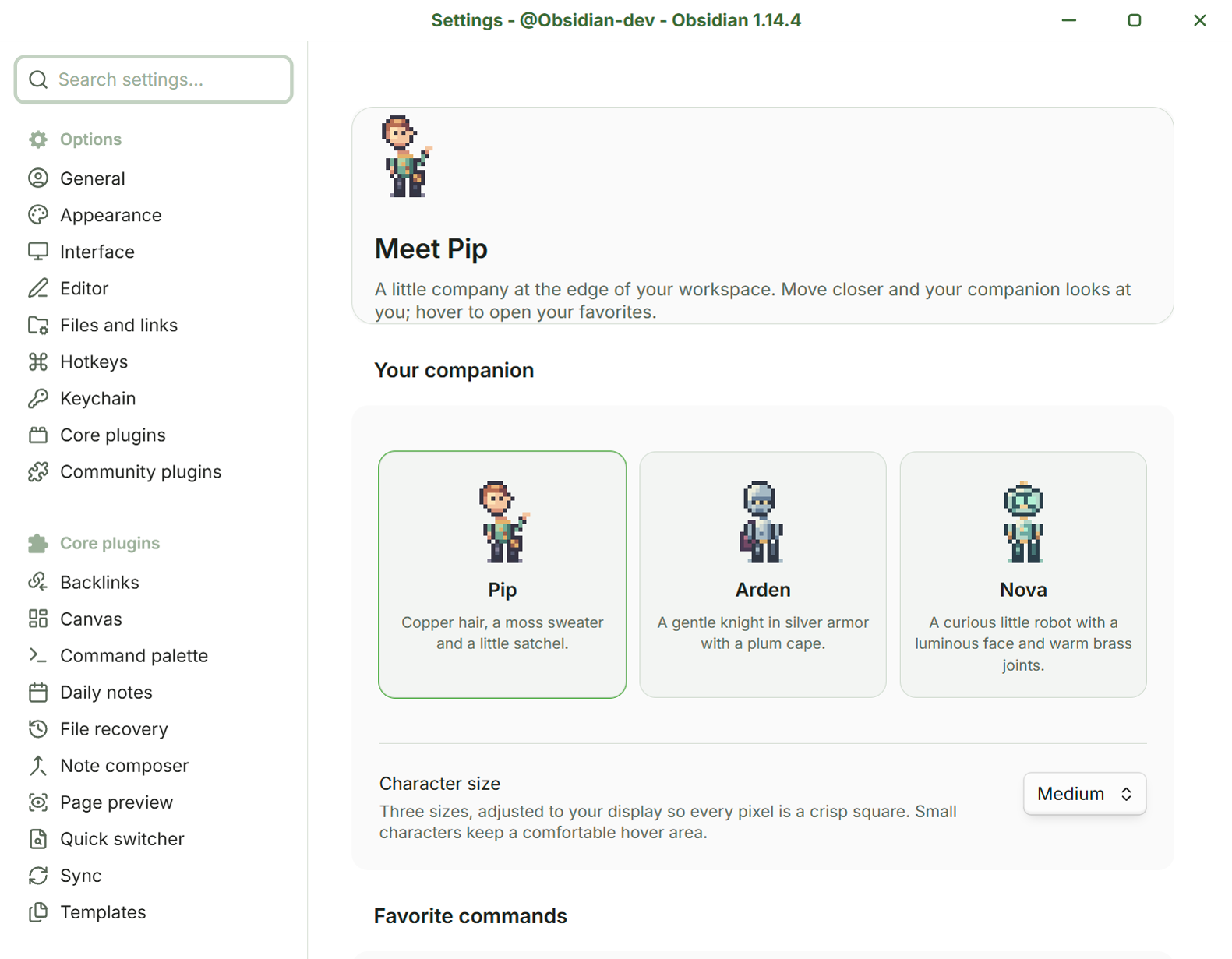
| Setting | What it does | Default |
|---|---|---|
| Your companion | Choose Pip, Arden or Nova. | Pip |
| Character size | Small, Medium or Large, with crisp display scaling. | Medium |
| Number of slots | Show one to six command slots. | 5 |
| Command / Short label | Pick each command and optionally give its bubble a shorter name. | Five ready-to-use commands |
| Walking speed | Set the pace from 8 to 48 pixels per second. | 24 |
| Attention distance | Set how close the mouse gets before the NPC stops to look at it, from 80 to 240 pixels. | 150 |
| Hover delay | Wait from 0 to 800 milliseconds before opening the fan. Clicking opens it immediately. | 180 ms |
| Bring your companion back | Call the NPC to a nearby spot. | Also available from the status bar |
Click the companion's name in the status bar to call it over. Right-click the character or the status-bar name to open settings.
The settings use Obsidian's native declarative API and appear in its settings search. Search for Character size, Walking speed, Hover delay, or a numbered command slot. Slider values appear inline. The character cards and behavior gallery keep their animated previews.
Create a custom NPC
You can load your own character from a PNG sprite sheet saved inside your vault. Download the creation kit, which includes completed Pip, Arden and Nova templates, a blank sheet, the original reference character Rue, a labeled layout guide and a detailed generation prompt.
Attach your character image and a filled template to ChatGPT or another image-generation tool, paste the prompt, then save the resulting PNG in your vault. In Settings → Just Simple NPC → Custom companion, choose the sheet, give it a name and select Use this companion. Review all thirteen actions in the animated gallery. Pip, Arden and Nova remain available from their cards.
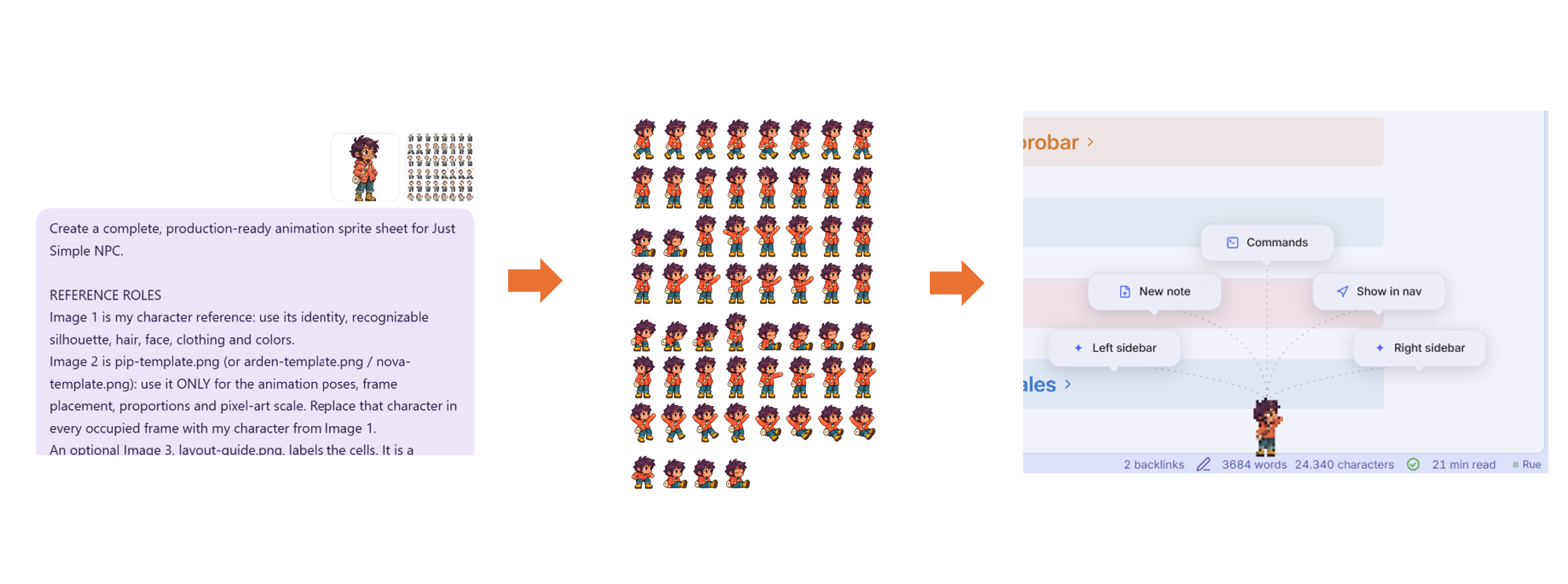
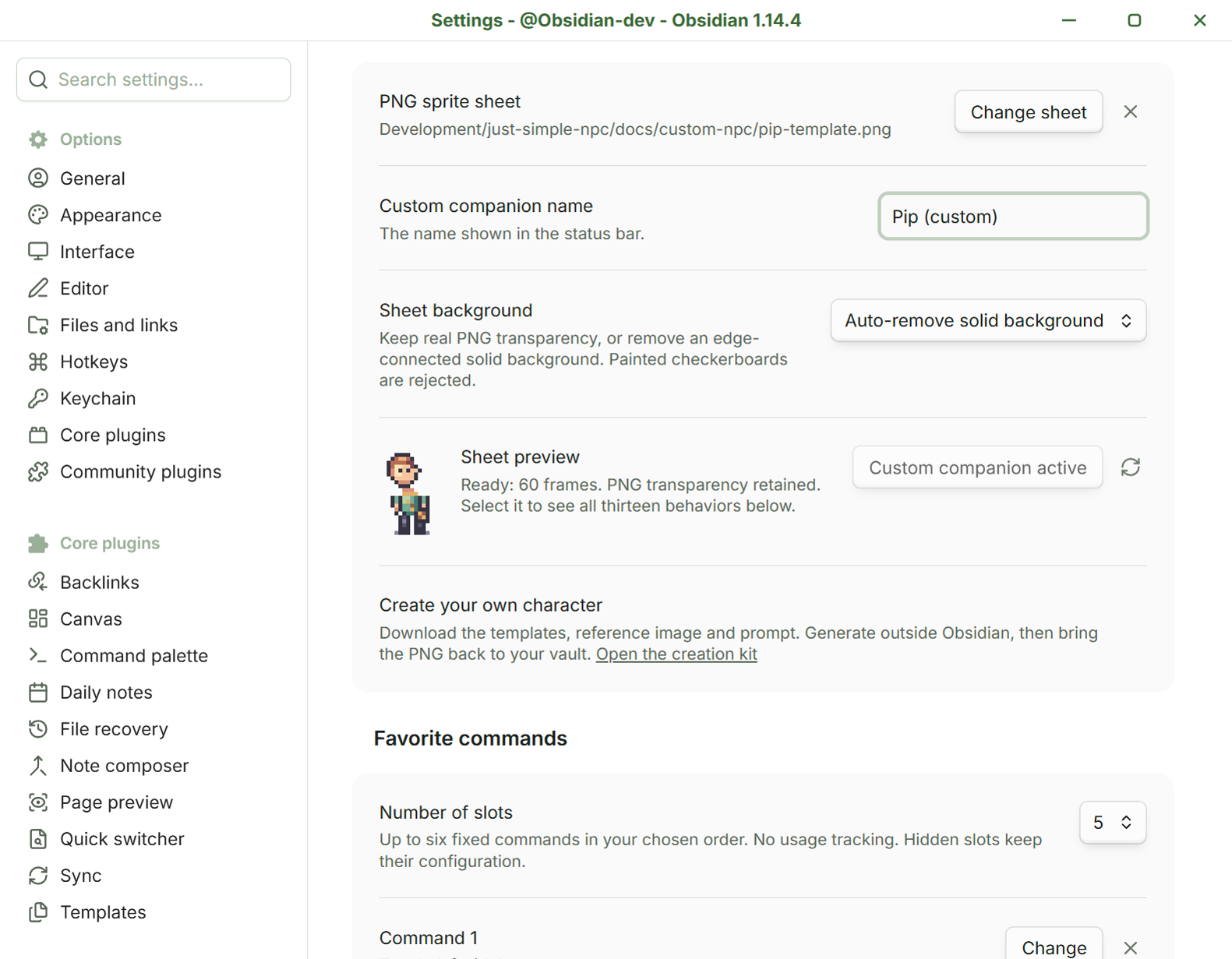
The format is 8 × 8 cells, each 16 × 24 logical pixels, with 60 required frames and four reserved cells. Native 128 × 192 sheets and whole-number enlargements such as 1024 × 1536 are accepted. The importer checks dimensions and required cells, keeps real transparency or removes a solid background, and reports the cell to repair when possible. A painted checkerboard is rejected. Generated poses still need a visual review.
PNG changes and renames are detected automatically. A missing or invalid sheet falls back to Pip while keeping your selection; forgetting a sheet leaves the PNG file intact. The plugin makes no image-generation calls or uploads. Full instructions, downloads and transparency guidance.
What can the NPC do?
The settings include a read-only gallery with animated previews of all thirteen behaviors for the selected character. Individual actions are not configurable in this version.
| Action | Behavior |
|---|---|
| Wander | Walk in either direction, pausing and changing destination. |
| Rest | Stand still and blink. |
| Look around | Turn the head and glance around. |
| Sit down | Take a short break on the edge of the status bar. |
| Stretch | Lift both arms, hold the stretch, then relax. |
| Wave | Raise an arm, wave an open hand from side to side, then lower it. |
| Investigate | Lean down to inspect something near the feet. |
| Doze | Sit, close the eyes and drift off for a moment. |
| Follow the mouse | Pause and turn the head toward the pointer. |
| Offer commands | Open the fan and stay still while you choose. |
| Picked up | Raise both hands and fidget while lifted off the floor. |
| Fall gently | Accelerate toward the floor after release, with a limited falling speed. |
| Catch a breath | Land softly and sit for two seconds before carrying on. |
The first eight are autonomous activities. The other five respond to your pointer or interaction. The NPC pauses while Obsidian is in the background and respects the system's Reduce motion preference.
Keyboard access
Mouse interaction is the main idea, and keyboard access is available too:
- Focus the character and press Enter, or run Just Simple NPC: Open favorites from Obsidian's command palette.
- Use the arrow keys, Home or End to move between bubbles.
- Press Escape to close the fan and restore the previous focus.
- Just Simple NPC: Call your companion here brings it back; Just Simple NPC: Configure favorites opens settings.
Resource use
A visible companion still does animation work when you are not typing: it walks, blinks and watches the pointer. Idle does not mean zero CPU. Its animation clock stops when the Obsidian window is hidden or unfocused. With the system's Reduce motion preference enabled, a resting companion has no continuous animation loop; interaction wakes it when needed.
Since 0.7.3, walking updates run at 30 Hz and stationary behaviors at the sprite cadence, about 12.5 Hz. Dragging follows pointer events directly, and falling retains 60 Hz updates. Position and state attributes change only when necessary. Settings share one animation clock per document, animate only visible previews and stop those animations when closed.
A controlled 10-second walking test reduced update calls from 600 to 300 and DOM attribute writes from 1,980 to 300, with the same distance traveled. This uses native DOM/canvas in an isolated document with a virtual 60 Hz clock; the figures describe work removed, not CPU or battery percentages. Resource use varies with the computer, display and vault.
Thanks to u/gamarala_in_distress for asking "does it drain resources on idle ?" and prompting this closer look.
Privacy and compatibility
Just Simple NPC has no runtime dependencies, network requests, analytics or command usage history. Settings stay in this vault. It does not read your note contents. Selected commands run through Obsidian's command dispatcher and retain their normal behavior.
This is a desktop plugin for the main Obsidian window. Extra pop-out workspace windows and mobile are not supported. This build has been tested in Obsidian 1.14.4 and requires 1.13.0 or later for native searchable settings. Settings previews also work in Obsidian's separate settings window.
The command catalog and dispatcher are internal Obsidian APIs. Access is feature-detected and kept in a small adapter; Just Simple NPC does not wrap or intercept command callbacks. Compatibility with future Obsidian changes may require updates.
Development
Use Node.js 24 LTS and npm. The source is TypeScript, with no runtime libraries.
npm ci
npm run check
check runs the official Obsidian ESLint rules with zero warnings, a CSS check prohibiting !important, strict TypeScript checking, the unit tests and a production build. npm run build creates main.js. The tests cover settings recovery, preserved choices, screen pixel scaling, sprite bounds, the four head directions, greeting phases, label abbreviation, fan placement, autonomous movement bounds, falling physics at different refresh rates, command searches, the shipped sprite sheets and background removal. Animation tests also cover scheduling at 30, 60, 120 and 144 Hz, visible-only preview clocks, pause/resume, reduced motion and cleanup. GitHub Actions runs the same checks on pushes and pull requests.
Version tags run a separate release workflow. It checks that the tag, package, manifest and minimum-version mapping agree, builds from that tagged source, and creates GitHub artifact attestations for main.js, manifest.json and styles.css. It verifies provenance before publishing, then downloads the release and checks both byte equality and attestations again.
To verify a downloaded release with the GitHub CLI:
gh attestation verify main.js --repo DavidHurtadoAI/just-simple-npc --signer-workflow DavidHurtadoAI/just-simple-npc/.github/workflows/release.yml
gh attestation verify manifest.json --repo DavidHurtadoAI/just-simple-npc --signer-workflow DavidHurtadoAI/just-simple-npc/.github/workflows/release.yml
gh attestation verify styles.css --repo DavidHurtadoAI/just-simple-npc --signer-workflow DavidHurtadoAI/just-simple-npc/.github/workflows/release.yml
Attestations are stored by GitHub; there are no extra release attachments to install. This provenance workflow applies from 0.5.0 onward.
The main pieces are:
src/sprite.ts: original pixel matrices, palettes and animation poses.src/sheet-layout.ts,src/sheet-pixels.ts,src/custom-sprite.ts: custom format, transparency validation and playback.scripts/export-sheets.mjs: reproducible native and enlarged PNG templates.src/pixel-grid.ts: integer enlargement and physical-pixel alignment.src/companion.ts: wandering, dragging, pointer attention and the command fan.src/animation.ts: deadline-driven animation and shared, visible-only settings previews.src/physics.ts: acceleration, falling speed limit and landing timing.src/command-search.ts: command matching and sidebar search aliases.src/core.ts: settings, behavior choices and fan geometry.src/main.ts: Obsidian lifecycle and command dispatch.src/settings.ts: searchable settings, command selection and animated previews.styles.css: the companion, bubbles and settings UI.
Artwork and license
Pip, Arden and Nova and their animations are original code-authored artwork. The additional Rue reference was created with image generation for the custom-character kit. The design takes cues from atmospheric pixel art; no game assets are used. Useful references include Derek Yu's pixel-art tutorial, Saint11 on clusters, Saint11 on animation and MDN's canvas rendering guidance.
Code and original artwork are released under the MIT License. Created by David Hurtado.
For plugin developers
Search results and similarity scores are powered by semantic analysis of your plugin's README. If your plugin isn't appearing for searches you'd expect, try updating your README to clearly describe your plugin's purpose, features, and use cases.