by David Hurt
Plan and follow your notes on a continuous timeline, grouped into threads with connections, tasks and a notebook view. Fully local.
Just Simple Planner
New here? Start with the illustrated tutorial · Download the ready-to-open example
See the story of your work. Keep it in your notes.
A visual timeline for Obsidian: projects in rows, days in columns, and every card an ordinary Markdown note.



Tutorial · Migration guide · Guía en español · Visual tour · Install · Settings · Try the examples · Markdown format · The story and the credit
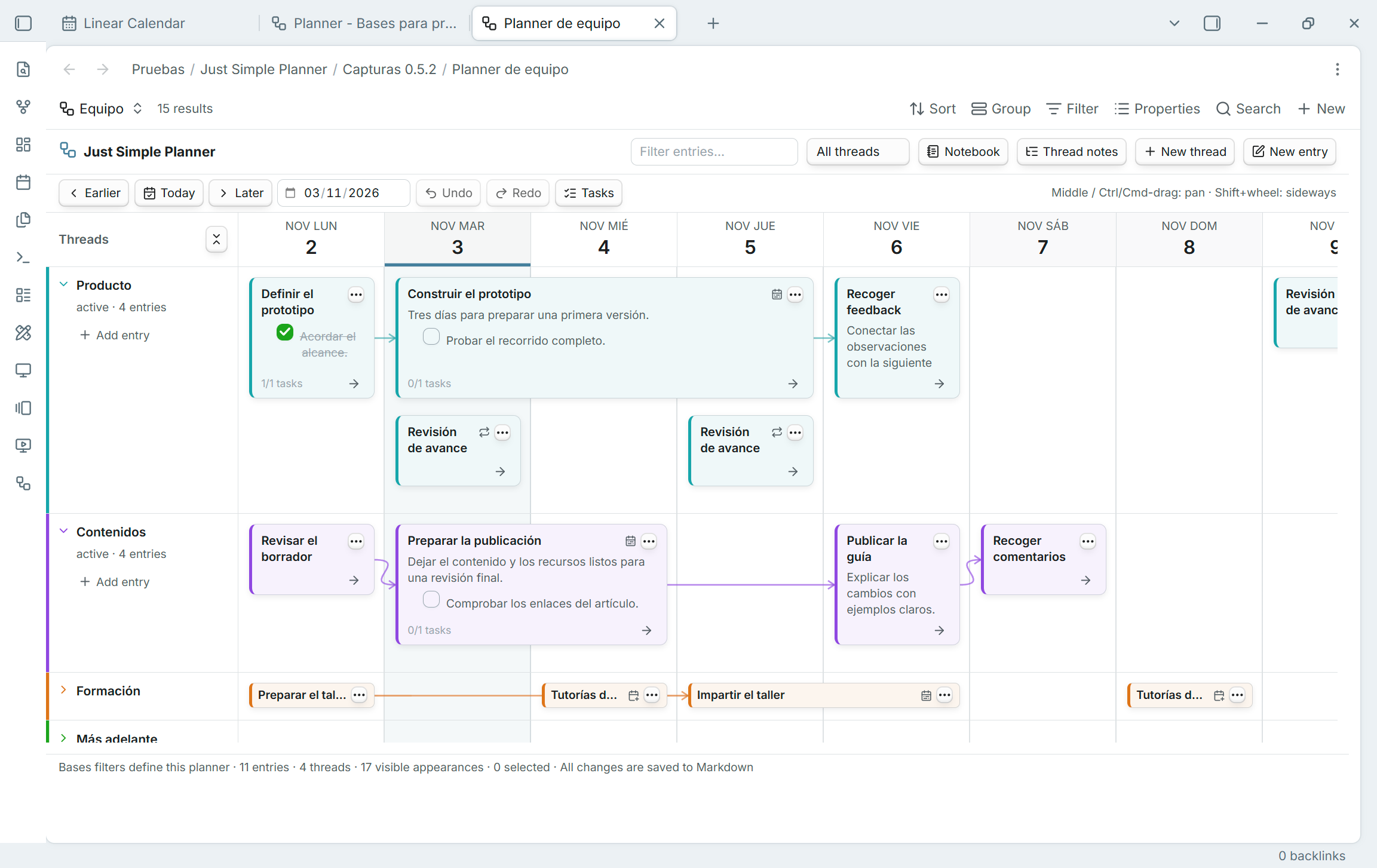
Your notes, several planners. Open a Base and choose the Simple Planner layout. Each planner uses its own query and view configuration; its cards, threads and arrows remain ordinary Markdown notes and links.
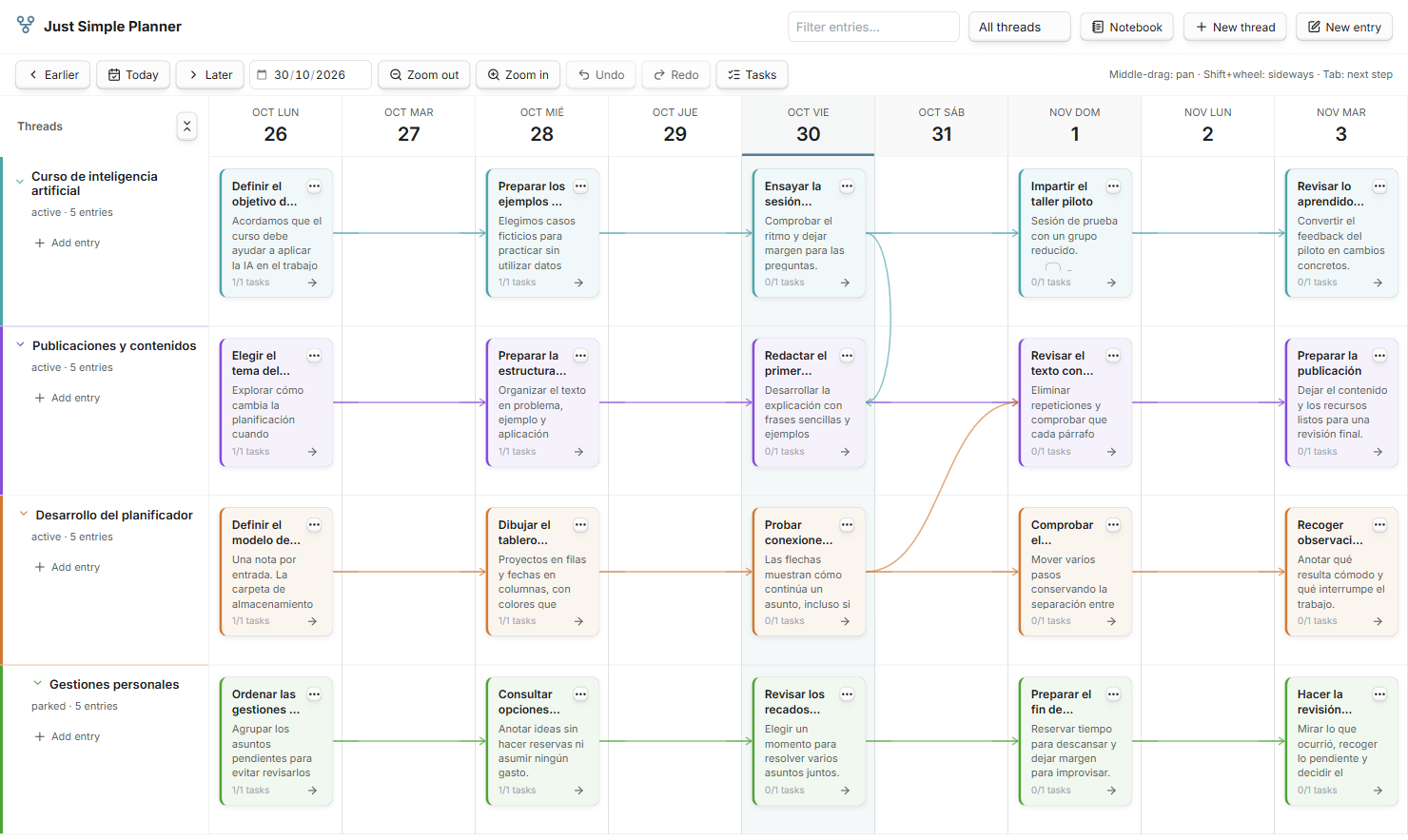
Your work has a past, an unfinished middle, and a next step. Just Simple Planner puts them on one continuous board. Capture a meeting, connect it to a draft, follow a branch into another project, or move the next few steps together when plans change.
Every card reads an ordinary Markdown note. Repeated appearances share that same file. You choose where files live. The thread property places them on the board; next links them together. Your notes remain readable in Obsidian, other editors, and Bases when the plugin is disabled.
Cards with only a title and frontmatter use a shorter height, keeping the two-line title, note menu and continuation arrow. Add Markdown content to return to the normal preview height; blank lines alone do not count as content. Entries on the same day stack using their actual heights.
Inspired by Haftio. The original deserves clear credit. This is an independent Obsidian implementation. Read the thank-you, the apology, and the story.
New in 0.6.0: Planner now runs exclusively in Bases. The standalone classic timeline is retired; its migrator, saved settings and command IDs remain supported. Enable the built-in Bases plugin before using this version. Existing Bases planners continue working without another migration.
The footer now fits on one compact line, with the full summary available on hover. Removing the native Bases bottom padding recovers 60 pixels of usable height below the timeline.
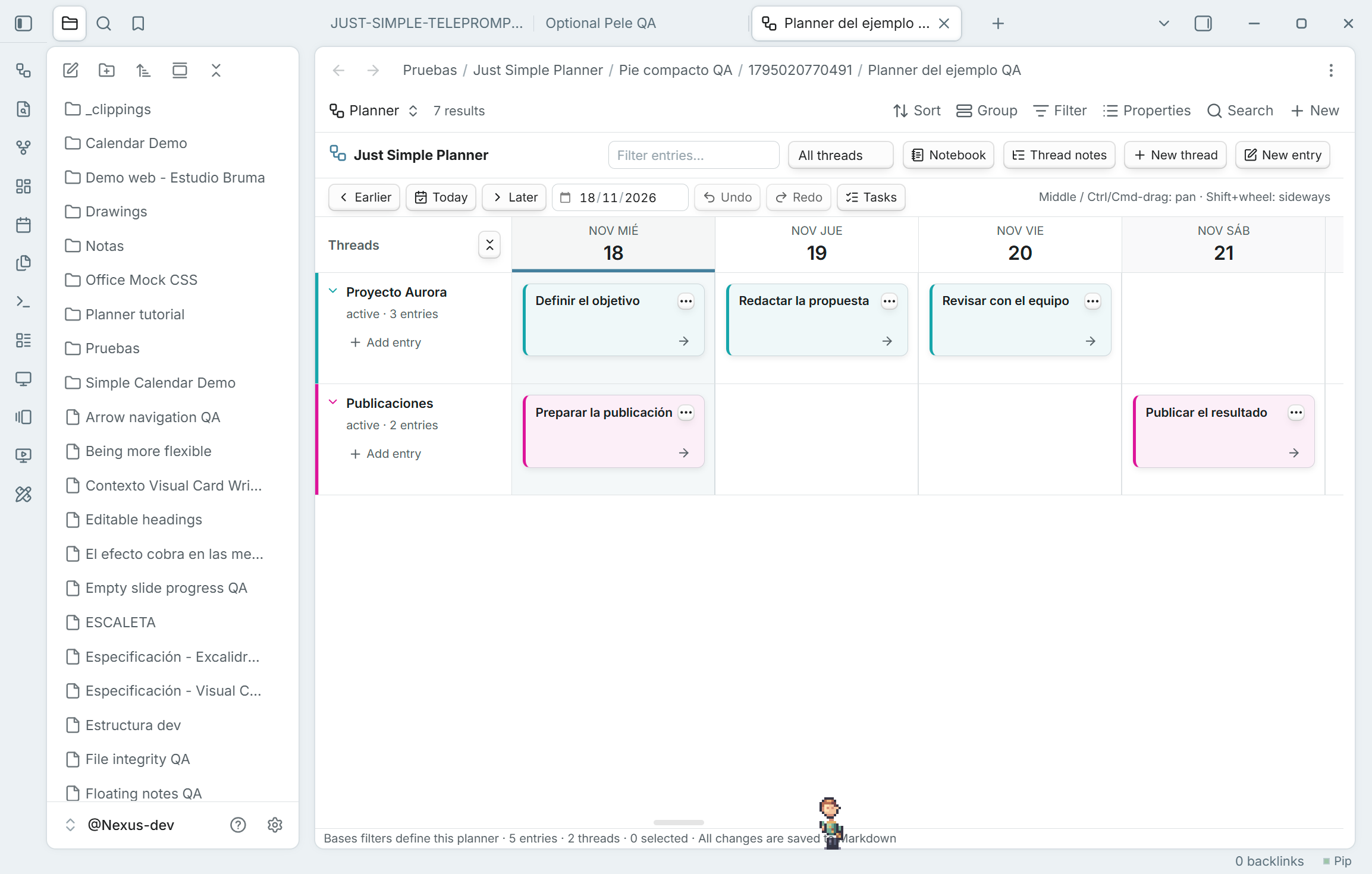
Bases planners and migration
Simple Planner is a native Bases layout. You can keep several planners in separate Base files or views, select notes with Bases filters, and choose date/title/thread/connections properties per view. Enable Obsidian's built-in Bases plugin; Just Simple Calendar remains independent and is not required.
Upgrading to 0.6.0
The standalone classic view has been retired. This is the same plugin ID and the same Markdown notes. Existing Base files continue working.
Already using Bases? Update the same plugin and reopen your existing .base files. Your queries, view settings and notes are retained; do not migrate those planners again.
Still using the classic timeline? Update the same plugin, keep data.json and your notes, then follow these steps. The classic timeline is no longer available as a fallback in 0.6.0.
- Enable Bases, then run Just Simple Planner: Create Bases planner from classic notes (also available from Review migration in settings).
- Review the counts, property mapping and classic creation destinations. Choose a new vault-relative Base path and click Create Base.
- Wait for Migration verified in the new view. The initial comparison checks entry titles/dates, thread membership, connections and thread metadata, retaining empty thread rows.
- Compare your normal workflow, then tailor the Base filters or add other planners. Select optional scheduling properties explicitly in Configure view.
Migration creates a Base that reads your existing files. It does not move, rename, duplicate or rewrite them, or replace classic settings. Classic creation folders do not become search filters. Notes remain shared: editing a note in one planner changes that same note elsewhere.
Your existing shortcuts and settings
| Access or setting | Behavior in 0.6.0 |
|---|---|
| Ribbon and Open planner | Open the active planner, an existing Base, or a chooser when several exist. If none exists, offer migration to create one. |
| Saved classic workspace tabs | Show a migration page. Their saved display state remains available to import into a Base. |
| Existing creation and membership commands | Keep their command IDs, so saved hotkeys still resolve. They use the active or explicitly selected Base and its property mapping. |
| File-explorer actions | Choose a planner for showing, adding or removing a note. The Base's query still determines whether it appears. |
| Plugin settings | Retain the old property mapping, day width and former folder destinations for migration only. Edit current planners in each Base's Configure view. |
Old common-parent and child folder paths still load correctly. Unknown saved settings are preserved when editing migration settings. New notes use native Bases creation destinations; changing the retained global settings never changes an existing Base.
Read the complete migration guide or guía en español for the differences between views, troubleshooting, new-note locations, retained settings and scheduling limits.
Several planners, selected by Bases
For the usual marker-based planner, the Base's filters determine membership. In All views, choose Any of the following are true and add planner_type is entry or planner_type is thread. Migration creates this filter automatically. Its .base representation is:
filters:
  or:
    - note.planner_type == "entry"
    - note.planner_type == "thread"
With that filter, planner_type: entry includes a note as a card, provided it has a valid selected date; planner_type: thread supplies a thread row. Removing the entry marker excludes the note from this query. The property is named planner_type, not planner_entry.
Custom Base queries can deliberately select unmarked notes with a valid date. The layout does not add a hidden marker requirement or change those filters. Same-day cards follow the Base's sorting; dates stay chronological and thread rows retain their status/order. Native Bases grouping does not replace the Thread property. The Base's result limit and filters still apply.
Different views can choose different properties and display settings. Shared filters in the same Base still apply to all its views; use separate Base files for independent root queries. Use Thread notes to retain empty rows even outside the query.
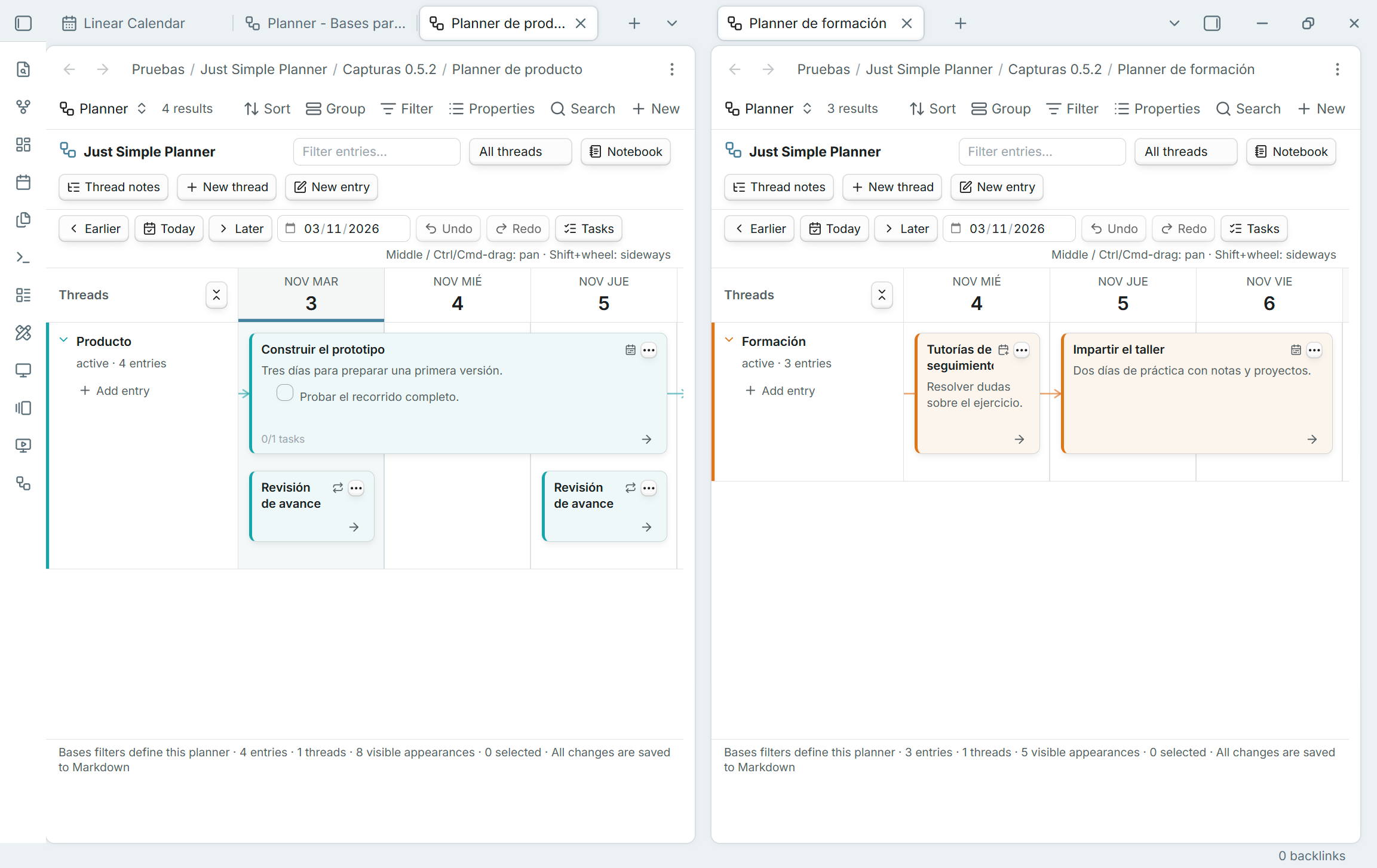
Multi-day cards and real scheduling
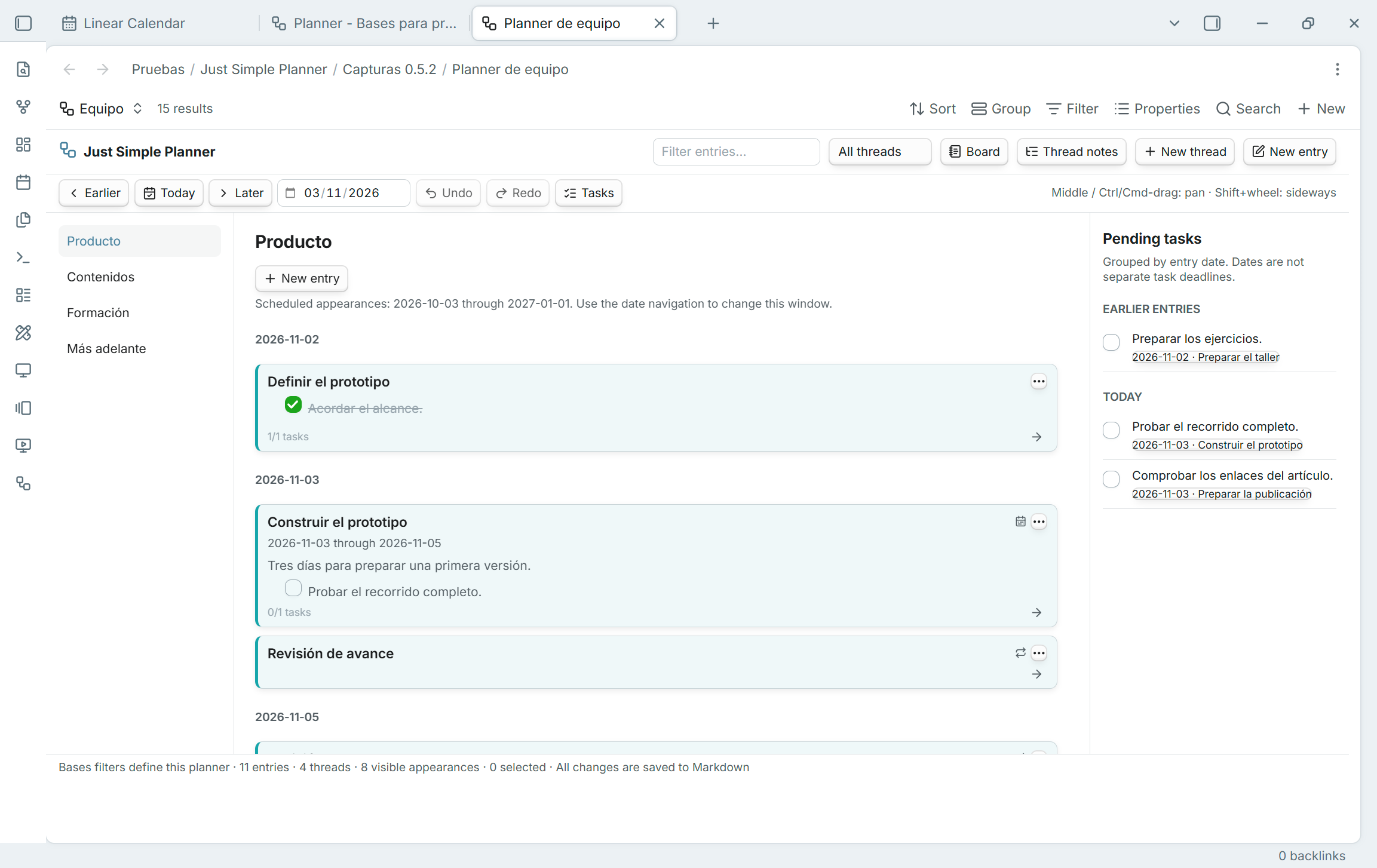
Select End date property to extend cards through their inclusive final day. Overlapping ranges stack without covering one another. Dragging an ordinary range preserves both ends, written times/offsets and duration, even when grabbed from its second day. Short title-only cards keep their shorter height.
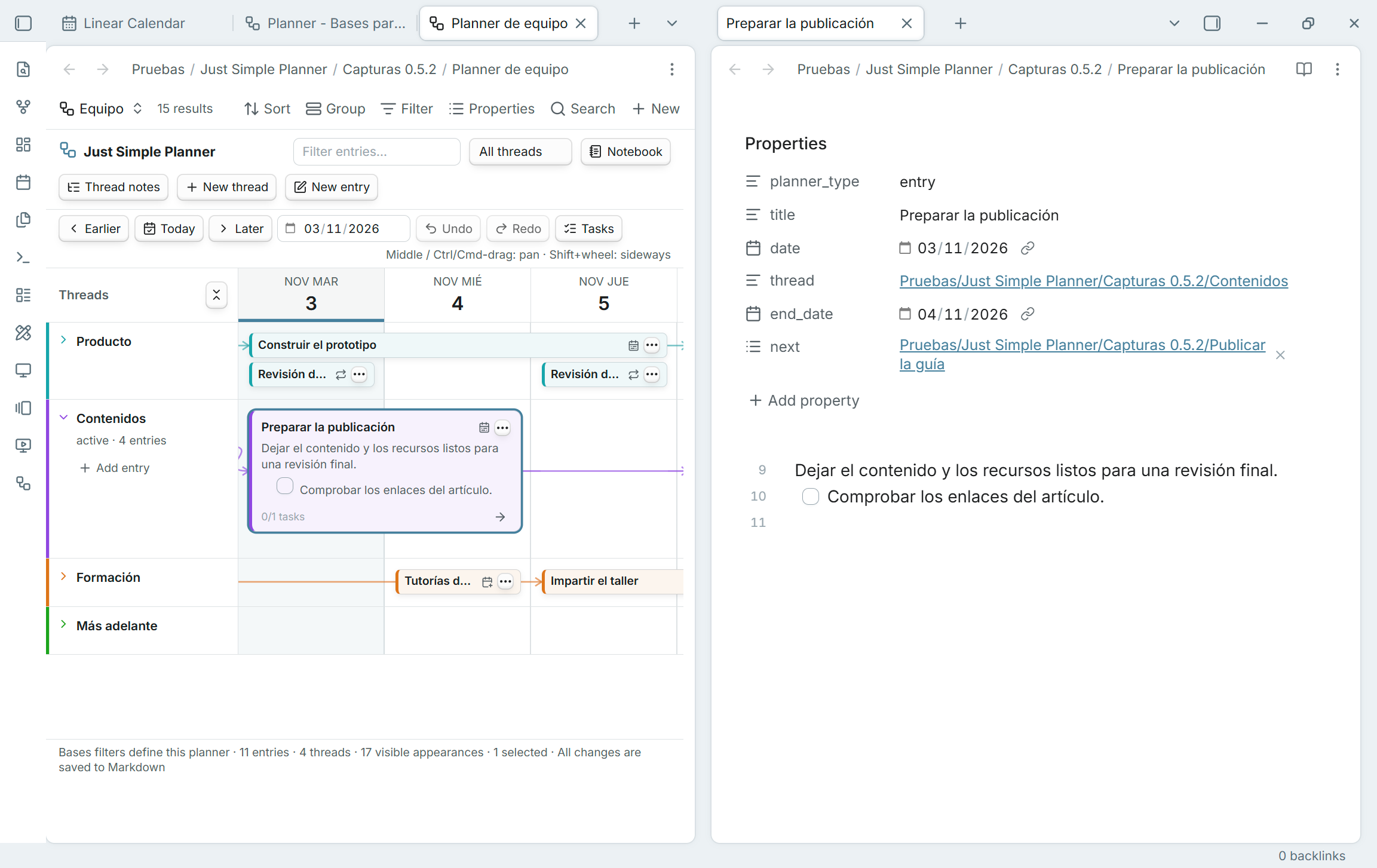
Optional scheduling provides repeat, repeat-until, skipped-day and additional-date selectors. For example, a note with repeat: weekly appears each week without duplicating the file. The card menu provides date-list editors for configured writable properties. Tasks and connections remain attached to the note once; scheduled appearances do not have separate completion records or graph nodes.
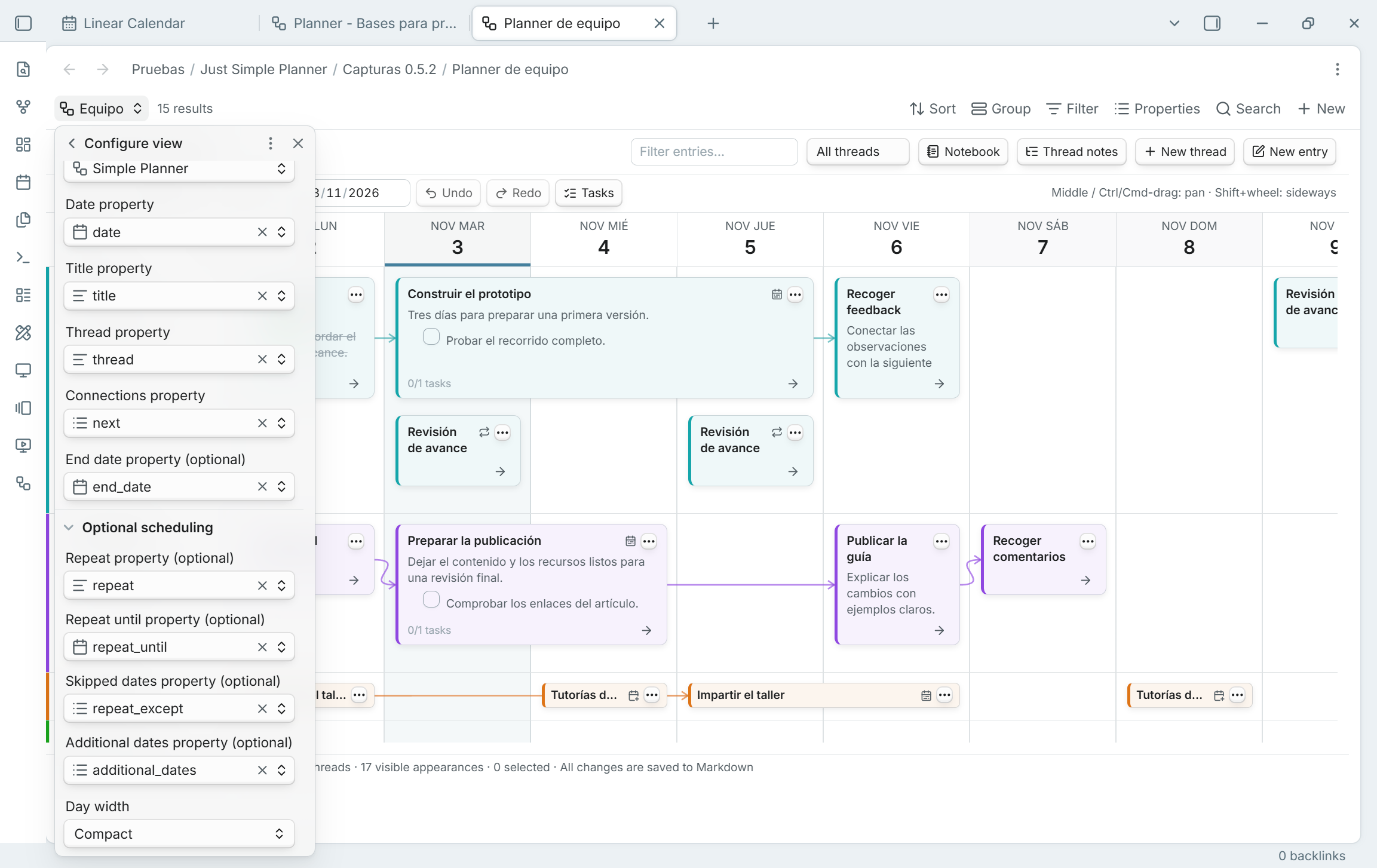
Notebook, tasks and the same Markdown
Board and Notebook share the existing editor, previews, links, selection, Spotlight and undo/redo. Notebook displays full date ranges; the task rail lists each source note's tasks once. The planner's text filter includes Markdown bodies, while native Bases search searches the displayed properties.
Creation, scope and careful writes
- Use the planner's New entry and New thread actions for its editor and connected continuations. These create files through native Bases creation, which chooses the folder/name and applies the Base's creation context. There are no planner-specific creation-folder settings for Bases. A restrictive filter can still exclude a newly created note; the plugin does not override the query. The native Bases New action keeps its own normal behavior and may need a date to be filled in.
- New entries retain
planner_type: entry. Existing unmarked notes are not marked merely by viewing them. Remove note from planner… is available from a card's right-click and three-dot menus in Bases. It removes only that entry marker and supports Undo/Redo. Every planner filtering on the shared marker is affected; a Base selecting the note by other criteria can still show it. The action is disabled for cards withoutplanner_type: entry. File-explorer membership actions target the active Base or ask you to choose one. - Linked thread notes are resolved directly. Thread notes manages explicit empty rows for this view, including notes outside its filters. Removing a row reference never deletes the note. Editing a shared thread's status/order affects that same note wherever it is used.
- An indicator identifies connections outside the current Base results. A whole-flow move is refused until all resolved successors are included. Individual edits stay within the current query; there is no hidden global graph traversal.
- Datetime cards use their written main day. Select End date property to extend each card through its inclusive final day. Overlapping date ranges stack without covering one another, retaining the short/full card heights and Base sort. Ongoing notes remain visible if they start before the loaded window; dashed edges mark ranges continuing beyond it. Notebook displays the full date range.
- Moving a range shifts both dates and preserves the written times/offsets and duration. Dragging from a later day keeps that grabbed day under the pointer. A computed date or end date can be displayed but is not writable; invalid end dates show a warning and a one-day card.
- Select Repeat property or Additional dates property under Optional scheduling to show the same note on its scheduled days. Repeat supports
daily,weekly,monthly,yearly,every 2 weeksand compact forms such asw2, matching Just Simple Calendar. Optional Repeat until includes that last start day; Skipped dates omits starts on selected ISO dates. Additional dates are individualYYYY-MM-DDvalues for a single-day note without repetition. Nothing is generated on disk. - Scheduled appearances share the note's selection, editor, body, tasks and connections. Editing a later appearance edits the original note and main date. Connections remain one relation per note, anchored at its main appearance when loaded, otherwise its first appearance in the window. Tasks are listed once per note. Dragging or moving a flow containing scheduled notes is disabled; edit the original date/rule in the note, and use Repeat options… or Additional dates… in the card menu for configured writable limits/date lists.
- The board loads a 91-day window; Notebook uses that window for scheduled appearances while retaining ordinary historical entries. Date navigation changes the window. Invalid schedules display warning badges and explanations in the footer tooltip. These scheduling options belong to each Bases view.
- Each open view has its own history. Concurrent changes from another planner or editor cause a conflict instead of being overwritten. Mapping changes invalidate old editor saves while retaining their drafts. Closing a view releases its session and refuses new stale edits. Creating a note is not undone by deleting it.
Bases supplies discovery and query updates. Each session reads its selected Markdown bodies and owns its cache/history. Classic note discovery is a read-only scan used only during migration review and creation; there is no live classic index.
Visual tour
The controls below operate in Bases. Earlier screenshots illustrate the shared card editor, connections and task workflow.
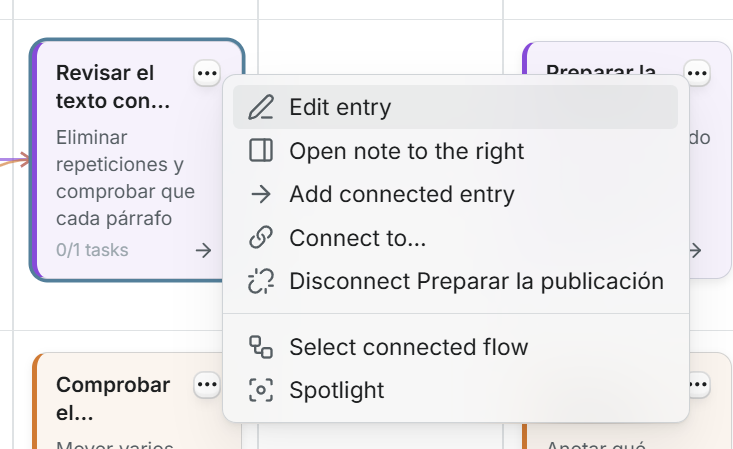
The three dots: a small menu with the whole workflow
This is the menu you will use to turn individual notes into a connected story:
| Action | What it does |
|---|---|
| Edit entry | Change the title, date, thread and Markdown body in a focused editor. |
| Open note to the right | Open the actual Markdown file beside the board. |
| Add connected entry | Start a new entry on the following day, in the same thread, linked from this one. Tab does the same when a card is selected. |
| Connect to… | Choose an existing entry to continue the story, including one in another thread. |
| Disconnect… | Remove a particular outgoing connection. The two notes remain. |
| Select connected flow | Select the entry and its connected successors, including branches. Drag them together to preserve the gaps between their dates. |
| Spotlight | Highlight this path through the work and dim unrelated entries. |
| Remove note from planner… | Remove only planner_type: entry, keeping the file and all its other data. Available from right-click and three-dot card menus in both layouts, with Undo/Redo. Bases filters determine whether the note disappears. |
Draw connections with your mouse
Hover a card to reveal the + on its right edge. Drag it onto another card: the arrow follows your pointer and the destination lights up. Release to save the connection as a normal wikilink in next.
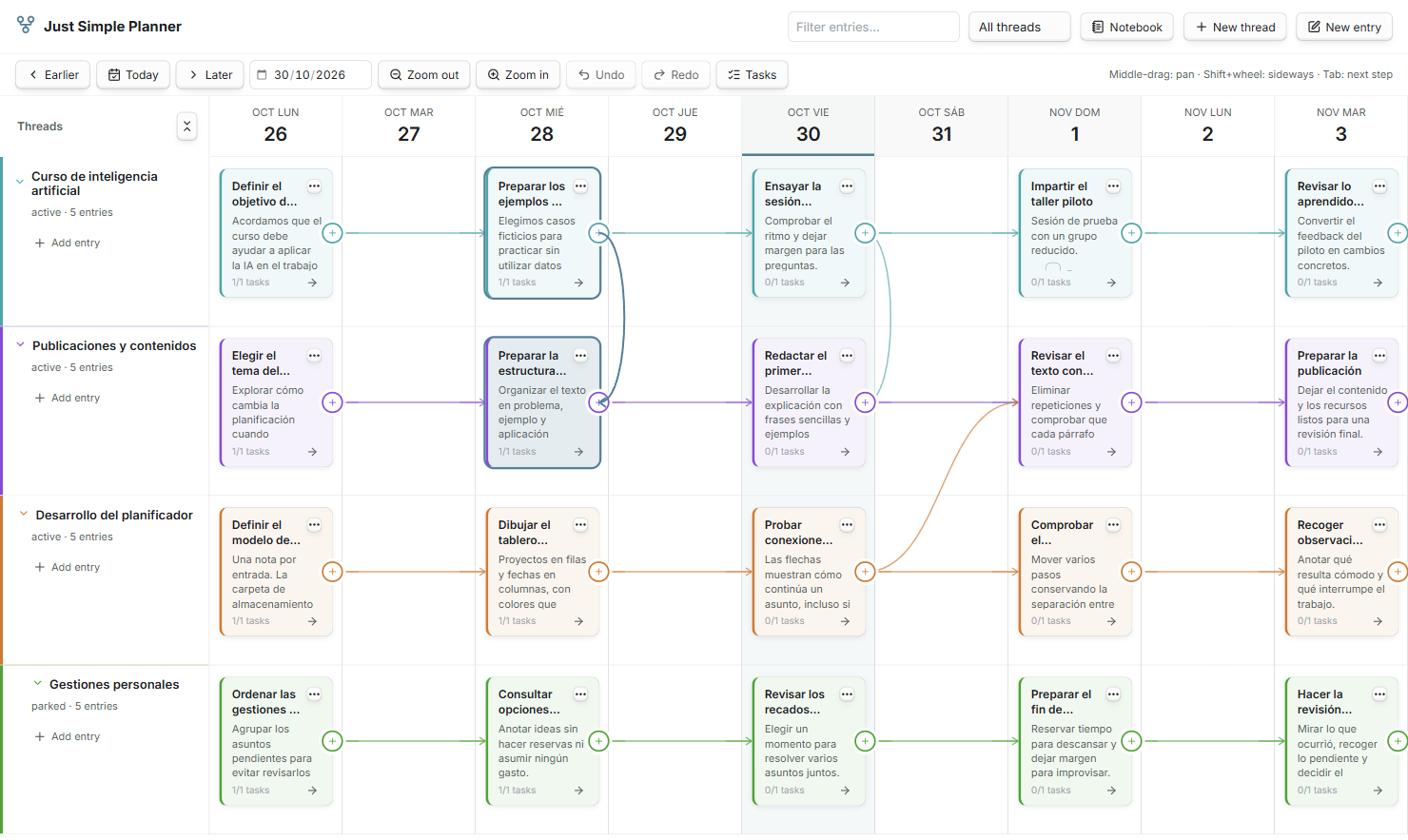
Hover an existing line to reveal × and disconnect it directly. The three-dot menu remains available. Escape or a drop on empty space cancels the gesture; holding the pointer near the edge scrolls the board. Repeated drops do not create duplicate links. Creation and disconnection both support Undo/Redo.
Preview a card's note on hover
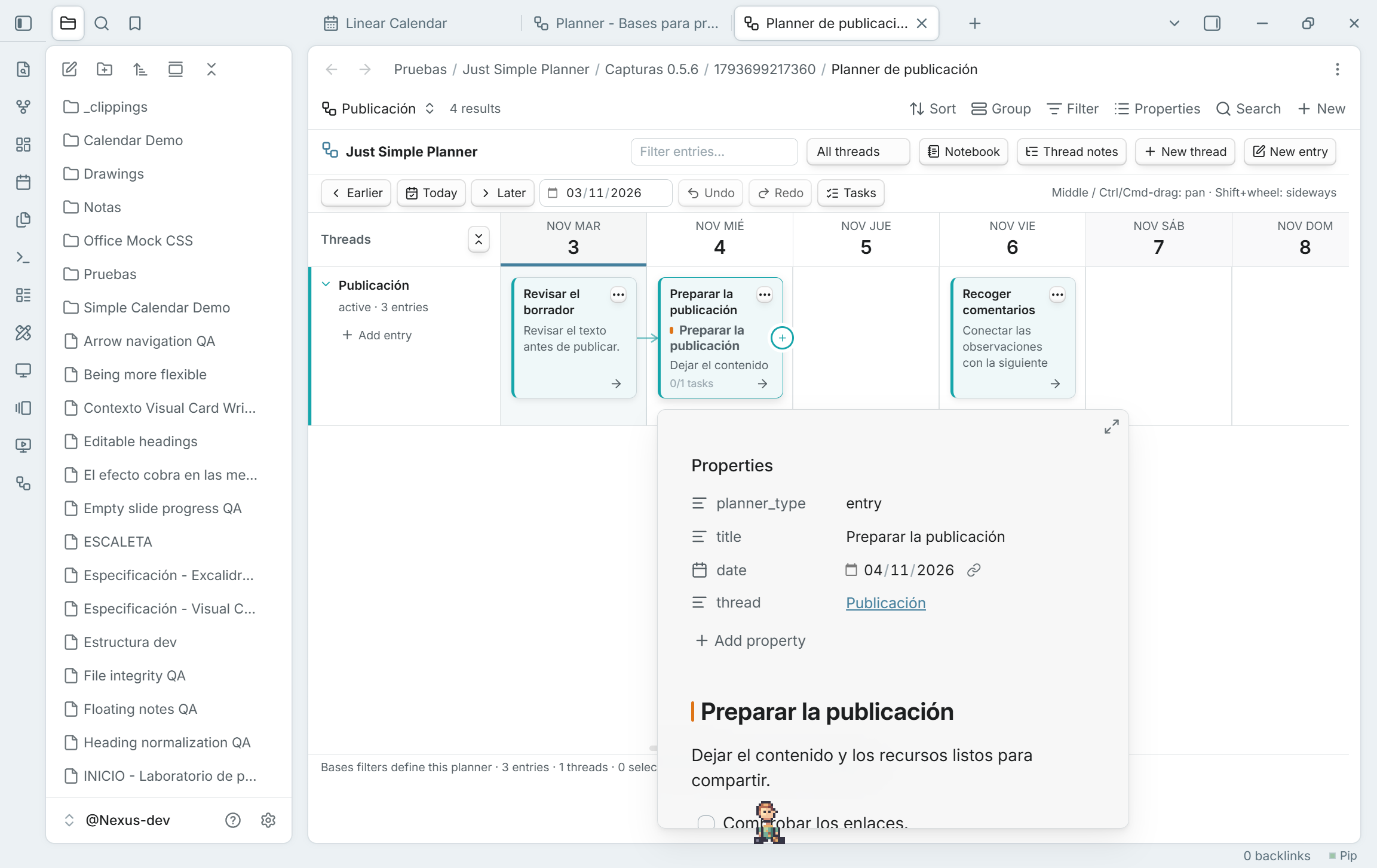
Hover a card to open Obsidian's native note preview, including its properties and Markdown content, without clicking or holding Ctrl/Cmd by default. It works in the board and Notebook, in Bases, including folded cards and repeated appearances of the same note. Enable the Page preview core plugin; its Just Simple Planner source controls whether a modifier key is required.
Moving onto card buttons or Markdown links closes the card preview and keeps those controls' own actions. Starting a card drag, a pan or a connection also closes the note preview so it does not cover the gesture. Closing the planner closes its preview. Touch devices keep their existing behavior.
Fold a thread without losing its history
A folded thread keeps a row of small, colored cards with single-line titles at their dates. Long titles use an ellipsis and can be read in full on hover. Entries on the same day stack rather than cover one another.
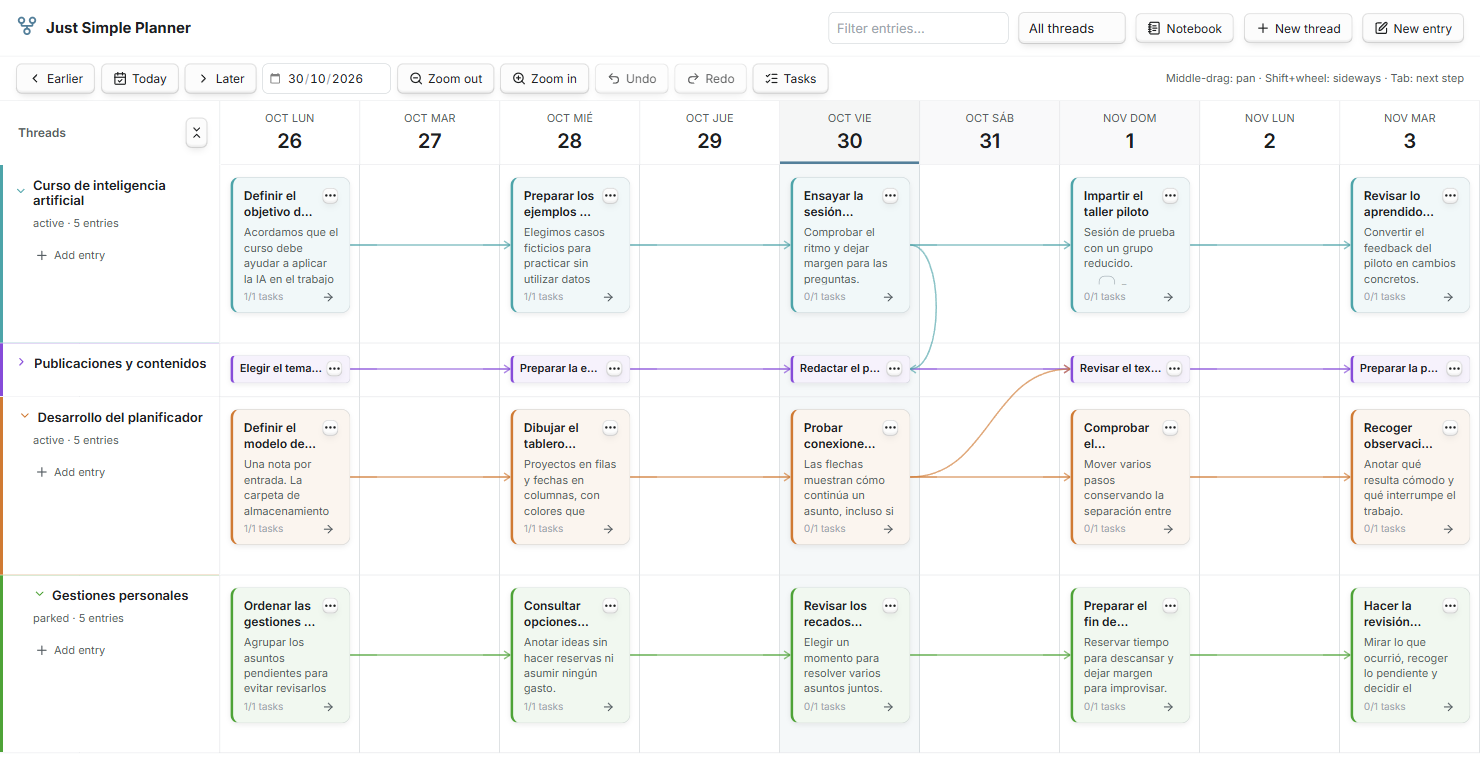
The compact cards keep their note menu, selection, dragging and connection handles. Expand the thread to return to full Markdown previews. Folding is a view choice; active, parked and closed are separate thread statuses.
Follow one path with Spotlight
A busy board can hold many parallel stories. Spotlight keeps the selected entry, its ancestors and its following branches visible while dimming unrelated work.
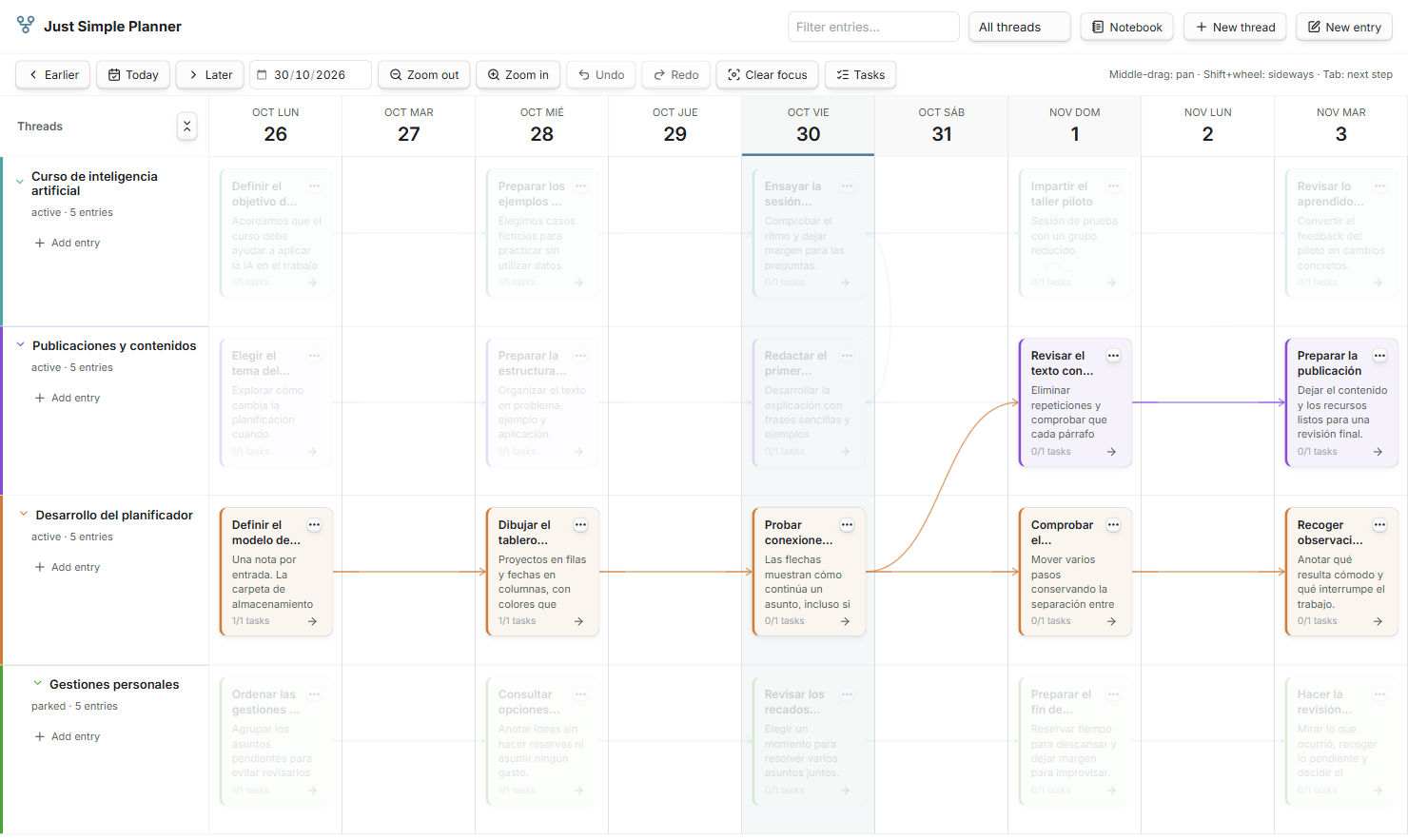
Press Escape or Clear focus to return to the full board.
Read a thread as a notebook. Gather its tasks.
Switch to Notebook to read one thread in date order. The same notes become a vertical journal. The Tasks rail collects pending Markdown checkboxes from the current filters; completing one updates the source file.
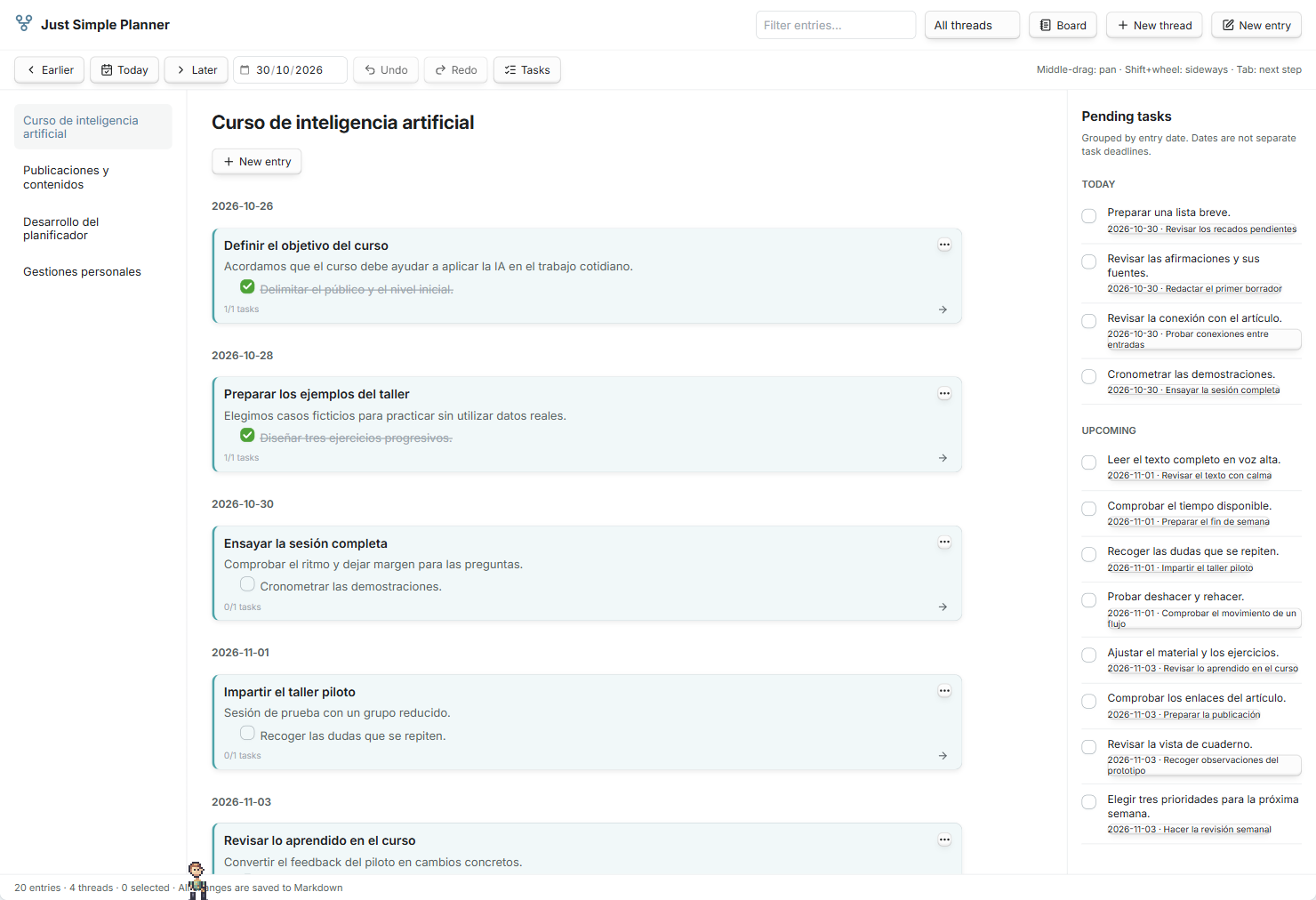
Tasks are grouped by the date of their entry. That date is not an independent deadline for each checkbox. Fenced-code examples are ignored when gathering tasks.
Write in Markdown
Double-click a card, or select it and press Enter / F2, to edit. The editor changes the normal note file; the body supports Markdown, links, attachments and checkbox tasks.
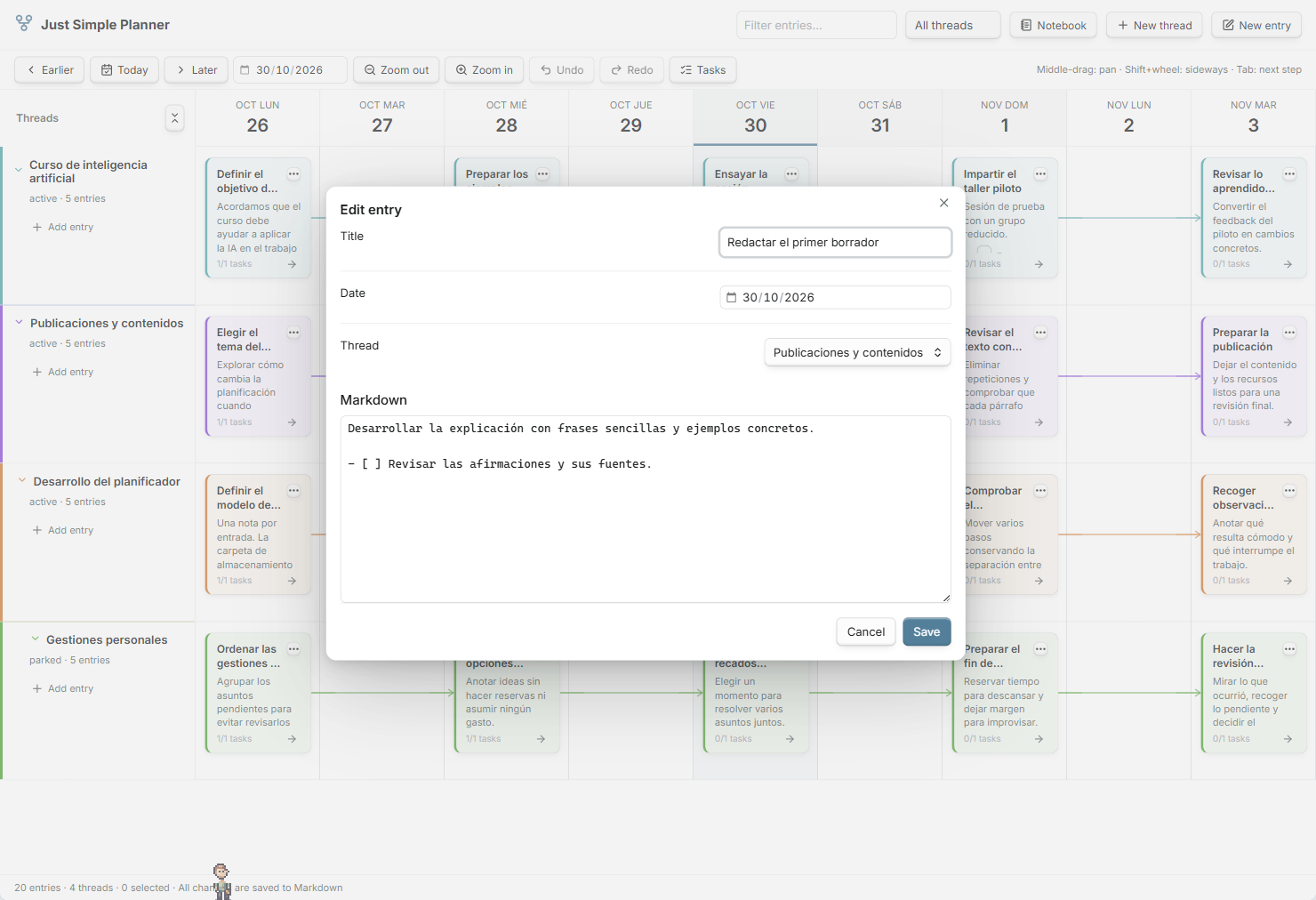
The interface and property names are English. Notes, filenames and thread names can use your language. All notes shown here are fictional Spanish examples, captured in the actual Obsidian plugin.
Mouse and keyboard
| Gesture | Action |
|---|---|
| Left-drag a card | Reschedule it; drag a single card into another thread to change its membership. |
| Middle-button drag | Pan: the content follows your hand, matching Visual Card Writer. |
| Ctrl/Cmd + left-button drag | Pan the board from empty space or a card. A small movement threshold keeps Ctrl/Cmd-click available for selection. Buttons and links keep their normal actions. |
| Mouse wheel / Shift + wheel | Scroll vertically / horizontally. |
| Ctrl/Cmd-click | Add or remove a card from the selection. |
| Shift-drag a card | Include its connected successors in the move. |
| Ctrl/Cmd + left/right | Move the selected entries by one day. |
| Tab on a selected card | Create the following day's connected entry. |
| Enter / F2 | Edit the selected entry. |
| Ctrl/Cmd-Z / Ctrl/Cmd-Shift-Z | Undo / redo while the board has focus. Ctrl/Cmd-Y also redoes. |
| Escape | Cancel a connection, or clear selection and Spotlight. |
The board extends into the past and future as you scroll, rendering a bounded 91-day window. Use Today, the date picker and Earlier / Later to navigate. Choose the column width in the Base's Configure view under Day width. Filter by text and thread status; right-click a thread label to change its status or order.
Install
Download the installable files from the latest GitHub release. The plugin requires Obsidian 1.10.2 or later.
- Download
main.js,manifest.jsonandstyles.cssfrom the release's Assets section. - Create a
just-simple-plannerfolder under your vault's configuration directory, normally.obsidian/plugins/. - Put the three files directly inside that folder, reload Obsidian and enable Just Simple Planner in Community plugins.
- Enable Bases in Core plugins. If it was previously disabled, reload Just Simple Planner. Create or open a Base, add a view and choose Simple Planner.
- Set the Base filters and view properties, then use New thread and New entry inside the planner. Existing users can run Create Bases planner from classic notes instead; follow the migration guide.
Updating an existing installation: replace only main.js, manifest.json and styles.css. Keep data.json, your notes and existing .base files, then reload the plugin. Enable the core Bases plugin. Existing Bases planners need no migration; classic users should follow Upgrading to 0.6.0.
From 0.1.2, release files are built, checked and published by GitHub Actions with cryptographic build-provenance attestations. After downloading the three files, verify each with GitHub CLI:
gh attestation verify main.js --repo DavidHurtadoAI/just-simple-planner
gh attestation verify manifest.json --repo DavidHurtadoAI/just-simple-planner
gh attestation verify styles.css --repo DavidHurtadoAI/just-simple-planner
Settings
Configure filters, properties and day width in each Base's Configure view. Native Bases creation chooses new-note destinations.
The plugin settings retain the old property mapping and day width only for migration. Former folder destinations are shown as information. Older common-base/child paths are combined on load without moving files; unknown saved fields survive edits. Editing migration settings never changes an existing Base.
Add an existing note — keep its calendar date or review a new one
Right-click one Markdown note in Obsidian's file explorer and choose Add note to planner…. The review shows its current path, date and thread, and the exact properties that will change. Existing titles, connections, calendar properties and Markdown content are kept. Cancel writes nothing.
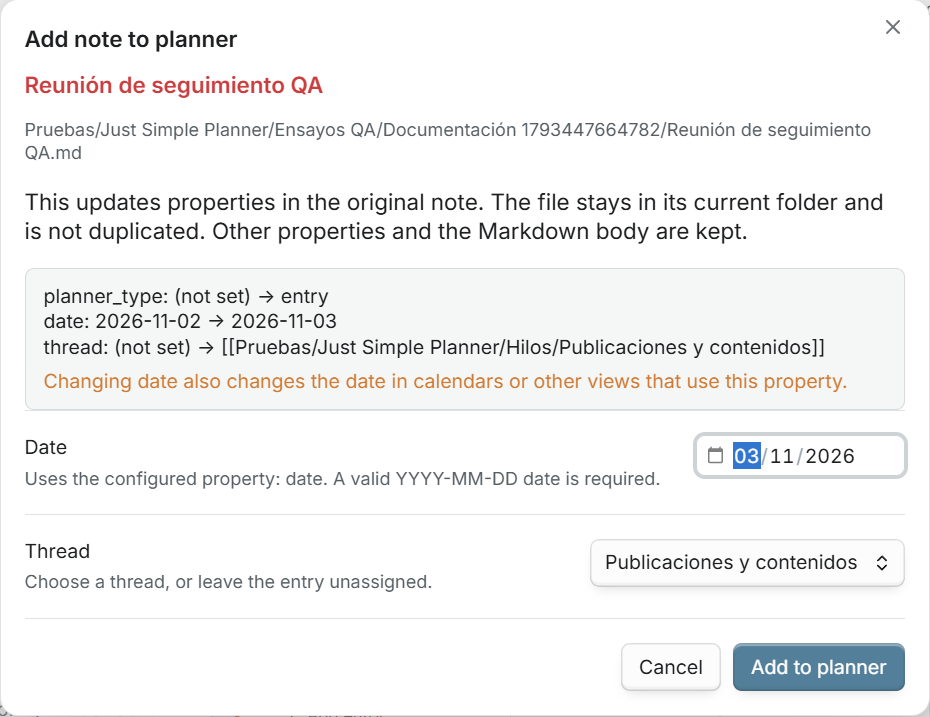
You can also drag one note from the file explorer:
| Drop destination | Proposed result |
|---|---|
| A thread header on the board | Select that thread and keep the note's valid existing date. |
| A day cell on the board | Select that thread and propose the day you dropped onto. |
| A thread or its content in Notebook | Select that thread and keep the existing date. |
| An empty planner | Review a date and thread, with Unassigned available. |
Every external-note drop opens the same review before saving. Hover feedback explains the destination and that the file stays in place. One note at a time is supported; folders, files from other vaults and external filesystem imports are rejected. Dropping an already included note updates the same entry instead of creating another card.
Calendar dates are shared. If the note already has a valid date under the configured key, it is reused. Choosing a different date updates that property in the original note, which can also move the note in a calendar or another view using the same key. The review highlights the old and new values and warns before saving. Supported datetimes retain their written time and offset when moved.
Dragging a card that is already on the board still reschedules it directly, as before. Dragging a file from the explorer always opens a review.
Remove from planner — keep the note and its calendar entry
Use Remove note from planner… from the right-click or three-dot menu of a Bases card. The review removes only planner_type: entry. The file, date, title, thread, connections, calendar properties and note body are retained. Existing wikilinks are kept; an excluded note's arrows are not drawn. Undo / Redo cover removal, including restoring a note that has disappeared from the Base results.
The marker belongs to the shared note. Removing it affects every Base whose filters require it. With the entry OR thread filter above, the card disappears. If a custom Base query still selects the unmarked note, it remains visible there; adjust that Base's filters to exclude it. Cards without the entry marker have the removal action disabled. The file explorer also offers Remove note from planner… for the same marker operation.
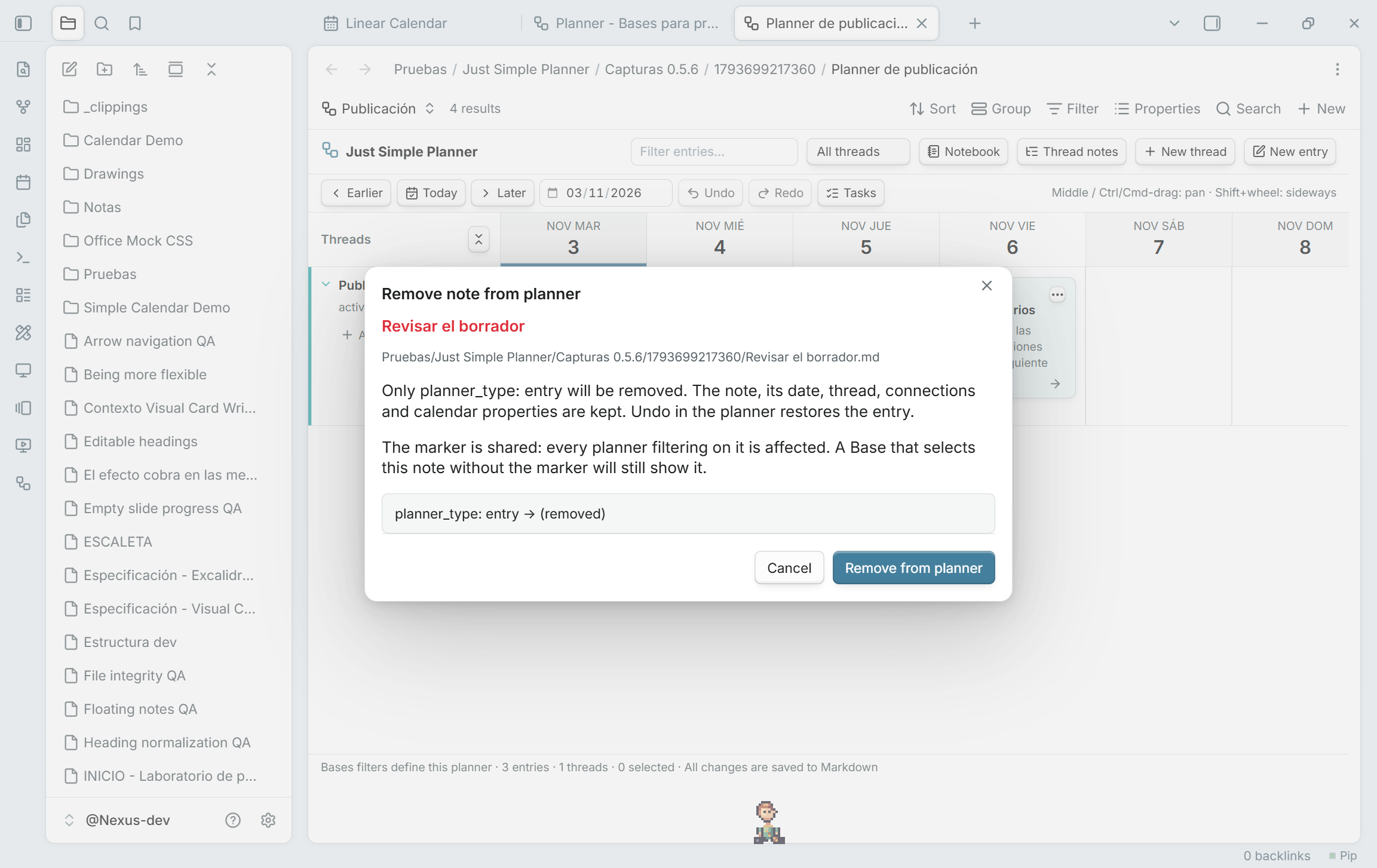
The command palette also provides Add active note to a Bases planner and Remove active note from a Bases planner. An included note's file menu offers Show in planner, which clears filters and reveals its card.
Property mapping: use your existing frontmatter names
| Setting | Default key | Value |
|---|---|---|
| Date property | date | Calendar date in YYYY-MM-DD format. Required for a card to appear. |
| Title property | title | Card title. An empty or missing value uses the filename. |
| Thread property | thread | A wikilink to a thread note, or a plain-text group name. |
| Connections property | next | A YAML list of wikilinks to following entries. |
For example, select scheduled, headline, project and following if those are the keys you already use. The mapping applies to reading, creating, editing, moving and connecting entries, including task edits. Keys must be non-empty and different; planner_type stays fixed and is reserved. Thread notes keep status, color and order.
Changing the mapping does not migrate notes. Existing properties are not renamed or rewritten. Marked entries without a valid mapped date are counted as invalid and excluded. Missing title values use the filename; missing thread values are unassigned; missing connections produce no arrows. Restore the previous mapping to read the previous schema again, or deliberately update your notes yourself. Changes to property mapping clear session undo/redo so old actions cannot modify notes under a different configuration.
Day width is configured per Base. The saved global value is imported only when migrating.
Updating from 0.3.x and older versions
Planner folder has been removed as a search scope. On update, its old base is combined with each relative child path to preserve the full creation destinations. For example, base Cursos/IA, entries Entradas and threads Hilos become Cursos/IA/Entradas and Cursos/IA/Hilos. Empty children keep the old base; an empty base keeps the old vault-relative child. Older configurations that already stored full paths retain them.
No files are moved or rewritten by this migration. Folder paths, property mappings and day width are retained. Previously marked entries and threads outside the old search folder now appear too. Unmarked dated notes remain excluded. The obsolete dated-note flag is ignored.
Try the examples
For your first Bases planner, use the illustrated tutorial and its ready-to-open starter pack. It includes a five-entry beginner planner and a separate example of date ranges, repetition and additional dates.
For the original, larger demo, copy only examples/Entradas and examples/Hilos into your vault, then run Create Bases planner from classic notes and navigate to 30 October 2026.
You get 20 entries, four threads, 18 connections and 12 pending tasks covering a course, publications, plugin development and personal errands. Their wikilinks use note names, so the containing folder can have any name. All sample content is fictional.
Markdown format
An entry is a file like 2026-10-30 - Revisar la propuesta.md:
---
planner_type: entry
title: Revisar la propuesta
date: 2026-10-30
thread: "[[Proyecto Aurora]]"
next:
  - "[[Enviar el borrador]]"
---
Revisamos el planteamiento con el equipo.

- [ ] Preparar el borrador
| Entry property | Meaning |
|---|---|
planner_type: entry | Include this note in Bases that filter on this marker. Custom Base queries may also select unmarked notes. |
title | Card title; falls back to the filename. Editing it does not rename the file. |
date | Calendar day in YYYY-MM-DD format. Bases also accepts datetimes and uses their written day. |
thread | Wikilink to the thread note. A plain-text group is also accepted. |
next | A list of wikilinks to following entries. Connections are optional and can branch. |
A thread is another ordinary note:
---
planner_type: thread
status: active
color: cyan
order: 0
---
Its filename is the thread title. status accepts active, parked or closed; active threads appear first. color accepts Obsidian's eight palette names or a quoted six-digit hex value. order controls the order within a status. Thread notes allow empty threads to exist before their first entry.
Moving an entry to another folder does not change its thread. Use Obsidian's normal move/rename commands and link-update behavior when relocating notes. Unresolved thread links appear under Unassigned. Unresolved next links remain in the source but cannot be drawn. Invalid dates or frontmatter are counted in the footer.
Local data and careful writes
The plugin has zero runtime package dependencies and makes no network requests of its own. It has no account, telemetry, analytics or remote database. Bodies, dates, thread membership and connections live in Markdown. Retained migration settings hold the former property names, creation destinations and day width. Each Base view stores its own configuration; Obsidian's workspace holds the open layout.
Bases discovery: the Base supplies the query results. Each view reads selected Markdown bodies and directly linked/explicit thread notes, with its own small cache and history. It does not start the classic global index.
Classic migration discovery: a read-only scan finds marked source notes only when a review or import is requested. It keeps no live index and never rewrites the notes. The community scanner can report Vault Enumeration for this intentional migration support.
Writes compare the note with its snapshot before saving. A concurrent edit causes a conflict instead of being silently overwritten. Multi-note operations try to roll back earlier writes if a later write fails; a rollback conflict is reported for review. This is optimistic conflict protection, not a filesystem-wide transaction.
Undo history is in memory, capped at 40 operations and cleared on plugin reload or when property mapping changes. It covers enrollment, removal, edits, moves, connections and task completion. Creating a note is not undone by deleting it; the plugin never deletes your notes. YAML values and Markdown content are retained, although YAML formatting and comments may be normalized when properties are edited.
The story and the credit
This started with Haftio, a visual planner I discovered through a Reddit post by u/lalatfe, whose post is shown in my account of the experiment.
To Haftio's creator and team: thank you — and sorry for borrowing such a good idea so quickly. I liked what you had built, asked Máquina, my AI assistant to explore it, and came back from breakfast to a working Obsidian prototype. The speed of that experiment does not diminish the thought, design and work behind the original.
Haftio deserves clear credit for the inspiration: the continuous timeline, threads and connected entries. This repository contains an independent implementation for local Markdown notes inside Obsidian. There is no affiliation or endorsement implied.
Please try Haftio, explore its guide, read how it began on a physical whiteboard, and support its makers. The credit belongs near the product, not hidden in a footnote.
I wrote about the excitement and the discomfort of this in He copiado una app mientras desayunaba, published on 30 October 2026.
Development and current scope
git clone https://github.com/DavidHurtadoAI/just-simple-planner.git
cd just-simple-planner
npm ci
npm run check
Use Node.js 24 for the documented build. The check runs the official Obsidian ESLint rules with zero warnings, strict TypeScript validation, unit tests, the production build and a package audit. GitHub Actions runs the same command. The documented in-app checks include connection dragging, hover controls, cancellation, undo, task completion and the independence of file location from thread membership. See TESTING.md for the exact methods and limits, and the Obsidian review notes for the release audit.
Publishing a version tag triggers the release workflow. It builds and checks the source, attests all three installable files, verifies their attestations, and uploads those exact bytes to GitHub Releases. Release tags must exactly match manifest.json and have a matching notes file in .github/release-notes/. The workflow's actions are pinned by commit SHA; permissions for publishing and signing are limited to the release job.
The scripts that drive Obsidian's CLI are maintainer tools for the dedicated @Nexus-dev development vault. They guard its exact path. The public examples above can be used in your own vault without running those scripts.
This version focuses on local planning. It does not connect external calendars, send background reminders, provide real-time collaboration or parse Tasks-plugin deadline syntax. Repeated appearances and additional dates are supported through Optional scheduling. Physical phones/tablets, touch dragging, very large vaults and simultaneous multi-device editing have not been validated.
Found a bug or have a useful workflow to suggest? Open an issue. Include your Obsidian version, the gesture you tried, and what you expected to happen.
License
MIT. Copyright 2026 David Hurtado. An independent community plugin for Obsidian.
For plugin developers
Search results and similarity scores are powered by semantic analysis of your plugin's README. If your plugin isn't appearing for searches you'd expect, try updating your README to clearly describe your plugin's purpose, features, and use cases.